
Shift Replacement
2 min read
Shift Replacement
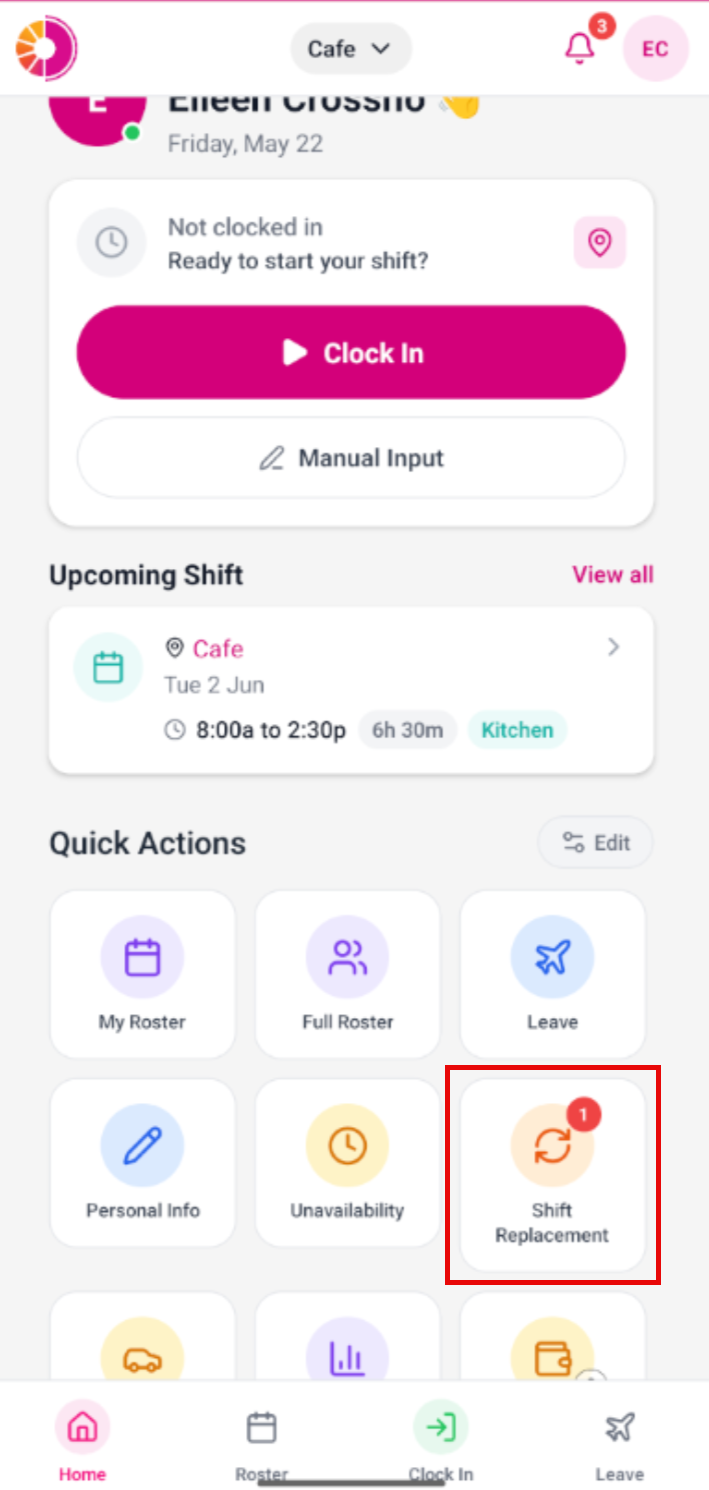
Use Shift Replacement to exchange a shift with another employee. Start a request from a shift in My Roster, or open Shift Replacement from the Home quick actions to review requests sent to you.
Request a shift replacement (no manager approval)
If your employer does not require manager approval for swaps:
- Open the shift from My Roster.
- Select the shift replacement option.
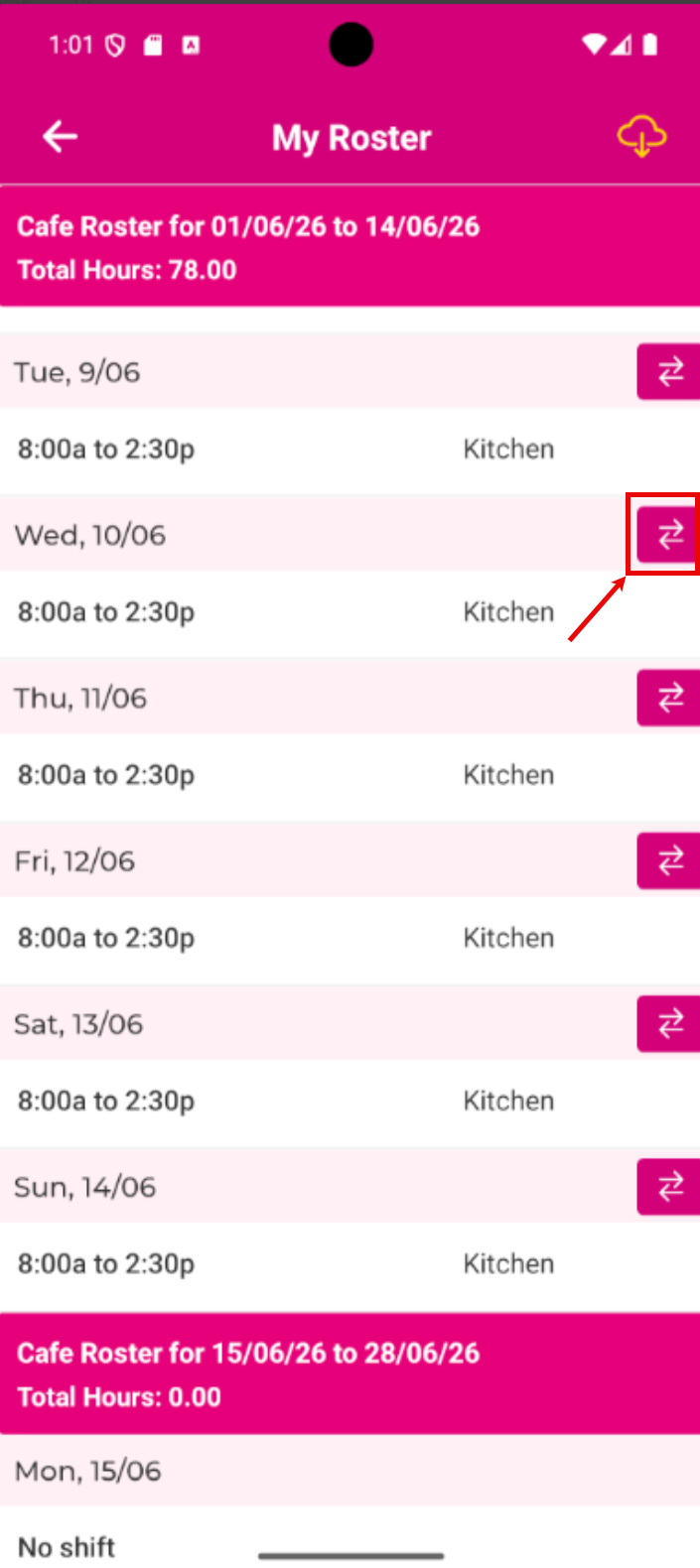
- Review your shift summary.
- Search for available employees.
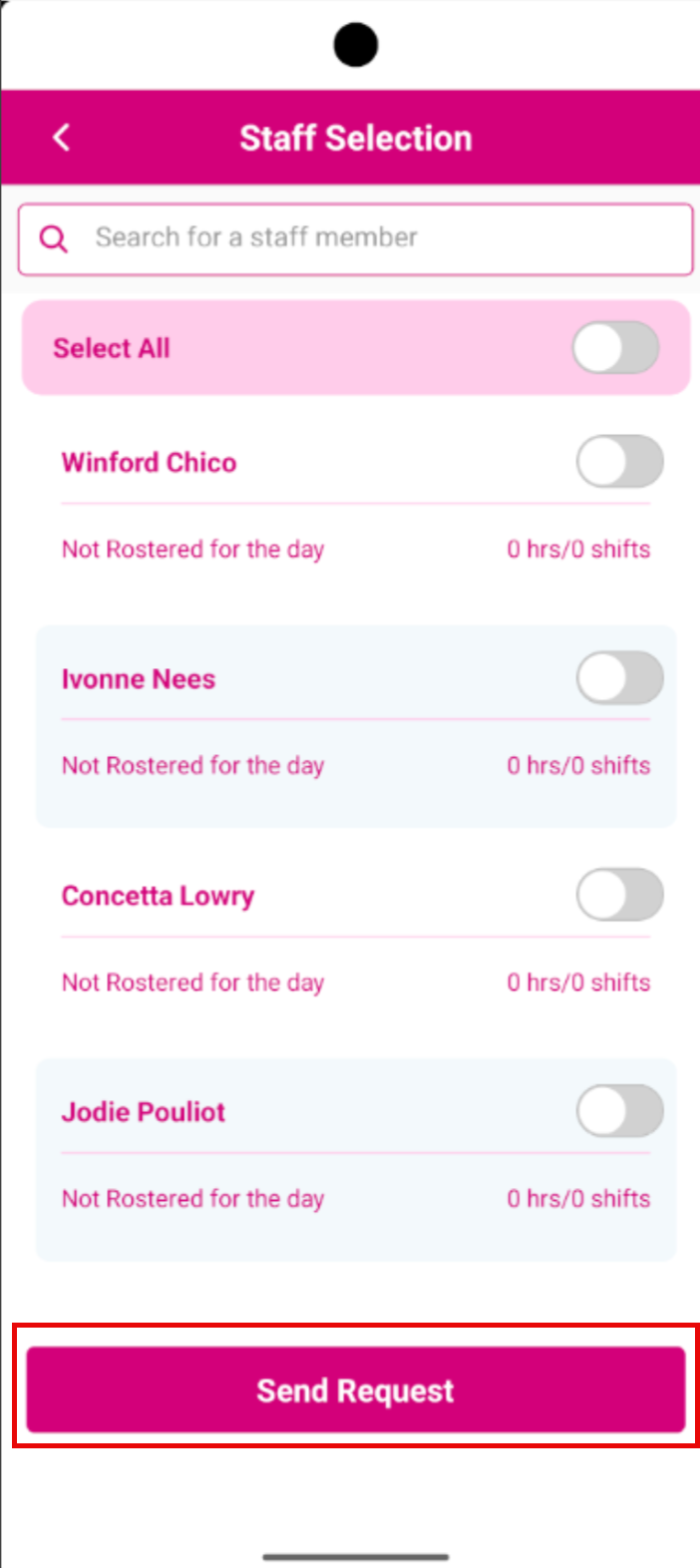
- Select one or more employees.
- Tap Send Request.
- Add request details if needed.
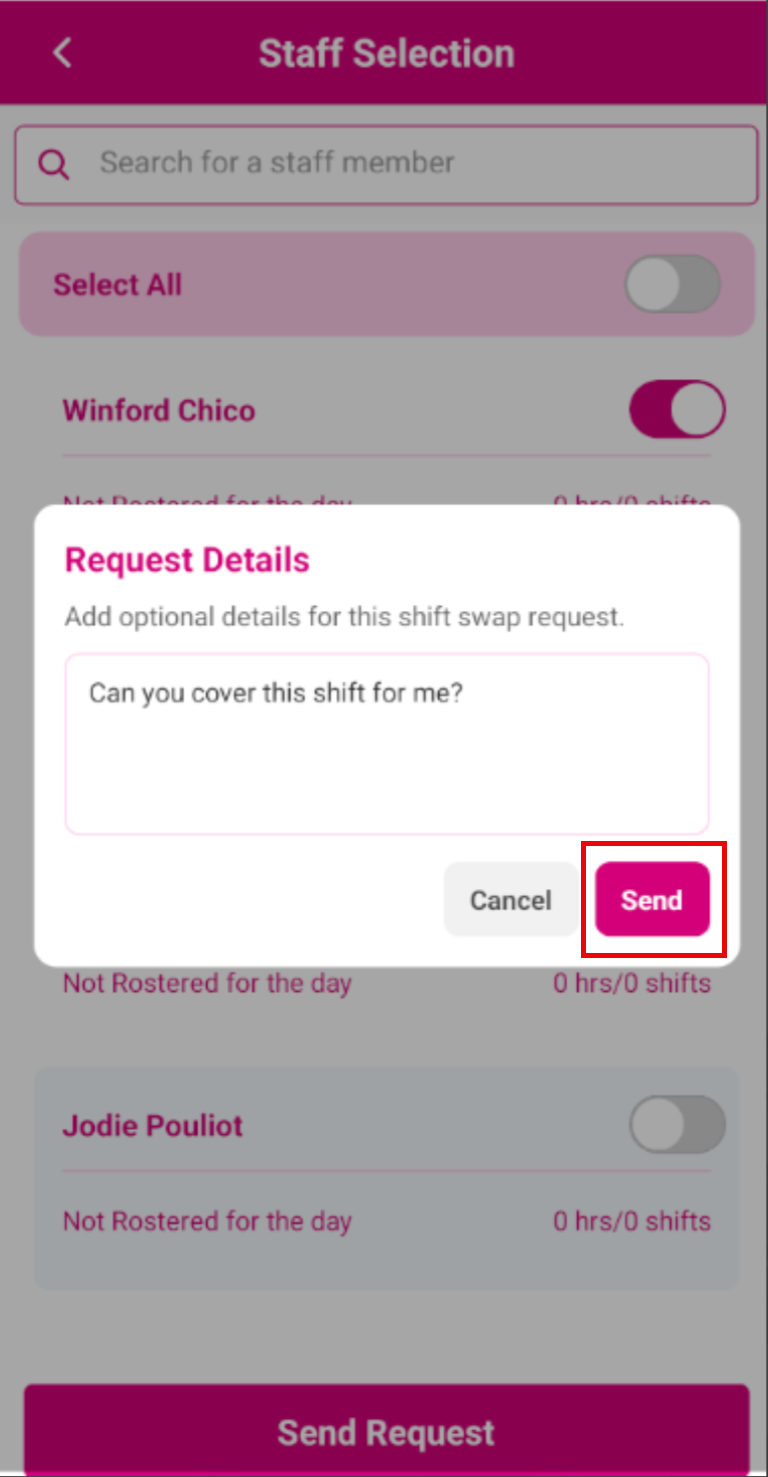
- Tap Send.
Request a shift replacement (manager approval required)
If your employer requires manager approval for swaps:
- Open the shift from My Roster.
- Select the shift replacement option.
- Review your shift summary.
- Edit the default message if needed.
- Send the shift replacement request.
- Your manager receives the request.
- Your manager selects an employee to work the shift and taps Send Request.
- The selected employee receives your request and can approve or decline it.
- If approved, the shift is reassigned to the new employee.
- If declined, you keep the shift.
- You and your manager receive a status notification (approved or declined).
Respond to a replacement request sent to you
If another employee sends you a swap request:
-
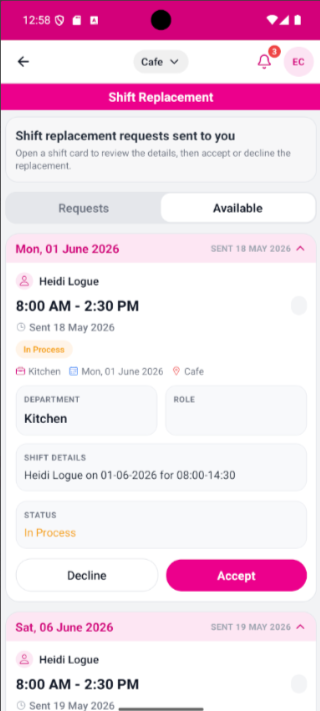
Open Shift Replacement from the quick action.
-
Tap the Available tab.
-
This displays all available shift replacement requests sent to you.
-
Tap any shift to expand the request card.
-
Review the date, time, role, location, and notes.
-
Tap Accept or Decline.
Track requests you have sent
To view the status of shift replacement requests you sent:
- Open Shift Replacement from Home.
- Tap the Request tab.
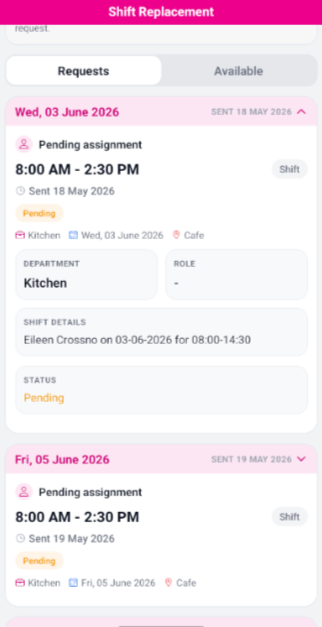
- This displays all shift replacement requests you sent.
- Tap any shift to expand the request card.
- Review the status: Pending, In Progress, Rejected, or Accepted.
- You can Cancel or Resend a shift.