
Getting Started
1 min read
Getting Started
This article covers manager sign-in basics and what is available on the manager Home screen.
Open the manager Home screen
After you sign in, open the Manager tab on Home.
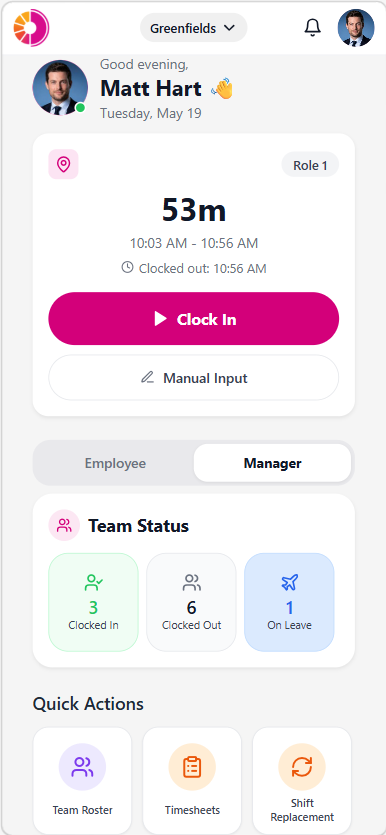
The Home screen lets you switch between:
- Employee for personal tasks, such as your own roster or leave.
- Manager for team status, team roster, and timesheet actions.
Review manager quick actions
Manager quick actions can include:
- Team Roster
- Timesheets
- Shift Replacement
- Messages
Visible actions depend on your site permissions and portal configuration.
Use the top header controls
From the header, you can:
- Open the Staff Portal from the Wageloch logo.
- Switch sites if your account has multi-site access.
- Open notifications.
- Open your profile settings.
For employee profile editing steps, see My Profile.