
User permissions
3 min read
User permissions
Use this guide when creating or updating user permissions in Settings > Security.
Permissions are applied per site and are additive, so each enabled option expands what a user can view or do.
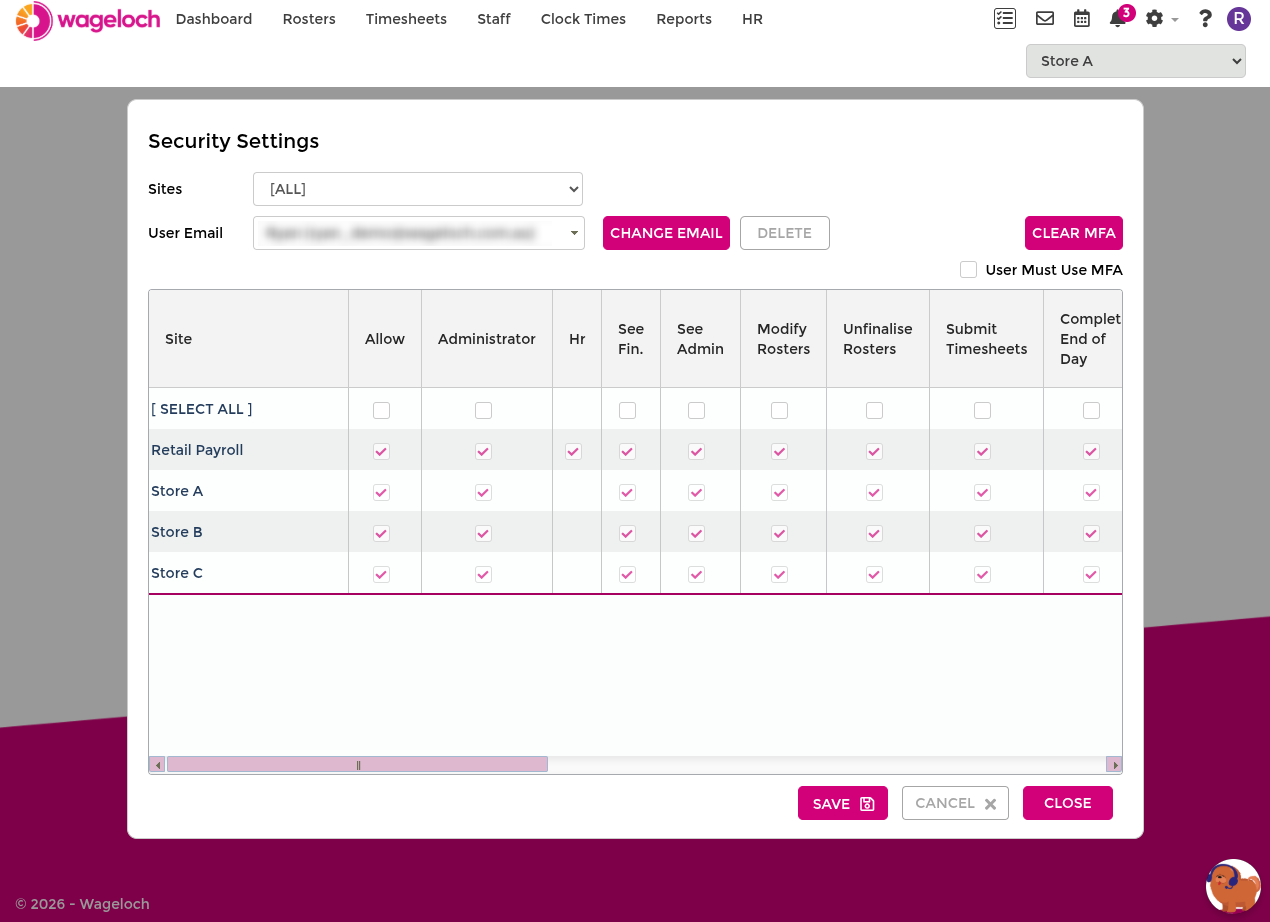
Core access permissions
These permissions control general access:
- Allow: Enables login access to the site for the user account.
- Admin: Grants broad administrative rights across the site.
- HR: Grants Wageloch HR module access (where enabled). Enabling this automatically enables the two permissions below.
- HR - Modify Documents: Allows creating, editing, and deleting HR documents such as contracts and policies. Disable for read-only access.
- HR - Modify Onboarding: Allows creating, editing, and deleting onboarding workflows, custom fields, and custom placeholders. Disable for read-only access.
- Payroll: Grants Wageloch Payroll module access (where enabled).
- See Fin.: Allows visibility of financial values such as rates, budgets, and costs.
- See Admin: Controls access to selected admin-facing financial information.
See Assign HR module permissions for the full breakdown of what each HR permission combination allows.
Roster and timesheet permissions
These permissions control scheduling and day-finalisation:
- Modify Rosters: Create, edit, and delete roster entries.
- Unfinalise Rosters: Re-open locked/finalised rosters where enabled.
- Submit Timesheets: Submit timesheets for processing or payroll export.
- Complete End of Day: Finalise timesheet days.
- Modify End of Day: Edit shifts in timesheet completion views.
- Review Confirmed Days: Unfinalise confirmed days when corrections are required.
INFO
For non-admin users who need timesheet finalisation access, enable Complete End of Day, Modify End of Day, and Review Confirmed Days together.
Staff, settings, and operational permissions
Common operational permissions include:
- Modify Staff List: View and manage staff records.
- Modify Clock: Add missing clock activity where allowed.
- Access Roster Settings: Change roster publishing, print, and behaviour settings.
- Access Timesheet Settings: Change timesheet setup and processing settings.
- Access Time Kiosk Settings: Manage kiosk configuration and registrations.
- Access Leave: Approve, decline, and manage leave requests and approvals.
- Assign Departments: Configure department assignments.
- Access Reports: Use reporting tools; financial visibility depends on See Fin..
- Show Sales: View tracked sales or gross profit values.
Cross-site and department-limited controls
For multi-site organisations, you may also see cross-site permissions such as roster or availability checks.
If a user should only manage selected teams, pair these permissions with department restrictions in Users and security.
Permission setup checklist
Check these points before saving user access changes:
- Confirm whether the user should be non-admin, admin, or super user.
- Enable only the minimum permissions needed for the role.
- Validate whether financial visibility is required.
- If needed, apply department restrictions.
- Save changes and ask the user to sign out/in.