
Public holiday settings
2 min read
Public holiday settings
Public Holiday settings control how holiday dates appear in Rosters, Timesheets, and the Leave Calendar.
Days flagged as public holidays are highlighted in a light magenta tone throughout scheduling and leave screens.
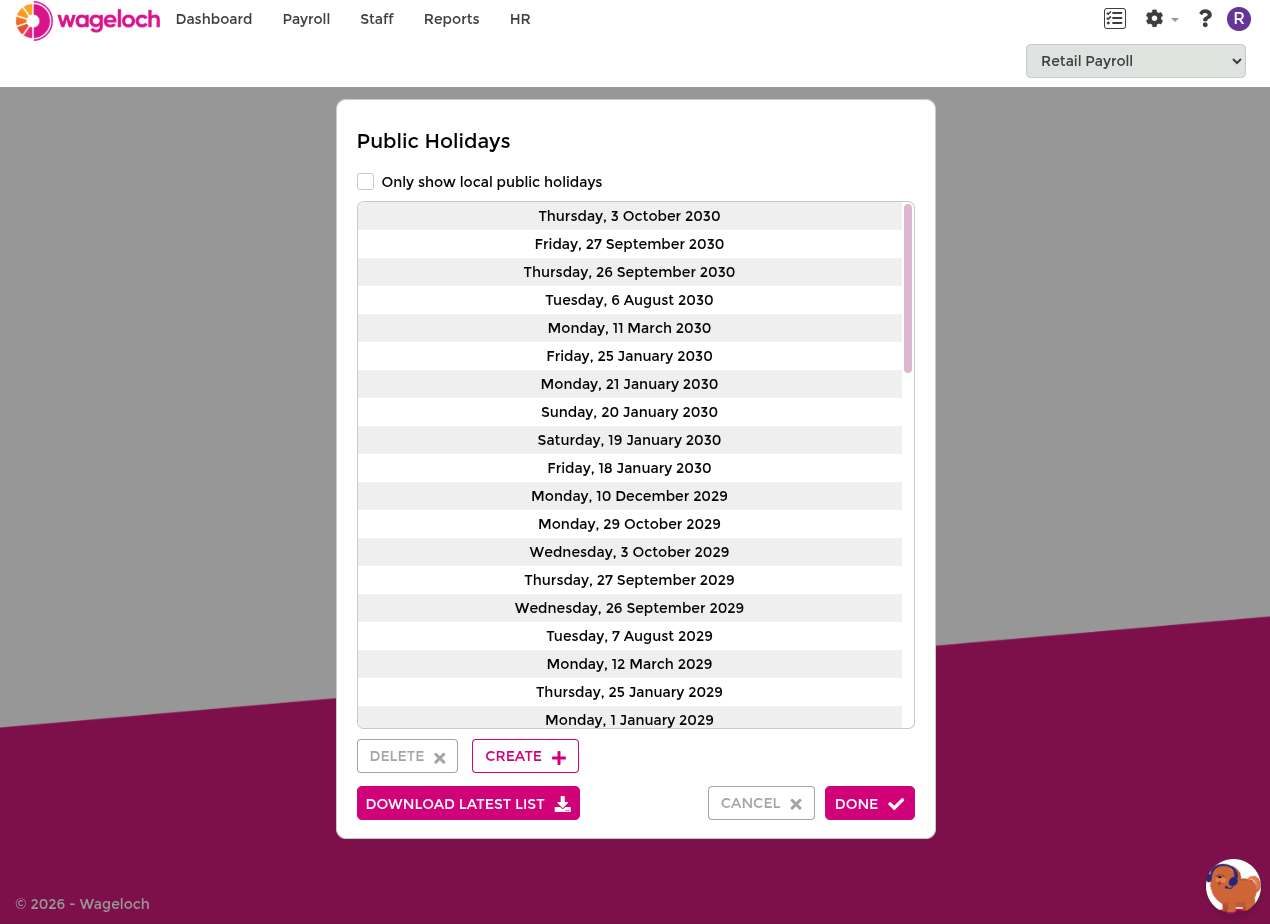
Accessing public holiday settings
- Click the Settings cog (top right).
- Select Public Holidays.
How public holiday pay behaviour works
Public holiday outcomes are driven by your award and payroll configuration.
Common behaviours include:
- Elevated penalty rates for worked public holiday shifts.
- Base-rate pay for eligible permanent staff who do not work that day.
- Use of a no-work public holiday role (for example
PHNoWork) to indicate paid-not-worked shifts.
INFO
PHNoWork means Public Holiday Not Worked. It is commonly used to make paid-not-worked public holiday shifts easy to identify in rosters and timesheets.
If you are unsure which option fits your setup, confirm the expected behaviour with your implementation manager or support contact before changing rules.
Download the latest public holiday list
Use this when a new year starts, when legislation changes, or when you want to refresh state-based dates.
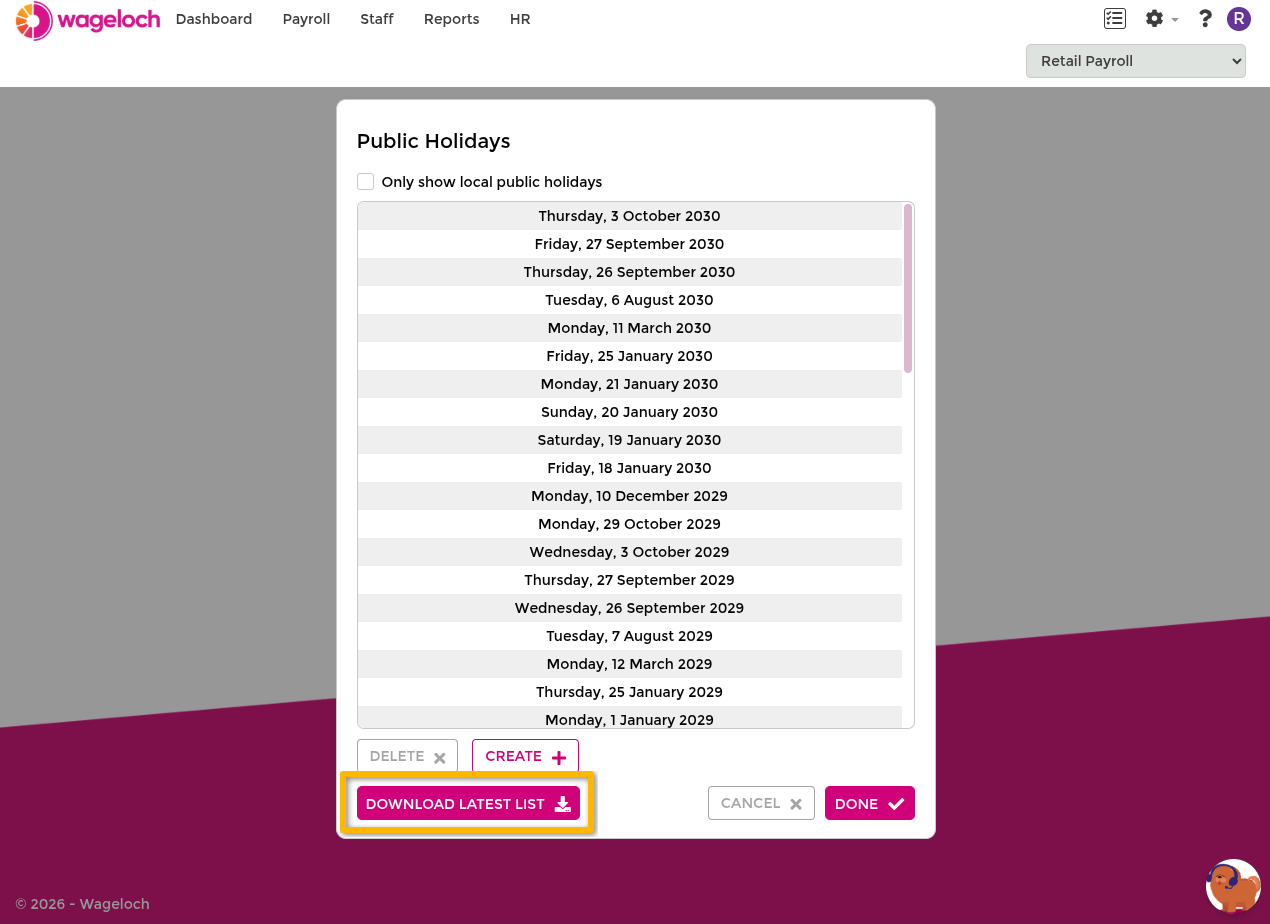
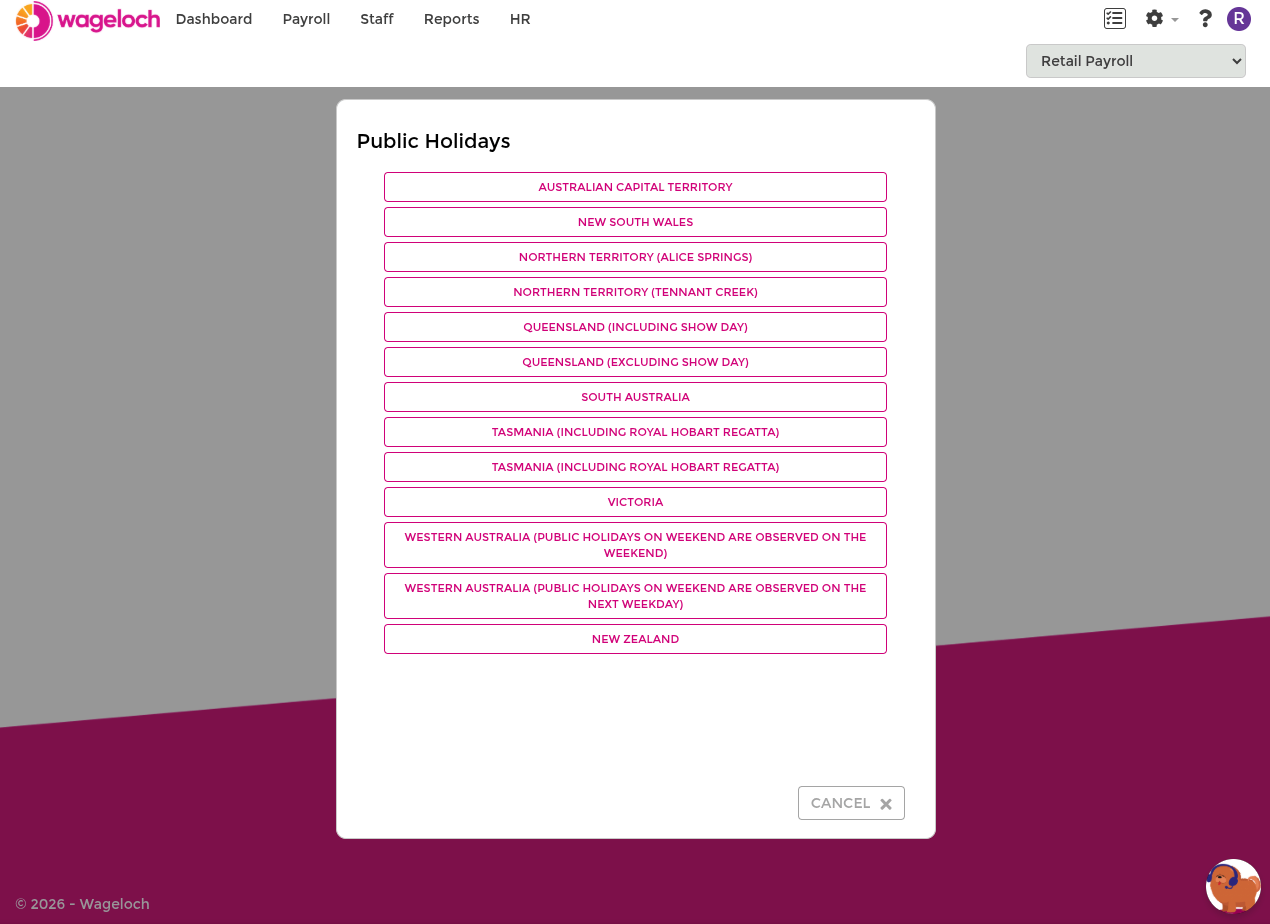
- Open Settings > Public Holidays.
- Click Download Latest List.
- Select the relevant state or region.
- Review the confirmation prompt, then click Done.
- Click OK on the save confirmation.
Create local public holidays
State-based lists may not include local or region-specific holidays, so you can add them manually.
Examples include regional show days, anniversary days, or one-off state declarations.
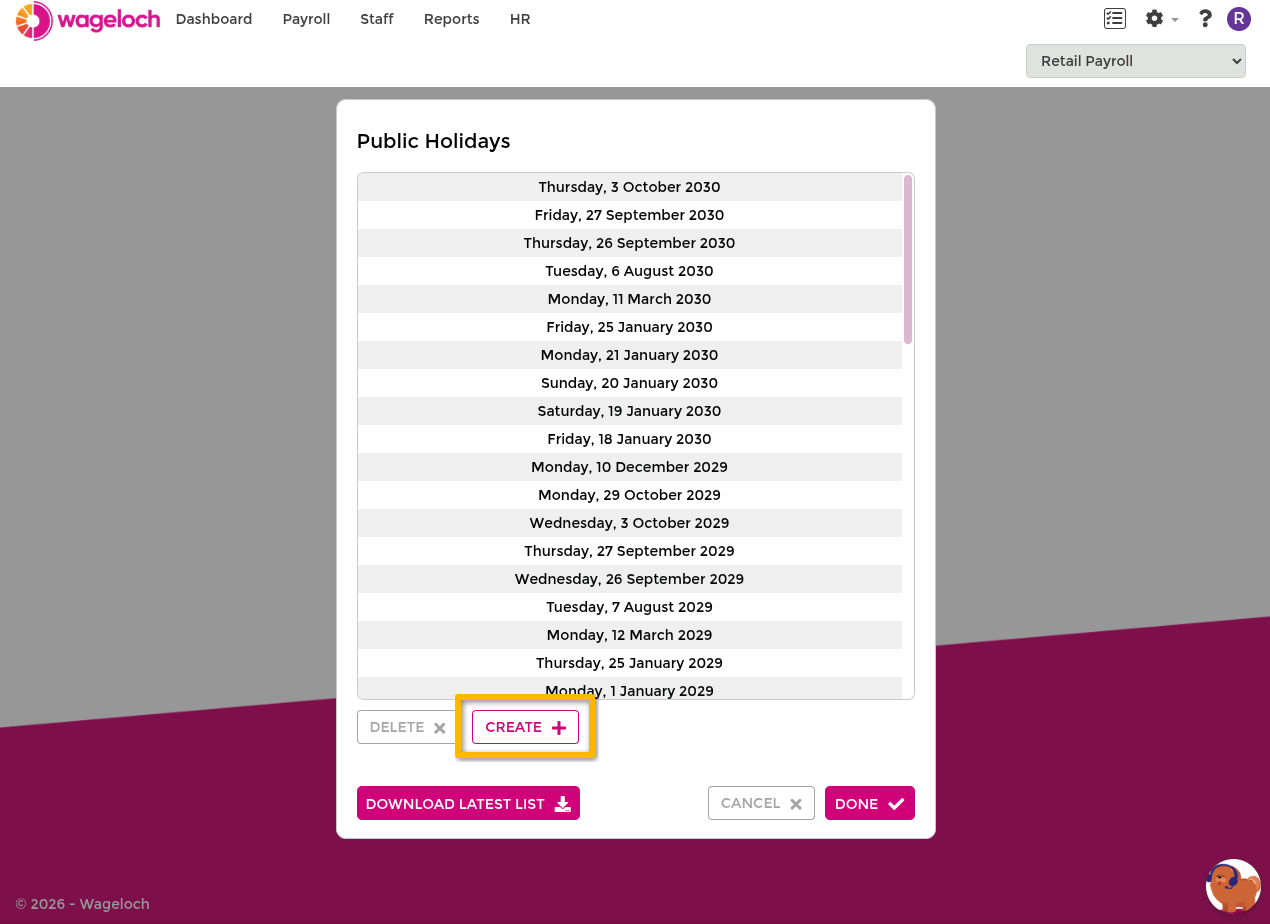
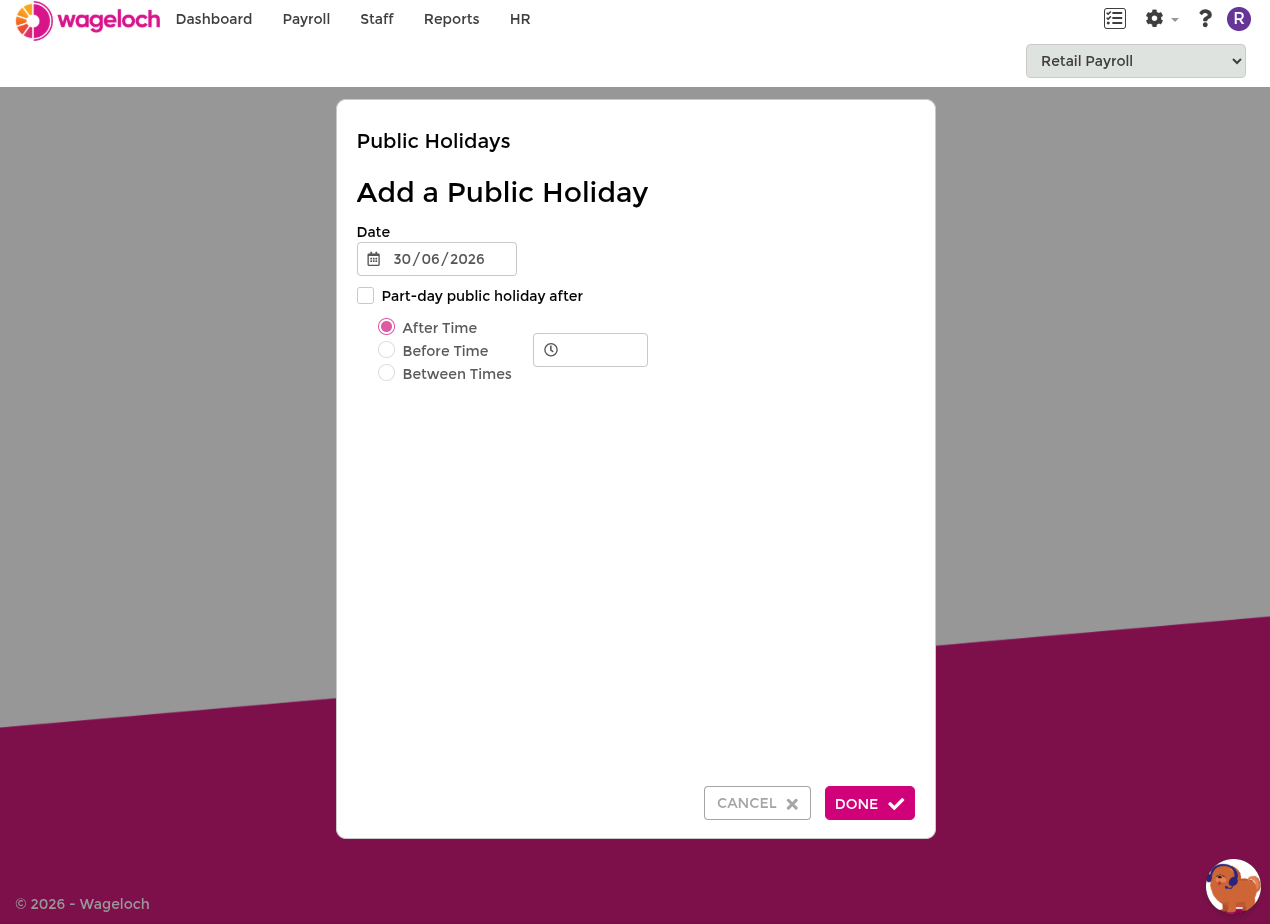
- Open Settings > Public Holidays.
- Click Create.
- Select the holiday date.
- Optional: mark as a part-day holiday:
- After: a specified time.
- Before: a specified time.
- Between: specified times.
- Click Done to save the new holiday.
Delete public holidays
Delete a holiday when it no longer applies to your site or was added in error.
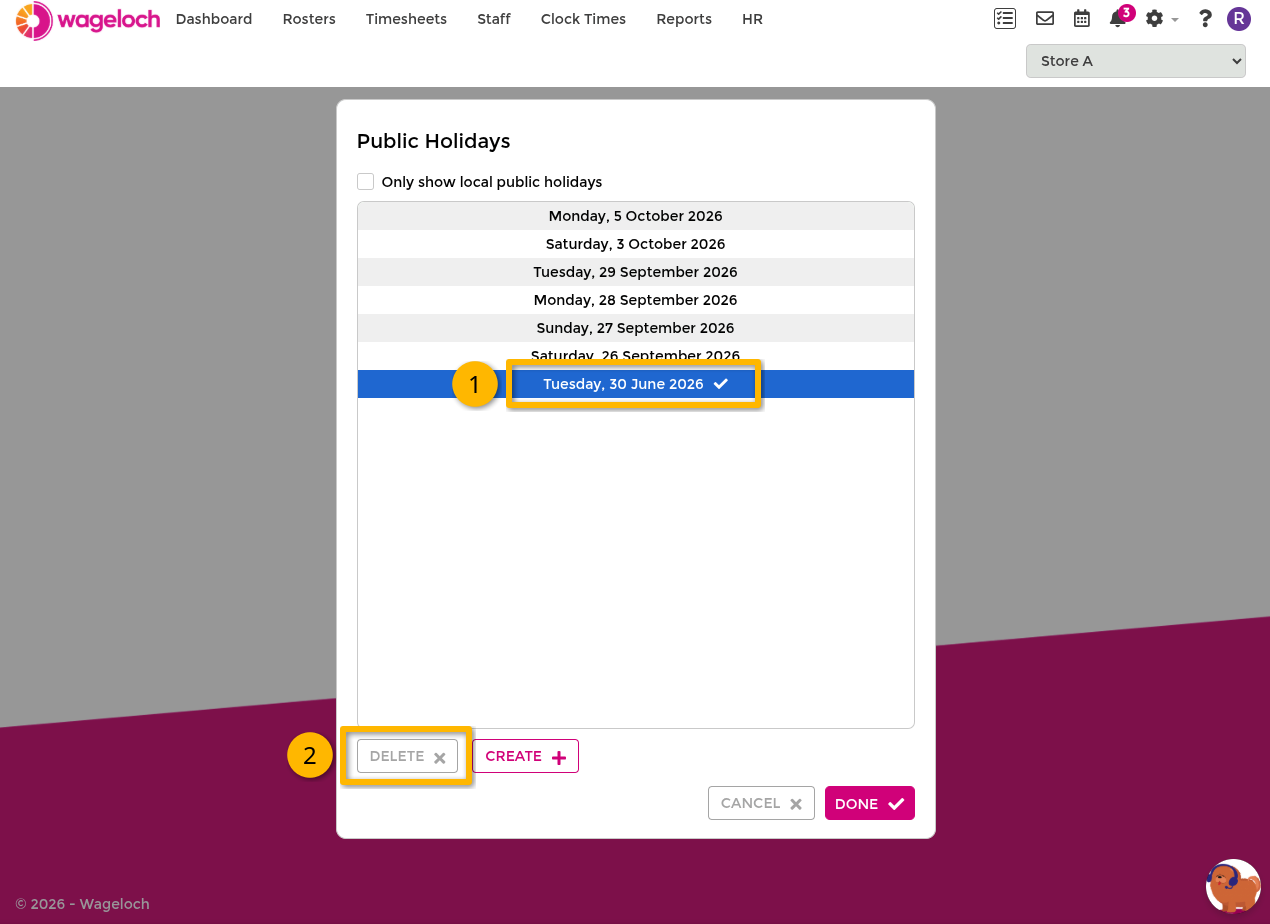
- Open Settings > Public Holidays.
- Select the holiday entry to remove.
- Click Delete.
- Confirm removal, then click Done to save.
After saving, removed dates will no longer be flagged as public holidays in rosters, timesheets, or leave views.