
Tasks
3 min read
Tasks
Use Tasks in the Manager tab to see what your team has to do, create new tasks and close tasks you have checked. Everything you do here appears straight away in the web app.
Before you start
- Log in to the Wageloch mobile app with a manager account and confirm you can see the Manager tab.
- The Org Chart assignment option is not available in the mobile app. To assign a task by org chart, use the web app.
- Assigning tasks to shifts and Photo Upload subtasks need Wageloch HR.
Review team tasks
-
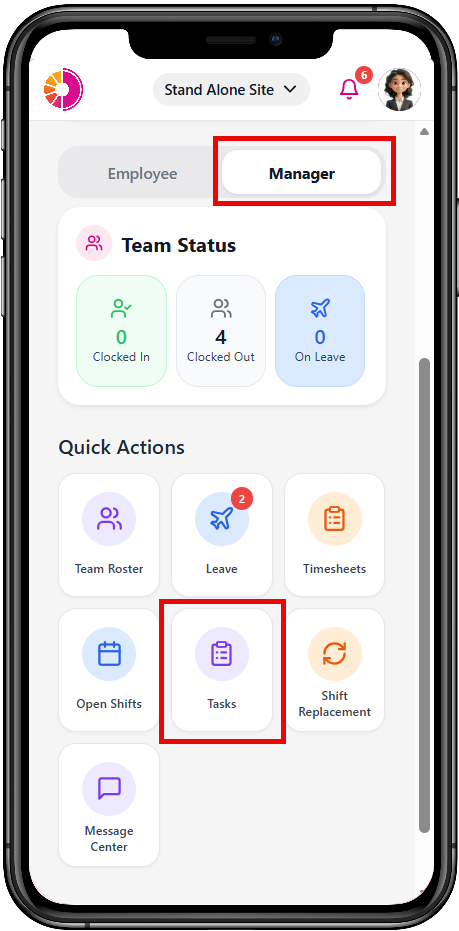
Open the Wageloch mobile app and select the Manager tab.
-
Under Quick Actions, select Tasks.
-
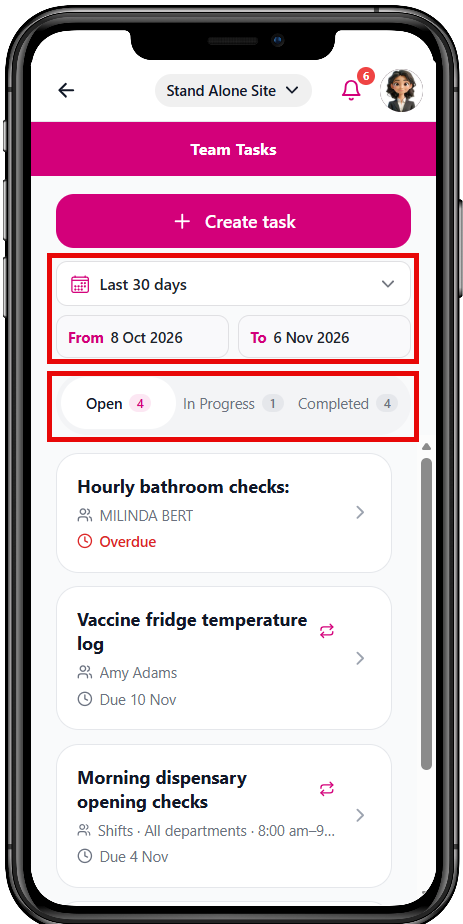
At the top of Team Tasks, choose the period. Pick a range such as Last 7 days or Last 30 days, or select your own dates.
-
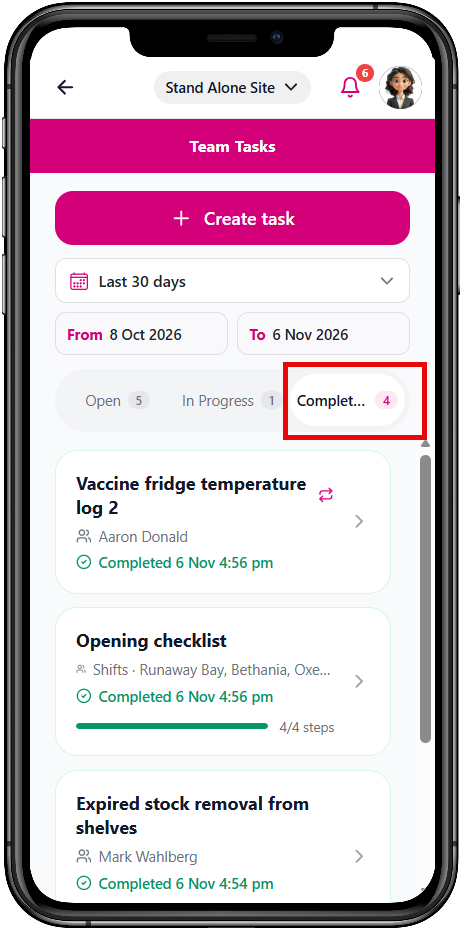
Select Open, In Progress or Completed. The date range applies to all three.
-
Select a task to see its details and subtask progress.
Tasks show in list view by default. Uploaded photos show a preview and who uploaded them. Select a photo to download it.
Create a task
-
In Team Tasks, select Create task.
-
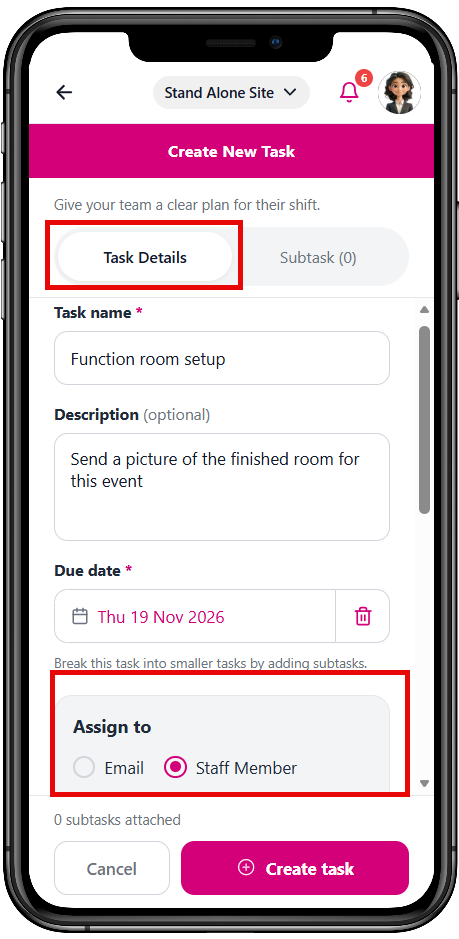
On the Task Details tab, enter the task name and a description if needed.
-
Set the due date.
-
Under Assign to, choose Email, Staff Member or Shifts.
-
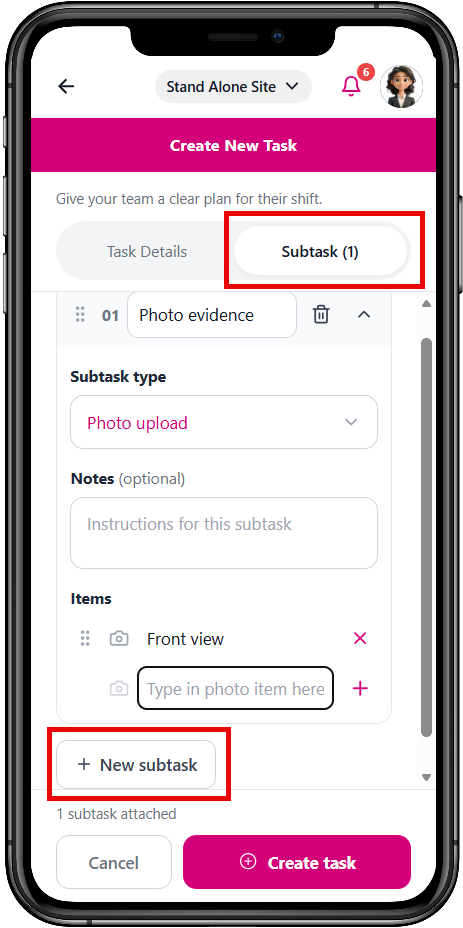
Optional: to add subtasks, select the subtask tab. Type each item and press Enter. Wageloch saves an item you typed when you create the task.
-
Optional: turn on Notifications, Escalation or Recurring. Their fields appear only when turned on.
-
Select Create task.
Manage a task
Open a task to use these actions:
- Edit: Change the task.
- Duplicate: Create a copy, for example to give a partly completed task to a different employee.
- Delete: Remove the task.
- Mark as Complete: Close a task you have checked yourself, even if the employee did not tick it off.
TIP
To move a partly completed task to someone else, duplicate it, assign the copy to the new employee, then mark the original as complete.
Troubleshooting
A task is missing from the list. Check the date range and the status filter. Check that you are on the correct site.
You cannot assign a task by org chart. The Org Chart option is not in the mobile app. Use the web app.
For setting up shift tasks and the full list of options, see Tasks in the web app. To see what employees see, see Tasks for employees.