
Open Shifts
1 min read
Open Shifts
When employees decline an open shift or no eligible employees accept, the shift stays open. Use Open Shifts from the manager view to review pending requests and assign shifts or cancel them.
Review pending open shifts
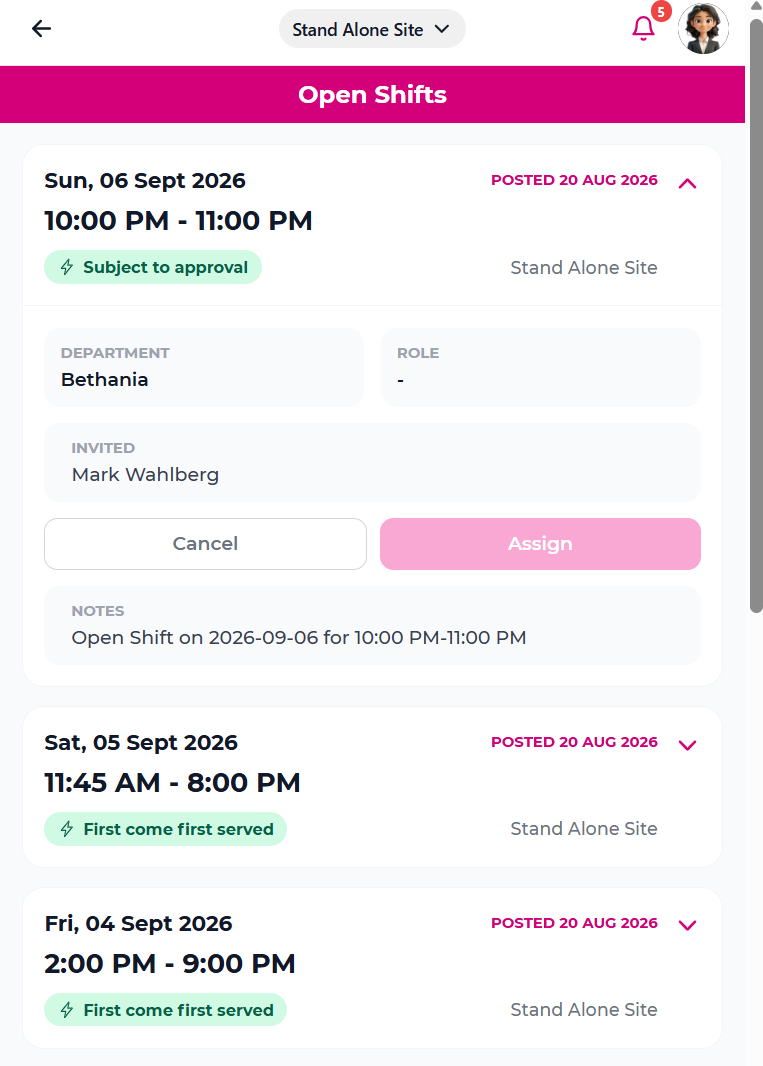
In Open Shifts, you can:
- See all shifts awaiting action.
- Check which shifts are Subject to approval (require your approval before the employee assignment is final) and which are First come first served (assigned immediately when accepted).
- View shift details: date, time, department, role, invited employees, and any notes.
Pending shifts remain in the list while they are awaiting your approval or employee action. Once a shift has been accepted and processed, it no longer appears in the pending list.
Assign or cancel a shift
- Open a pending shift request.
- Tap Assign to select and send the shift to an eligible employee, or tap Cancel to withdraw the request.
If you assign the shift, it goes to the invited employee. If the shift was marked Subject to approval, approval is required before the assignment is complete.