
Users and security
3 min read
Users and security
Use this area to manage user access, control permissions, and restrict what non-admin users can see across rosters, timesheets, staff data, and settings.
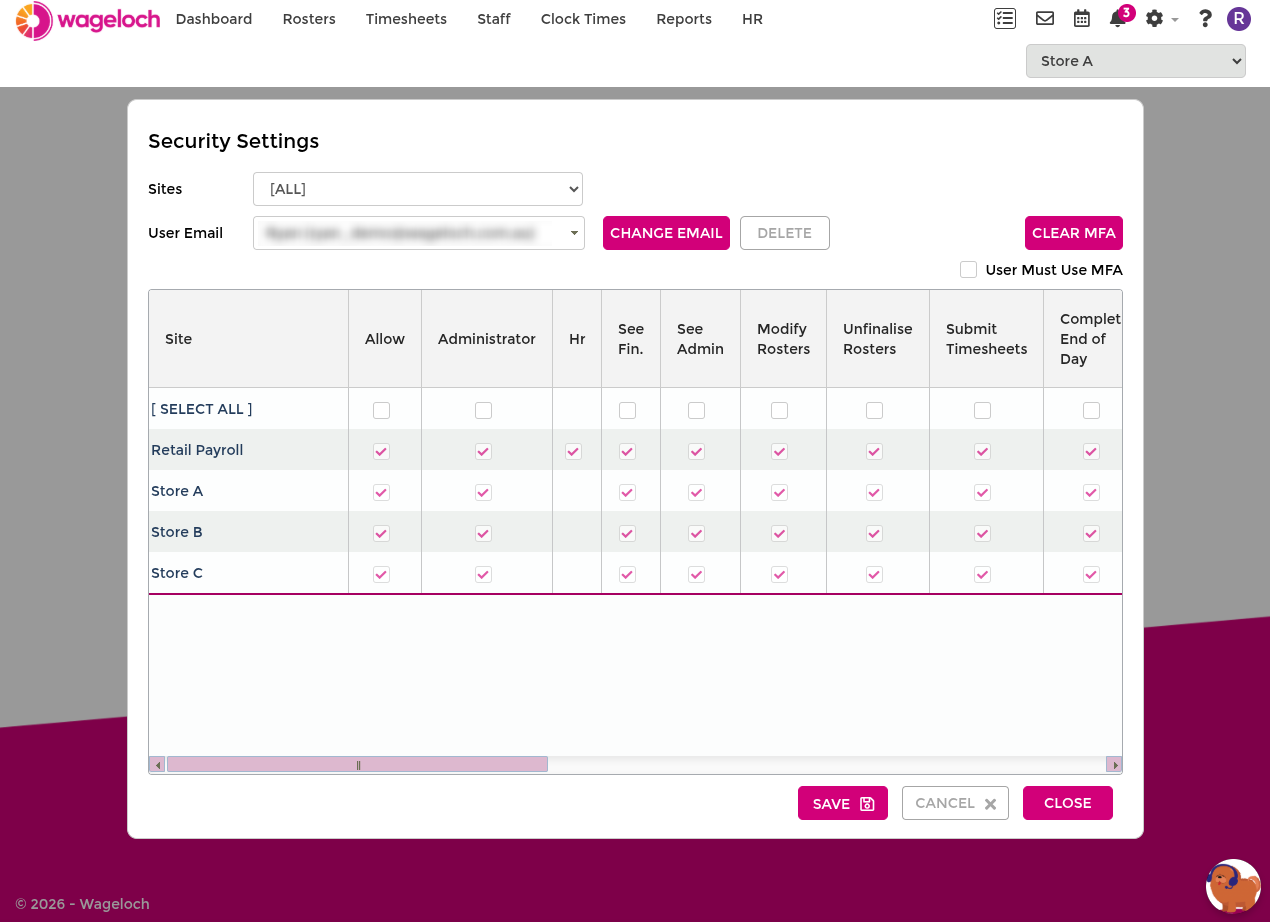
Accessing users and security
- Click the Settings cog (top right).
- Select Security.
User access levels
Wageloch supports three user levels:
- Super User (created by Wageloch):
- Full access to the site.
- Can create, edit, and delete admin and non-admin users.
- Cannot create, edit, or delete other super users.
- Admin User (created by Wageloch or super users):
- Broad admin access to settings and approval processes.
- Can create, edit, and delete non-admin users.
- Cannot manage super users or other admin users.
- Non-Admin User (created by super users or admin users):
- Access is permission-driven and can be highly restricted.
- Cannot create, edit, or delete users.
Permission controls
Permission setup can become detailed quickly, especially when different managers need different access combinations.
See User Permissions for a dedicated breakdown of the permission grid, common permission groups, and non-admin timesheet-finalisation recommendations.
Adding a new user
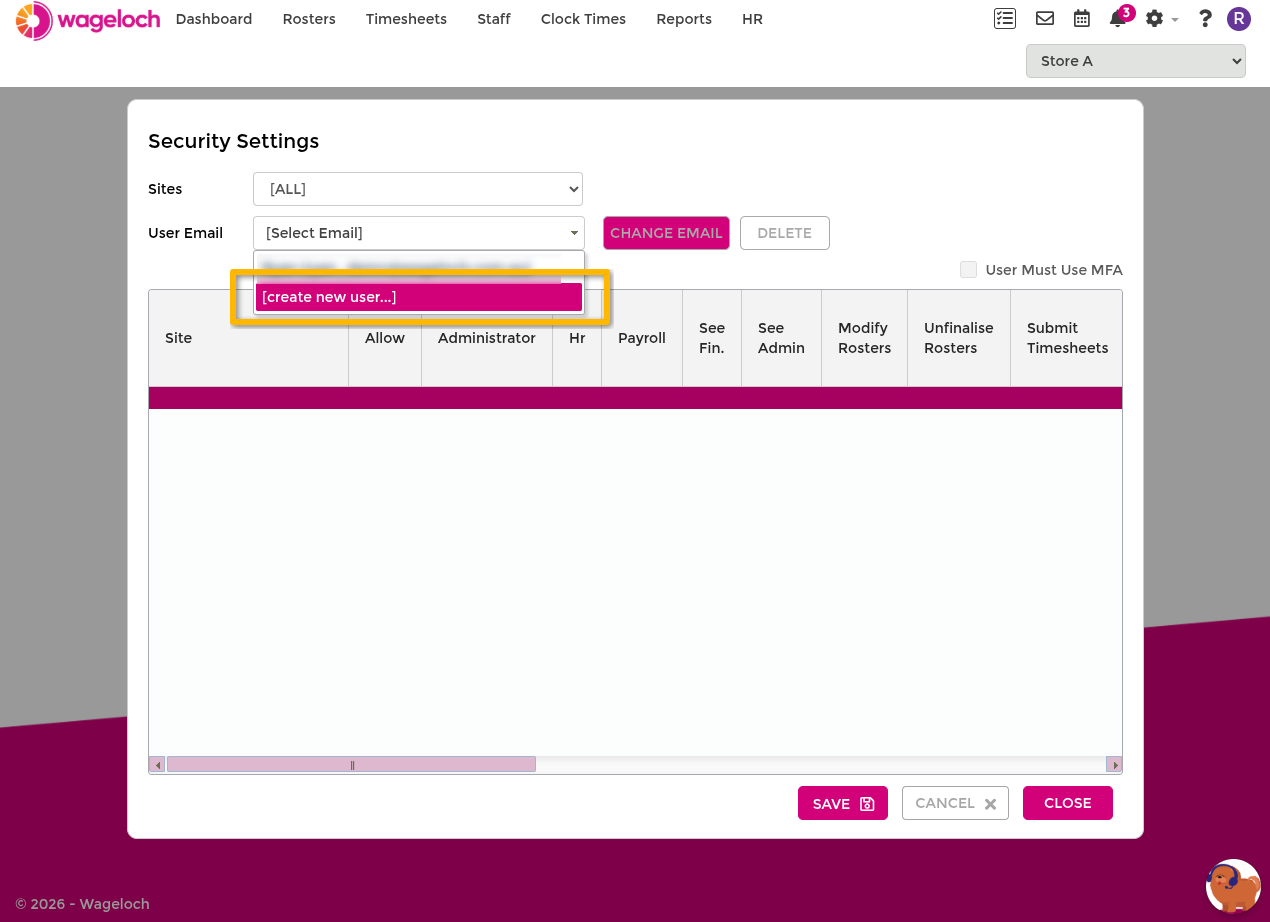
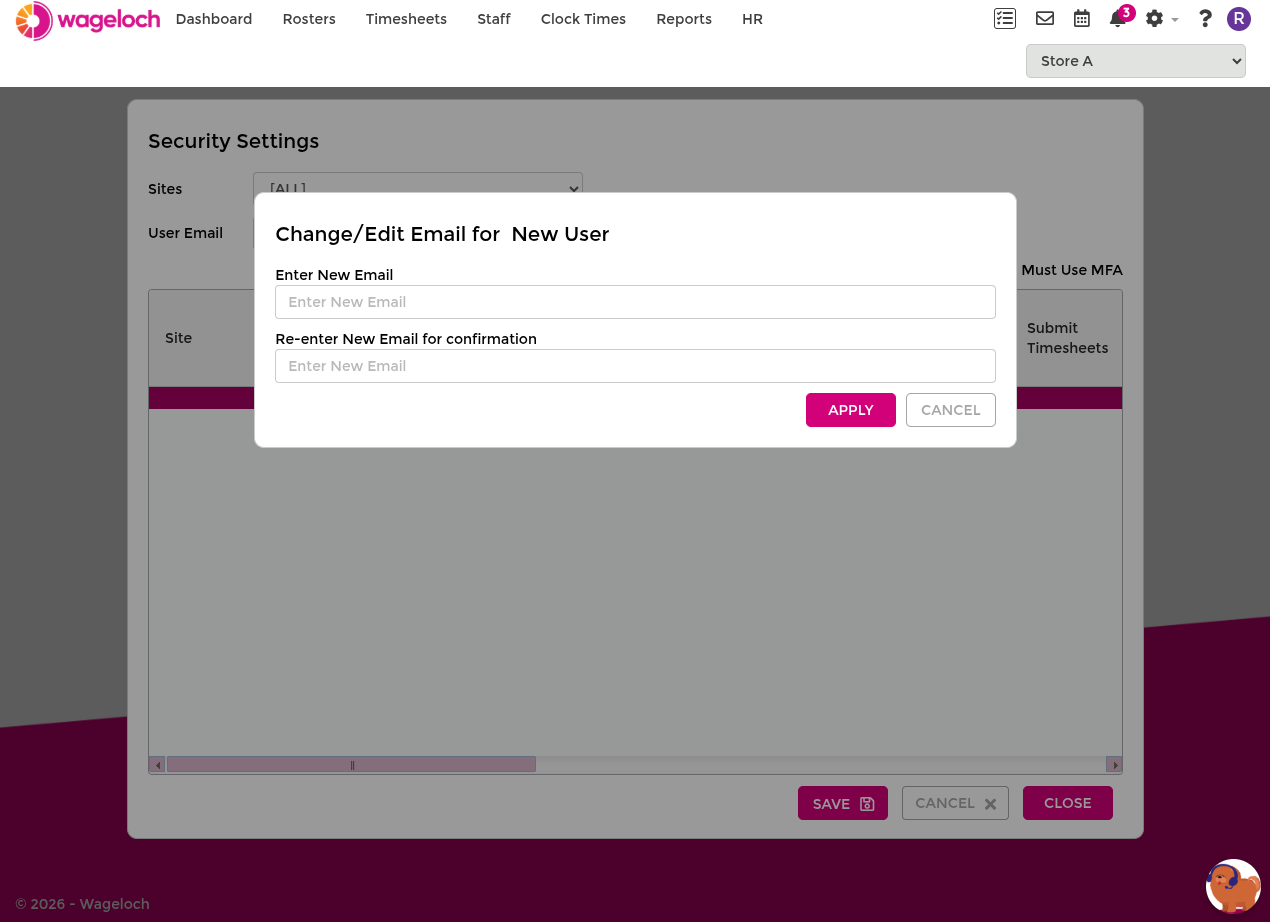
- Open Settings > Security.
- In User Email, select [create new user...].
- Enter the new email address twice and click Apply.
- Set the required permissions.
- Click Save.
Editing users and changing email
- Open Settings > Security.
- Select the user from User Email.
- Update permissions, then click Save.
- Ask the user to sign out and back in so changes apply.
To change an email address without changing permissions:
- Select the user from User Email.
- Click Change Email.
- Enter the new email address twice and click Apply.
INFO
Admin users can edit non-admin users only. Super users can edit admin and non-admin users, but not other super users.
Department restrictions
Department restrictions are useful for line managers who should only see specific teams.
This feature is available for non-admin users only.
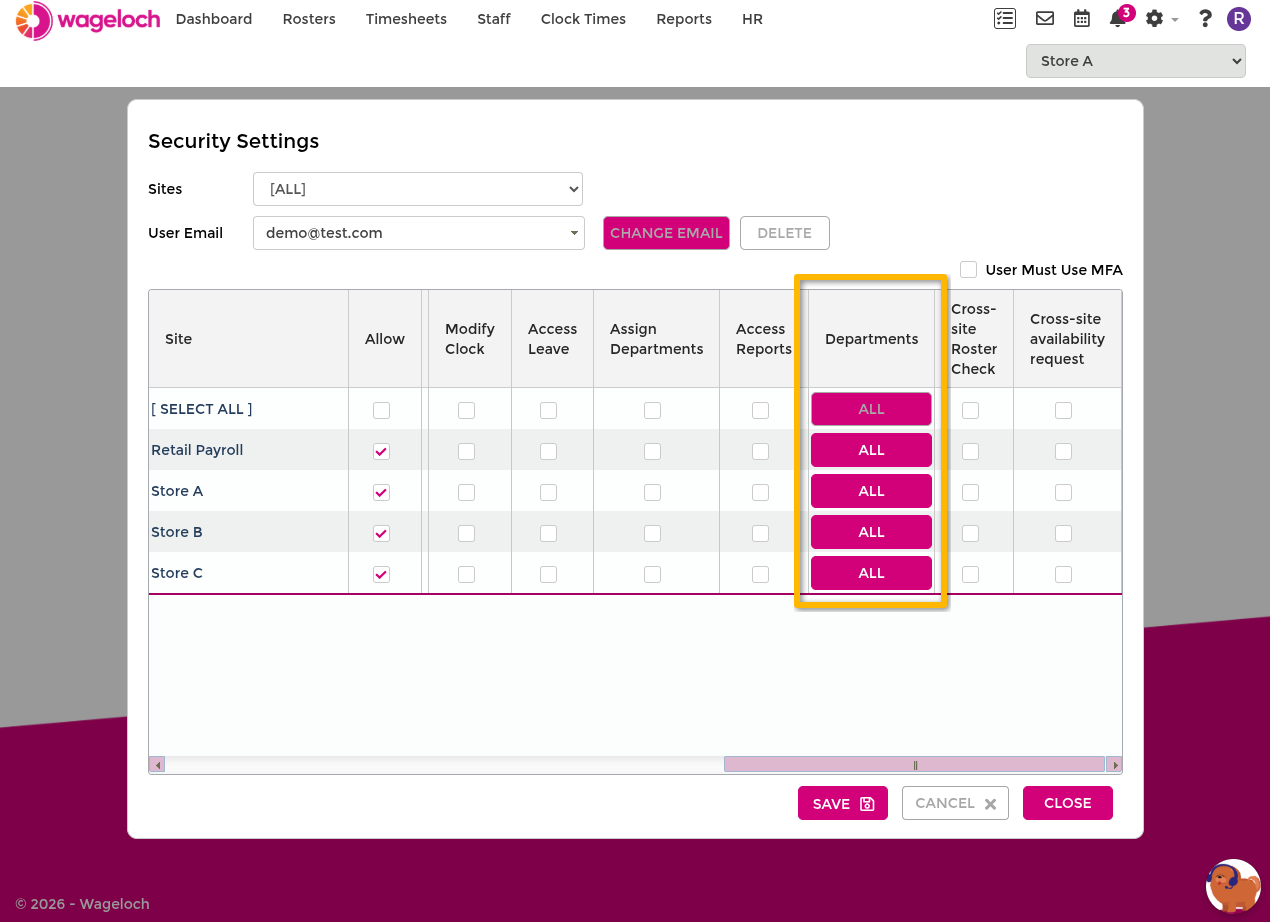
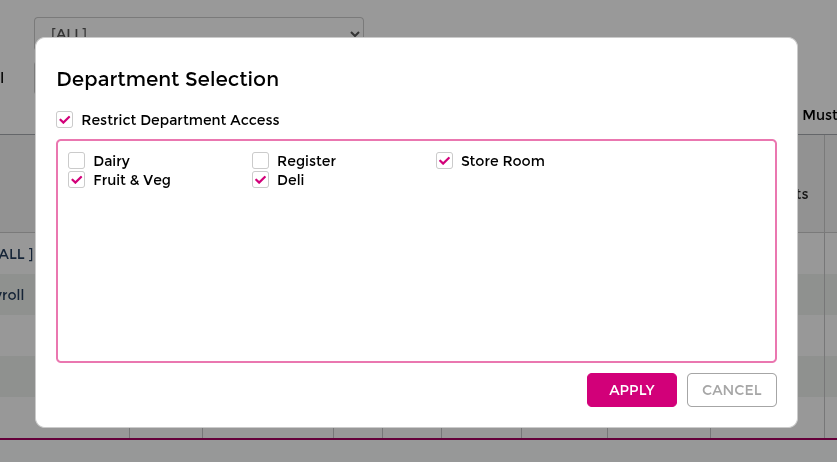
- Open Settings > Security.
- Create or select a non-admin user.
- Ensure Admin is unticked.
- In the Departments column, click ALL.
- Enable Restrict Departments and select allowed departments.
- Click Done, then Save.
For department setup guidance, see Departments.
Deleting a user
- Open Settings > Security.
- Select the user from User Email.
- Click Delete and confirm.
- Click Close.
INFO
Admin users can delete non-admin users only. Super users can delete admin and non-admin users, but not other super users.
User permissions
Understand the security permission grid and choose safe access combinations for each user type.
Setting passwords
Set or reset your Wageloch password securely using the Forgot Password process.
Multifactor authentication
Set up multi-factor authentication (MFA) in Wageloch to improve account security and reduce unauthorised access risk.
Audit
Use Audit to verify who made the latest change to staff cards, rosters, and timesheets.