
Leave
1 min read
Leave
Open Leave to submit leave requests and review existing leave records.
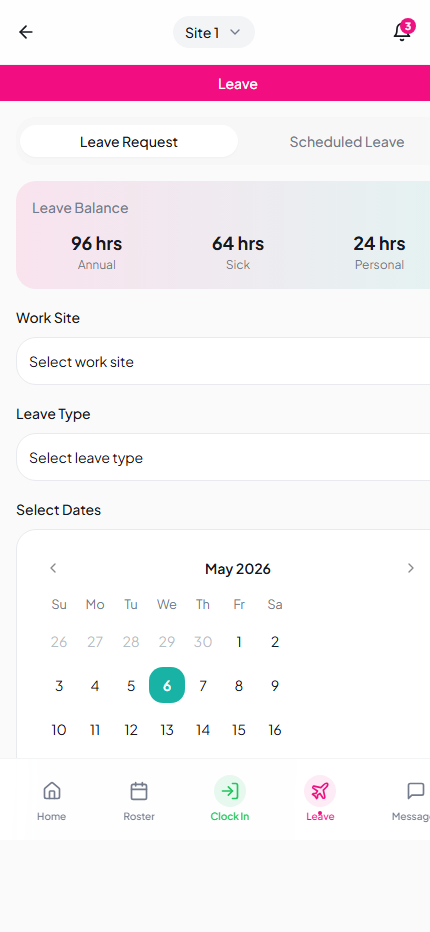
There are two tabs: Leave Request and Scheduled Leave.
Submit a leave request
- Open Leave.
- Choose your work site (if enabled).
- Choose a leave type.
- Select the requested date or date range.
- Turn on Part Day Request if needed.
- Tap Submit Leave Request.
- Add comments if required.
Attach evidence to a leave request
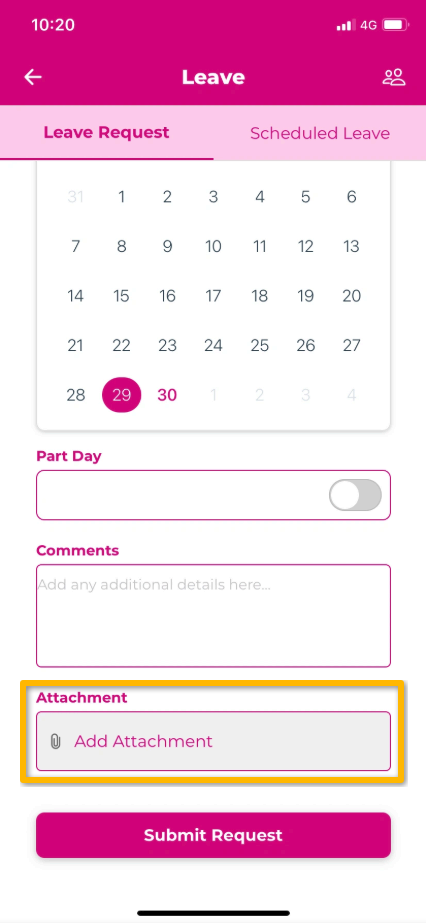
If your employer requires supporting documentation — for example, a medical certificate — attach it before submitting the request.
- On the leave request screen, enter any relevant comments.
- Tap Add Attachment.
- Select Take Photo to use your device camera, or Attach File to upload from your device.
- Confirm the attachment appears on the request.
- Tap Submit Request.
INFO
Grant camera or file access when your device prompts you. Supported formats are JPEG, PNG, and PDF.
Your manager receives an email notification that includes a copy of the attachment.
Review scheduled leave
Open the Scheduled Leave tab to review your pending, approved, and declined leave entries.