
Message Centre
2 min read
Message Centre
Message Centre helps you send operational updates to staff from one place.
You can send messages through:
- SMS
- Clock Notes
- Push Notifications
Before you start
- Confirm staff contact details are current in Staff Information.
- Confirm the required features are enabled for your account.
- For SMS activation, contact Wageloch Helpdesk.
Common workflow
- Sign in to Wageloch.
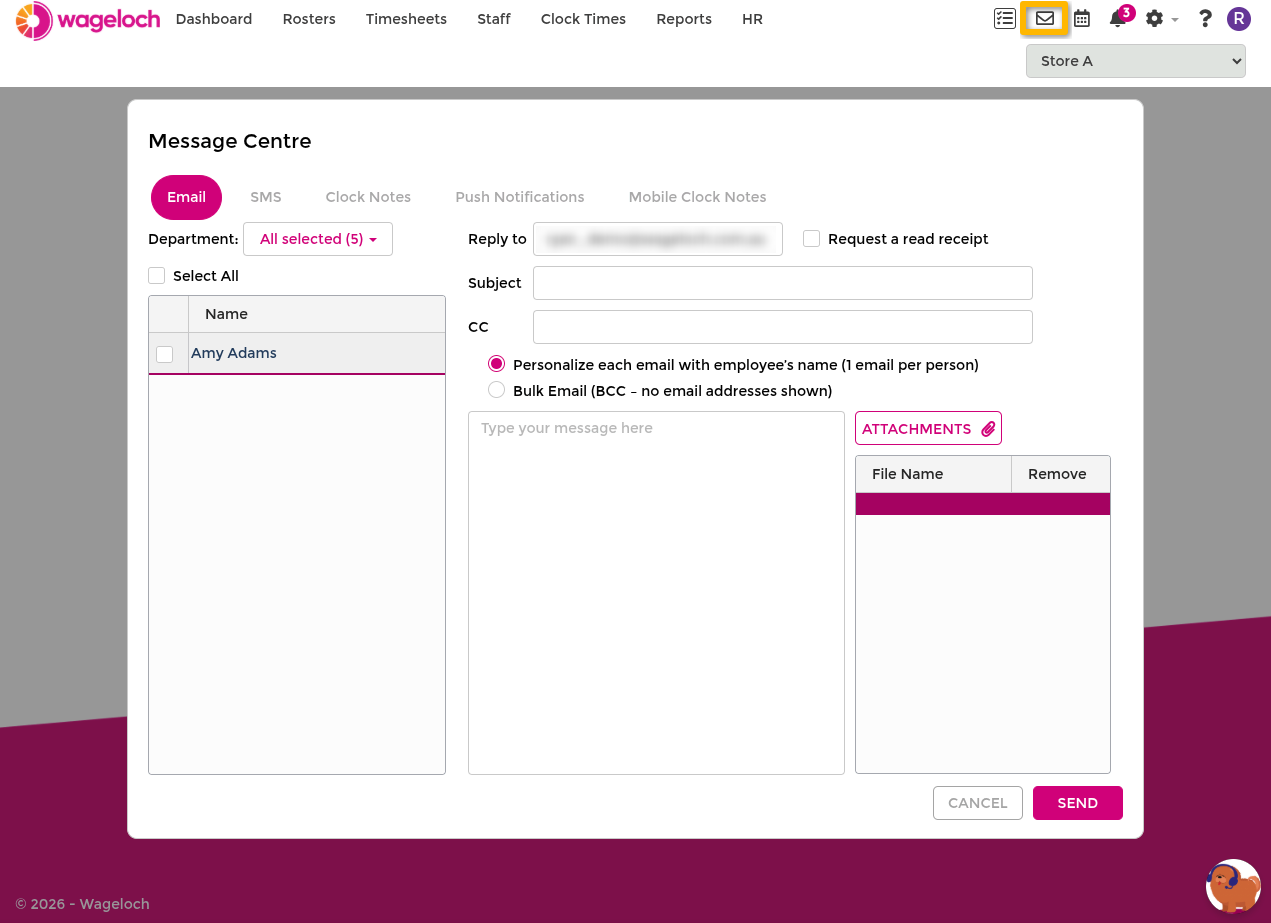
- Select the Message Centre icon (envelope) in the top-right corner.
- Choose the message channel: Email, SMS, Clock Notes, or Push Notifications.
- Select recipients (individual staff, multiple staff members, or departments where available).
- Enter your message details.
- Review and send.
Use Email for detailed updates, policy notices, and messages that may need attachments.
- Staff must have a valid email address in their staff profile.
- You can send to one person, selected staff, or department groups.
- You can enable read receipts, but some email providers may not return them.
- Attachments are limited to 10 MB per email.
INFO
To keep a copy of broadcast emails, include your own address in recipients.
SMS
- SMS is disabled by default and must be enabled by Helpdesk.
- Use SMS for urgent short-form updates.
- Keep wording concise so key details are visible in one message.
Clock Notes
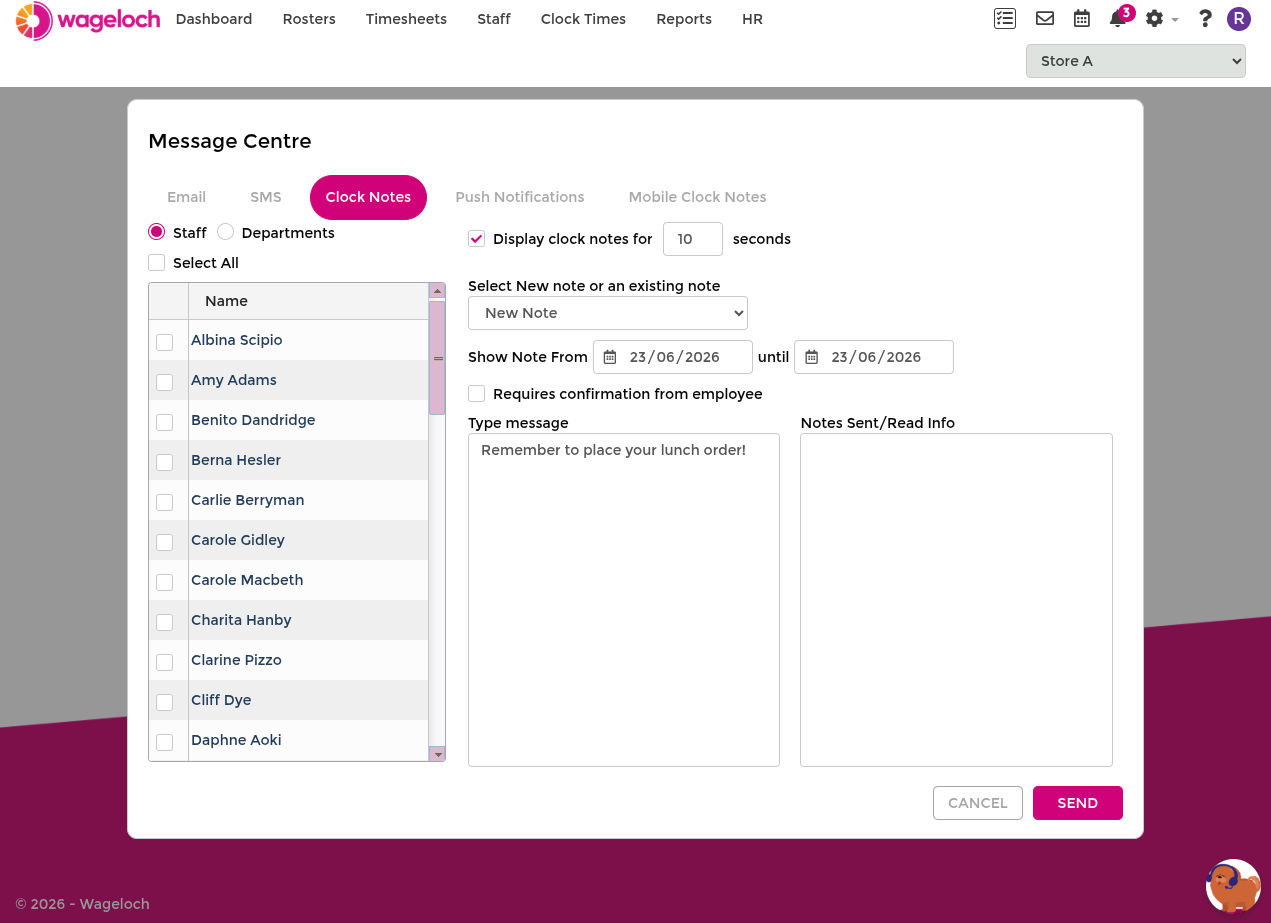
- Clock Notes display to employees when they clock in.
- This is useful for short operational reminders at shift start.
- Clock Notes are available for Time Kiosk (Windows PC) and Mobile App.
Push Notifications
- Push notifications send directly to staff using the Mobile App.
- Use push notifications for fast operational alerts and reminders.
- Keep titles and opening lines clear so intent is obvious in the notification preview.
Delivery and troubleshooting
- Confirm recipient details are complete and current.
- If a message is not received, verify that staff have active app permissions and notification settings.
- For SMS delivery issues or channel activation requests, contact Helpdesk.