
Payroll setup
2 min read
Payroll setup
Set up payroll access, security, and pay configuration before processing your first live pay cycle. This helps keep payroll secure and reduces errors in early runs.
Implementation requirements
Before setup is finalised, confirm the pay components your business needs, such as:
- Allowances (for example travel, uniform, phone, or vehicle)
- Deductions (for example salary sacrifice, child support, or novated lease)
- Bonuses
- Backpay or redundancy processing
Discuss these requirements with your implementation manager so payroll rules are configured correctly before go-live.
INFO
If you are migrating from another payroll system, plan parallel runs before switching to live processing.
Security requirements
Payroll access must be enabled for the right users, and those users should also have multi-factor authentication (MFA) enabled.
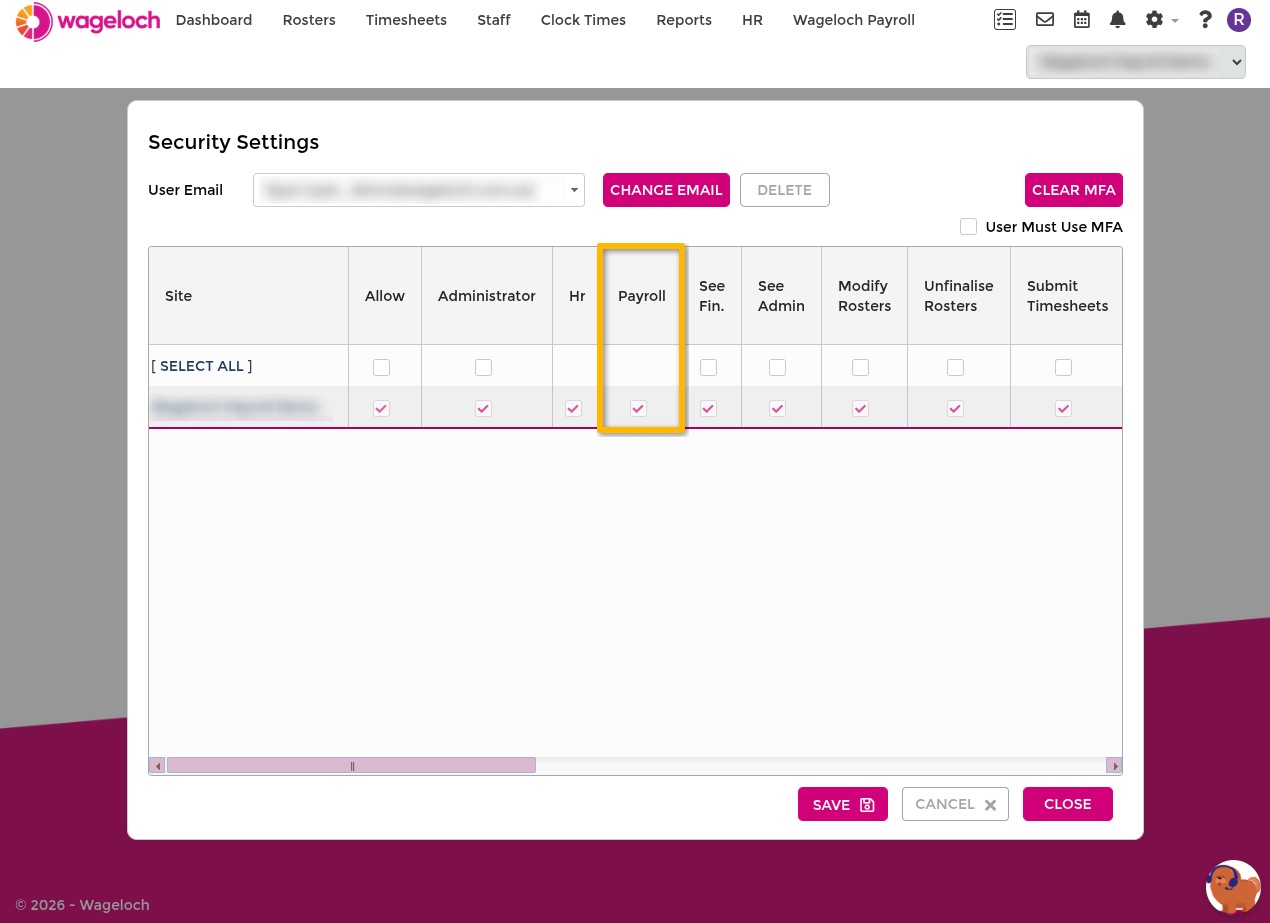
Enable payroll access for a user
- Select Settings.
- Go to Security.
- In User Email, select the user to update.
- Enable Payroll access.
- Select Save.
TIP
If needed, enable User Must Use MFA so the user is prompted to set up MFA on next login.
Enable MFA for payroll users
All users working in Payroll should use an authenticator app for MFA.
Supported examples include:
- Google Authenticator
- Microsoft Authenticator
- Authy
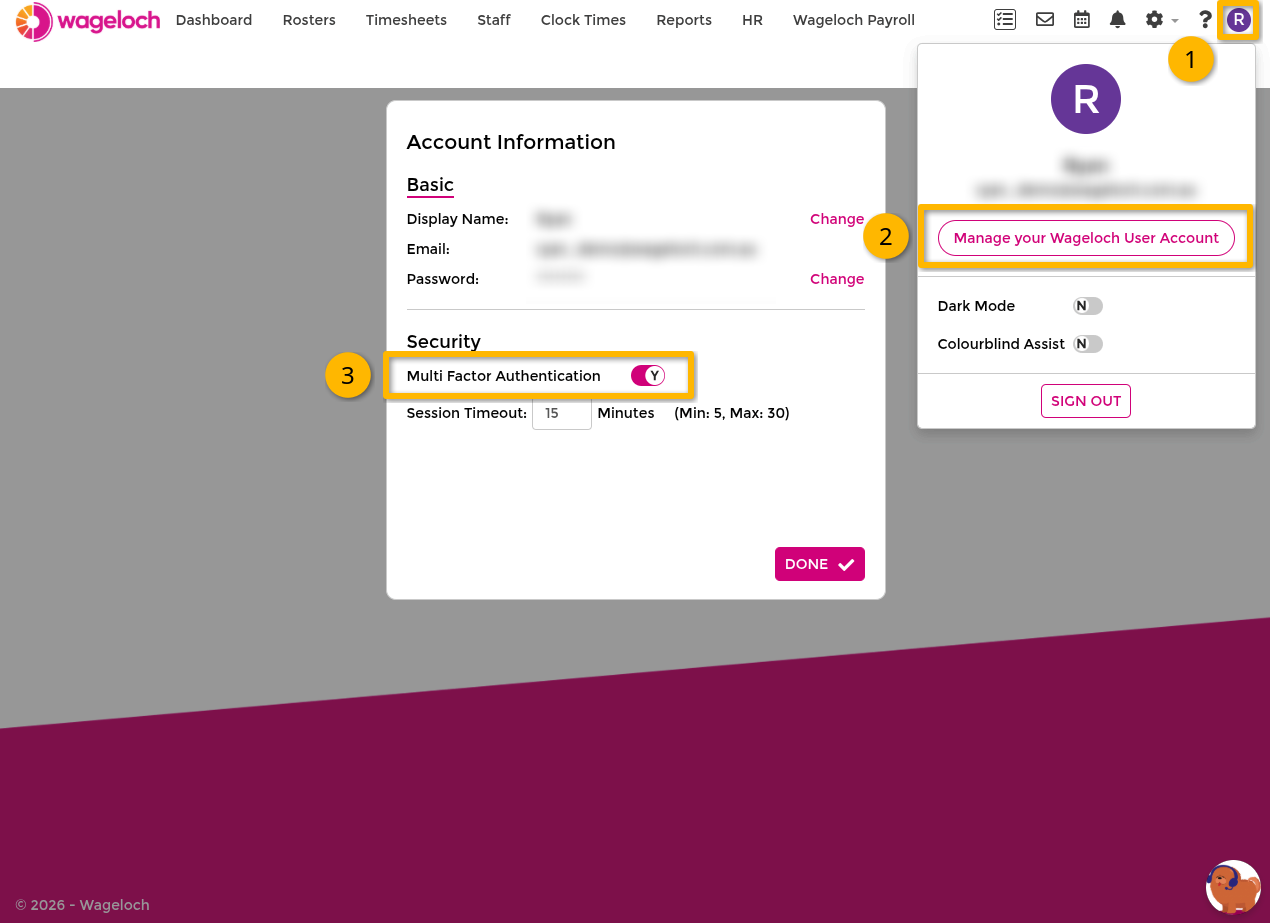
- Sign in at app.wageloch.com.au.
- Open your user menu.
- Select Manage your Wageloch User account.
- Go to Security.
- Turn Multi Factor Authentication on.
- Scan the QR code with an authenticator app.
- Enter the generated code to confirm setup.
WARNING
Do not use your phone camera app to scan the QR code. Use an authenticator app so ongoing login codes continue to work.
Next setup steps
After user access and security are complete, continue to Connection settings before processing payroll.
IMPORTANT
If you're migrating from another payroll system partway through a financial year, complete the YTD zero-off process with your previous system first. Otherwise the ATO can receive the same year-to-date figures twice.