Mobile App Clocking
2 min read
Mobile App Clocking
Mobile App Clocking is suitable for teams with mobile or distributed work patterns, such as:
- Employees who travel regularly and are rarely at one location.
- Jobs across multiple sites where arrival and departure times are important.
- Staff working from home who still need accurate clock-ins and clock-outs.
- Teams that do not return to a central office each day.
Mobile App Clocking is available through the Wageloch Mobile App, which is included in your subscription and also supports Staff Portal features.
Although this is the same app used for Staff Portal functions, Mobile App Clocking is enabled separately per staff member.
Mobile App Clocking is disabled by default and does not require full Staff Portal enablement. Each staff member must have a valid and unique email address in their staff card.
For privacy details, see Privacy.
There are two ways to enable access:
- Bulk setup for multiple staff.
- Individual setup for one staff member.
Bulk Setup
- Select the Settings cog (top-right).
- Open Portal/Mobile App settings.
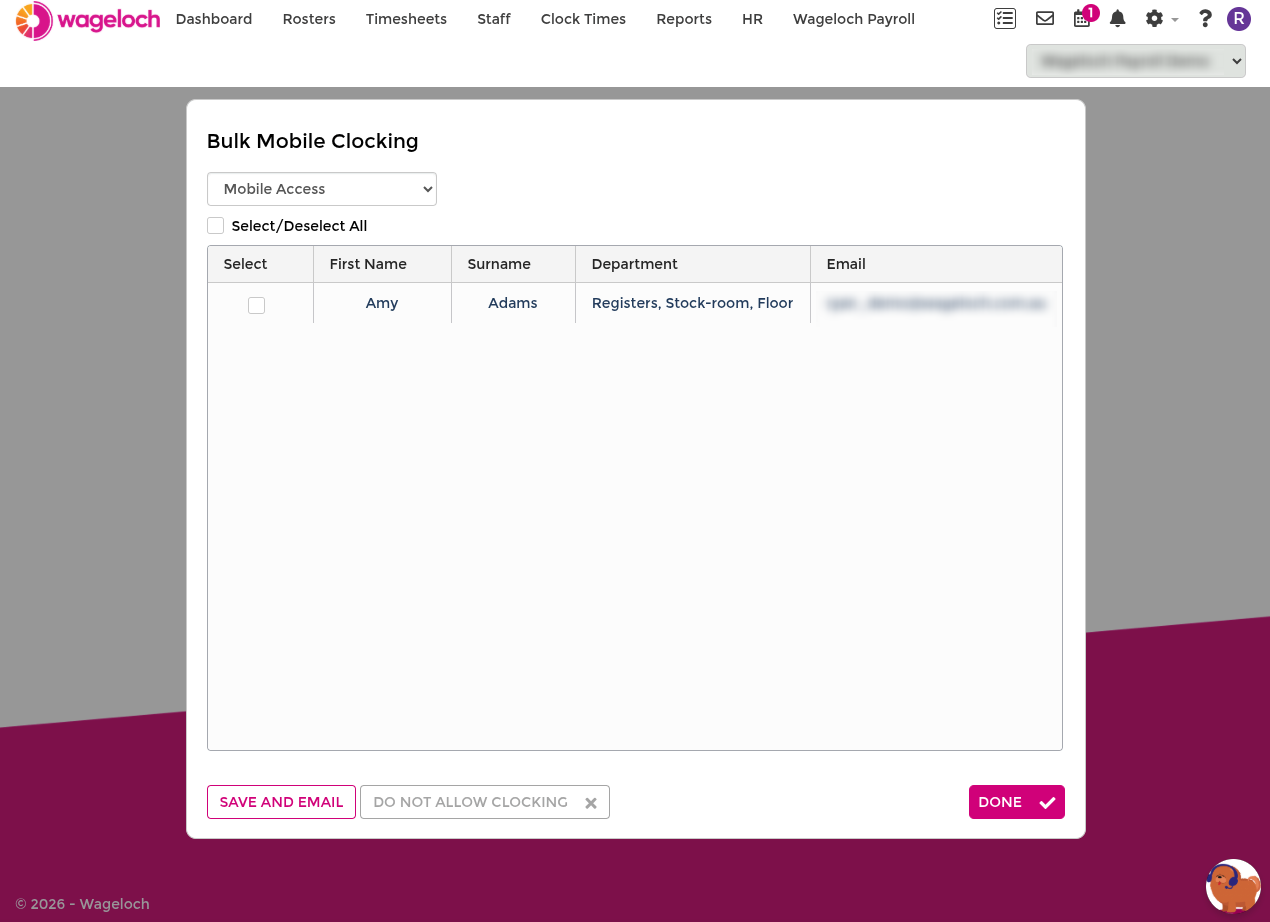
- Select Bulk Mobile Staff Clock.
- In the top-left dropdown, select No Mobile Access.
- Tick each staff member to enable (or use Select All).
- Select Allow Access to send welcome emails.
- Confirm the prompt by selecting Yes.
- Select Done.
Staff should receive their welcome email within approximately 15 minutes, including app download instructions.
Individual Setup
- Open Staff List from the top menu.
- Select the employee to open their staff card.
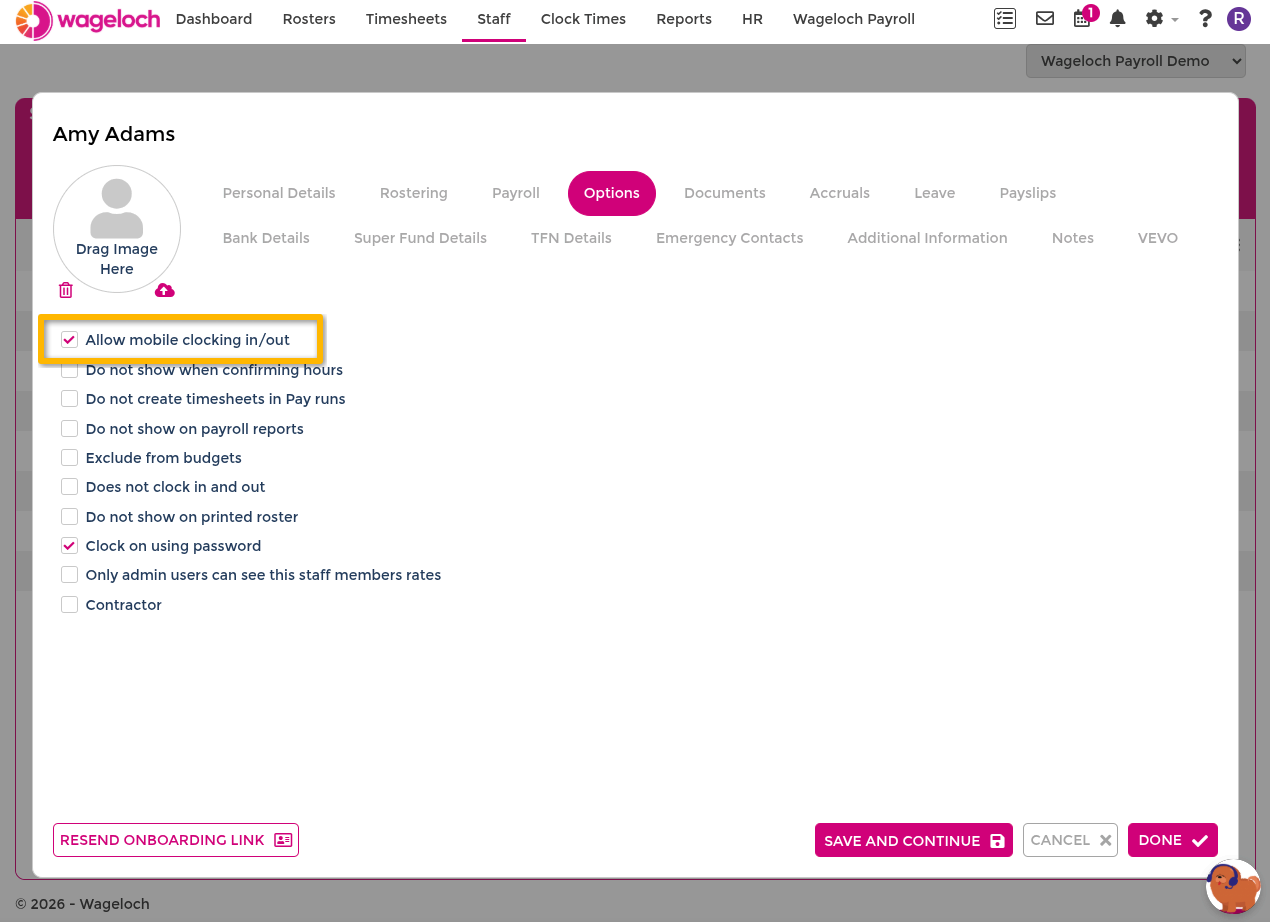
- Select the Options section.
- Tick Enable Mobile Clocking.
- Select Done.
The staff member should receive an email within approximately 15 minutes with app download instructions.