
Manual Clock Times
2 min read
Manual Clock Times
Use this guide to add or edit manual clock times from Time Kiosk, desktop, or web access.
Time Kiosk (tablet, computer, or web)
Create new manual times
- Open Time Kiosk on your clocking tablet or computer.
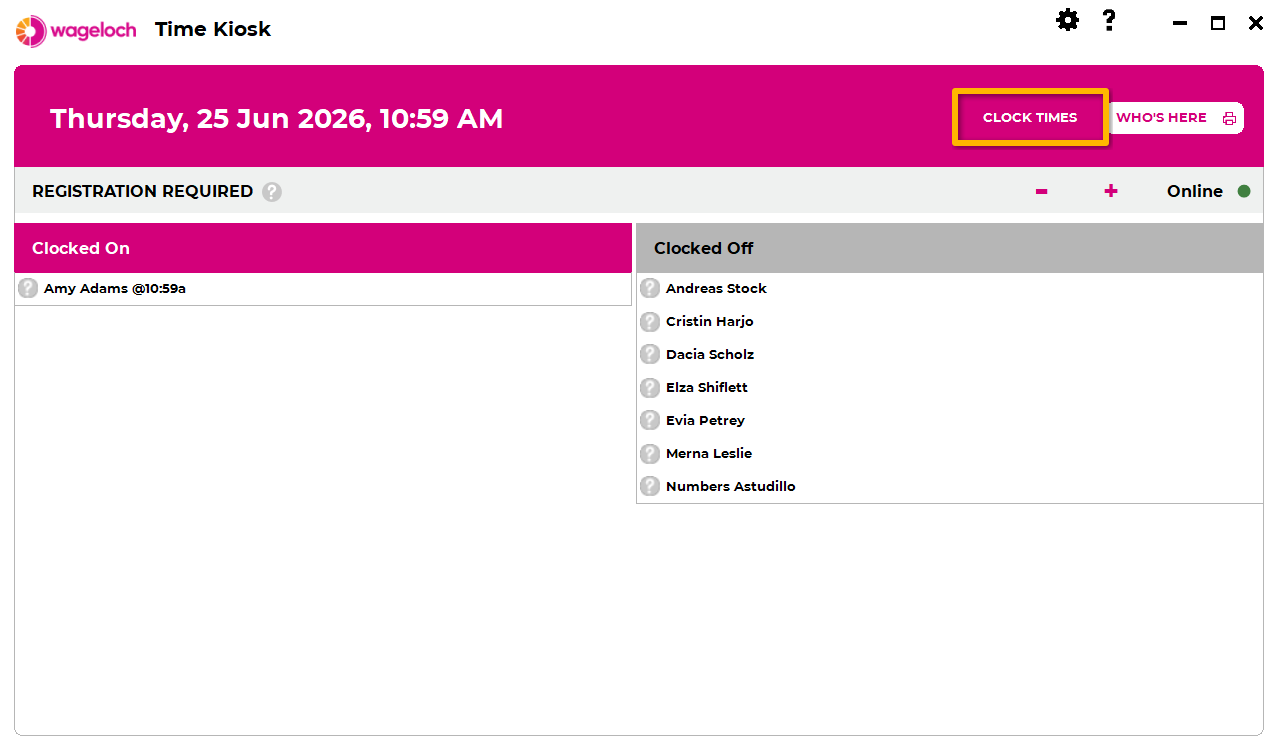
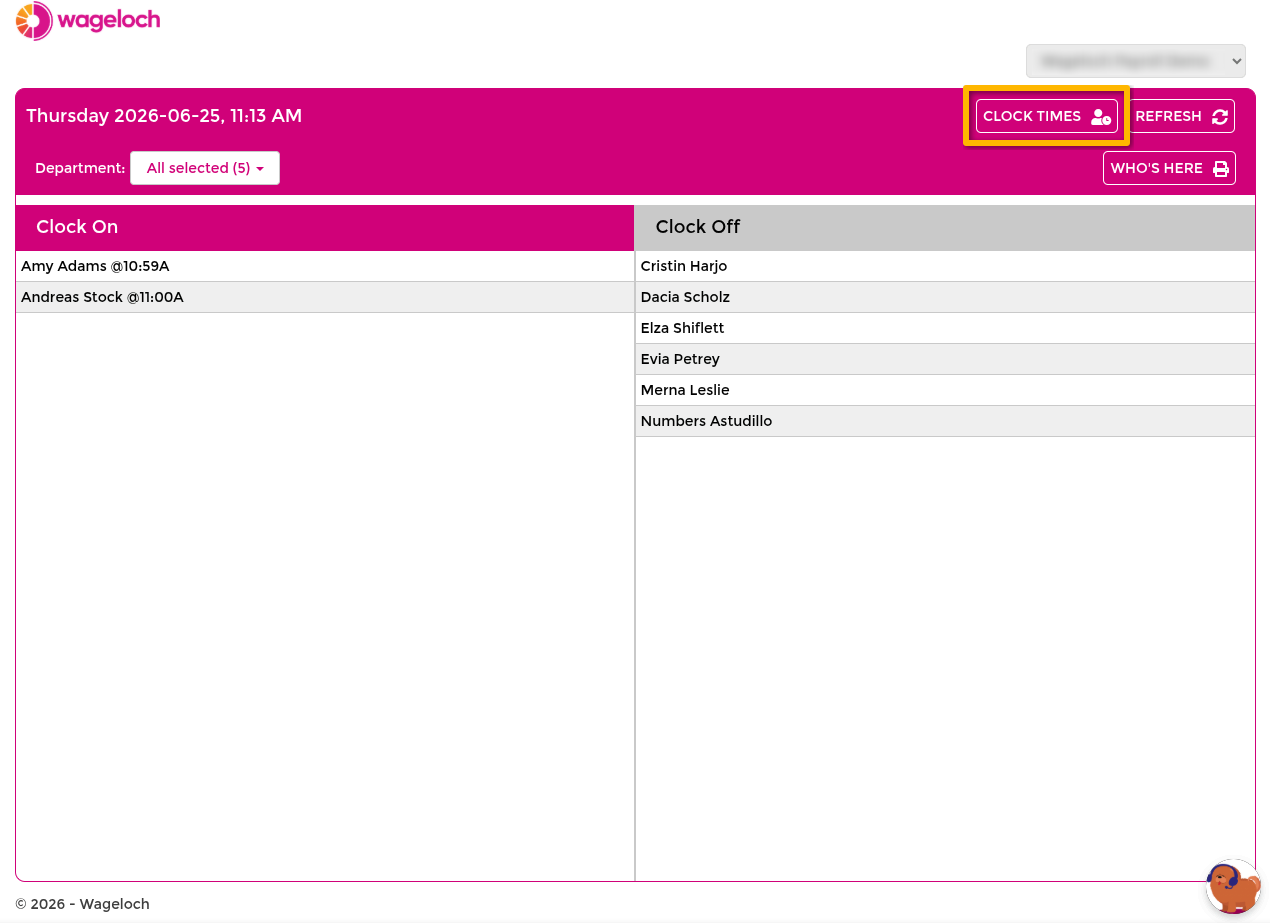
- Select Clock Times (top-right).
- Sign in with administrator credentials.
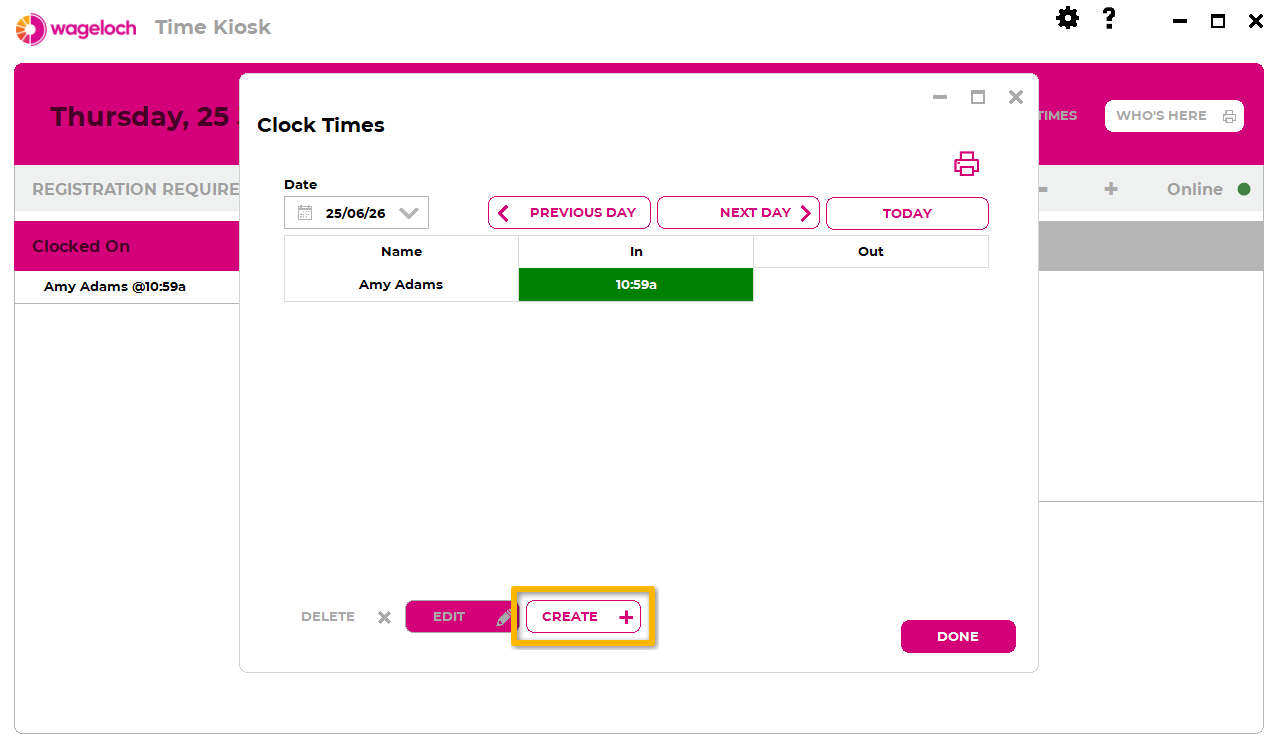
- Select the relevant date (today, yesterday, or up to one week back).
- Select Create.
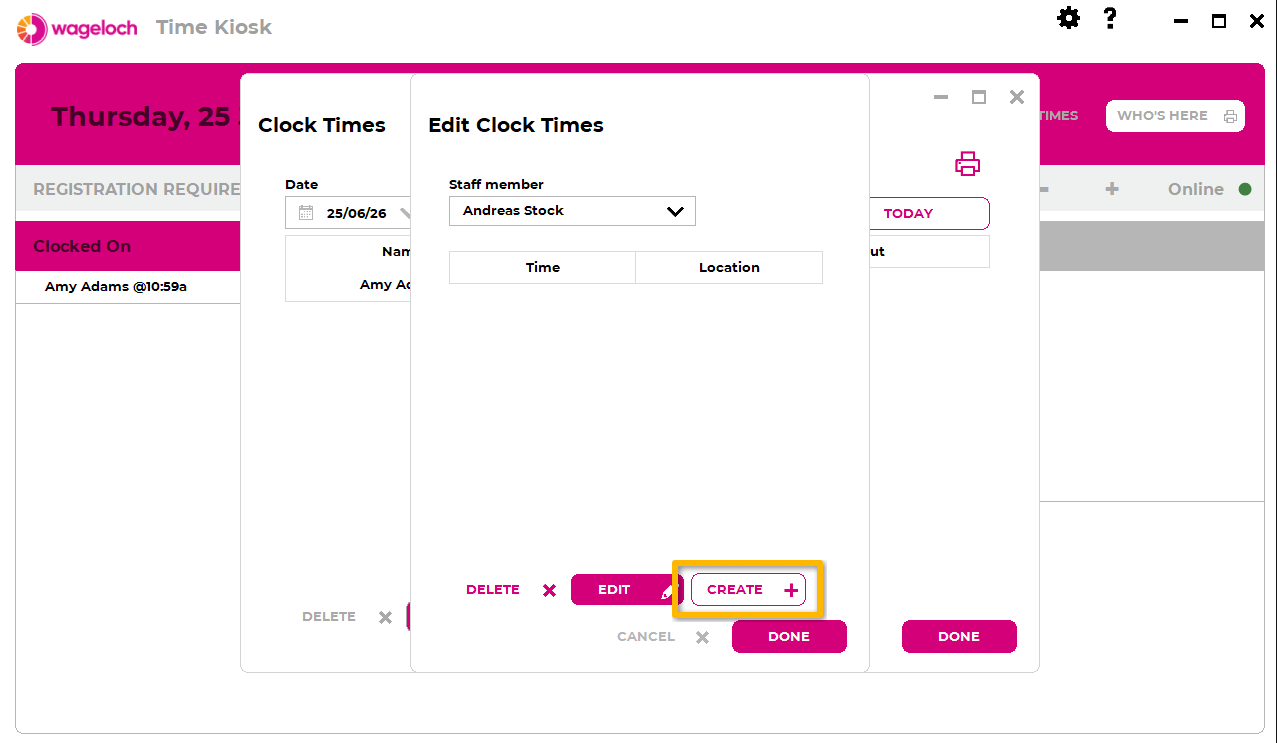
- Select the employee.
- Select Create again, then enter the clock in or clock out time.
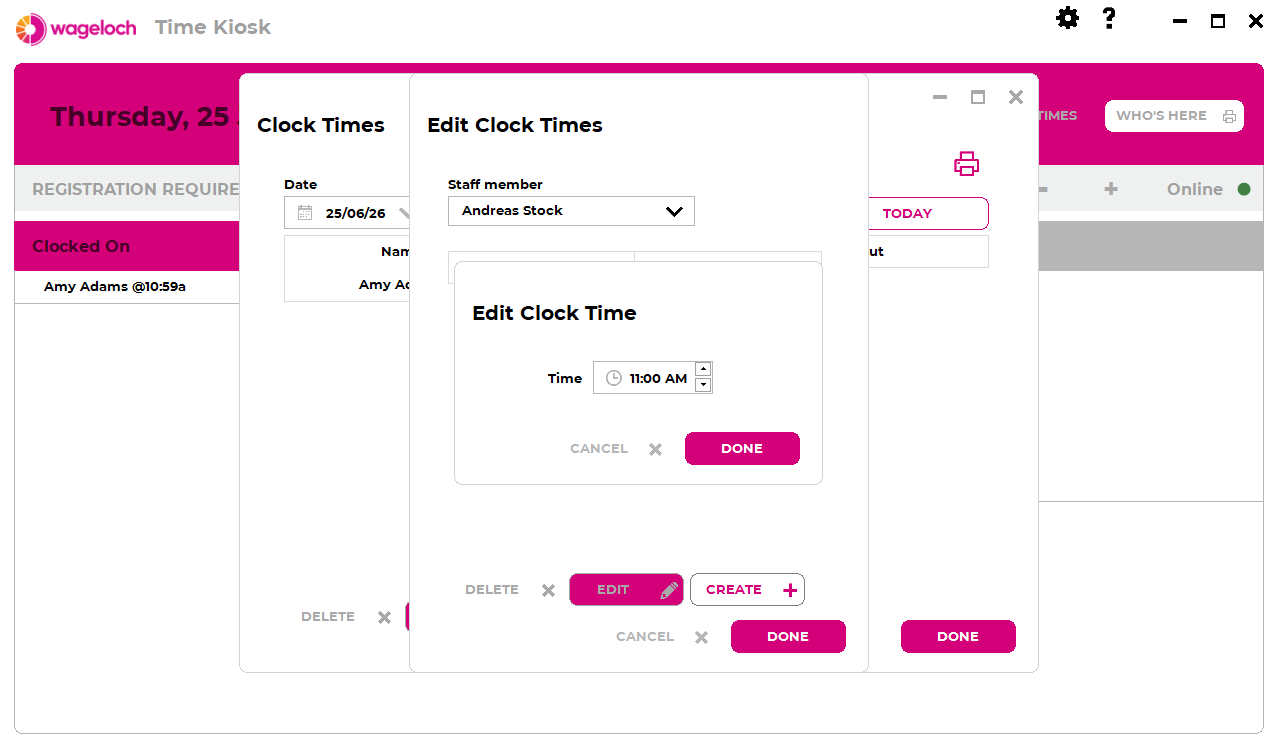
- Confirm the new entry appears in blue.
- Repeat as needed for additional in/out entries.
- Select Done to save.
Manual entries then appear in timesheets and reports.
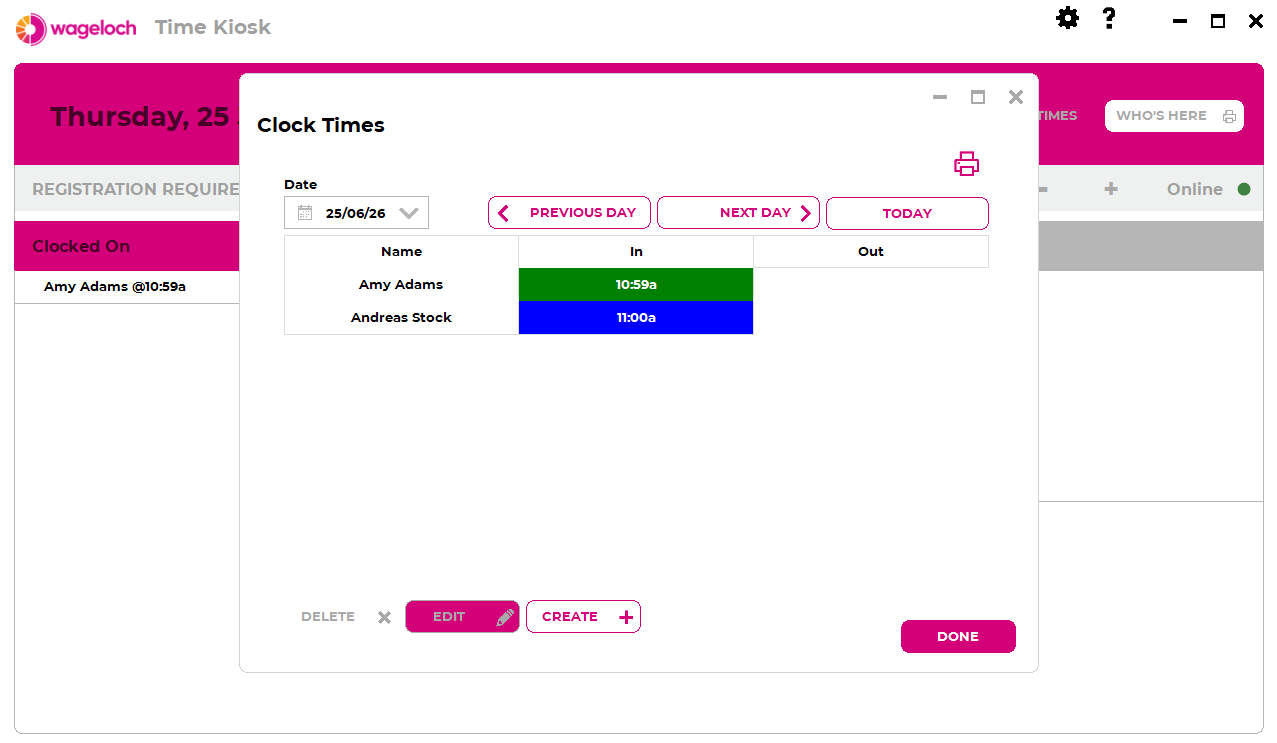
Add times to existing clock records
- Open Time Kiosk and select Clock Times.
- Sign in with administrator credentials.
- Under Date, select the required day using the date dropdown or Previous/Next/Today.
- Select the staff member, then select Edit.
- Select Create and add the missing clock in/out time.
- Confirm the new entry appears in blue.
- Select Done to save.
Check existing records carefully
Manual time entries can affect existing clock records for that employee. Confirm date and time accuracy before saving.
Manual times via desktop or web Clock Times
In desktop or web Wageloch, you may also have a Clock Times menu in the top navigation.
You can complete the same process there without opening Time Kiosk.
Manual Input via Mobile App
Managers cannot submit this on behalf of staff, but employees using Mobile App Clocking can add missing times themselves.
For the full process, see Manual Input in the employee guide.