
Task templates
3 min read
Task templates
Task Templates make it easier to set up repeatable tasks without rebuilding them each time.
They work well for recurring work such as annual reviews, licence checks, and compliance follow-ups.
Task Templates and Tasks work together. Templates hold default settings, and tasks are the individual items you assign and complete.
Template fields
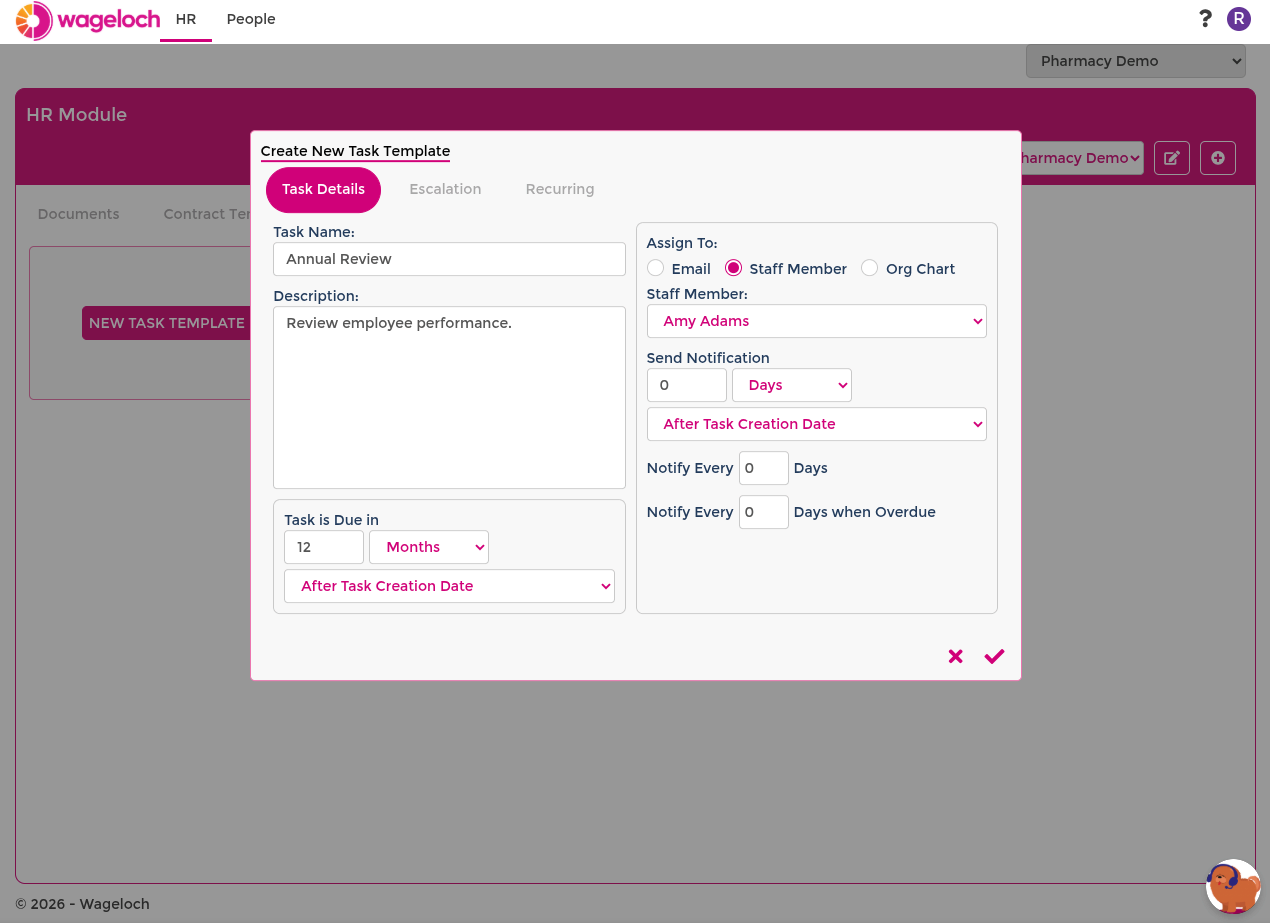
Task templates include three main sections: task details, escalation, and recurrence.
Task details
- Task Name: A clear name that describes the task.
- Description: Instructions for the person responsible.
- Task Due: Due timing based on task creation.
- Assign To: The person or email address receiving the task.
- Notify On: When first notification is sent.
- Notify Every: Reminder frequency before and after the due date.
Escalation
- Enable Escalation: Turns escalation on or off.
- Escalate Before Due Date: Number of days before due date to escalate.
- Escalate To: Person who receives escalation notices.
Recurrence
- Set as recurring: Enables repeated task creation.
- Recur Every: Daily, weekly, fortnightly, monthly, annually, or set weekday pattern.
- Set Repeat: Exact recurrence pattern (for example third Monday each month).
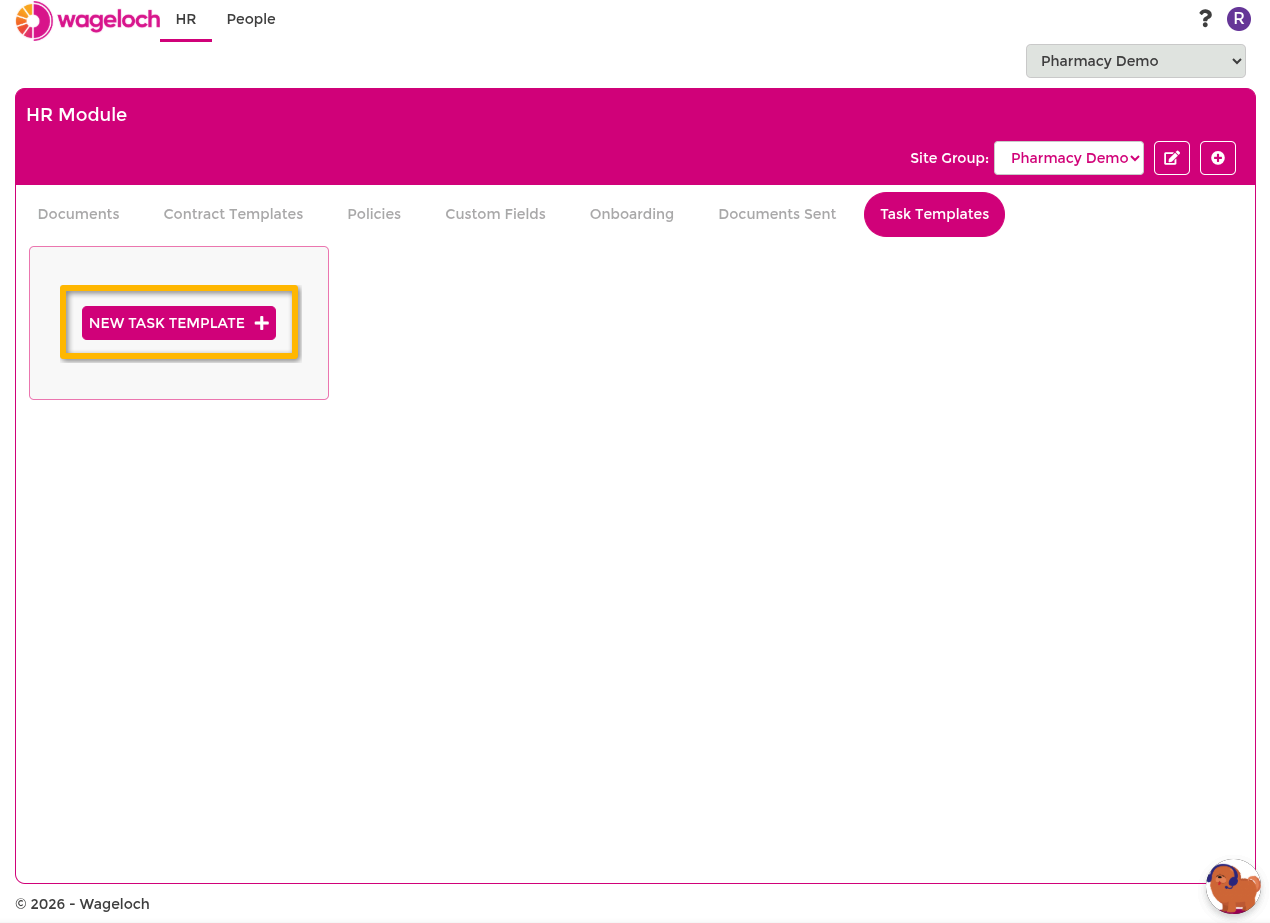
Create a task template
- Open Tasks from the top-right task icon.
- Select New Task +.
- Select Create Template.
- Complete task details.
- Configure escalation settings if required.
- Configure recurrence settings if required.
- Select Save.
TIP
Use template names that are easy to identify later, such as Annual Staff Review or Licence Renewal Check.
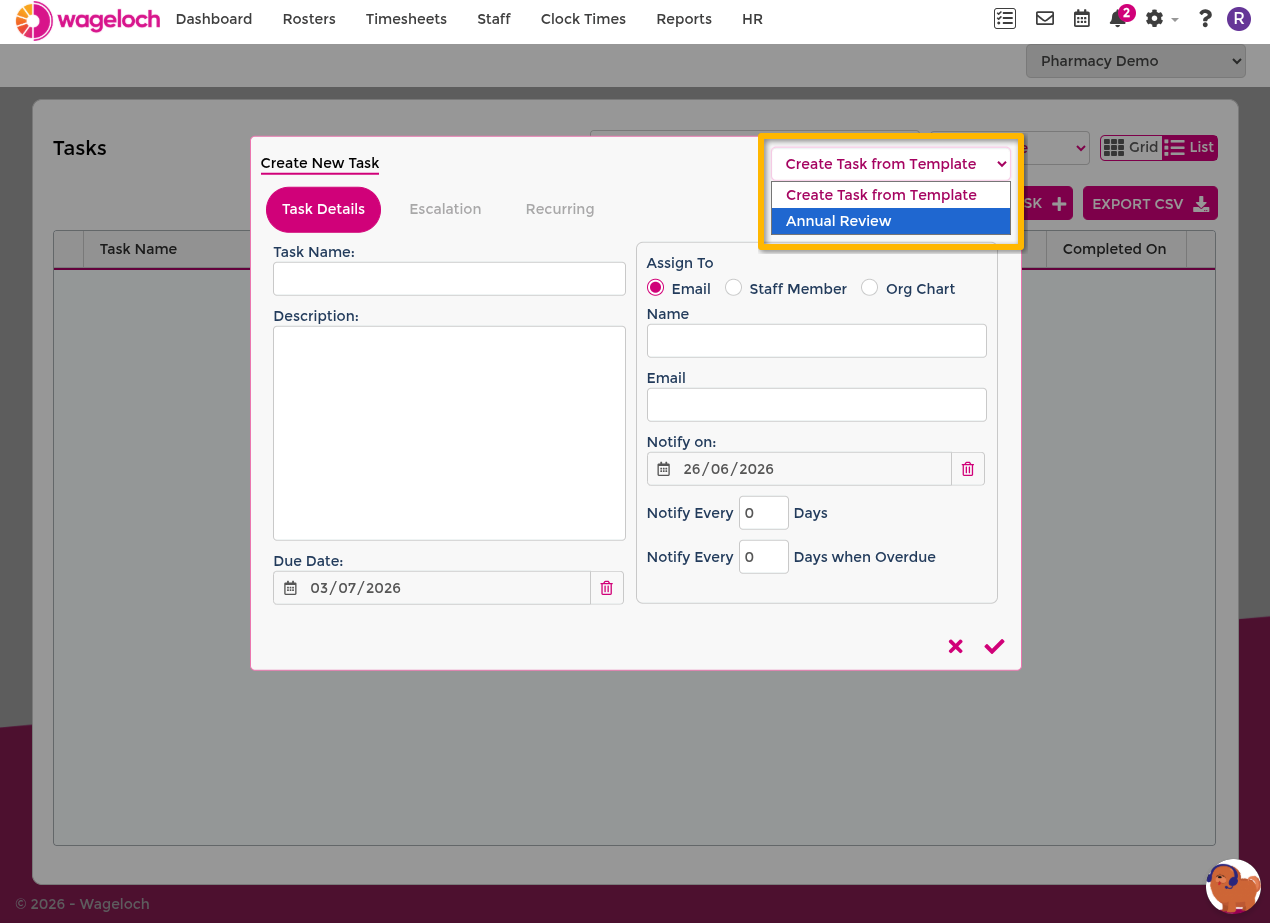
Create a task from a template
- Open Tasks.
- Select New Task +.
- Select Create Task from Template.
- Choose the template.
- Review or edit pre-filled details.
- Select Save to create the task.
INFO
Template-based tasks pre-fill common settings, but you can still update due dates, assignee, reminders, escalation, or recurrence before saving.
Create a one-off task
- Open Tasks.
- Select New Task +.
- Enter task details manually.
- Configure escalation and recurrence only if needed.
- Select Save.
Manage and action tasks
After a task is created, the assignee receives an email notification with task details.
To complete a task:
- Open the task from the email link or task list.
- Select Mark as Complete.
When a task is marked complete, reminder and escalation notifications stop.
Filter task lists
Use task list controls to find items faster:
- Search to find tasks by name or assignee.
- Status filter to show Incomplete, Complete, or All tasks.
- List/Grid view to change display layout.
Related task guidance
For day-to-day task management, see Tasks.