
Terminate and reinstate a staff member
2 min read
Terminate and reinstate a staff member
Terminating a staff member sets an end date and archives their record. Reinstating clears the end date and restores access to rostering, timesheets, and pay. Both actions happen on the Payroll tab of the staff card.
Terminate a staff member
IMPORTANT
Export the final timesheet before setting termination. Check current rosters, future rosters, and templates to remove their shifts.
- Open Staff and select the employee.
- Open the Payroll tab.
- Select Details.
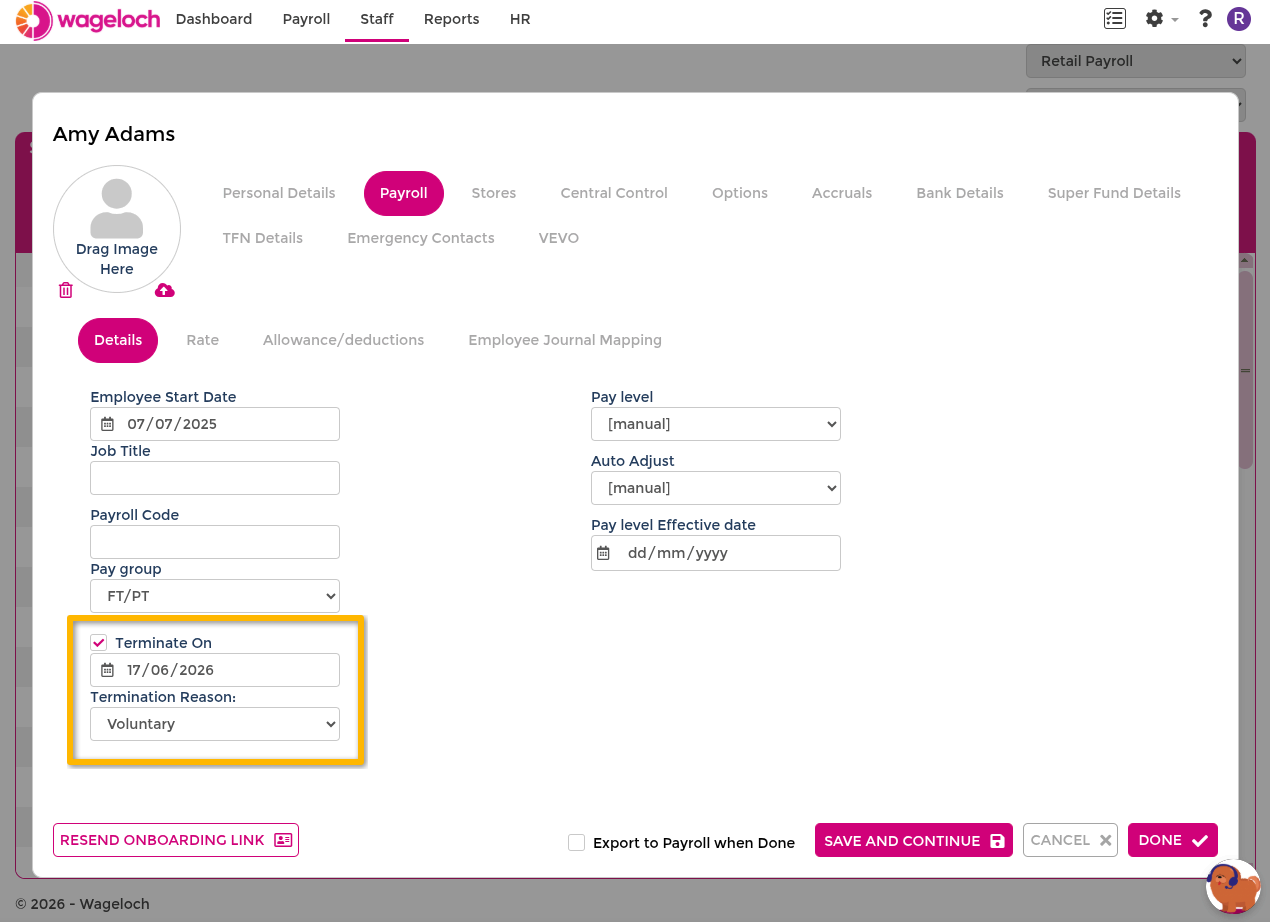
- Open Termination settings.
- Enable Terminate On.
- Enter the termination date and optional reason.
- Select Done to save.
Reinstate a terminated staff member
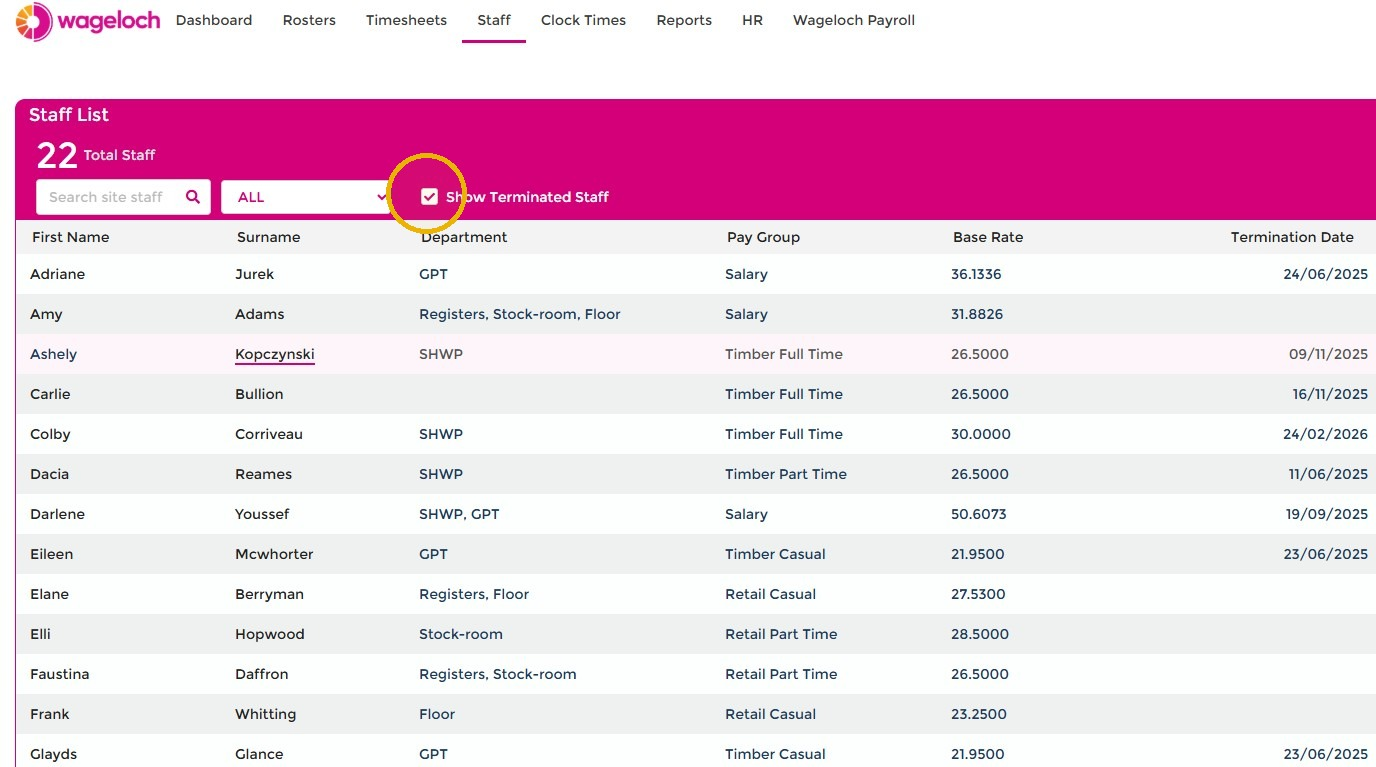
- Open Staff.
- Select Show Terminated Staff to see the complete staff list, then select the employee you want to reinstate.
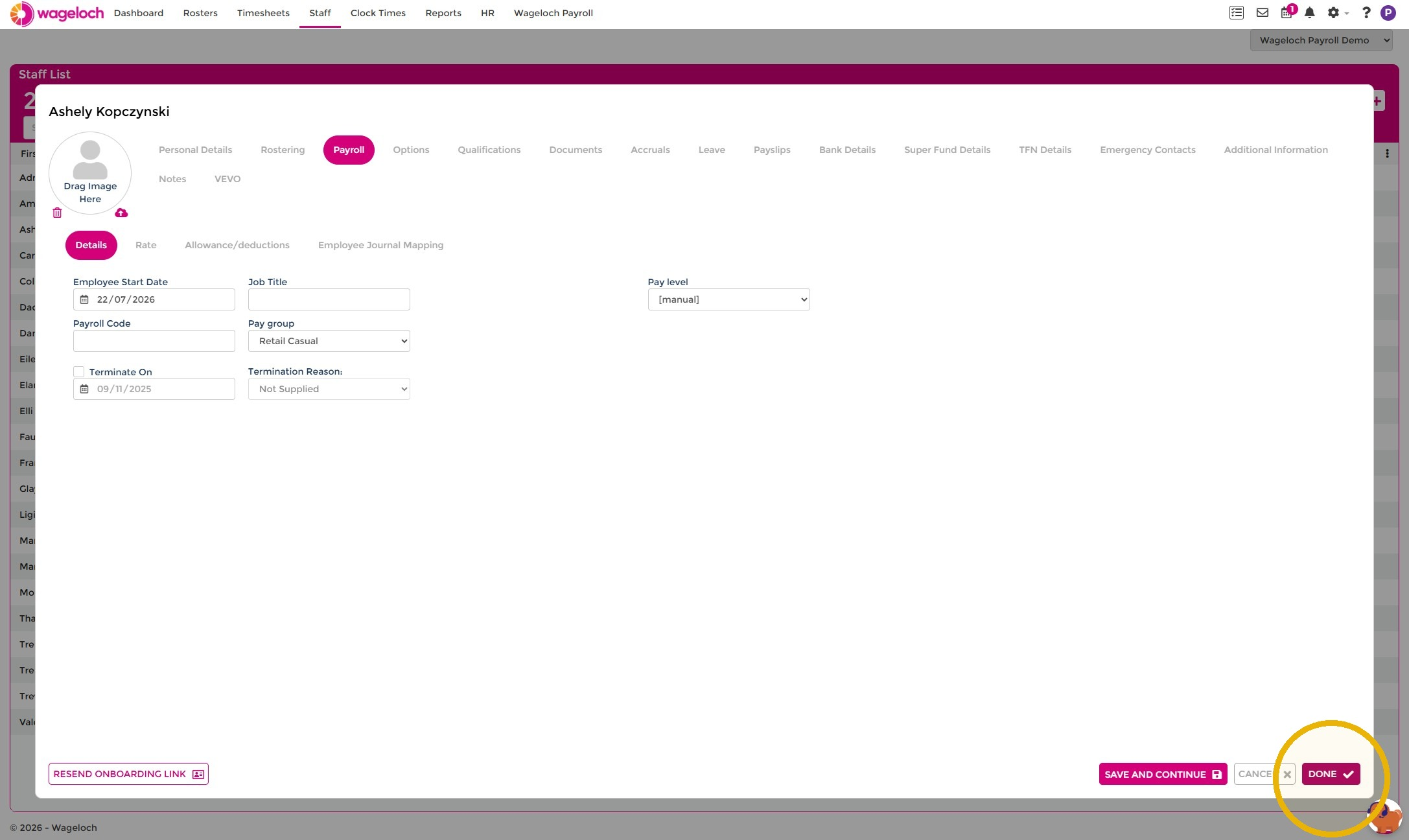
- Open the Payroll tab and select Details.
- Disable Terminate On to remove the termination date. You can also update any other relevant employee details, including start date and pay group.
- Select Done to save.
The employee returns to the active staff list and can now be rostered, timesheeted, clocked, and paid again.
Troubleshooting
If Terminate On is greyed out:
- Check you're at the payroll level (not site level)
- Your payroll may be managed by someone else
- Contact the Helpdesk if issues persist