
Budgeting
4 min read
Budgeting
As you create rosters, Wageloch can calculate estimated wage costs live while shifts are built.
Estimated costs are based on:
- Staff base hourly rate from staff records (including Pay Levels).
- Shift times.
- Penalty rates and overtime rules from award setup.
- Leave bookings.
Accurate shift times and setup rules produce more accurate budget forecasts.
Budgeting also works with Sales vs Wages to compare projected sales against roster wage costs.
INFO
If Departments are enabled, use the department filter to review daily costs per department.
Budget views
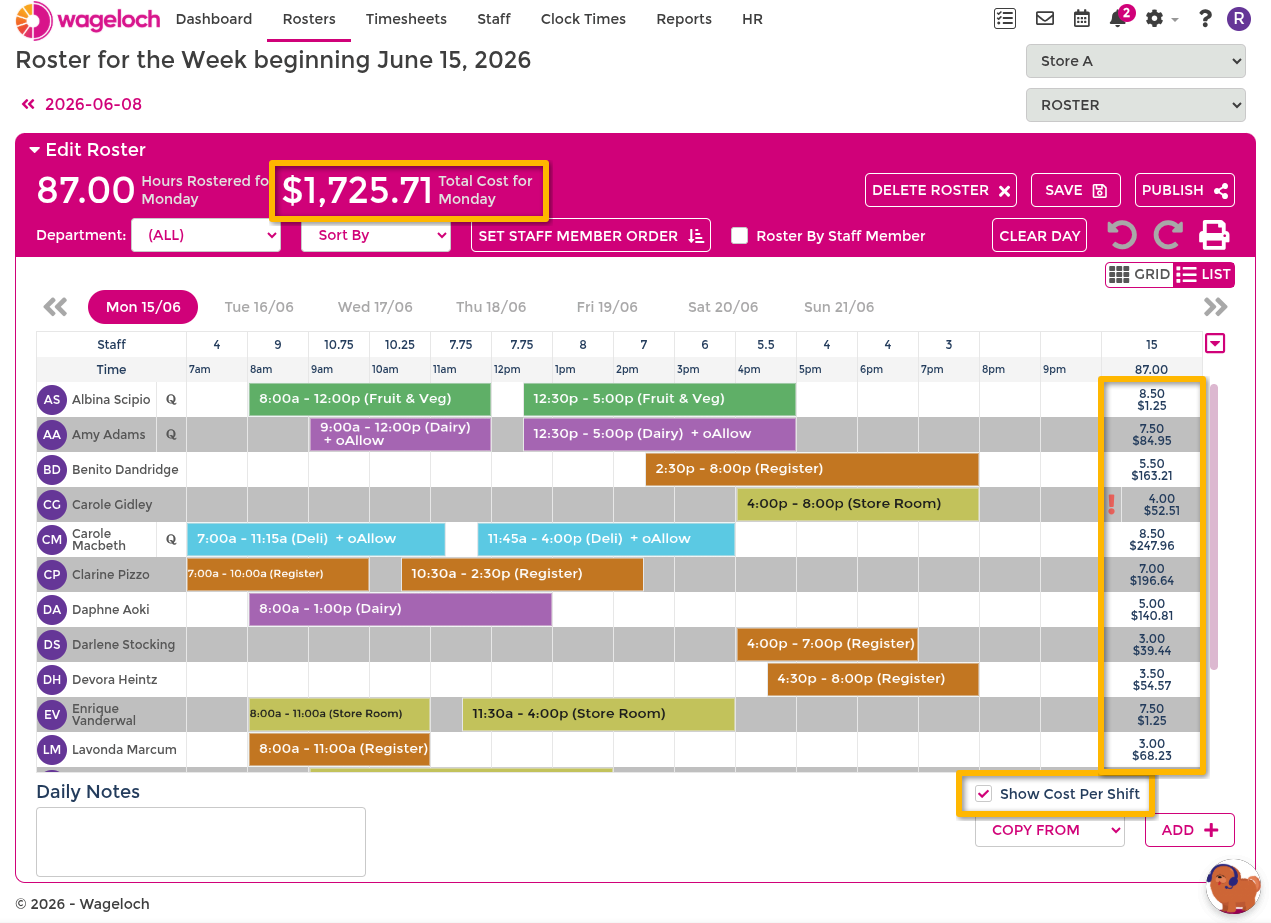
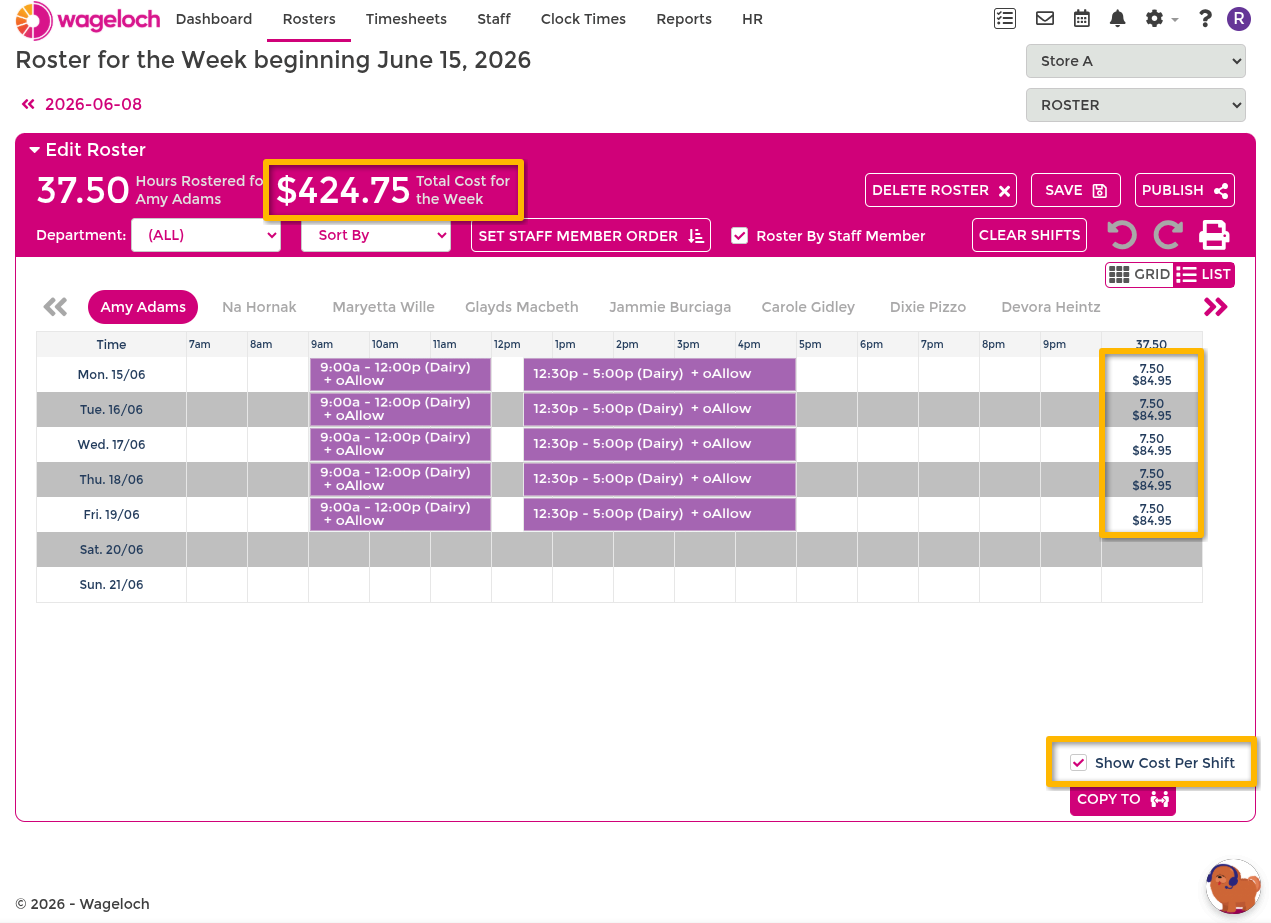
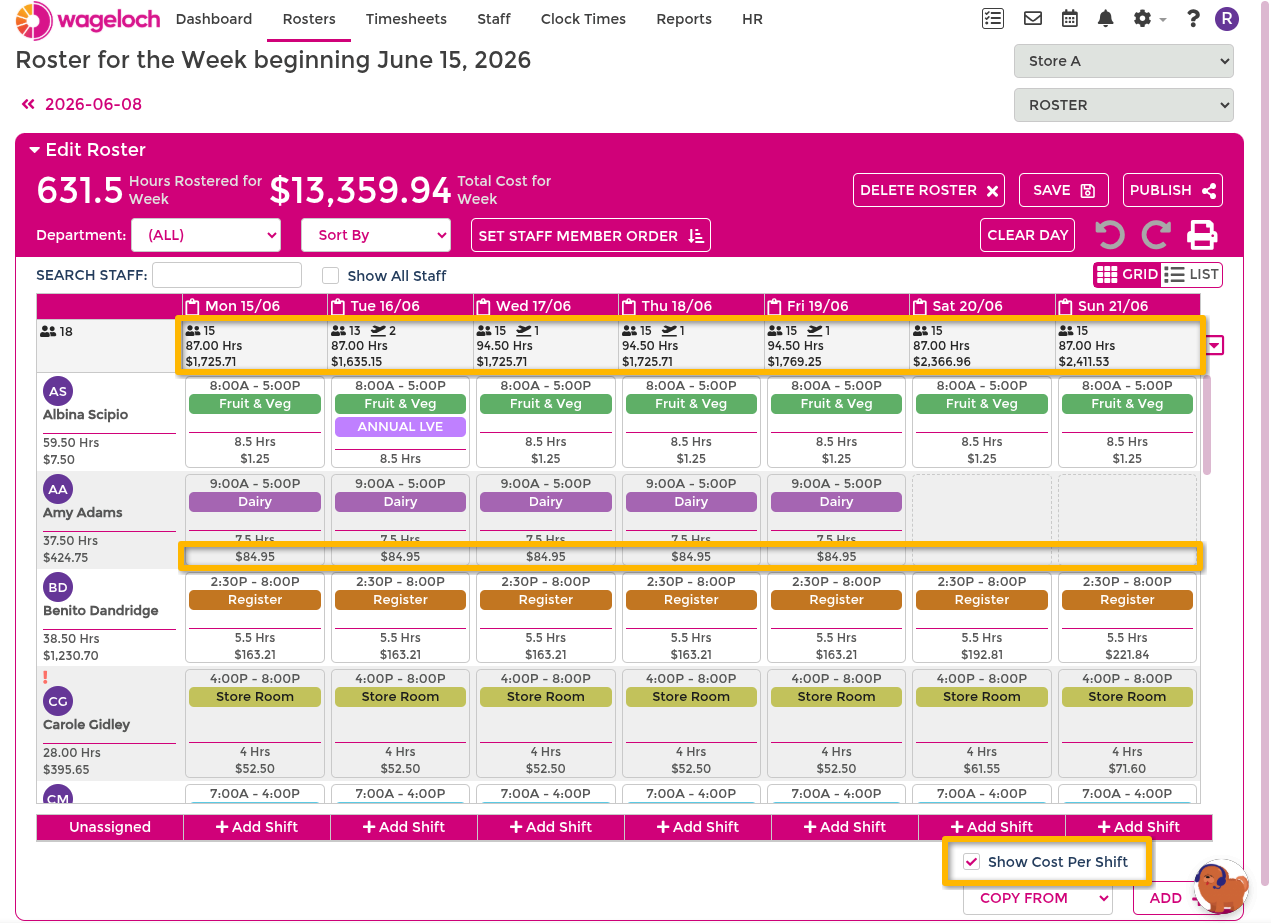
To see dollar values on shift blocks, enable the Show Cost Per Shift checkbox at the bottom of the roster screen. This applies to the per-day, per-person, and grid views below.
Budgets per day
As shifts are added to each day, each row shows:
- Shift hours.
- Estimated shift cost.
- Daily total hours and cost summary.
Budgets per person
In the roster header, use Roster by Staff Member to switch to a person-based layout.
This view shows each staff member's:
- Estimated period hours.
- Estimated period cost.
- Daily shift-level cost.
Budgets via roster drop-down
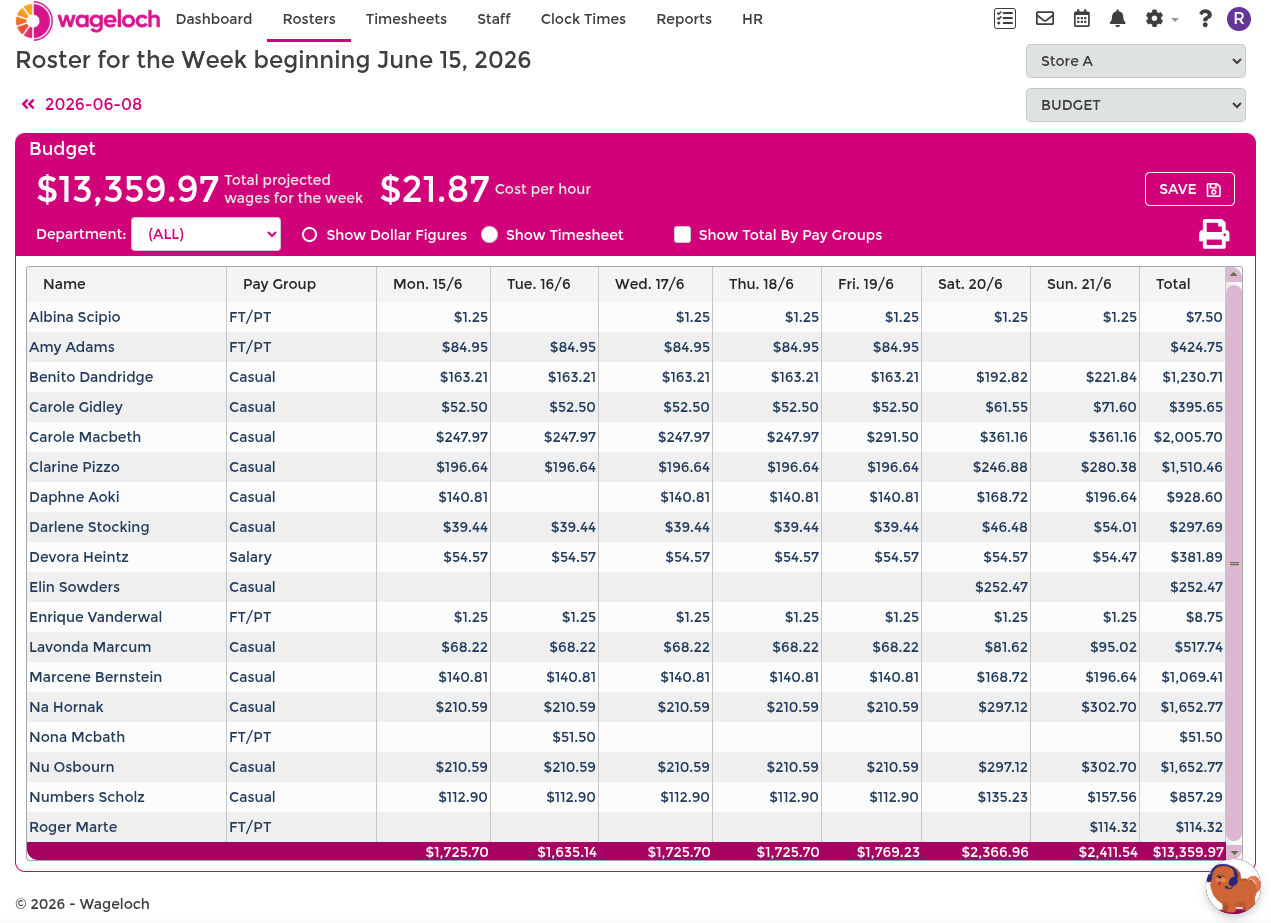
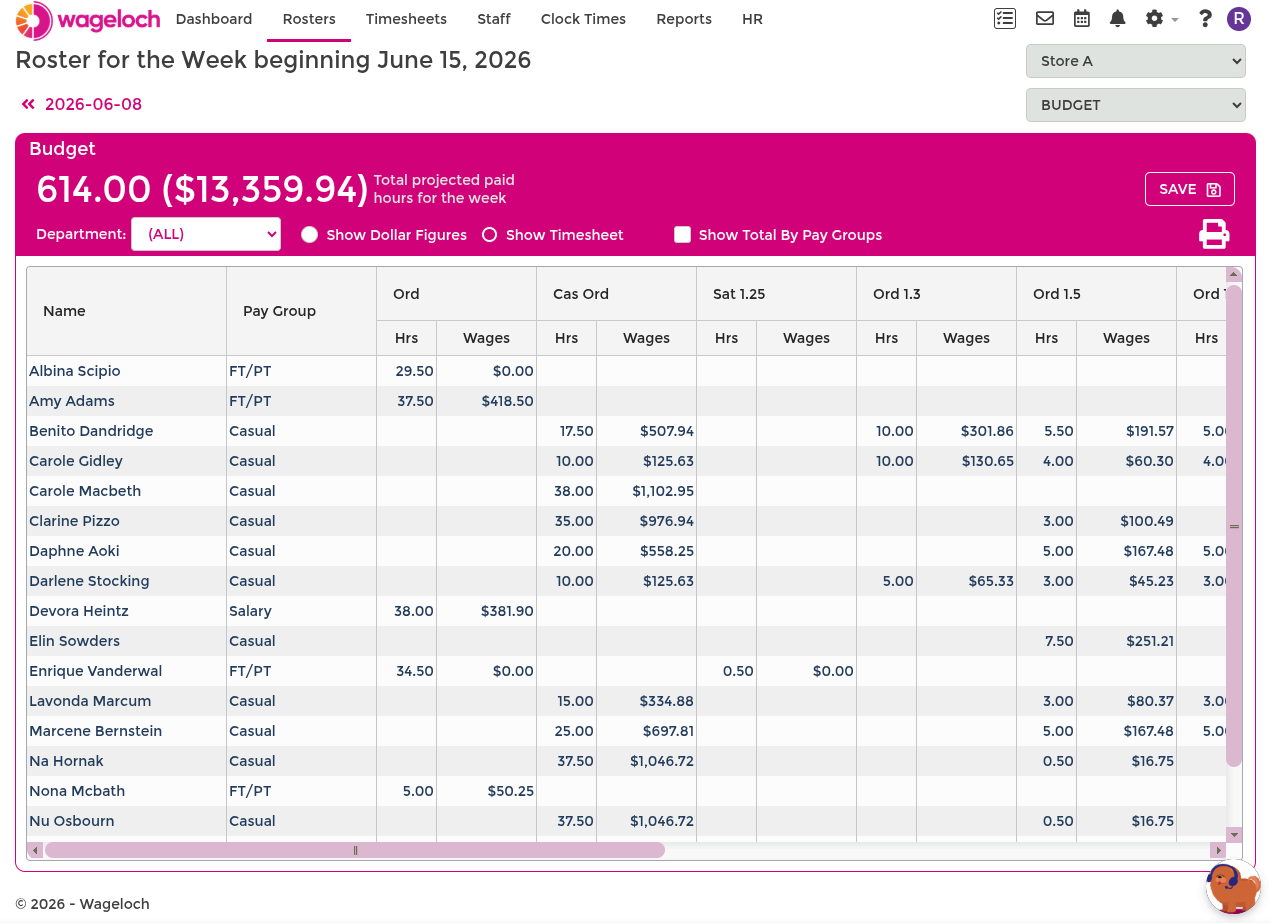
Use the top-right roster drop-down (ROSTER) and switch to BUDGETS for summary budgeting views.
Budget view modes:
- Show Dollar Figures: Cost breakdown by week, day, person, and shift.
- Show Timesheet: Hour breakdown by timesheet/award-style columns.
Budgets via grid view
Grid View provides the same budget data with easier shift adjustments. You can see:
- Entire-period cost.
- Daily staff count, hours, and cost totals.
- Per-person daily shift costs.
- Per-person period hours and wages.
Budget controls
In addition to standard budget views, Wageloch provides budget controls for limits and alerts.
Maximum wage budget
This control flags when total roster wage cost exceeds a set limit.
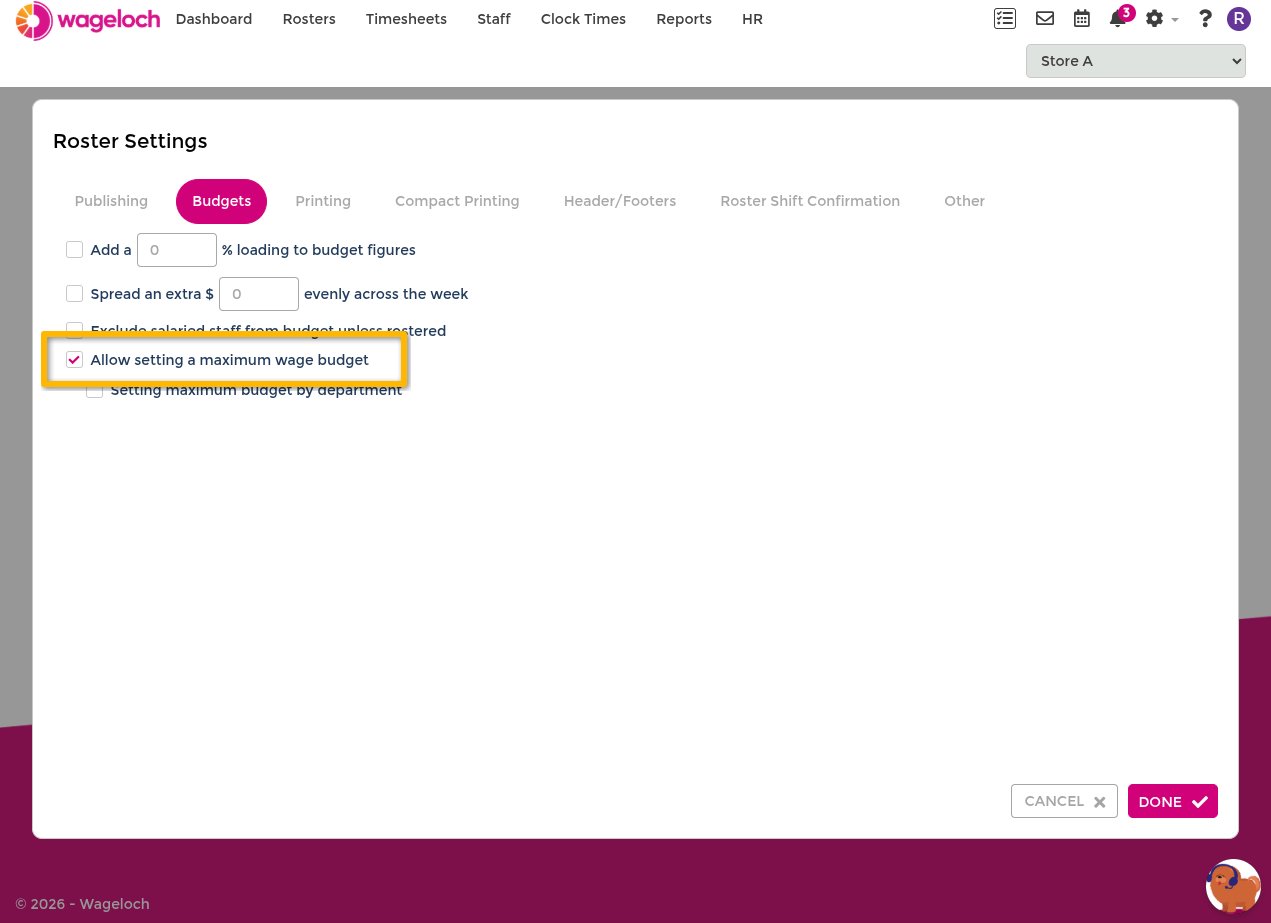
Enable it in settings:
- Open Settings.
- Select Rosters.
- Open Budgets.
- Enable Allow setting a maximum wage budget.
- Click Done.
Use it in a roster:
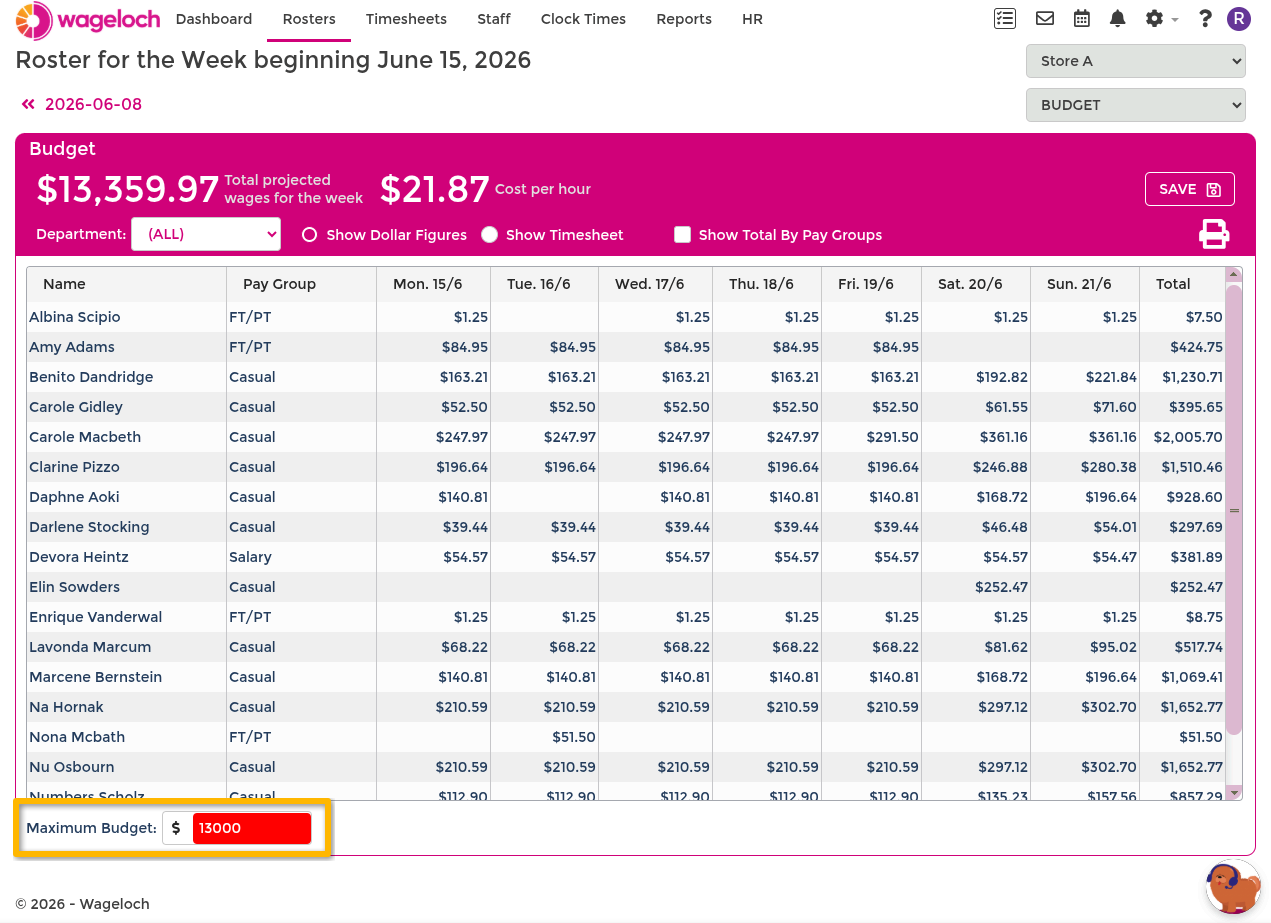
- Open or create a roster.
- Switch to BUDGETS from the ROSTER drop-down.
- Enter a value in Maximum Budget.
If exceeded, the budget value highlights and save prompts appear.
Maximum wage budget by department
This control applies separate wage limits per department.
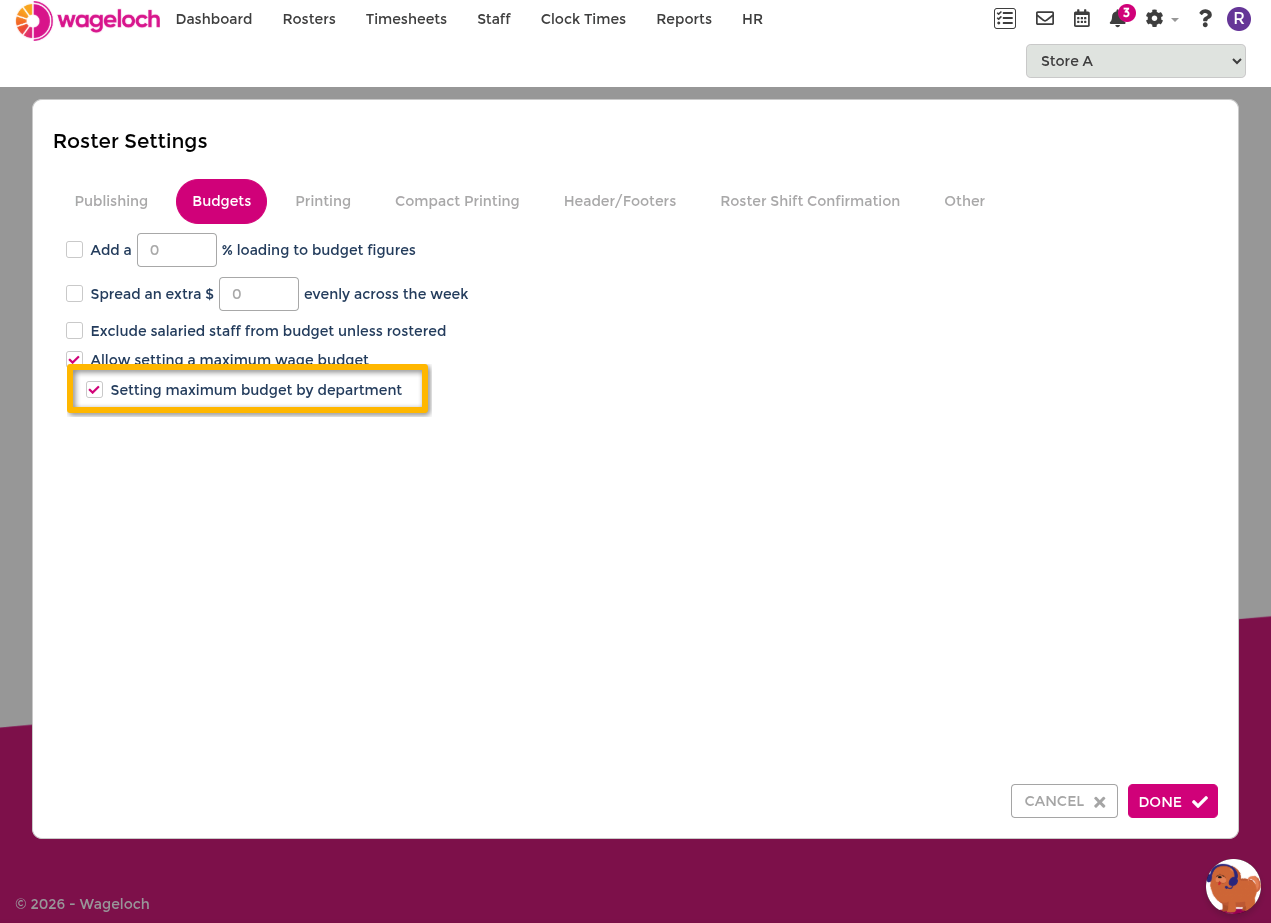
Enable it:
- Open Settings > Rosters > Budgets.
- Enable Allow setting a maximum wage budget.
- Enable Setting maximum budget by department.
- Click Done.
Use it:
- Open or create a roster.
- Switch to BUDGETS.
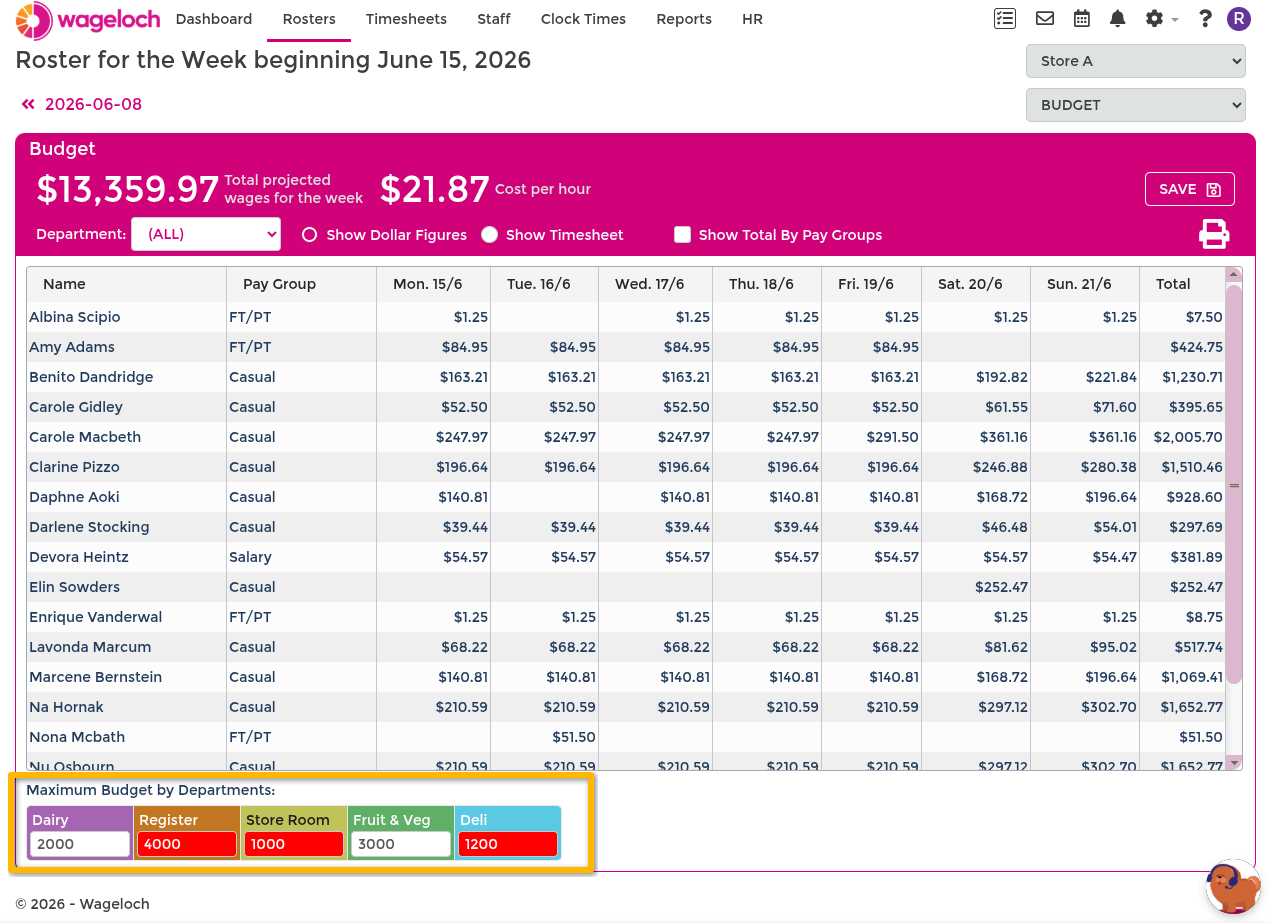
- Enter maximum budget values under each department.
Departments that exceed their cap are highlighted and trigger save warnings.
Maximum hours by department
Use this when your limit is roster hours rather than wage value.
This setting applies to both rosters and timesheets.
- Departments must be enabled.
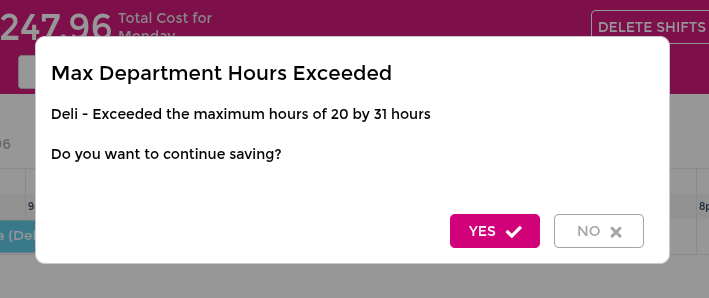
- Save/finalise prompts appear when a cap is exceeded.
- Departments without a cap can be left blank.
Configure it:
- Open Settings > Departments.
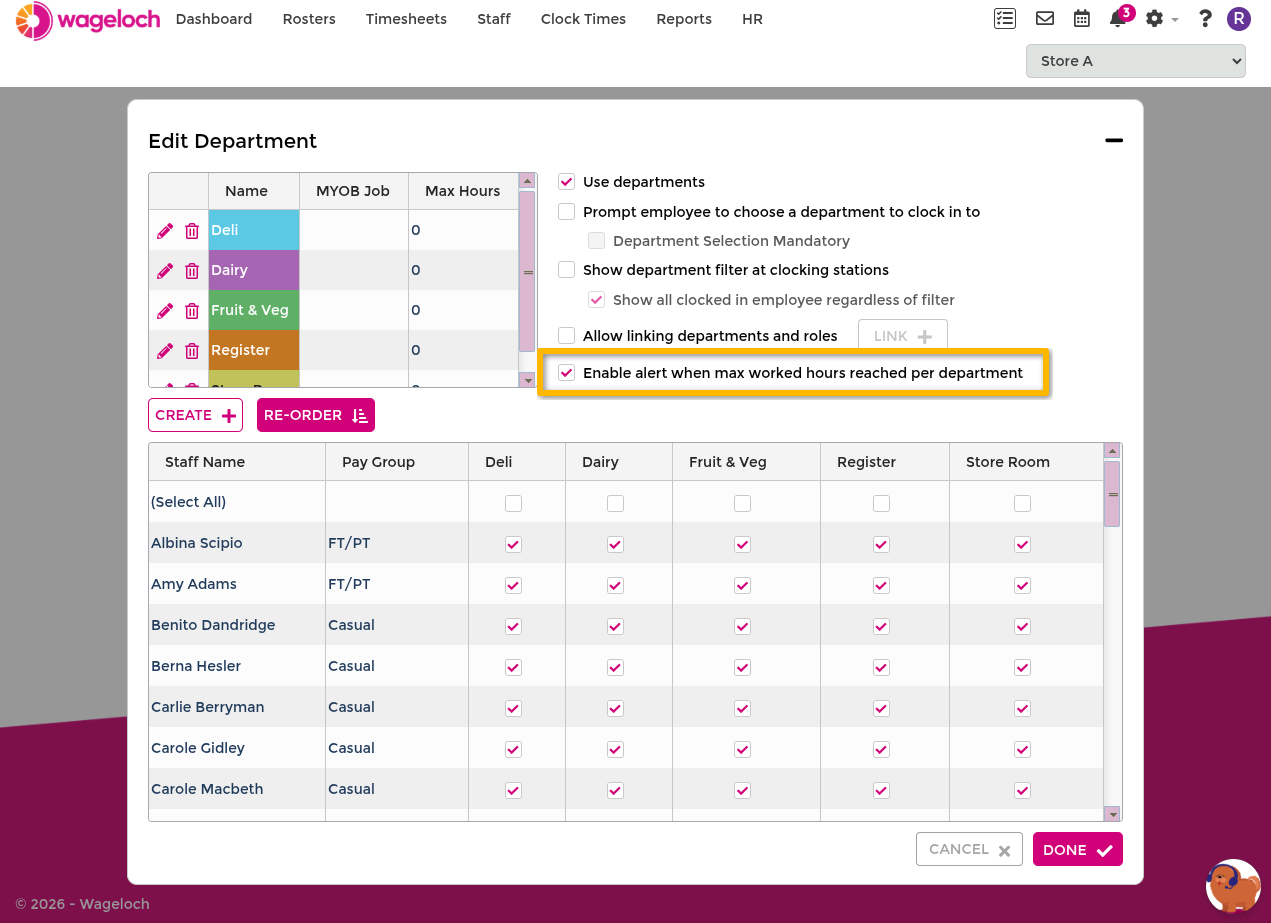
- Enable Enable alert when max worked hours reached per department.
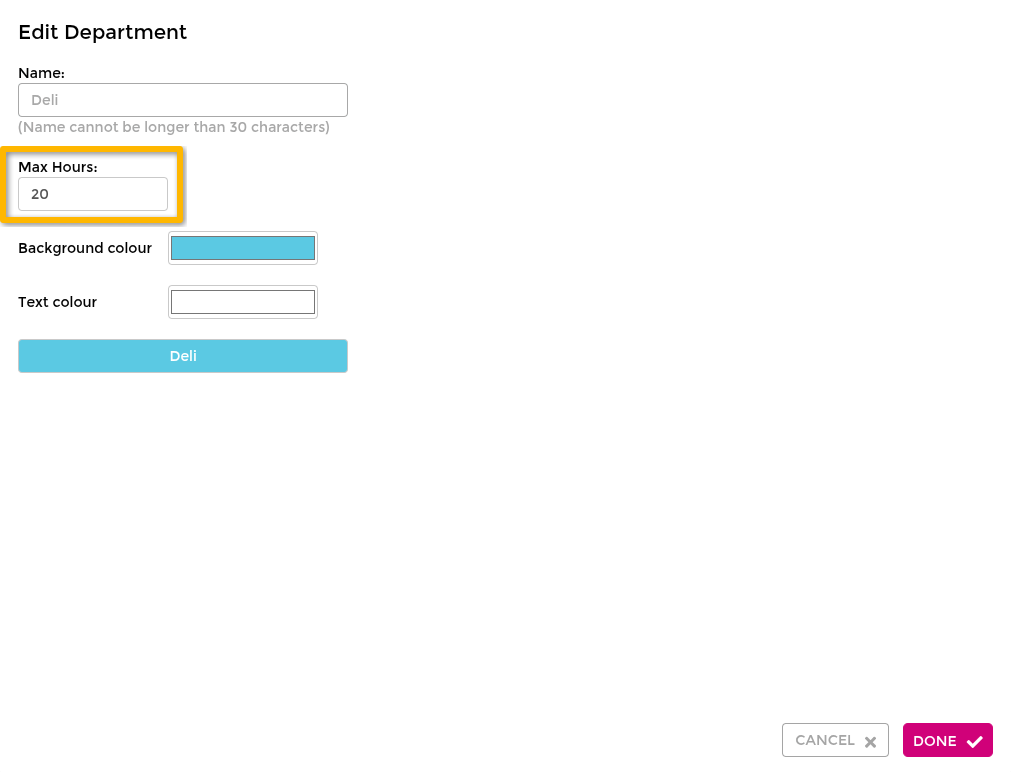
- Edit each department and enter a Max Hours value.
- Save department changes.
In use:
- Roster save/publish prompts appear when department hour caps are exceeded.
- Timesheet finalisation prompts appear when capped hours are exceeded.
Budget reports
For exported budget analysis, use the Roster Budget Report (R008) and Roster Budget by Timesheet Columns (R009) reports. Both are available under Rostered Hours in Reports.