
Shift Replacement
2 min read
Shift Replacement
Shift Replacement lets staff request to have a shift covered by another employee through the Mobile App.
Before you start
- Ensure the Staff Portal and Mobile App are enabled in Portal Setup.
- Confirm a portal admin is assigned.
- Confirm that staff who need shift replacement access can sign in to the app.
INFO
Manager or portal admin approval may be required for shift replacement, depending on how Portal Setup is configured.
Enable shift replacement requests
- Open Wageloch and sign in.
- Go to Settings > Portal/Mobile App > Portal Setup.
- Open the Mobile App tab.
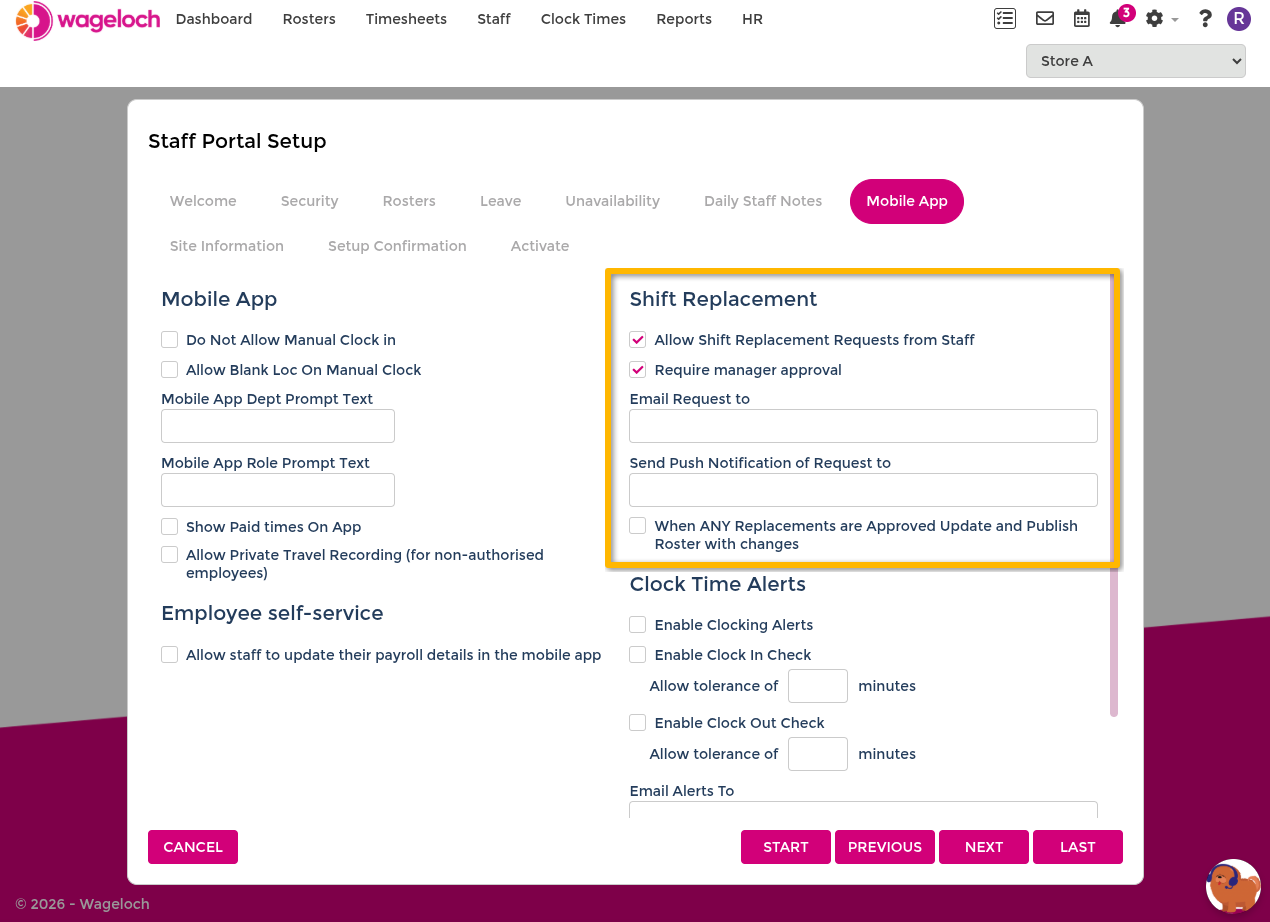
- Under Shift Replacement, enable Allow Shift Replacement Requests from Staff.
- Set notification recipients:
- Email Request to: for email alerts.
- Send Push Notification of Request to: for app alerts.
- Click Save and ensure the site remains active.
Portal admin access
A portal admin must be assigned before shift replacement can be managed in the app. To set this up, see Security settings in Portal Setup.
Using Shift Replacement in the app
For employee instructions on requesting replacements, see Shift Replacement in the employee guide. For manager and portal admin instructions on actioning and finalising requests, see Shift Replacement in the manager guide.