
STP finalisation
3 min read
STP finalisation
Use this guide at end of financial year to complete Single Touch Payroll (STP) finalisation in Wageloch Payroll. You will review year-to-date totals, update reportable fringe benefit amounts (RFBA), submit finalisation to the ATO, and correct employee records if required.
Before you start
- Confirm all scheduled pay runs for the financial year are complete.
- Check payroll totals against your accounting system.
- Confirm whether any employees need RFBA or other year-end adjustments.
Finalisation uses annual totals
The finalisation page loads data for the whole financial year, not one pay run. Confirm the annual totals at the top of the page before you submit finalisation.
Open the finalisation page
- Open Payroll.
- Select the Finalisation tab.
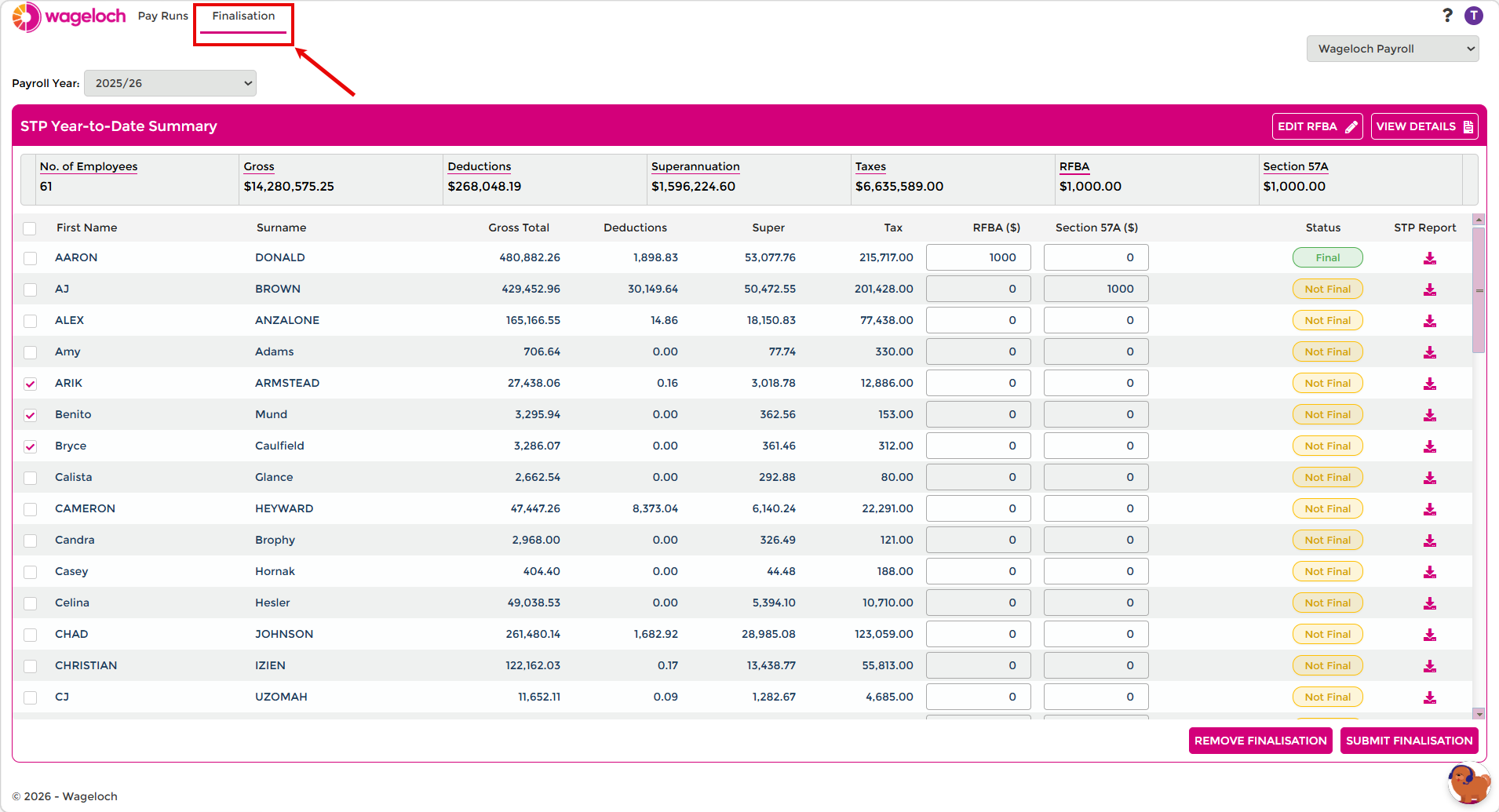
- Wait for the employee list to load for the selected financial year.
- Select the required year in Payroll year.
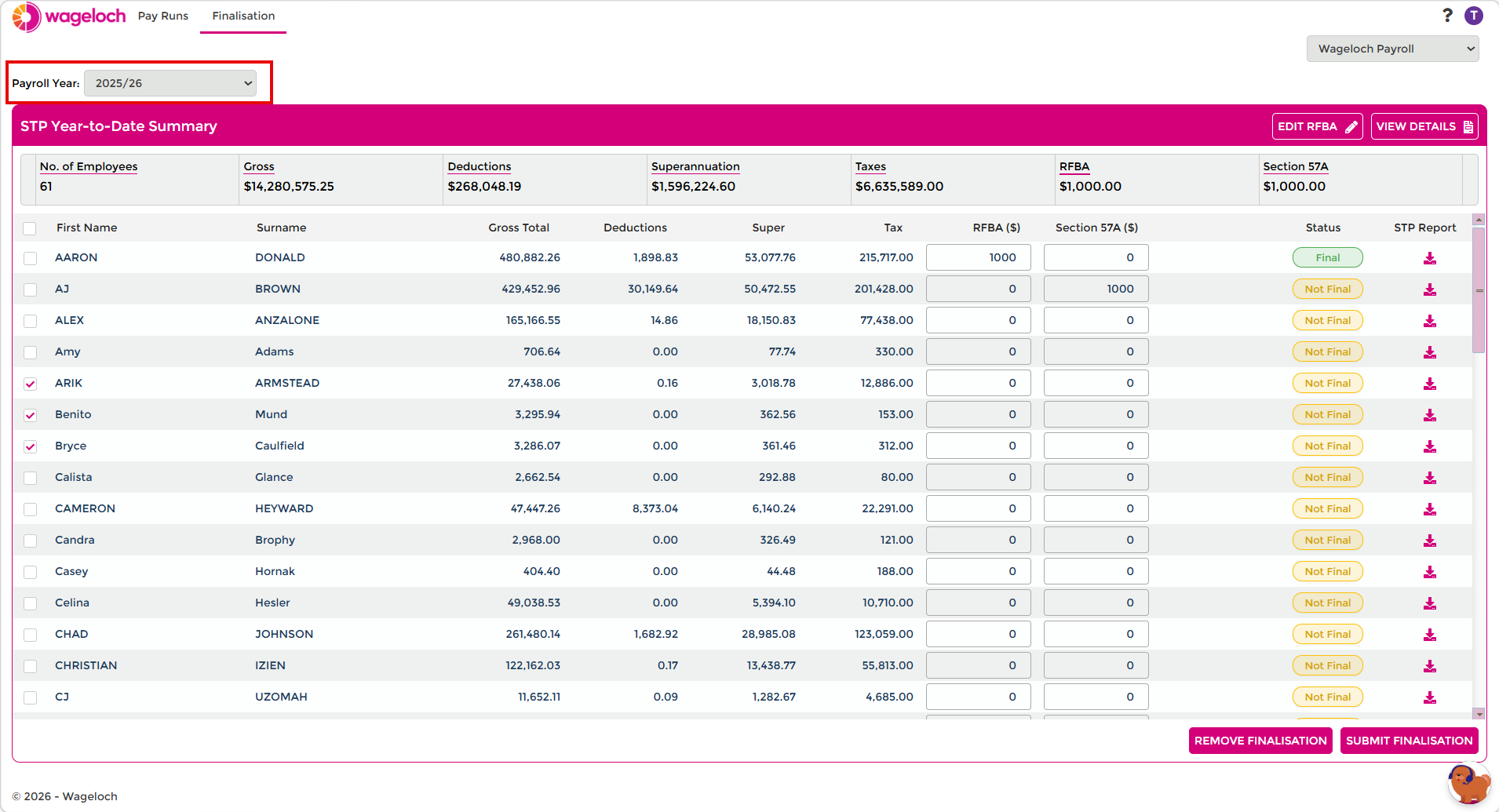
- Review the employee grand totals.
Review employee STP details
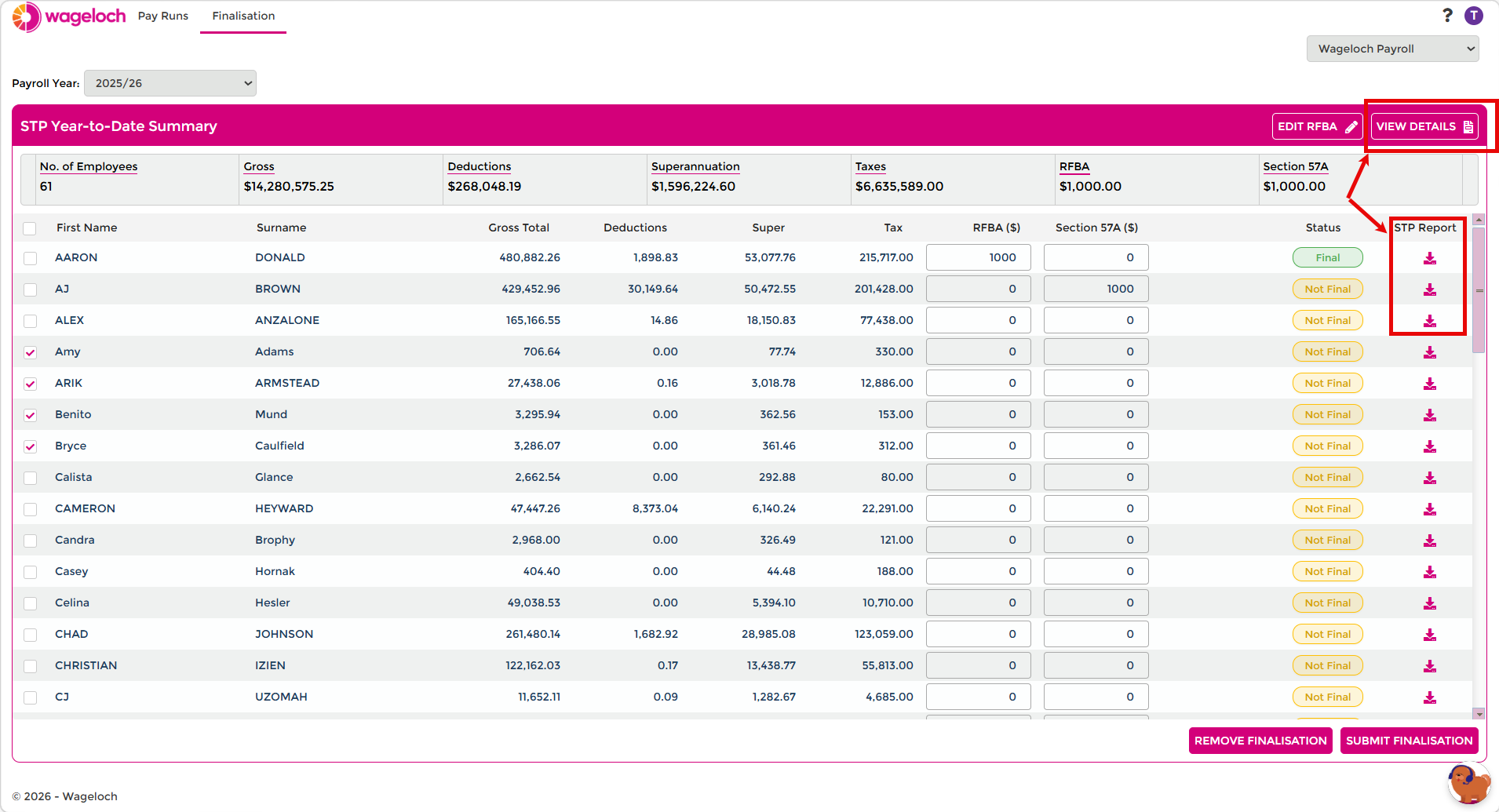
- Select View Details.
- Choose an employee from the dropdown in the top right.
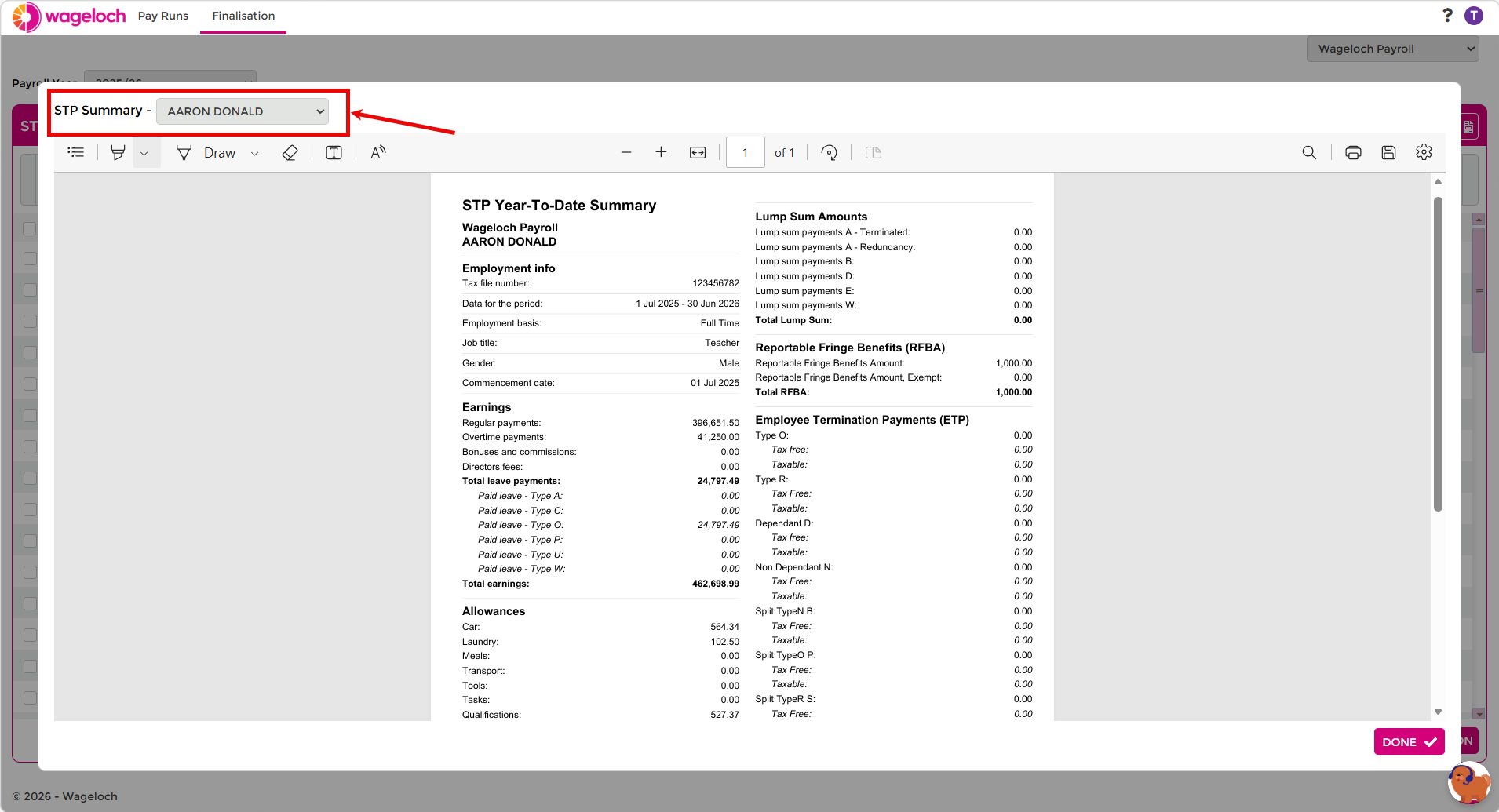
- Review the employee STP summary values before finalising.
Enter RFBA amounts
- Select EDIT RFBA for the relevant employee.
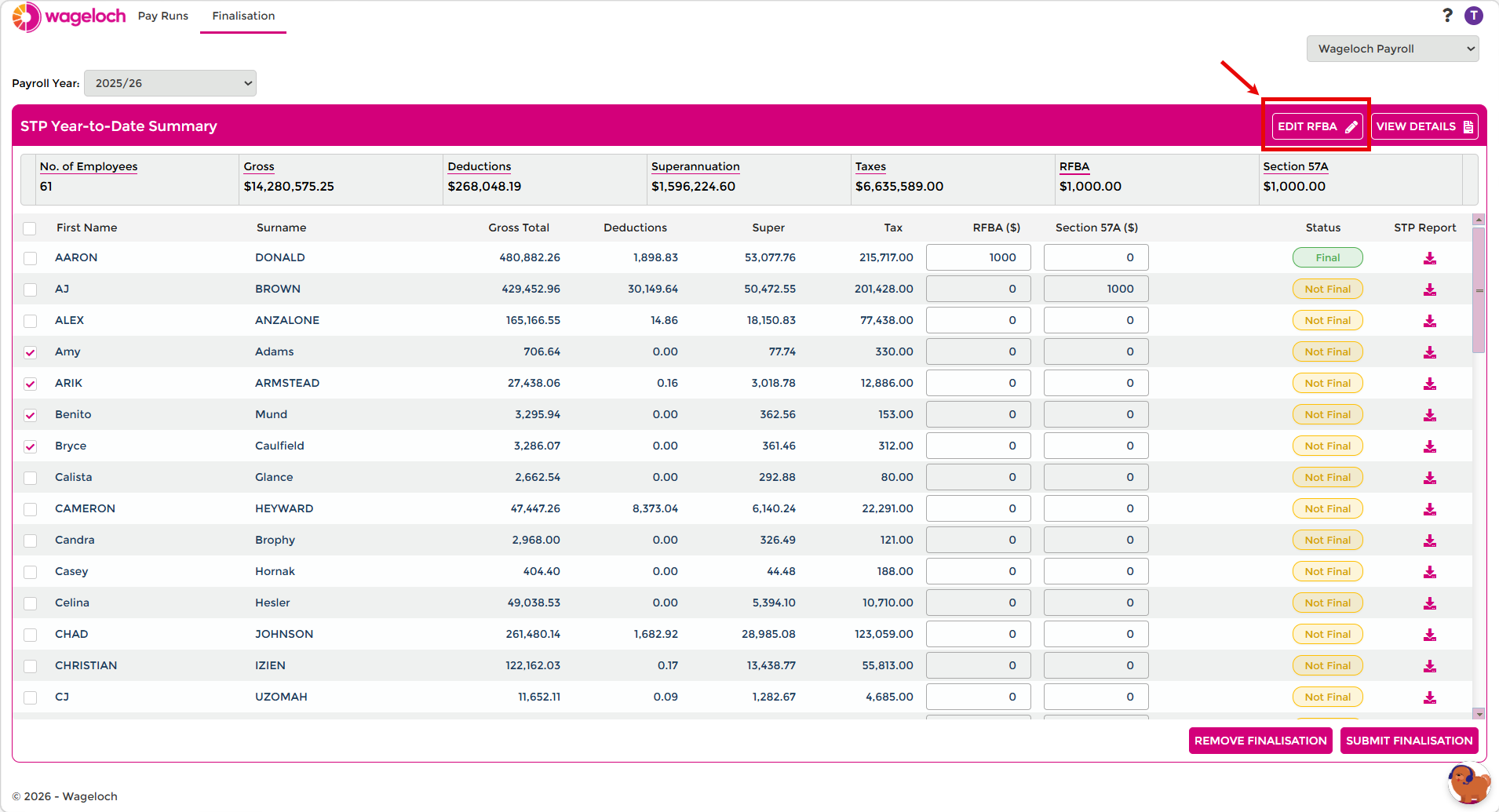
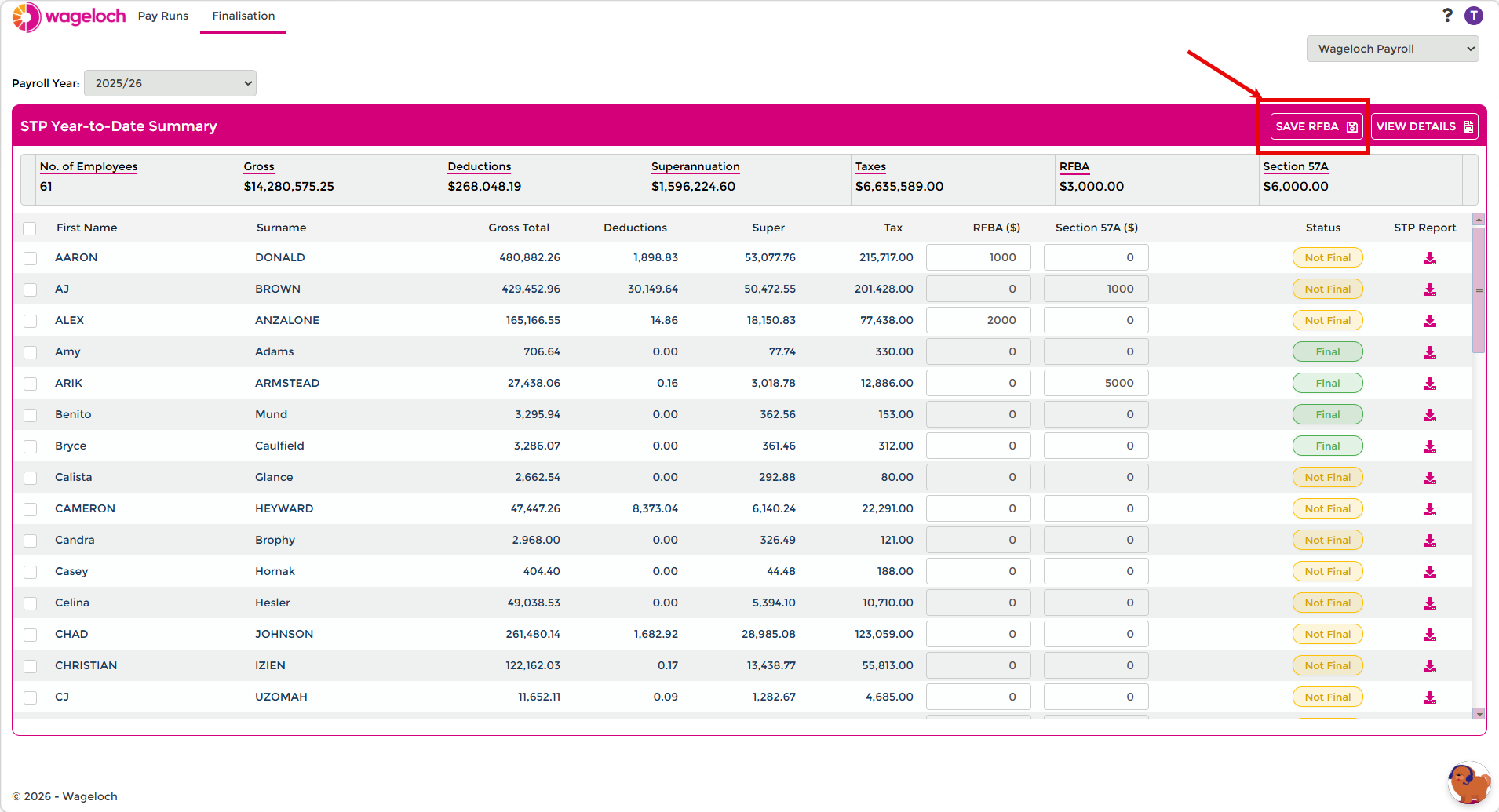
- Enter values in the RFBA or Section 57A field.
- Select Save RFBA.
Submit finalisation to the ATO
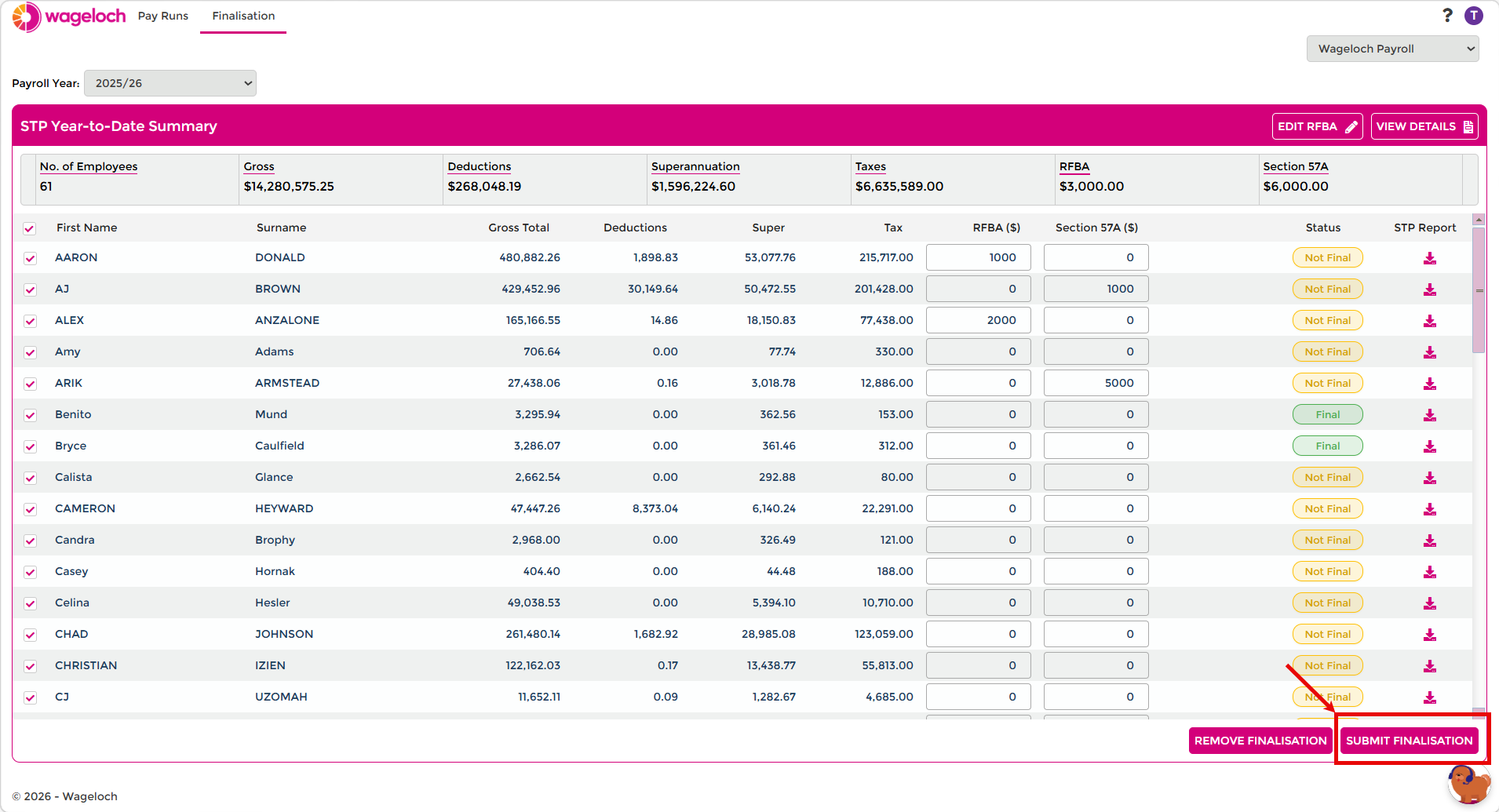
- Select the employee checkboxes you want to finalise.
- To finalise everyone, select the header checkbox at the top of the list.
- Select Submit finalisation.
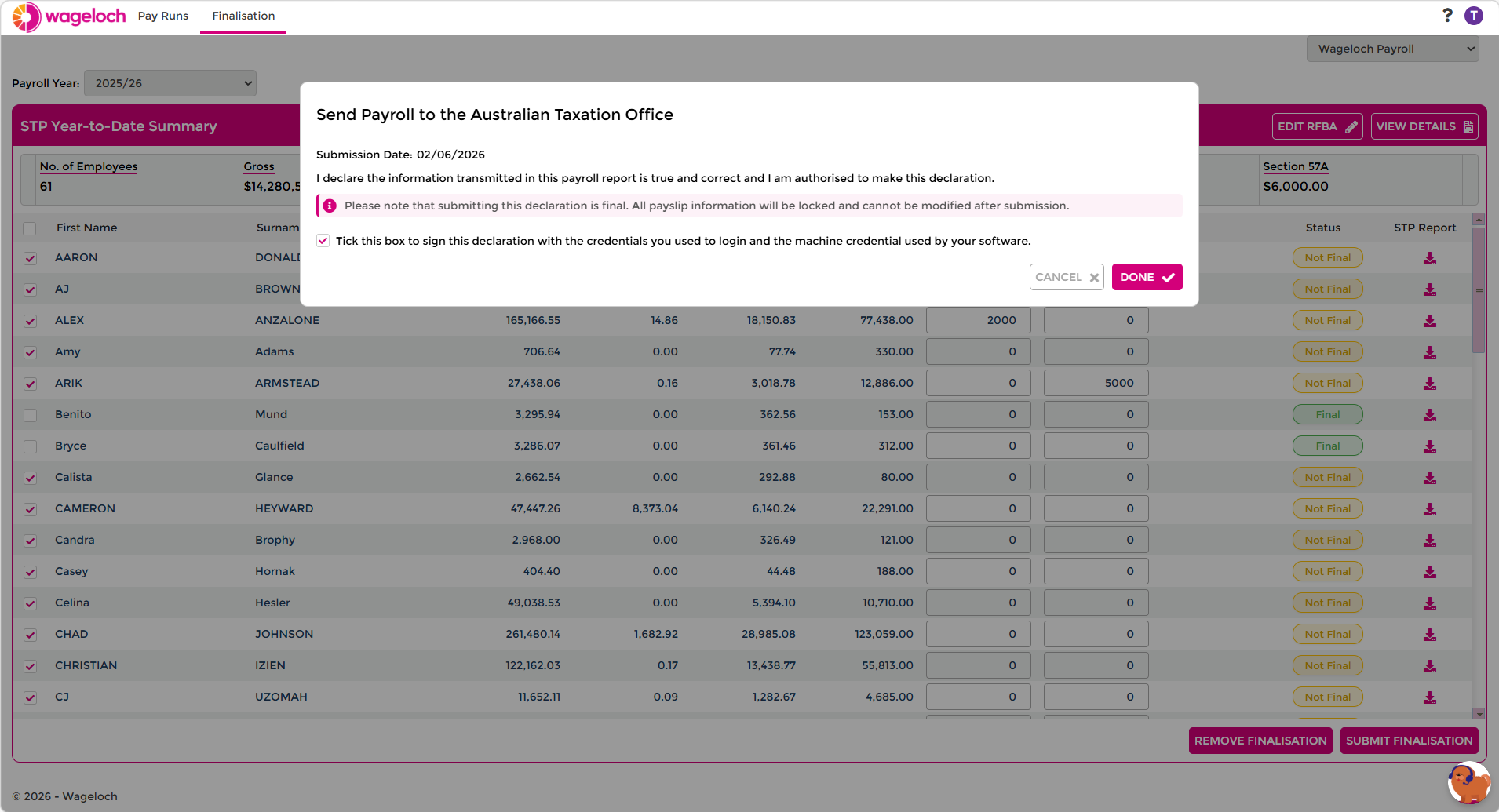
- Confirm the submission.
- On the confirmation screen, tick the declaration.
- Select Done to send finalisation to the ATO.
- Confirm employee status shows Final in green.
Confirm records before submitting
Do not submit finalisation until totals and RFBA values are correct. Changes after submission require unfinalising and resubmitting.
Download the STP report
- Select View Details.
- Download the STP report for your records.
Make corrections after finalisation
If you need to correct an employee after finalisation, unfinalise the employee first, apply the correction, then submit finalisation again.
- Select the employee.
- Select Remove finalisation.
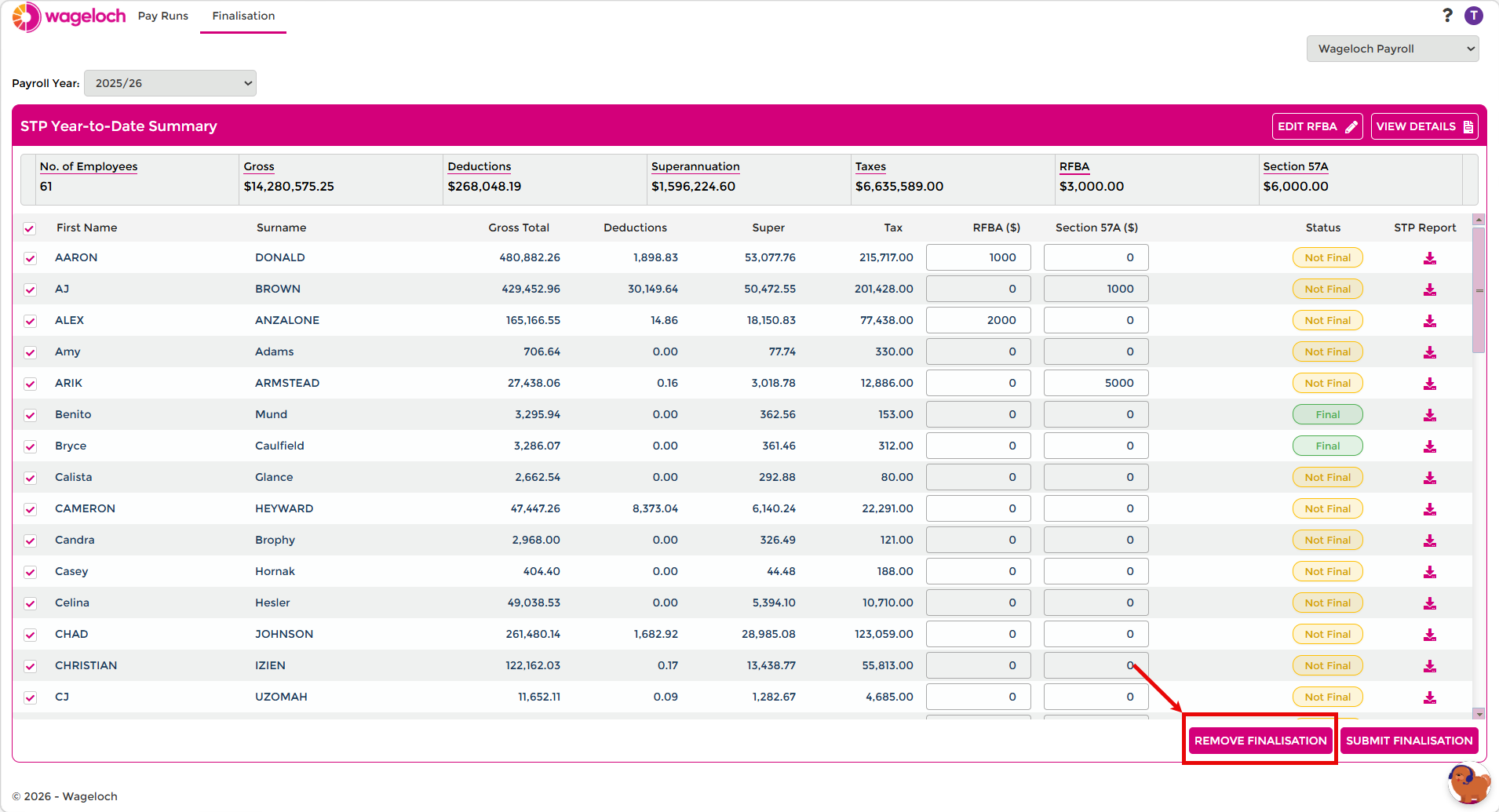
- On the confirmation screen, select Done to send the unfinalisation notification to the ATO.
- Confirm the employee status changes to Not final.
- Edit the required employee information, such as RFBA values.
- If payroll totals are wrong, create an unscheduled pay run in Pay Runs to apply the adjustment.
- Return to Finalisation.
- Submit finalisation again.
Corrections can affect reporting
If you change totals after finalisation, make sure your accounting and STP records are aligned before you resubmit.
Troubleshooting
Totals do not match the accounting system
Do not submit finalisation yet. Review pay runs and create an unscheduled pay run if an adjustment is required.
RFBA was missed before finalisation
Unfinalise the employee, enter RFBA values, save, then submit finalisation again.
Can you finalise one employee only?
Yes. Select that employee and submit finalisation for that record only. You can finalise other employees later.
How to confirm an employee is finalised
Check the status column. A finalised employee shows Final in green.
When is data sent to the ATO?
Data is sent when you complete the final confirmation and select Done.