
Leave Templates
3 min read
Leave Templates
Leave Templates define expected work patterns so leave can be booked more accurately, especially when requests span multiple days.
Using templates helps reduce manual edits during approval and lowers the chance of booking leave against days or hours a staff member would not normally work.
Choose the template approach
There are two common approaches:
- Roster Leave Template: for group-level patterns aligned to roster cycles.
- Individual Leave Template: for employee-specific patterns.
INFO
Use one template setup at a time for the same workflow. Mixing both can make approval results harder to understand.
Set up a roster leave template
- Open Wageloch and sign in.
- Select Settings (top-right), then open Rosters.
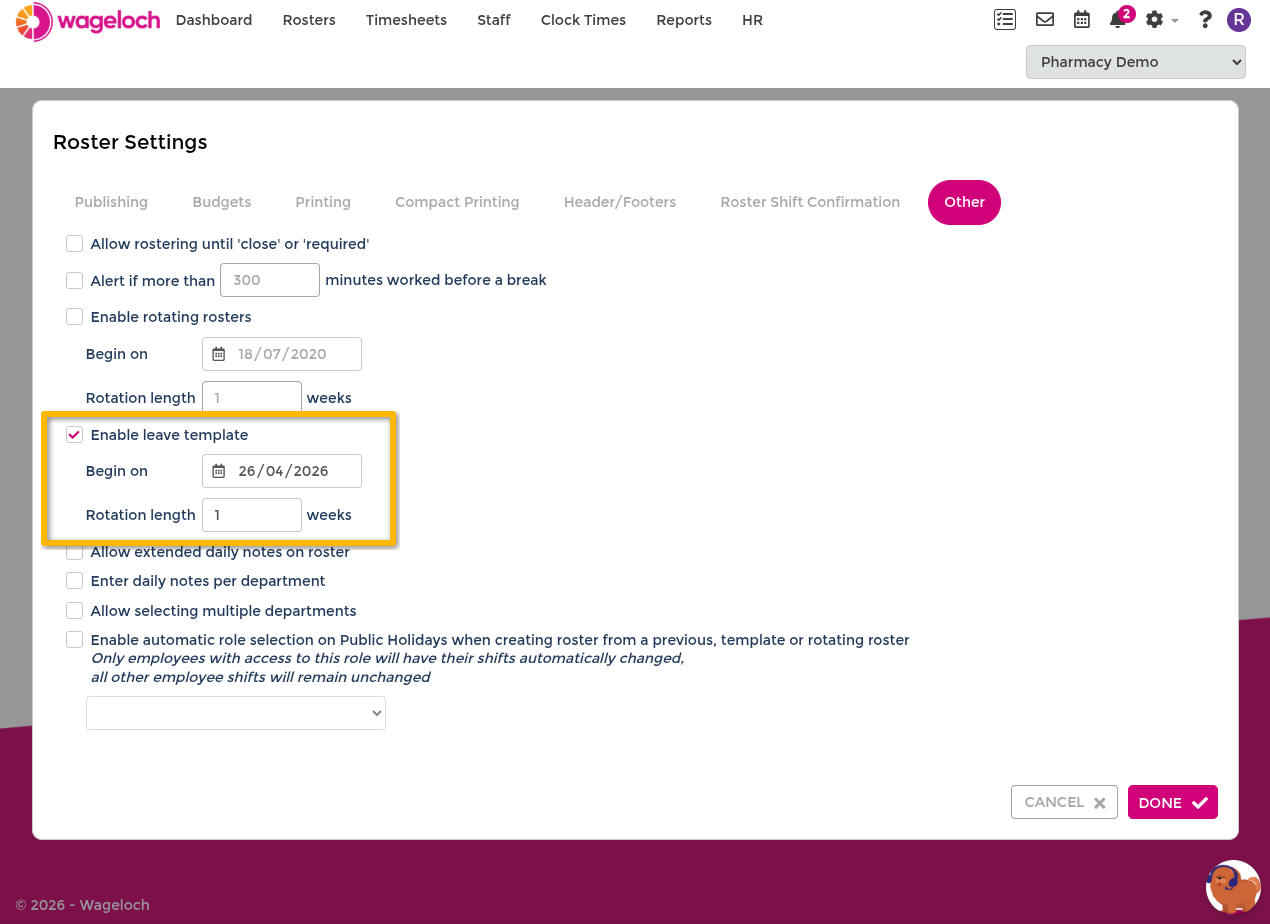
- In Other, enable Leave Template.
- Set the start date and cycle length (for example weekly or fortnightly).
- Select Done.
Build the roster template pattern
- Open Rosters.
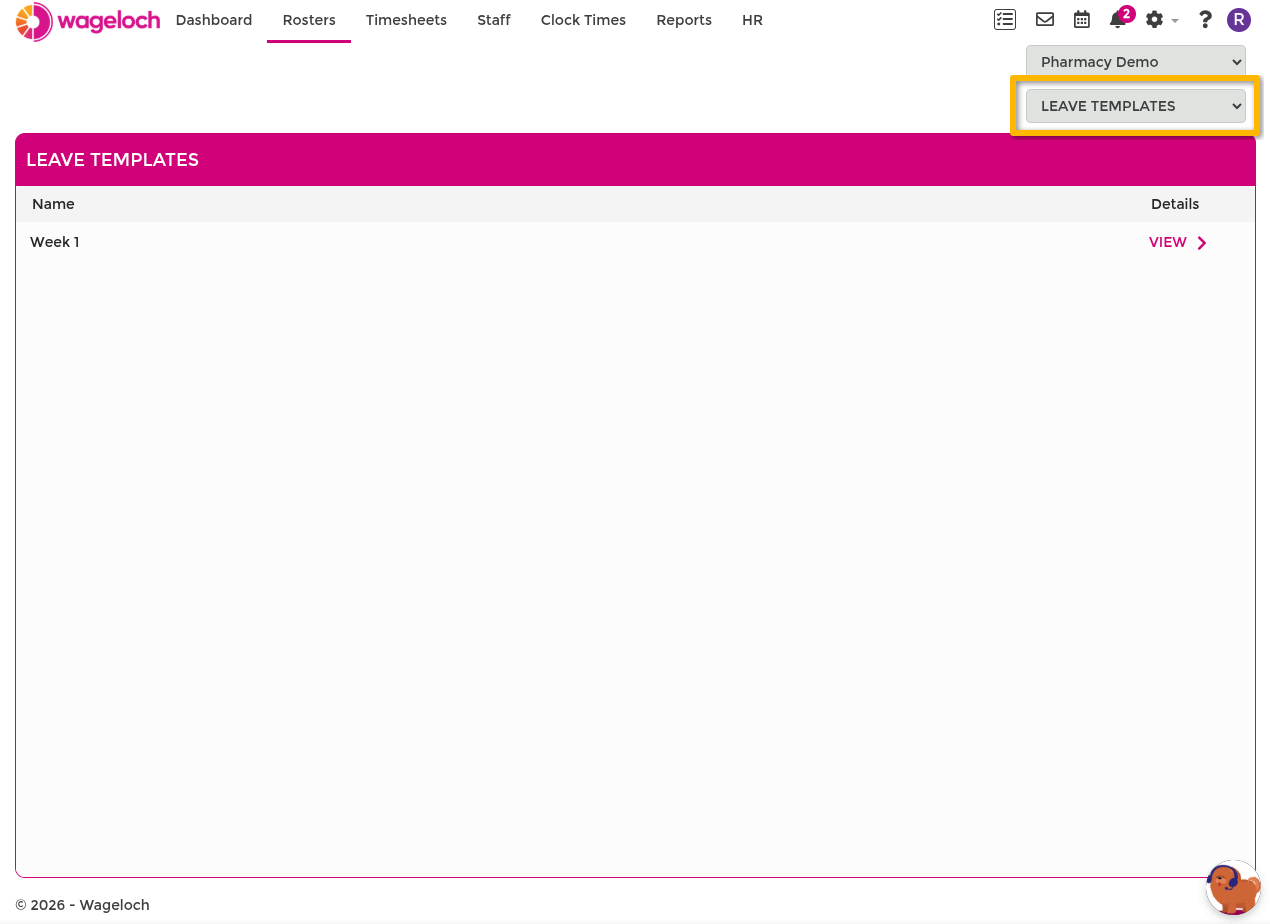
- Use the roster view selector (top-right) and choose Leave Template.
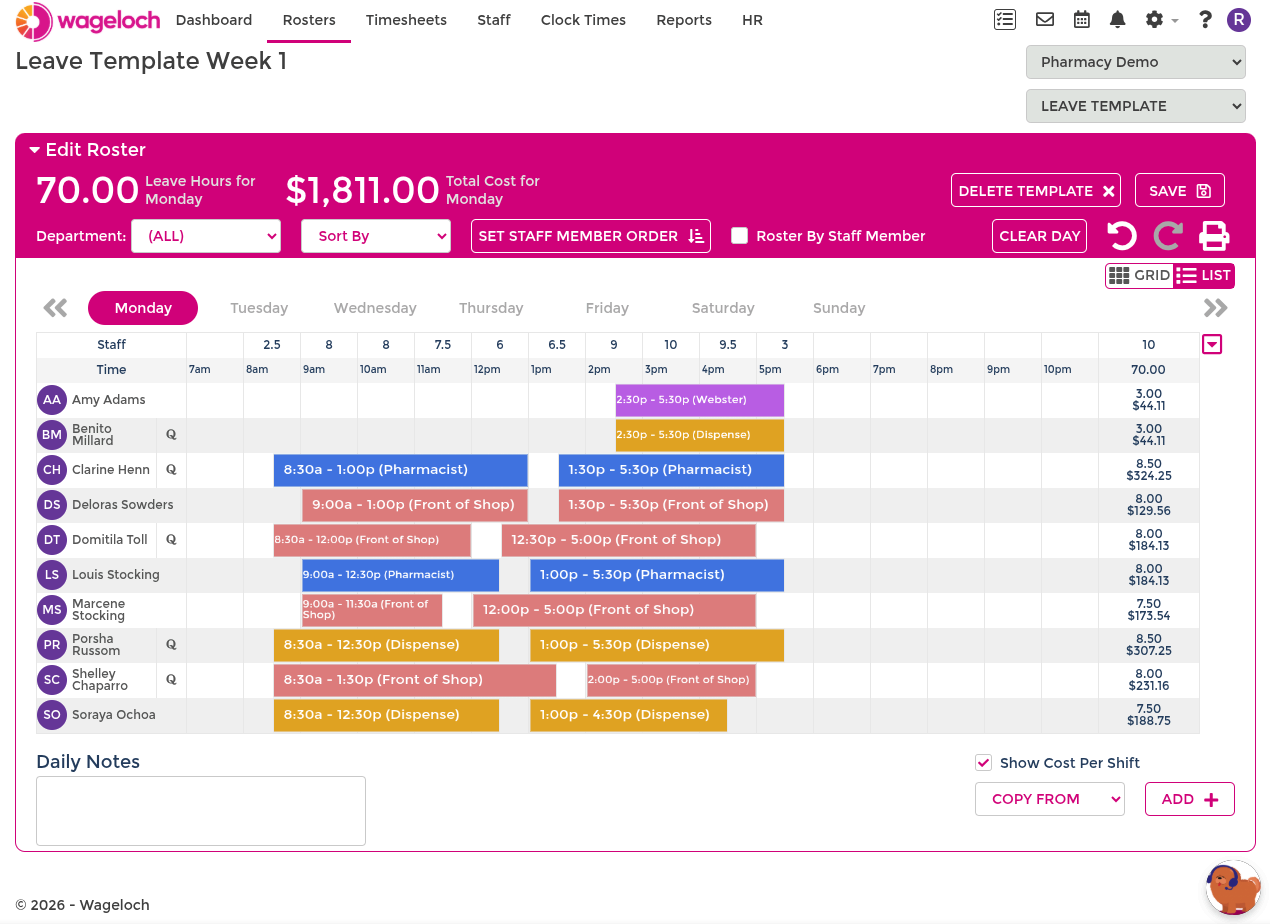
- Select the relevant week or fortnight in the cycle.
- Build the pattern using your preferred method:
- Start from blank in daily view.
- Switch to staff view and build one person at a time.
- Use Copy From to reuse an existing roster or template.
- Save when all relevant shifts are entered.
Set up an individual leave template
Use this when staff have different regular patterns that are easier to manage per employee.
INFO
For this setup, turn off the Roster Leave Template first.
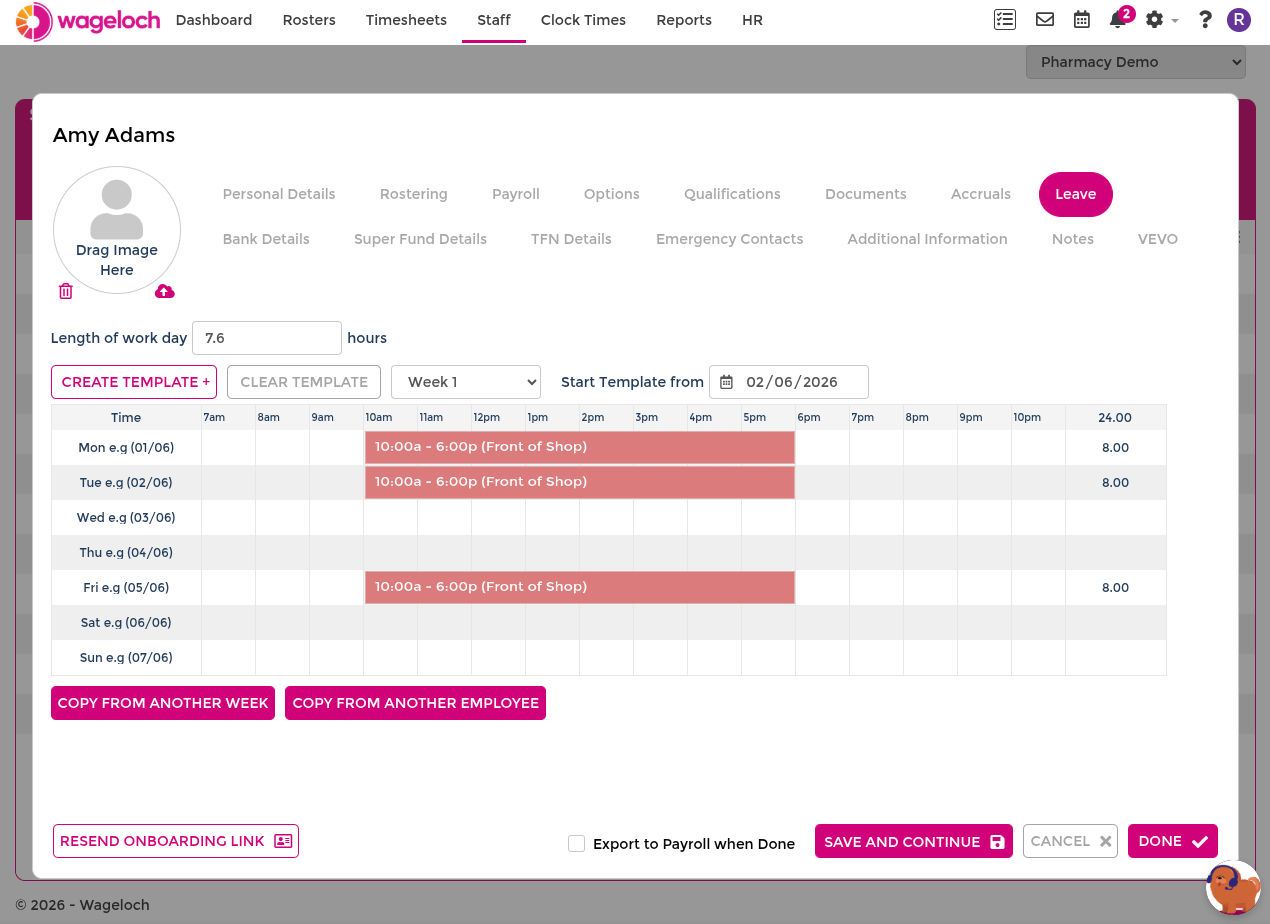
- Open Staff and select the employee.
- Go to the Leave section on the staff card.
- Configure the template details, such as:
- Default workday length.
- Multi-week pattern options.
- Day-by-day shift details where hours vary.
- Set the Start Template date.
- Select Done to save.
Apply templates during leave booking
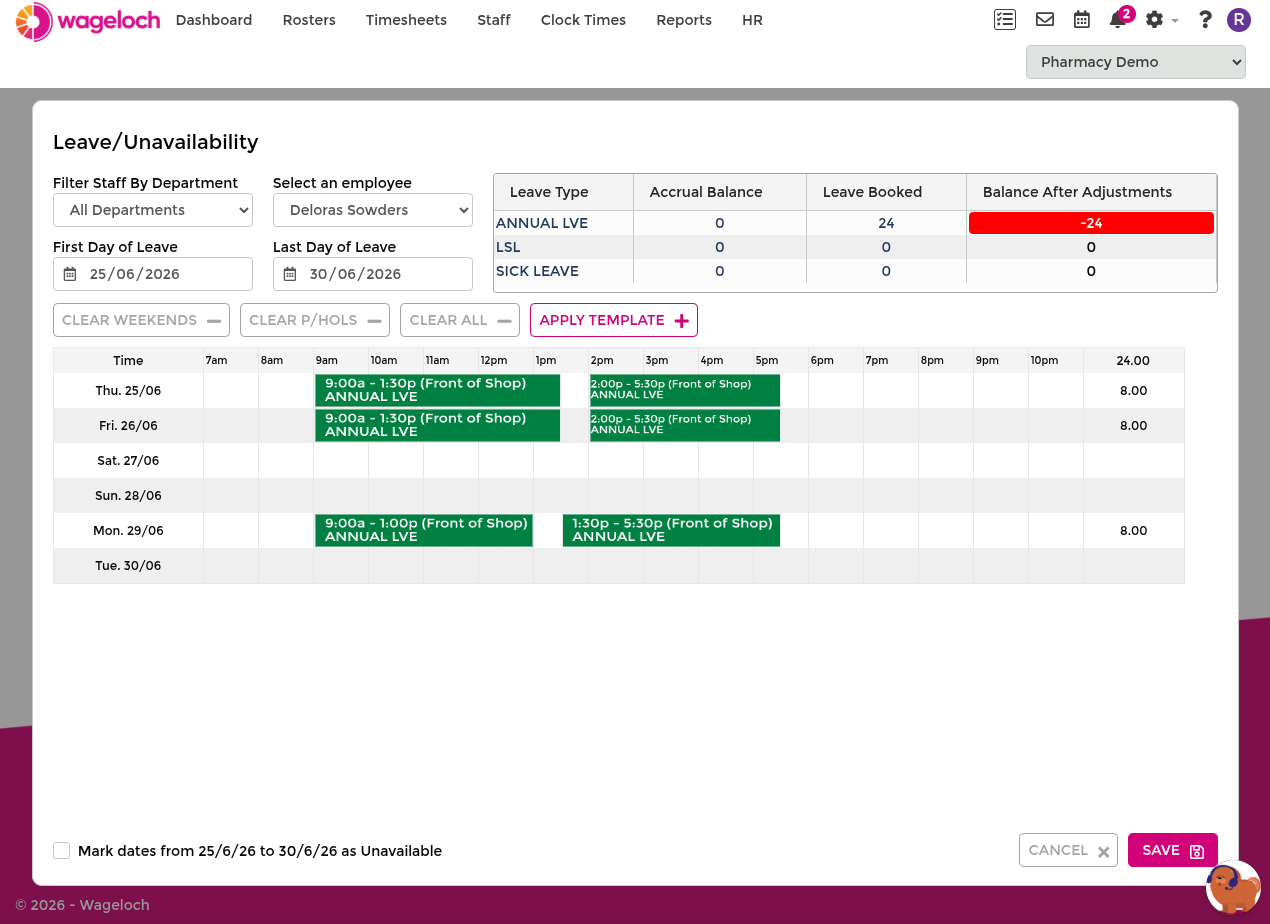
Templates apply the same way in both pending request approvals and manual bookings.
Pending request:
- Open Leave Calendar and go to Pending Requests.
- Select the employee request.
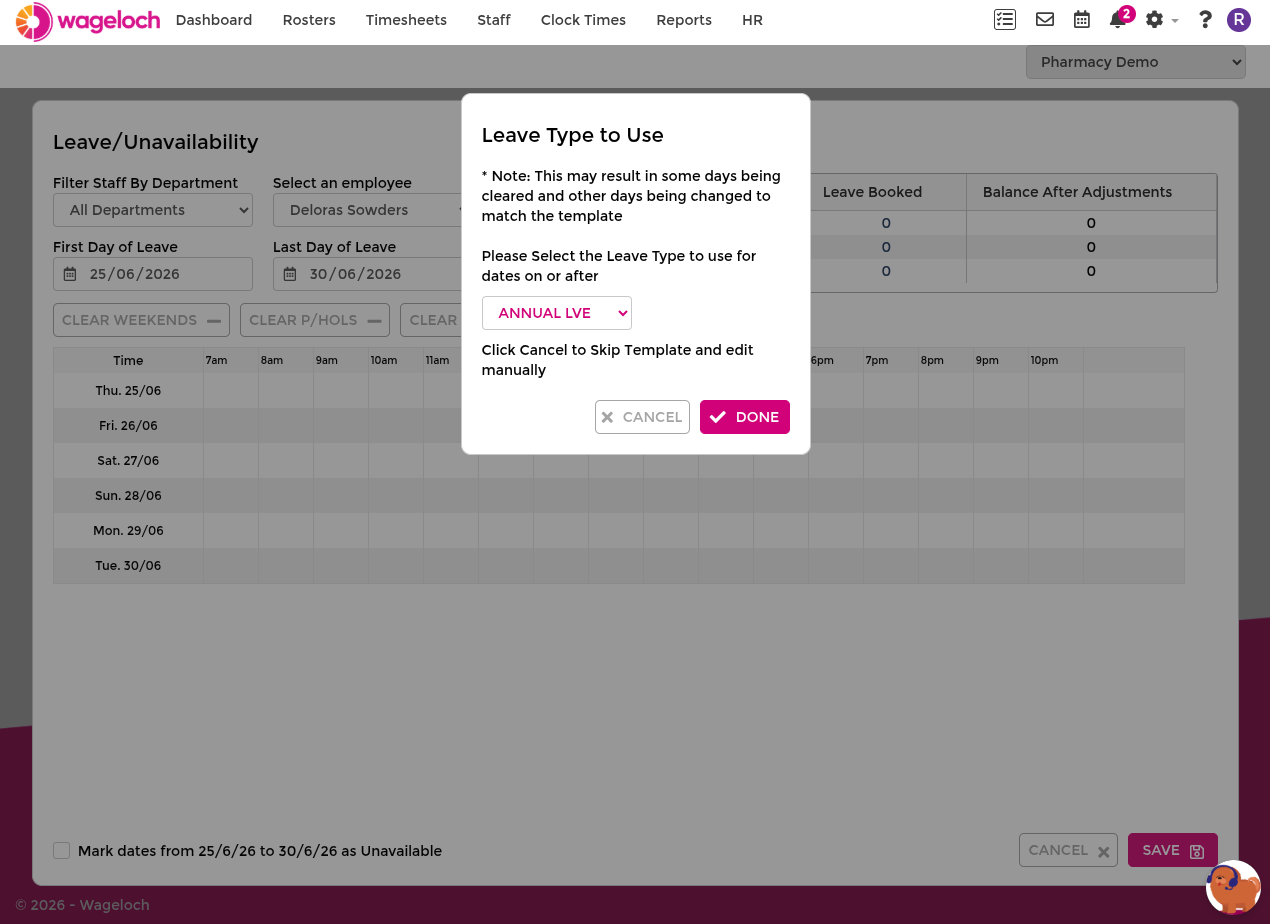
- Apply the suggested leave template when prompted.
- Choose the leave type and select Save.
Manual booking:
- Open Leave Calendar and go to Calendar.
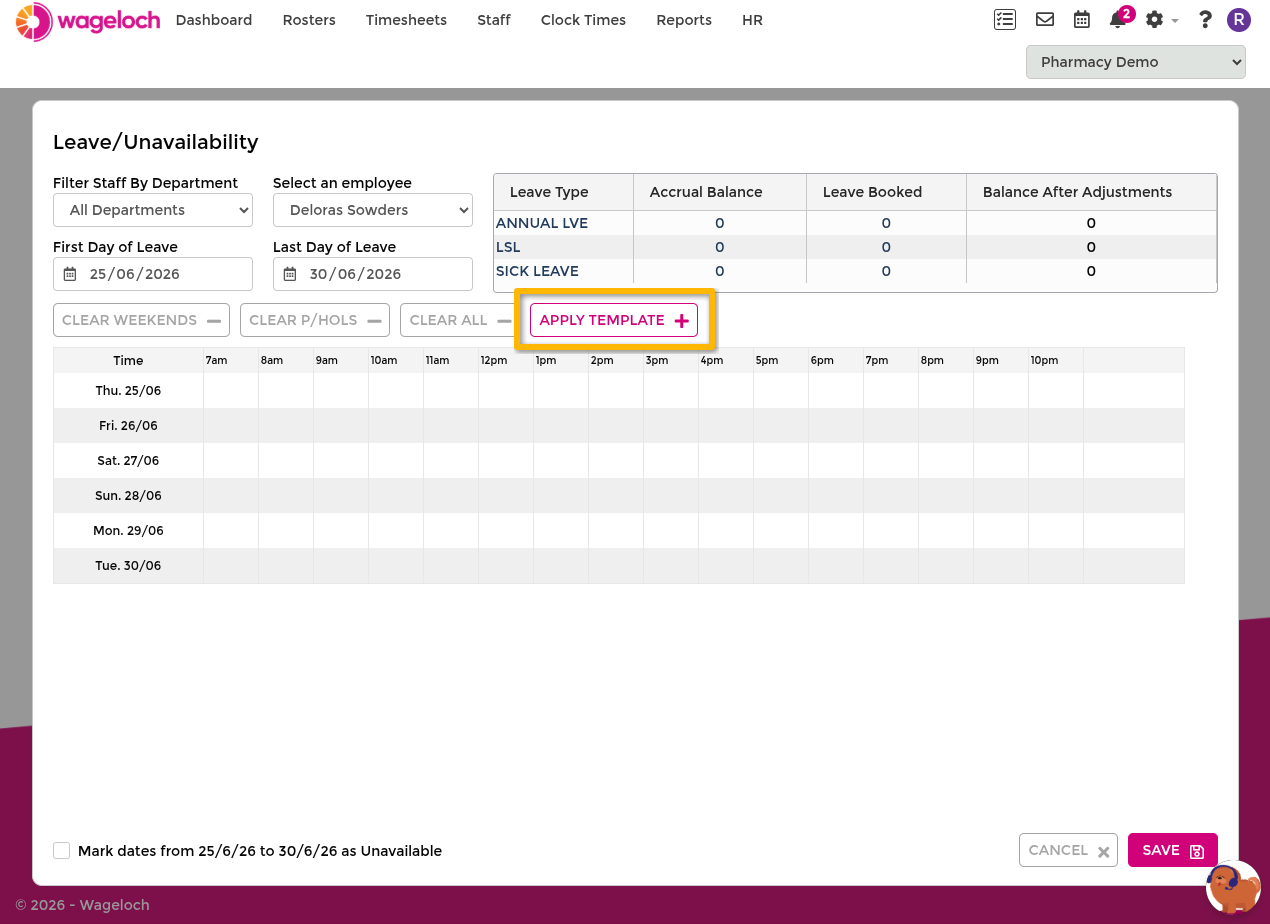
- Select Create Leave, then choose the employee and date range.
- Select Apply Leave Template.
- Choose the leave type and select Save.
Auto-apply behaviour on approval
Approval behaviour is controlled by Approval Actions in Permissions and Restrictions.
When Book as Requested is enabled and templates are set up correctly, approved leave is more likely to match the staff member's usual pattern and need fewer manual fixes.