Team Roster
2 min read
Team Roster
Open Team Roster to review and maintain staff rosters.
Review roster periods
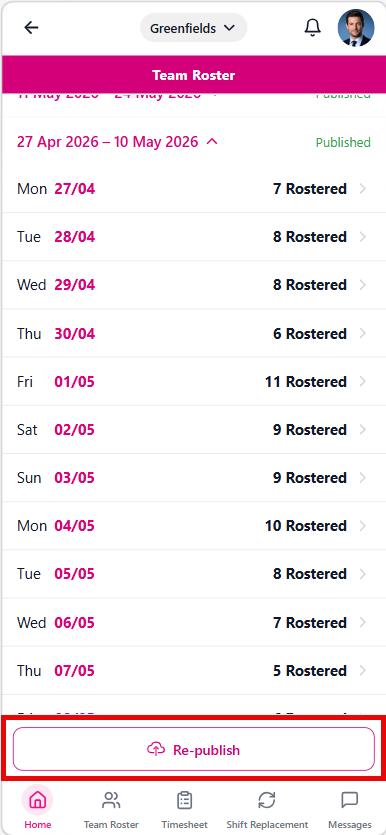
The roster screen shows current and previous periods in collapsible groups.
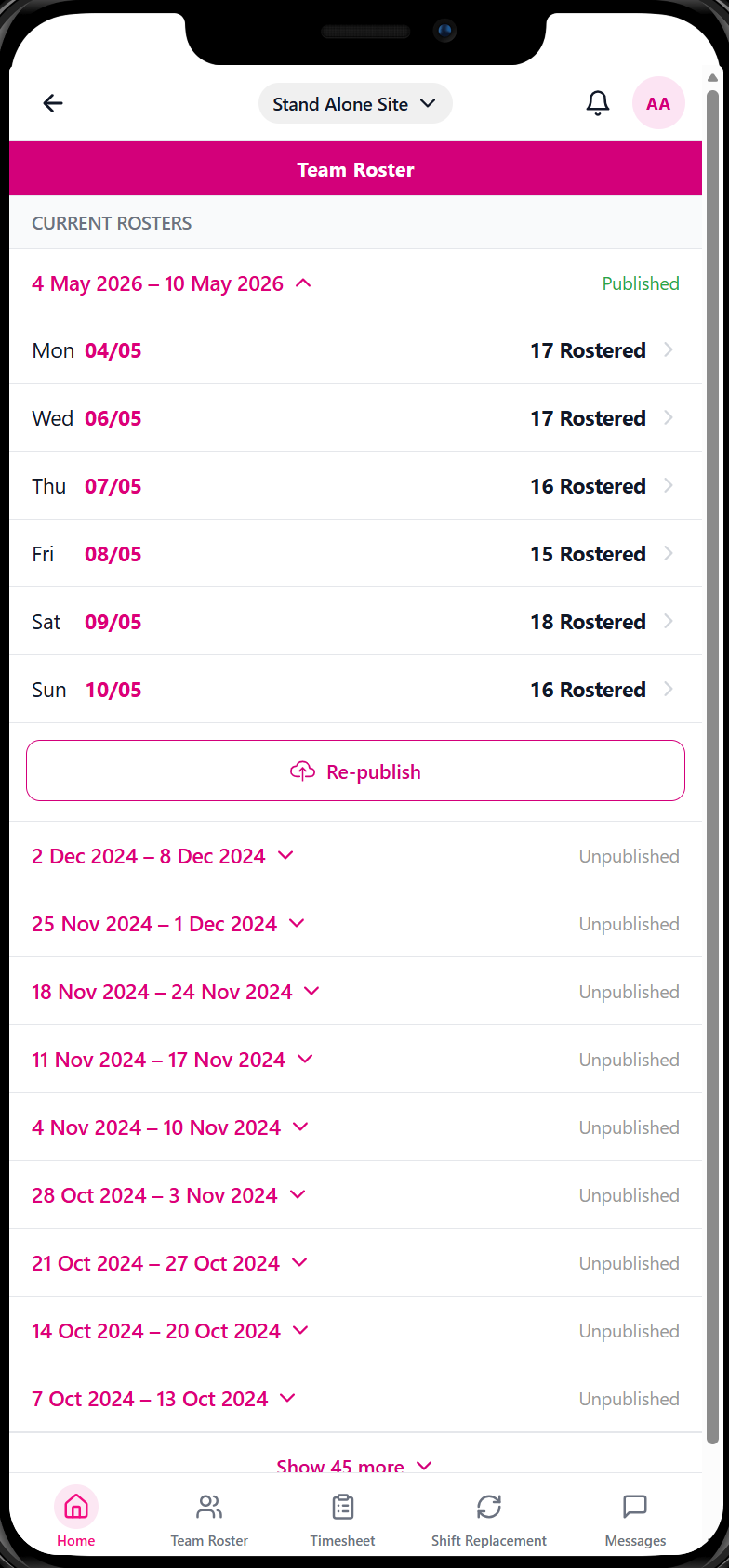
Each period shows the date range, rostered employee counts, and a publish or republish action.
Open a roster day
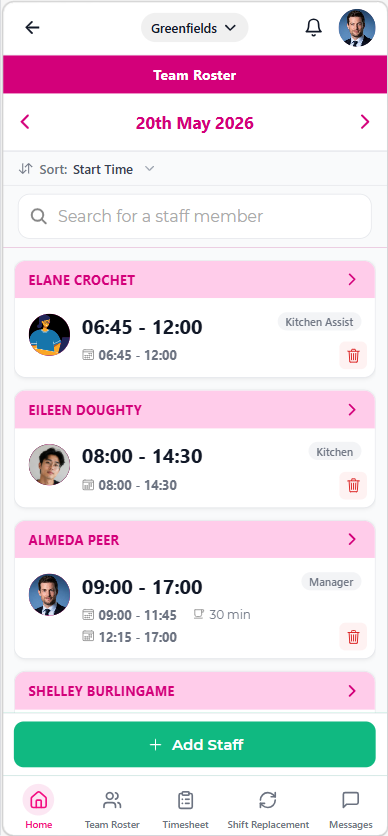
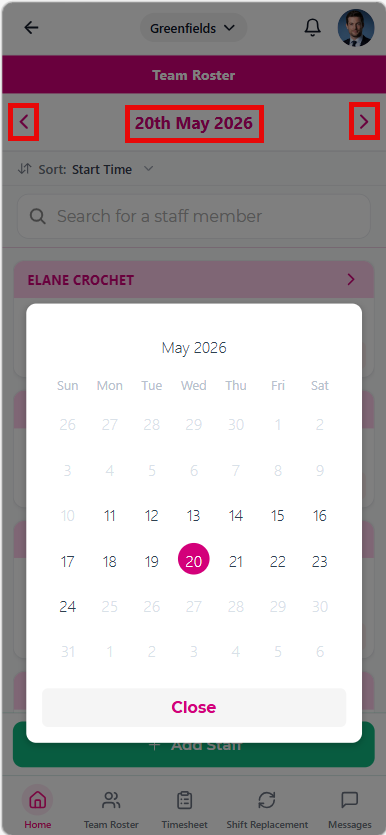
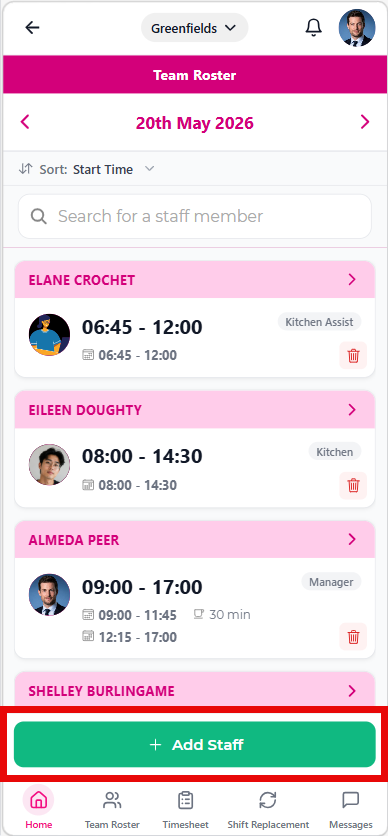
When you open a day, you can review the employee list, search staff, sort entries, and move between dates.
Use the date picker to jump to another day in the same period.
Add an employee to a roster day
- Open the day in Team Roster and tap Add Staff.
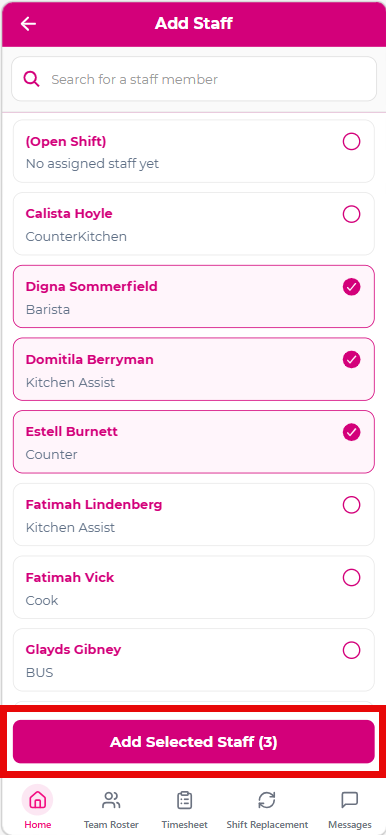
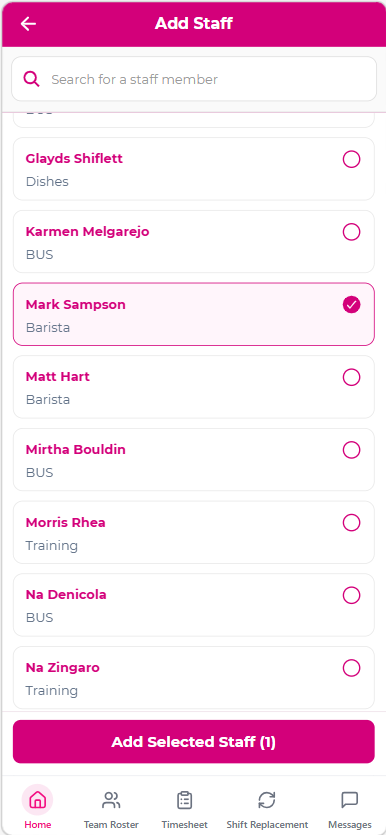
- Select one or more employees.
- Tap Add Selected Staff.
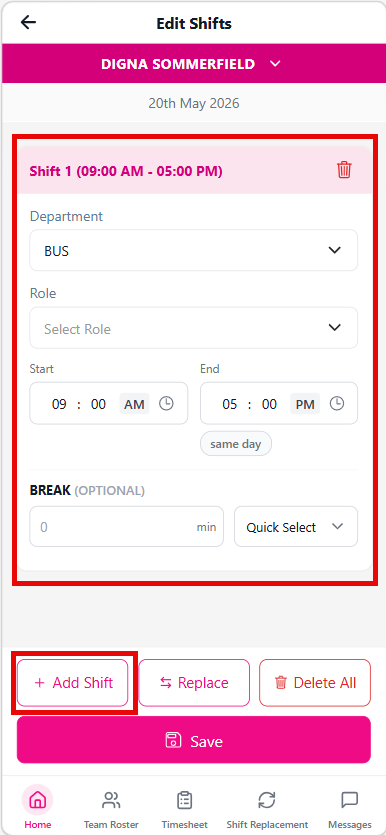
- Enter shift details, including department, role, start and end times, and break settings.
- Tap Save.
- Use Republish on the roster period to notify affected employees.
Edit roster shifts
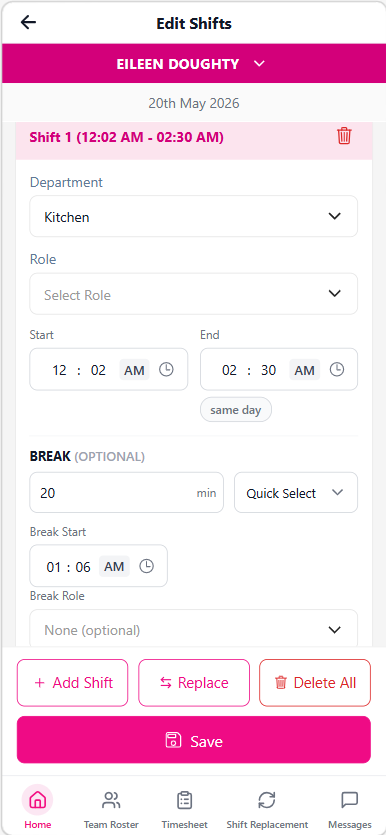
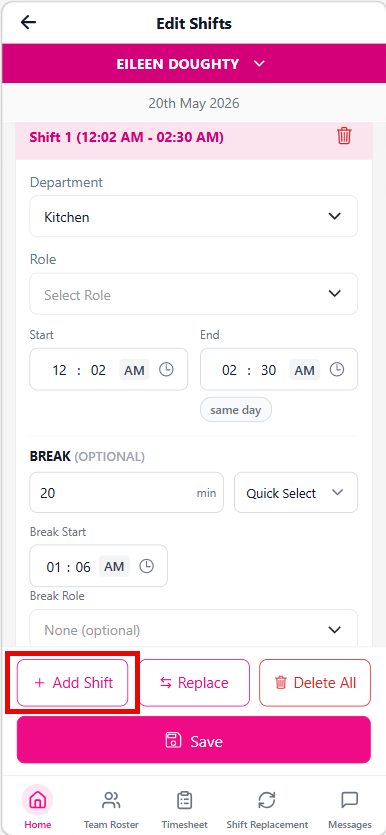
Open an employee card to edit shift details, update department and role, add shifts, replace the employee, or remove shifts.
Replace or remove roster entries
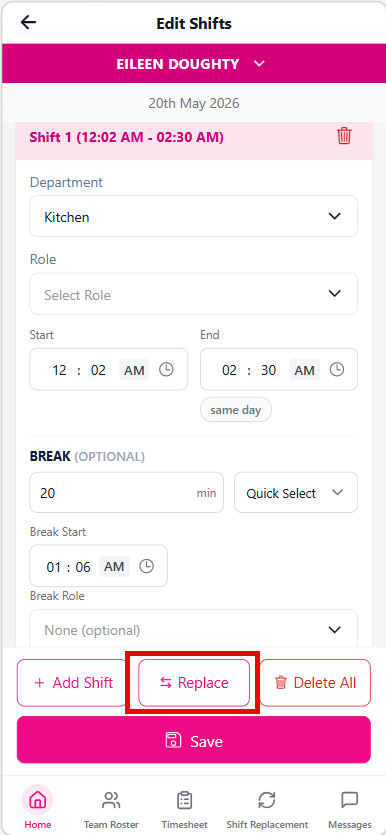
Use Replace to move a shift to another available employee for the day.
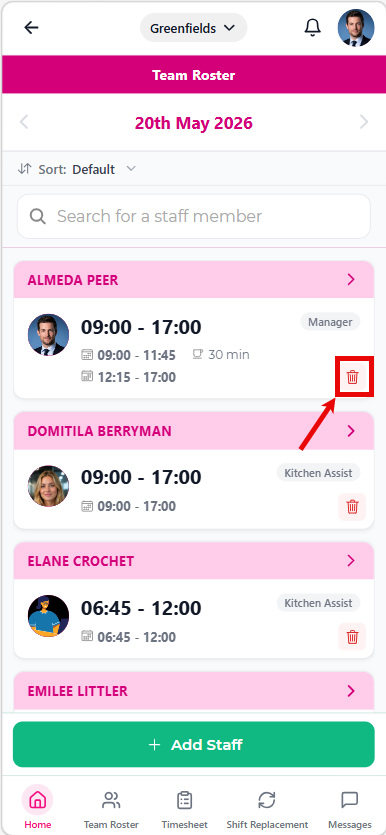
To remove roster entries, use the delete options on the employee card or shift rows.
Publish or republish changes
After changes are complete, use Publish for a new roster or Republish for updates to an existing roster.