
Roster settings
4 min read
Roster settings
Use Roster settings to control how rosters are published, costed, printed, and managed across your team.
Not every option needs to be enabled — start with the areas you use most, then enable extra controls as your process matures.]
Accessing roster settings
- Click the Settings cog (top right).
- Select Roster.
Publishing
Publishing controls how employees receive shift updates.
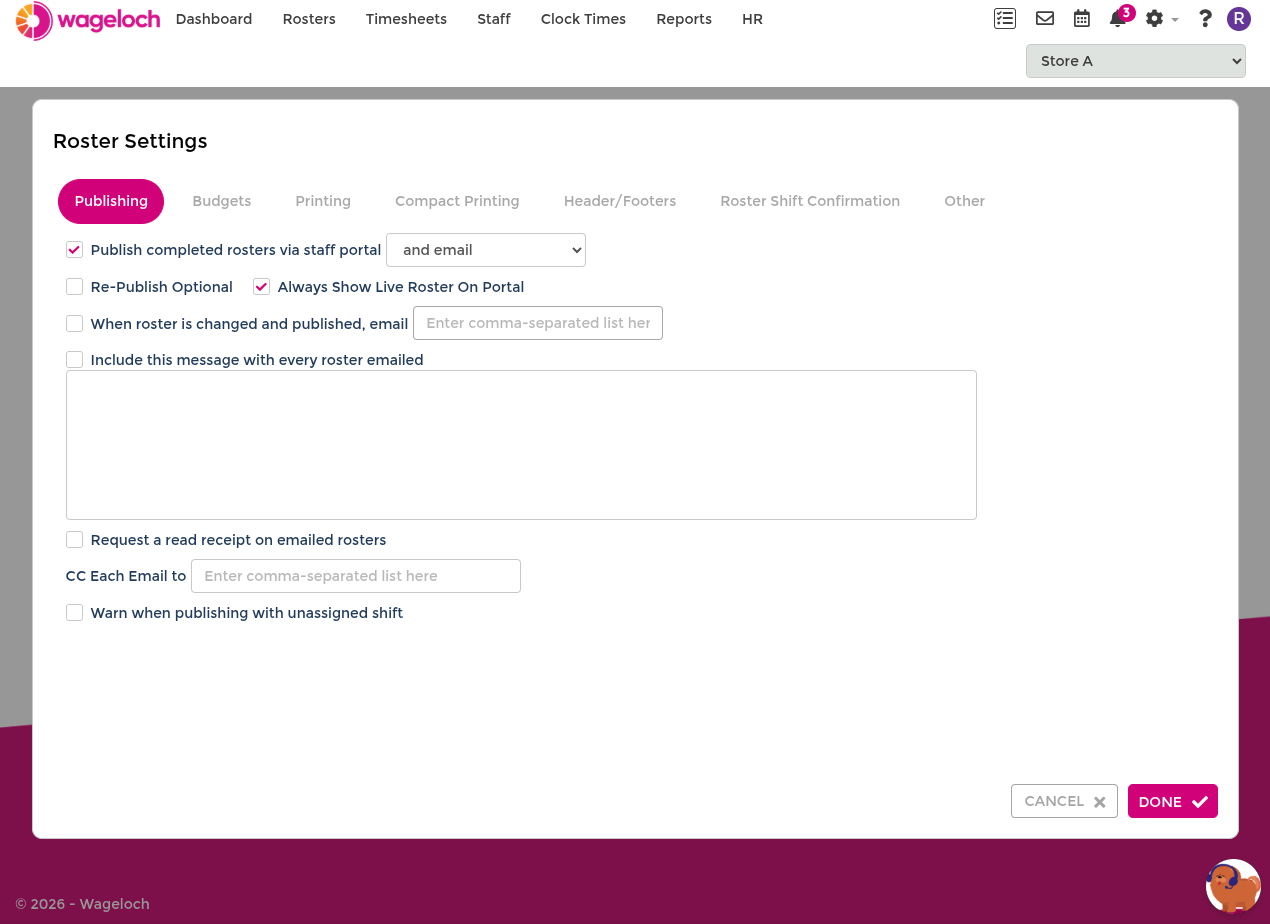
- Publish completed rosters via staff portal: Sends roster updates via the Staff Portal, with an option to also send by email.
- Re-Publish Optional: After the first publish, roster changes usually require republishing to notify staff. When enabled, this option lets you save changes without sending an immediate re-publish.
INFO
If this is enabled, make sure your team still republishes at the right time so staff are notified of shift changes.
- Always Show Live Roster On Portal: Shows unpublished roster content in the portal and mobile app.
- When roster is changed and published, email ___: Sends notification emails to selected recipients when published changes occur.
- Include this message with every roster emailed: Adds a default note to every published roster email.
- Request a read receipt on emailed rosters: Asks for read receipts from recipients.
INFO
Some providers (for example Gmail, iCloud, and Hotmail) may not return read receipts consistently.
Budgets
Budget settings control how wage cost is displayed and monitored in rosters.
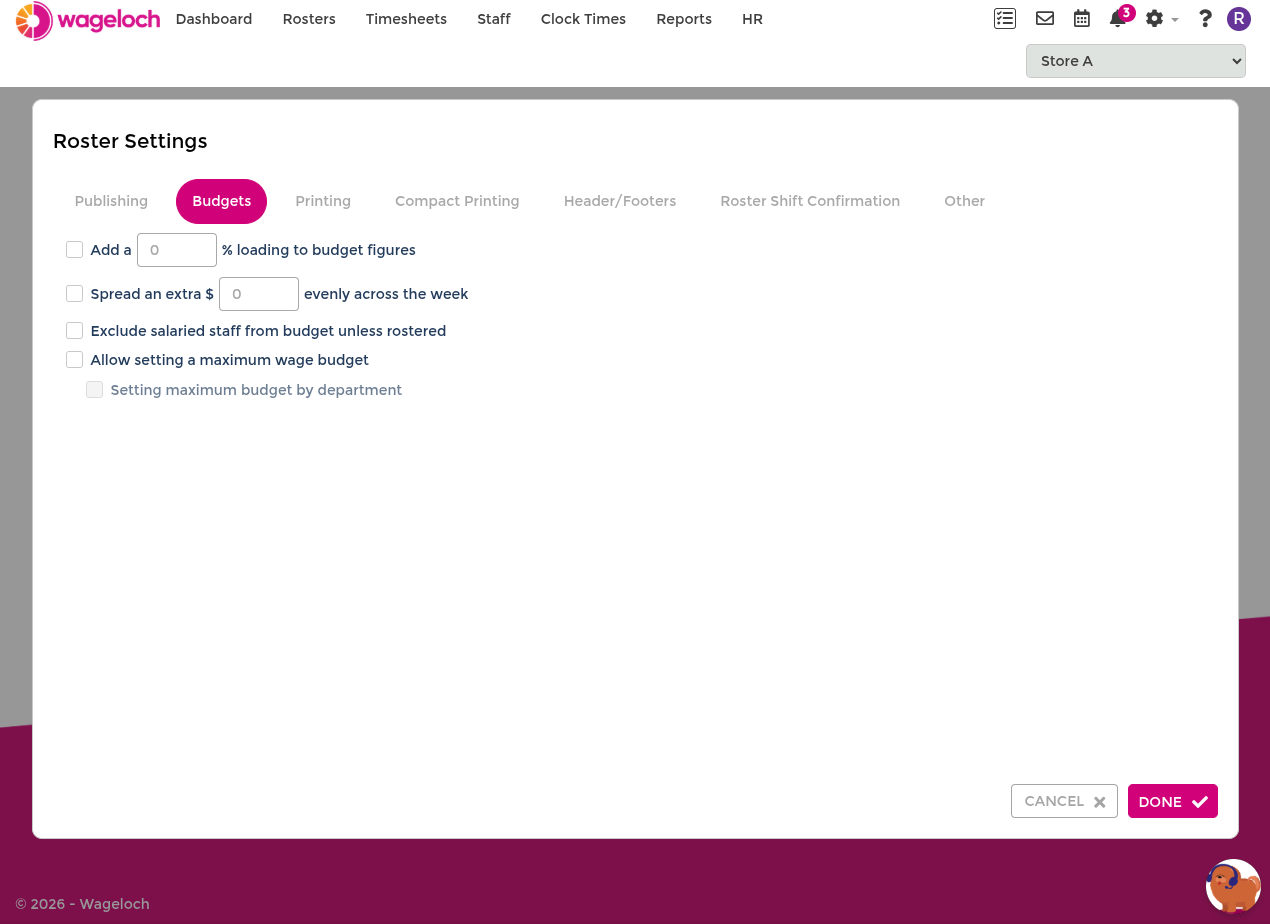
For broader budgeting setup and reporting, see Budgeting.
- Add ___% loading to budget figures: Adds superannuation or overhead loading to displayed roster costs.
- Spread an extra $___ evenly across the week/fortnight: Adds a fixed extra amount across the roster period for expected additional costs.
- Exclude salaried staff from budget unless rostered: Excludes salaried employees from budget totals until shifts are explicitly rostered.
- Allow setting a maximum wage budget: Sets a roster-level wage ceiling and highlights budget overruns.
Printing
Printing settings control how roster data appears in printed exports.
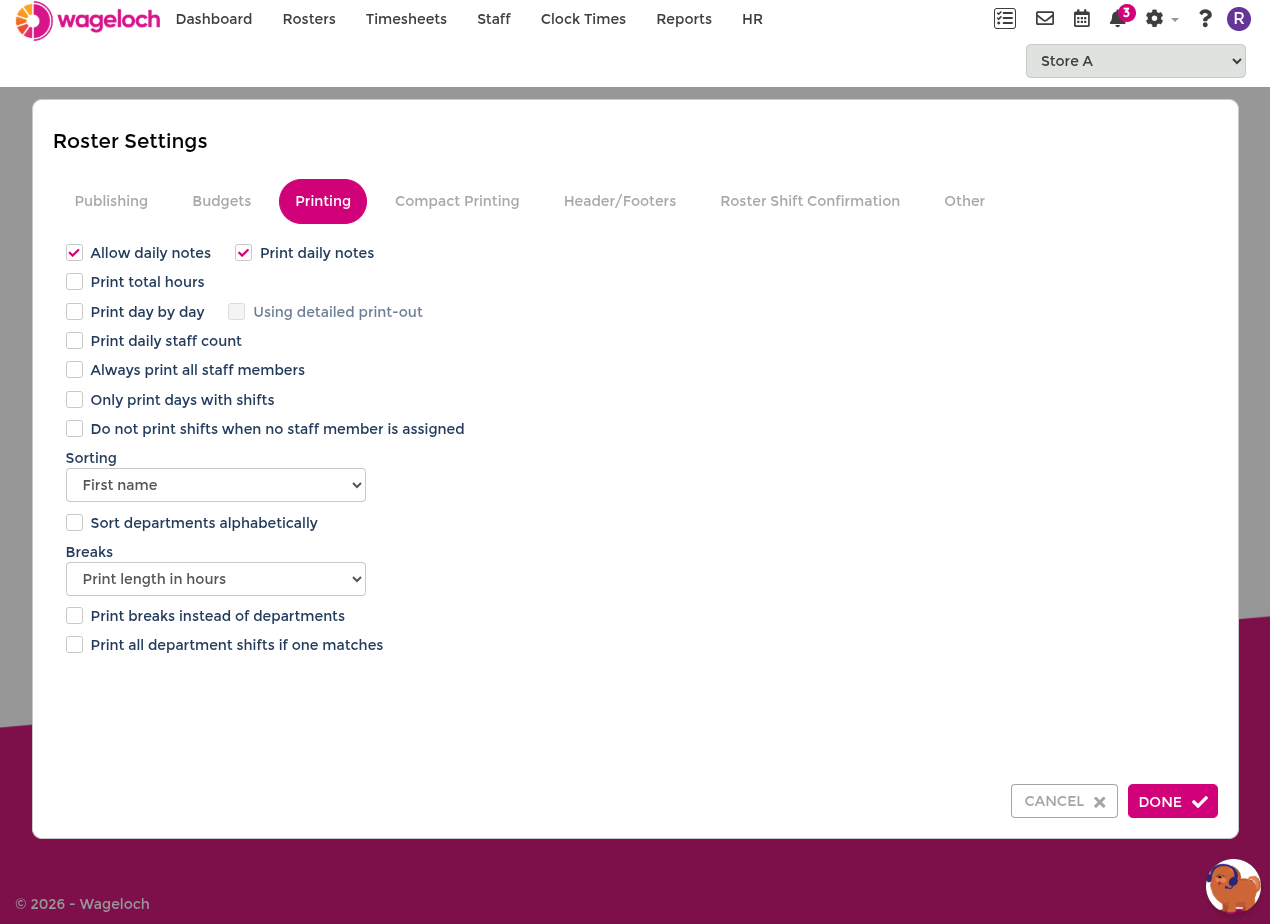
- Allow daily notes: Enables daily notes in roster views.
- Print daily notes: Includes daily notes on printed output.
- Print total hours: Adds total period hours per employee.
- Print day by day: Adds day-by-day print mode.
- Use detailed print out: Includes details such as departments and times.
- Print daily staff count: Shows total scheduled staff per day.
- Always print all staff members: Includes unscheduled employees in printouts.
- Only print days with shifts: Hides days with no scheduled shifts.
- Do not print shifts when no staff member is assigned: Hides placeholder shifts.
- Sorting: Choose name-based, payroll-code, role, department, or shift-start ordering.
- Department sorting: Follows Departments order (or alphabetical order when enabled).
- Break display: Show duration only, start/finish times, hide breaks, or print breaks instead of departments.
Compact printing
These settings apply when the Compact roster printing option is used.
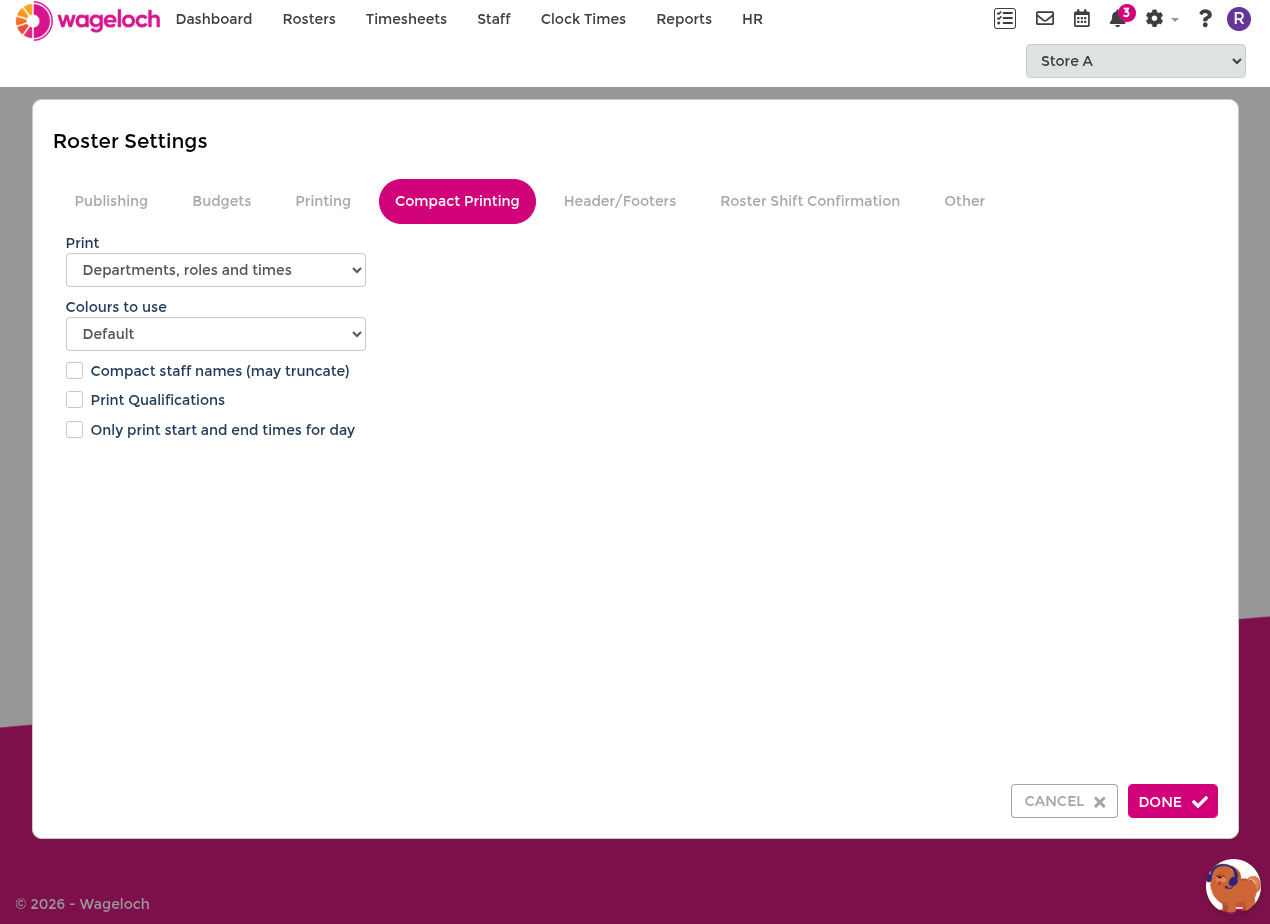
- Print content: Choose combinations of departments, roles, and times.
- Colour mode: Select colour behaviour using Colours.
- Print qualifications: Includes assigned Qualifications.
- Compact names and simplified time display: Reduces layout width for tighter print output.
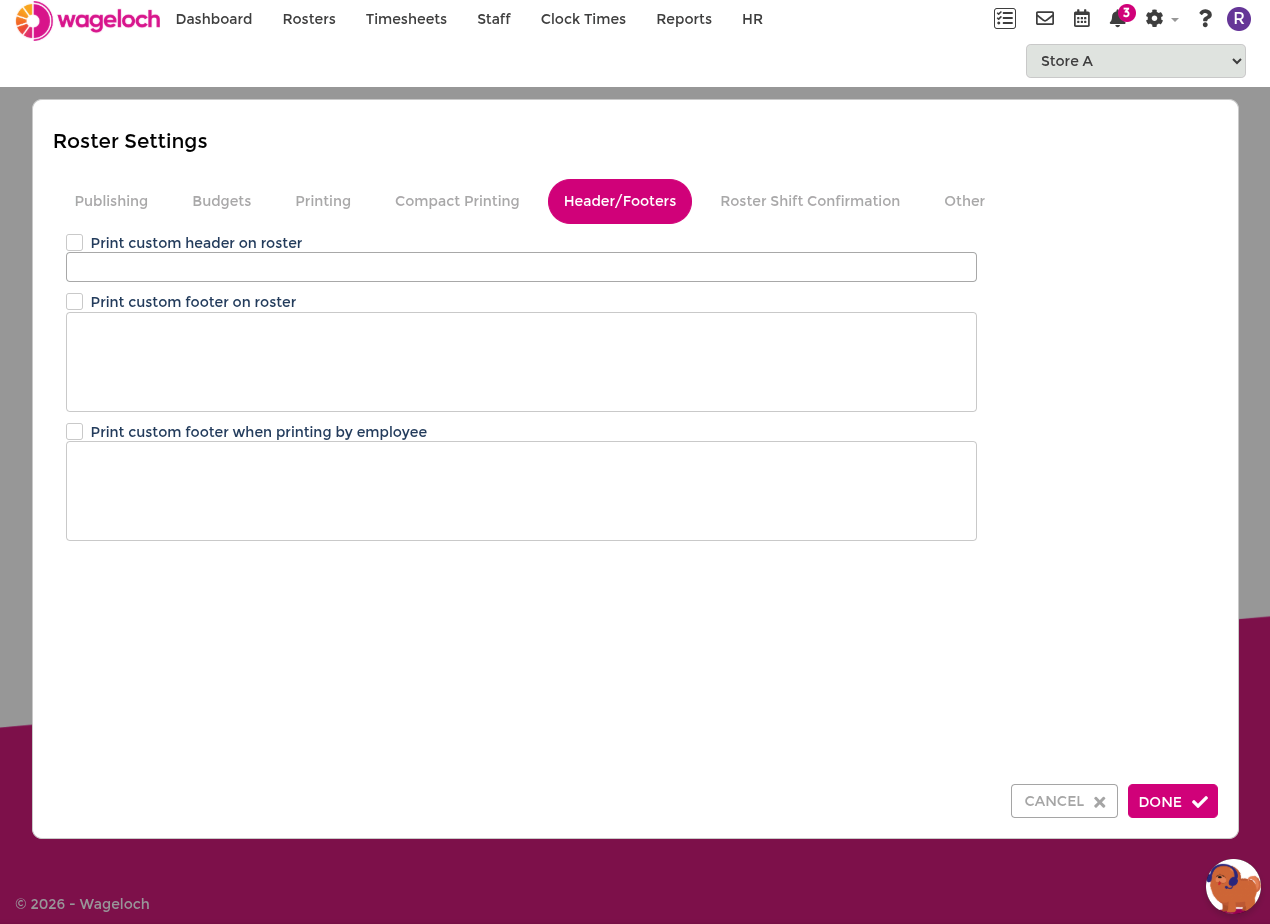
Headers and footers
Configure custom headers and footers for printed rosters.
Roster shift confirmation
Roster Shift Confirmation allows selected staff or pay groups to receive Accept/Decline prompts when rosters are published.
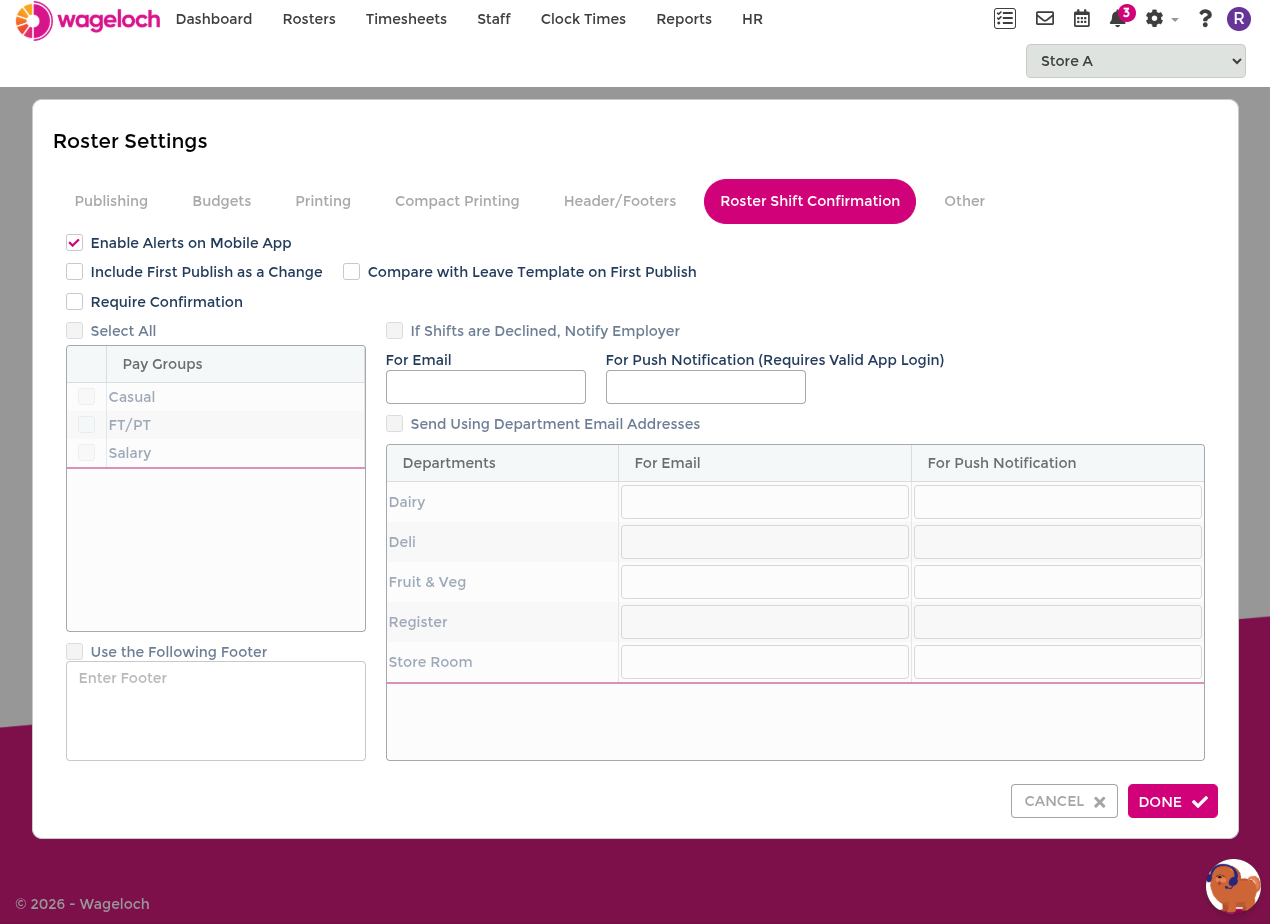
See the full guide: Advanced Rostering.
Other
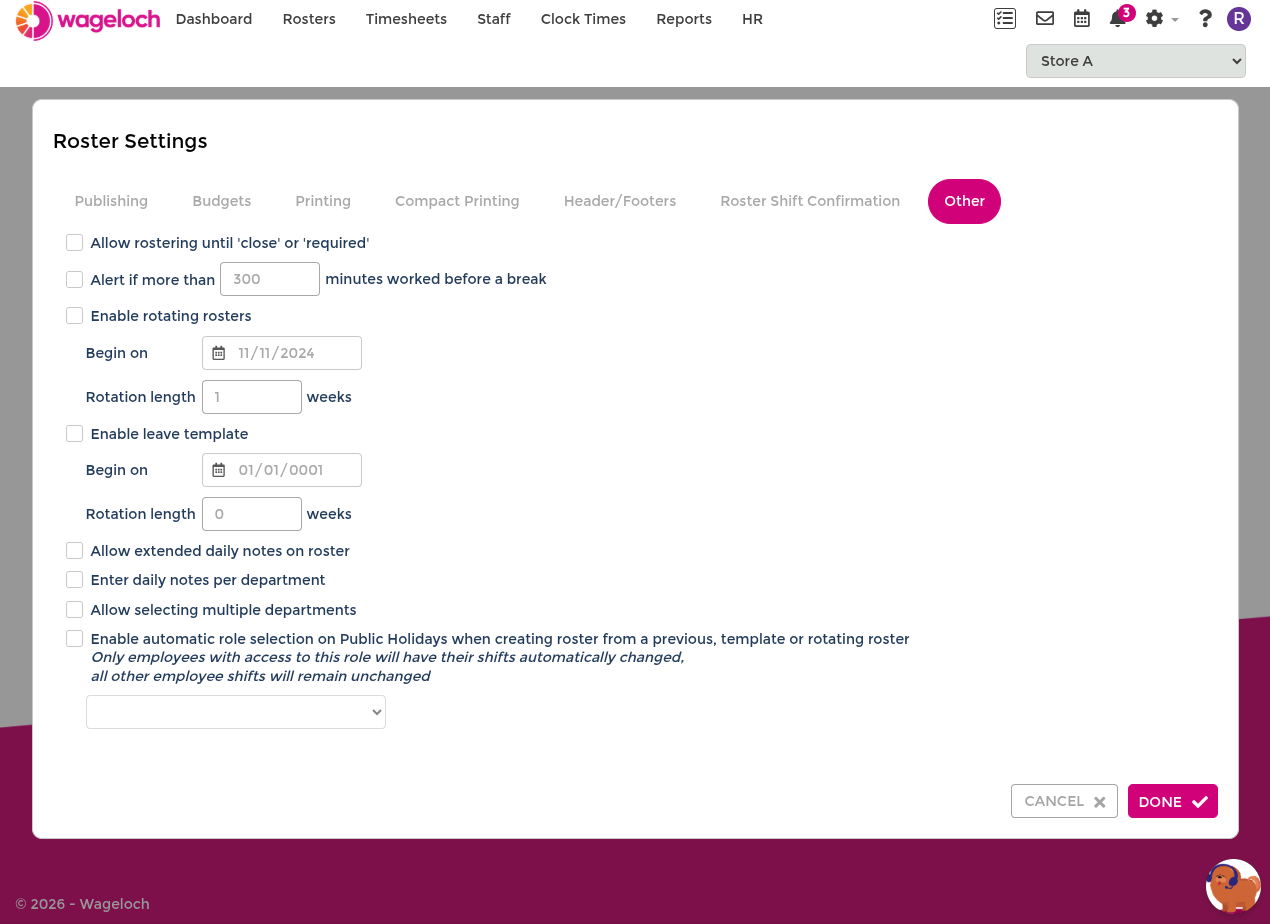
- Allow rostering until close or required: Useful when end times are variable. Managers still work with an internal end time, while staff can see until close or until required.
- Alert if more than ___ minutes worked before a break: Displays alerts when shifts exceed the break threshold. To clear an alert, add an unpaid break to the shift.
- Enable rotating rosters: Enables repeating roster patterns for faster period setup. See Roster Rotations.
- Enable leave template: Supports consistent leave-hour patterns across employees. See Leave Templates.
- Allow extended daily notes on roster: Increases character limits for daily notes. If notes are too long for printed layouts, disable daily-note printing in print settings.
- Enter daily notes per department: Shows separate daily note areas by department when the department filter is used.
- Allow selecting multiple departments: Allows selecting multiple departments in roster filtering.
- Enable automatic role selection on public holidays: When copying from previous rosters, templates, or rotations, this can auto-apply configured public-holiday roles (for example
PHNoWork) where appropriate.