
Timesheet settings
3 min read
Timesheet settings
Use Timesheet settings to control how timesheets generate, how paid time is calculated, and how summary reports print.
Accessing timesheet settings
- Click the Settings cog (top right).
- Select Timesheets.
General
General settings control core timesheet behaviour and import options.
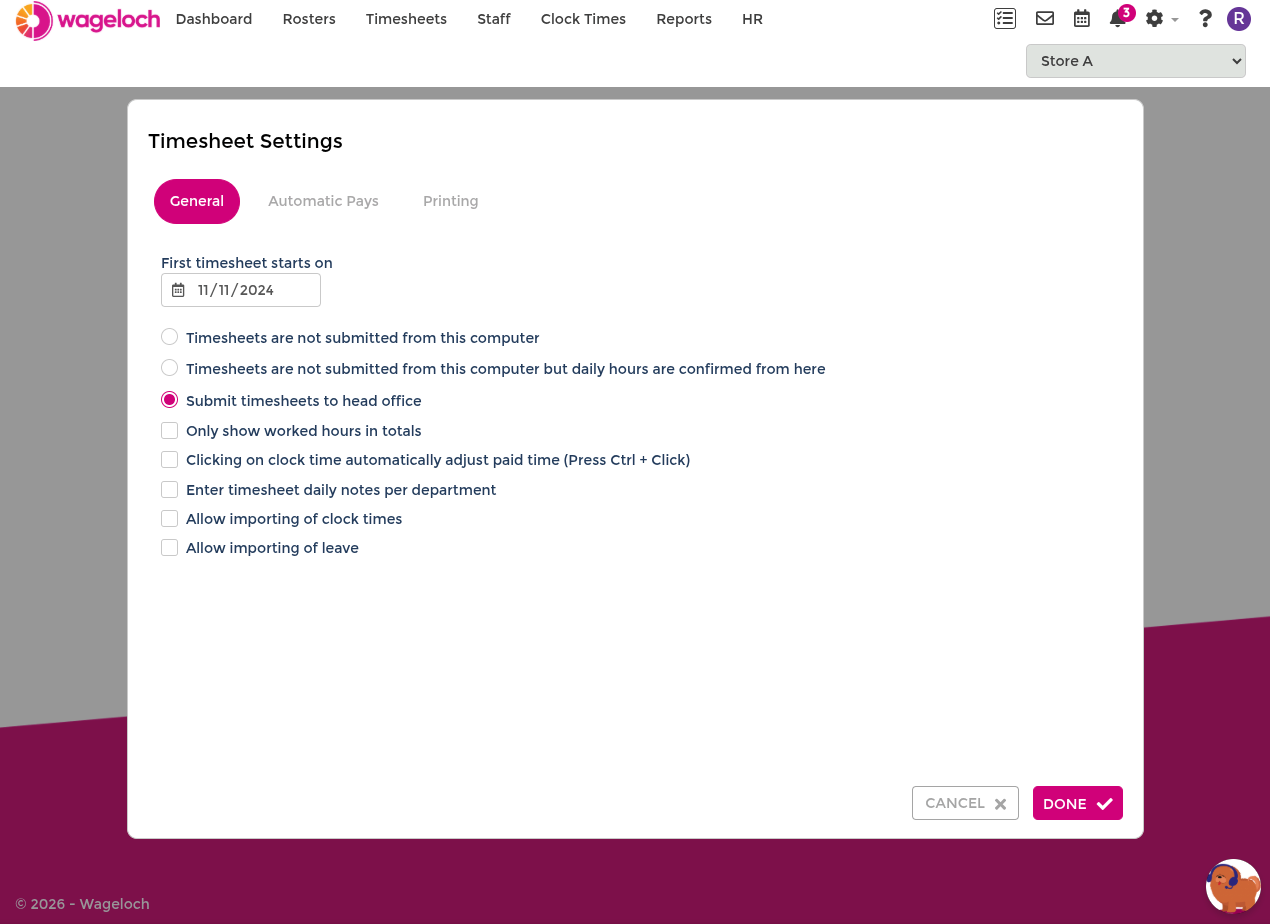
- First timesheet starts on: Keep this as the original go-live date set during implementation. Changing this date can affect unfinished timesheet data.
- Timesheet Behaviours: Default should be Send timesheets to payroll. If a non-submit option is selected, timesheets cannot be sent to payroll integrations.
- Only show worked hours in totals: Shows worked hours only in totals, excluding leave types.
- Clicking on clock time automatically adjusts paid time (Press Ctrl + Click): Lets you adjust paid bars by Ctrl+clicking clock time markers.
- Enter timesheet daily notes per department: Enables department-level daily notes where department-based completion is in use.
- Allow importing of clock times / leave: Enables CSV template download and import when migrating data from unsupported systems.
If timesheet submission permissions need to be restricted, manage them in Security.
Automatic pays
Automatic Pays defines how paid shift bars are generated.
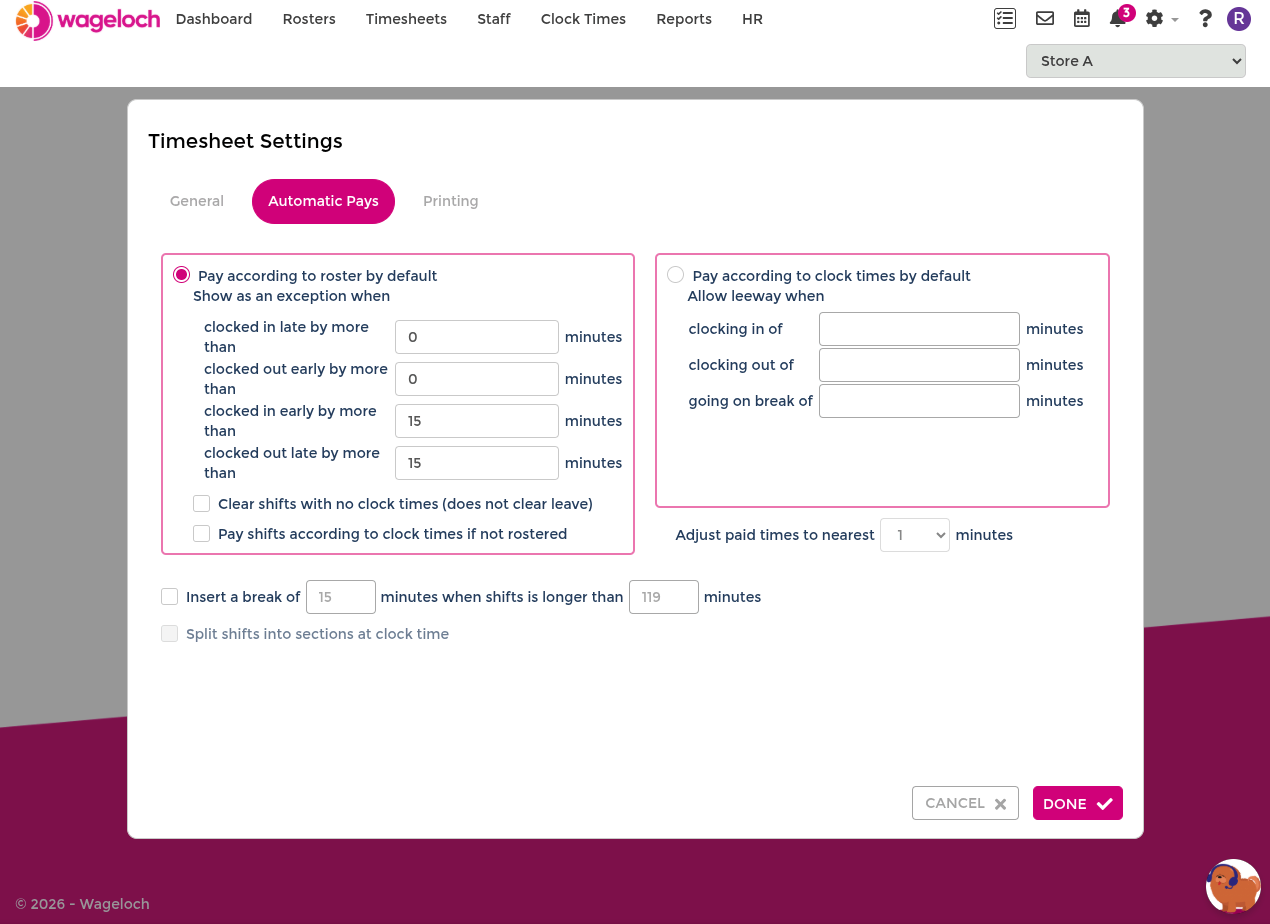
- Pay according to roster by default: Generates paid bars from rostered shifts, with clock times used as a guide for later adjustments.
- Pay according to clock times by default: Generates paid bars from employee clock in/out activity.
INFO
Clock records are audit events and cannot be edited or deleted. If needed, adjust paid shift bars or add Manual Clock Times.
Pay according to roster
These settings are available when roster-based pay generation is selected.
- Show as an exception (clock in/out tolerance): Defines what counts as an exception in variance views and related Reports.
- Clear shifts with no clock times (does not clear leave): Removes paid bars for scheduled shifts where no clock events exist.
- Pay shifts according to clock times if not rostered: Auto-generates paid bars for unscheduled shifts when employees clock in and out.
Roster pay appearance
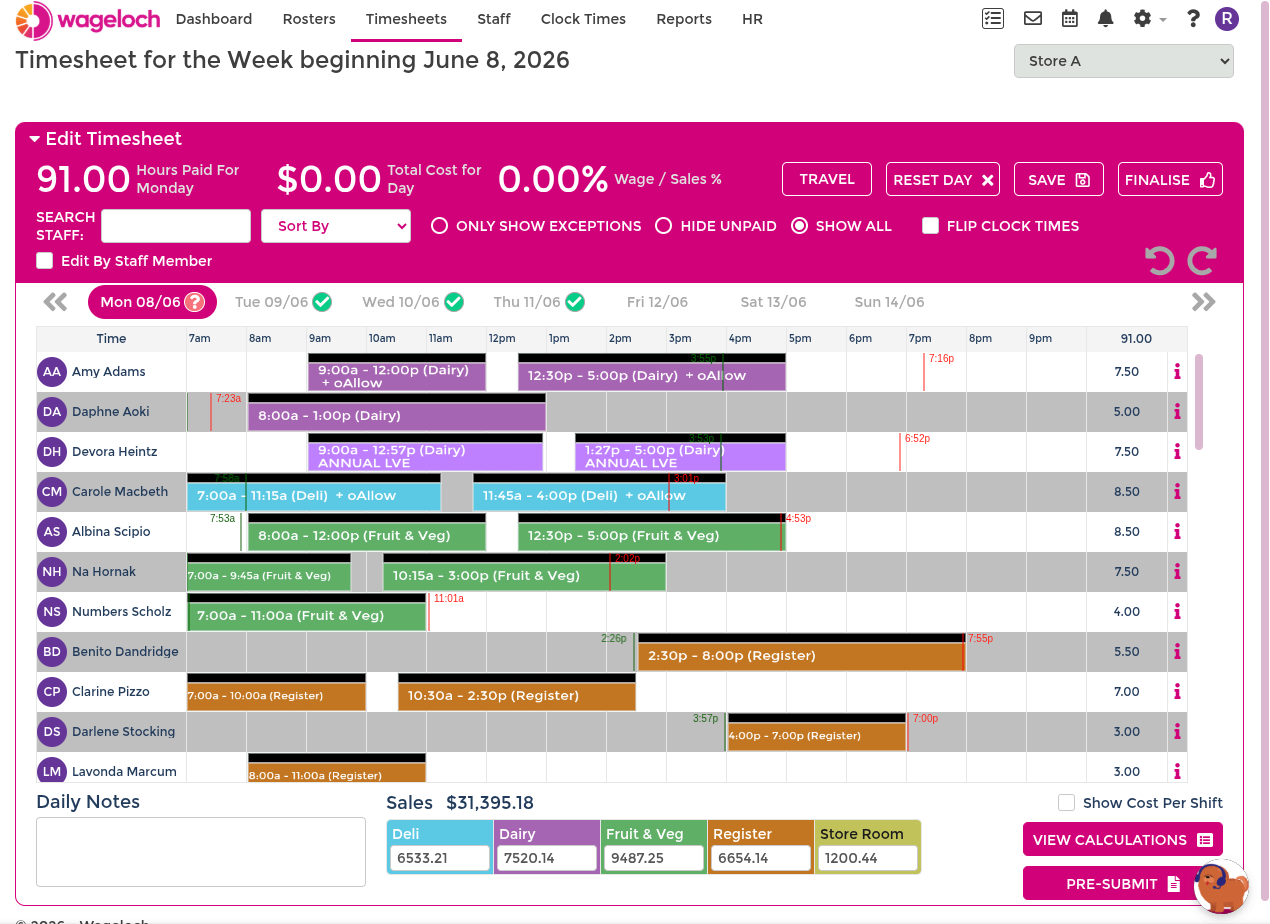
- A black bar shows the original rostered shift.
- A coloured bar shows the paid shift that can be adjusted.
- Clock markers show whether staff worked as rostered, more, less, or a different shift.
Pay according to clock times
Clock-time pay uses leeway and rounding settings to calculate paid shift bars.
- Allow leeway when clocking in/out and on break: Sets grace windows before rounding applies.
- Adjust paid times to nearest __ minutes: Controls rounding increments (for example 15 minutes).
Leeway example
If rounding is set to 15 minutes and leeway is set to 7 minutes:
- Early or late clocks inside leeway usually round toward the scheduled time.
- Clocks outside leeway round to the next/previous 15-minute boundary.
Clock-time pay appearance
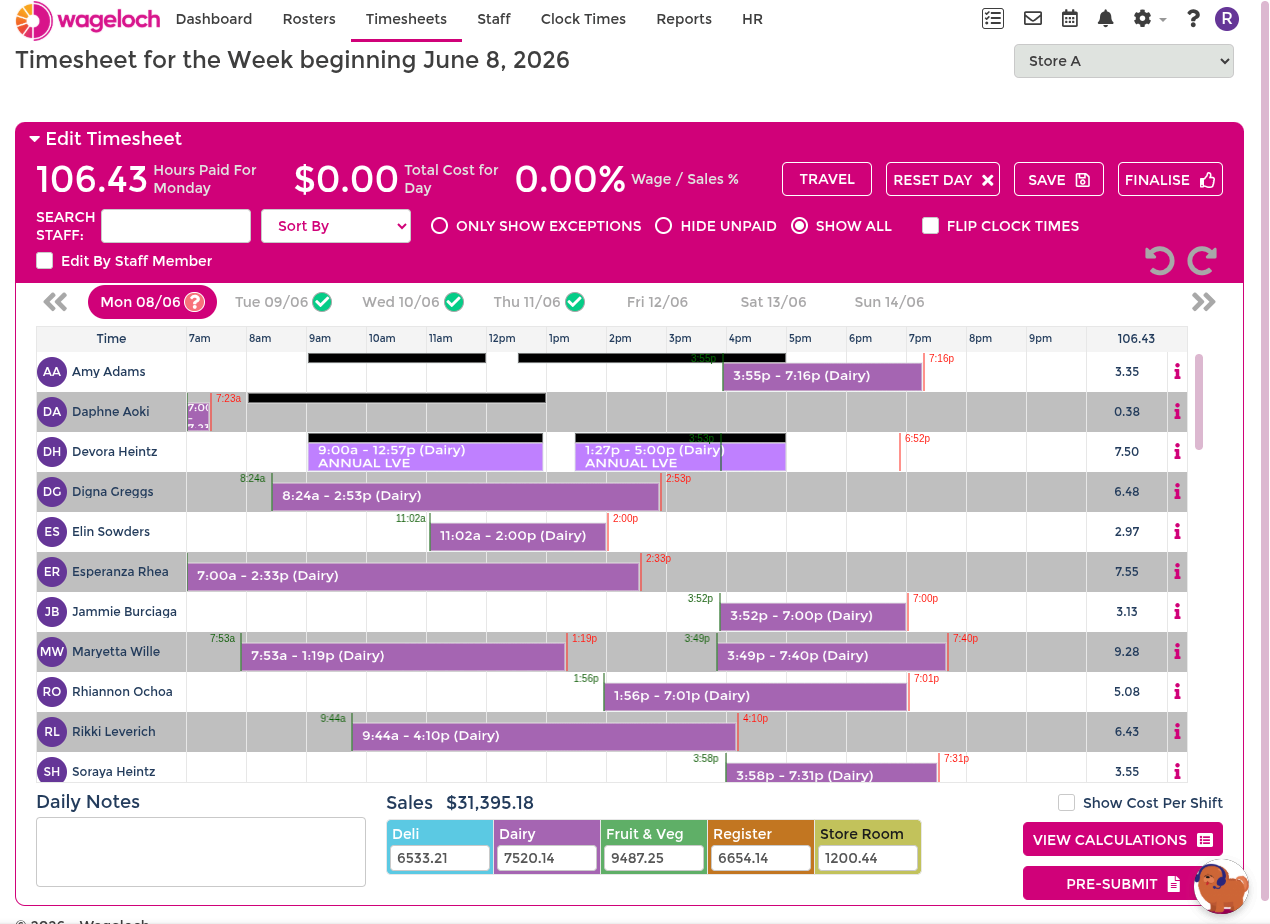
- Clocked in and out: Paid shift bar appears automatically.
- Missing clock out: Paid shift bar may not appear and manager intervention is required.
- Using rosters as a guide: Roster guide bars can still display while pay is driven by clock times.
Printing
Printing settings control the Timesheet Summary PDF generated during pre-submit review.
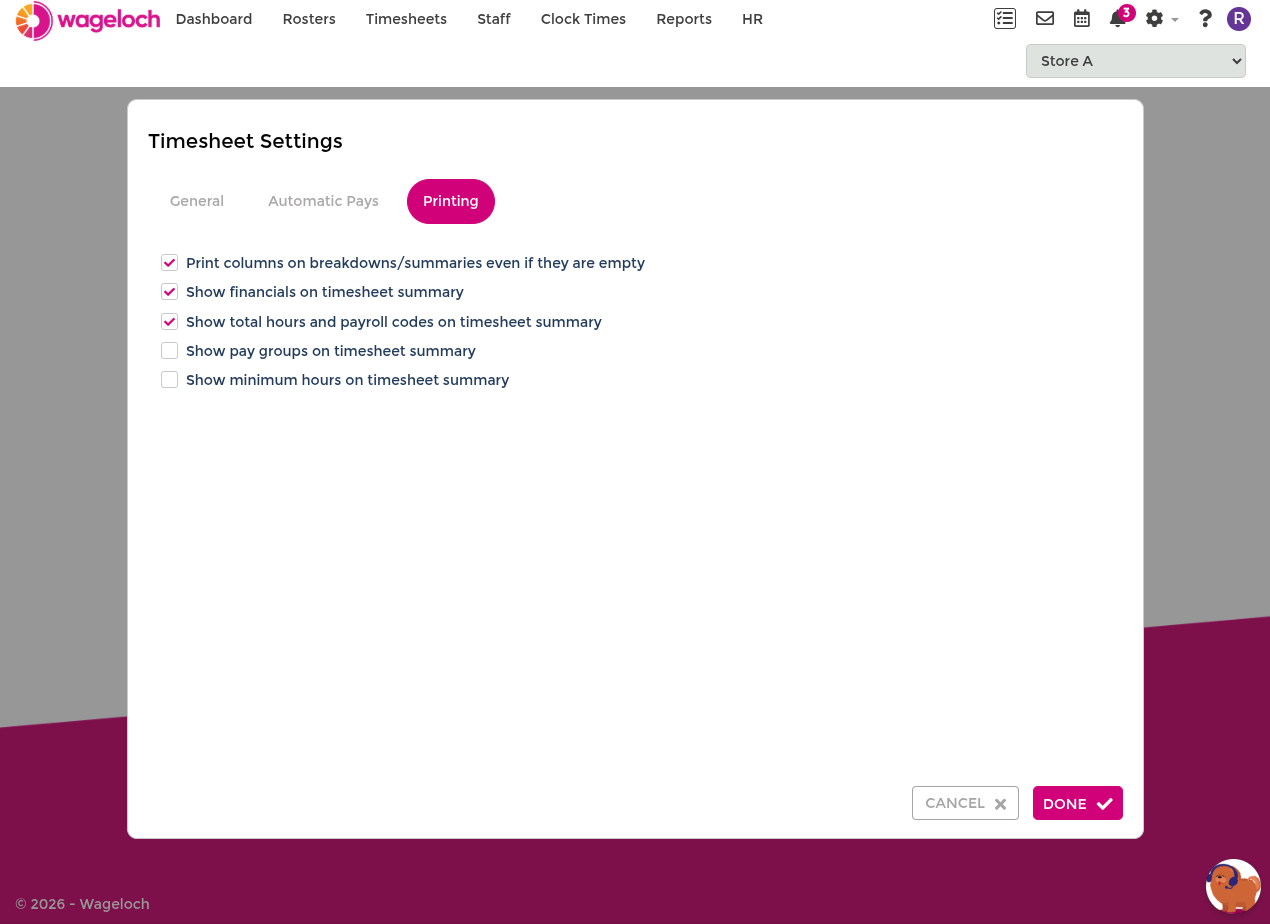
- Print columns on breakdowns/summary even if they are empty: Includes all configured timesheet columns even when unused.
- Show financials on timesheet summary: Displays calculated values under each employee.
- Show total hours and payroll codes on timesheet summary: Displays total hours and payroll code data.
- Show pay groups on timesheet summary: Displays each employee's pay group.
- Show minimum hours on timesheet summary: Displays minimum-hour settings from Staff Information.