
Payroll
2 min read
Payroll
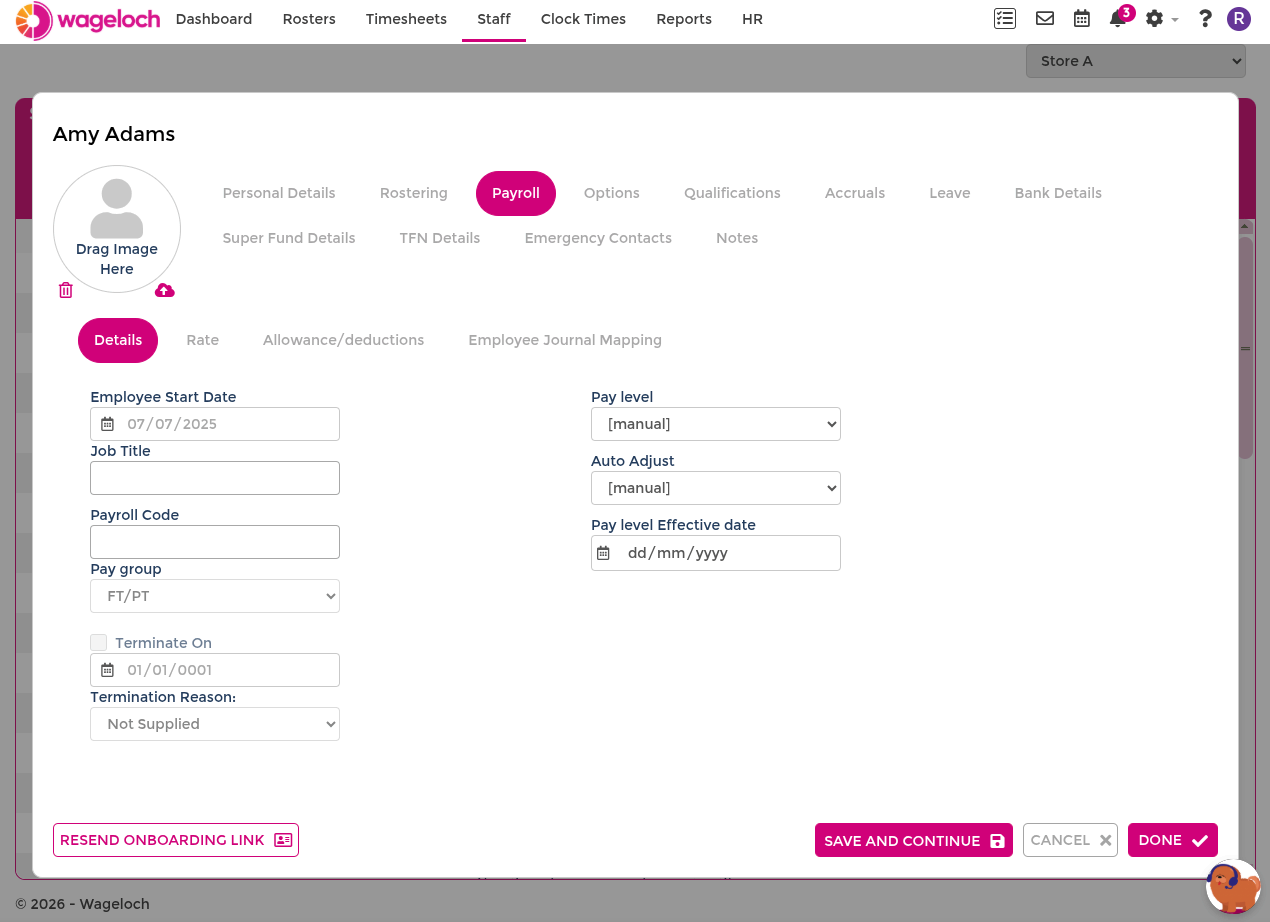
Open an employee's staff card and select the Payroll tab to manage their employment and pay configuration, organised across four sub-tabs.
Details
| Field | Purpose |
|---|---|
| Employee Start Date | Should always be set so the employee appears correctly in rostering and timesheets. |
| Job Title | Used for display and reporting purposes. |
| Payroll Code | Optional in many payroll systems, but required for some exports (for example, Xero). |
| Pay Group | Determines the award and pay rules that apply to the employee. |
| Pay Level | Assigns a rate structure to the employee. See Pay Levels. |
| Auto Adjust | Assigns an automatic pay level adjustment schedule. See Pay Levels. |
| Pay Level Effective Date | Sets the start date for the current pay level or auto adjustment. |
| Termination settings | See Terminate and reinstate a staff member. |
Rate
Set the employee's Base Hourly rate where applicable. If your award setup defines employee-level alternate rates, those rates also appear here and can be edited per employee.
INFO
For casual employees, confirm whether the base rate should include the 25% casual loading. If you are unsure, contact Helpdesk before saving changes.
Allowance/deductions
Configure Optional Entitlements and Allowances for this employee. Add or remove recurring allowances and deductions where required.
Employee Journal Mapping
Map the employee's timesheet entries to journal or cost centre codes for your accounting or payroll integration. This sub-tab only applies when your integration supports employee-level journal mapping and is configured during implementation.