
Open Shifts
2 min read
Open Shifts
When your manager sends you an open shift, you can review it and respond directly from the mobile app. Accept it to take the shift, or decline to leave it open for other employees.
How to respond to an open shift
- Open the mobile app.
- Select Open Shifts from the quick actions on the home page.
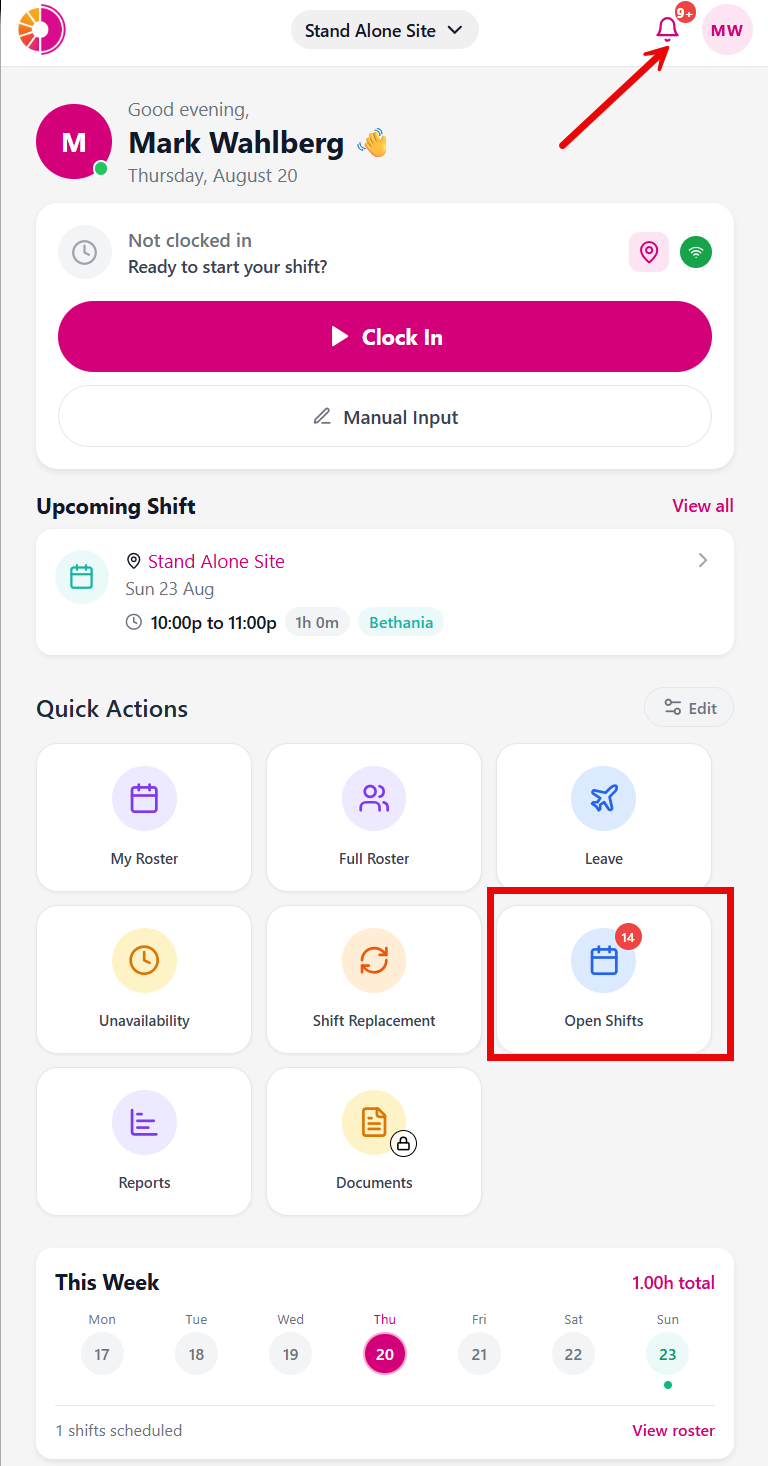
- Review the available shifts sent to you.
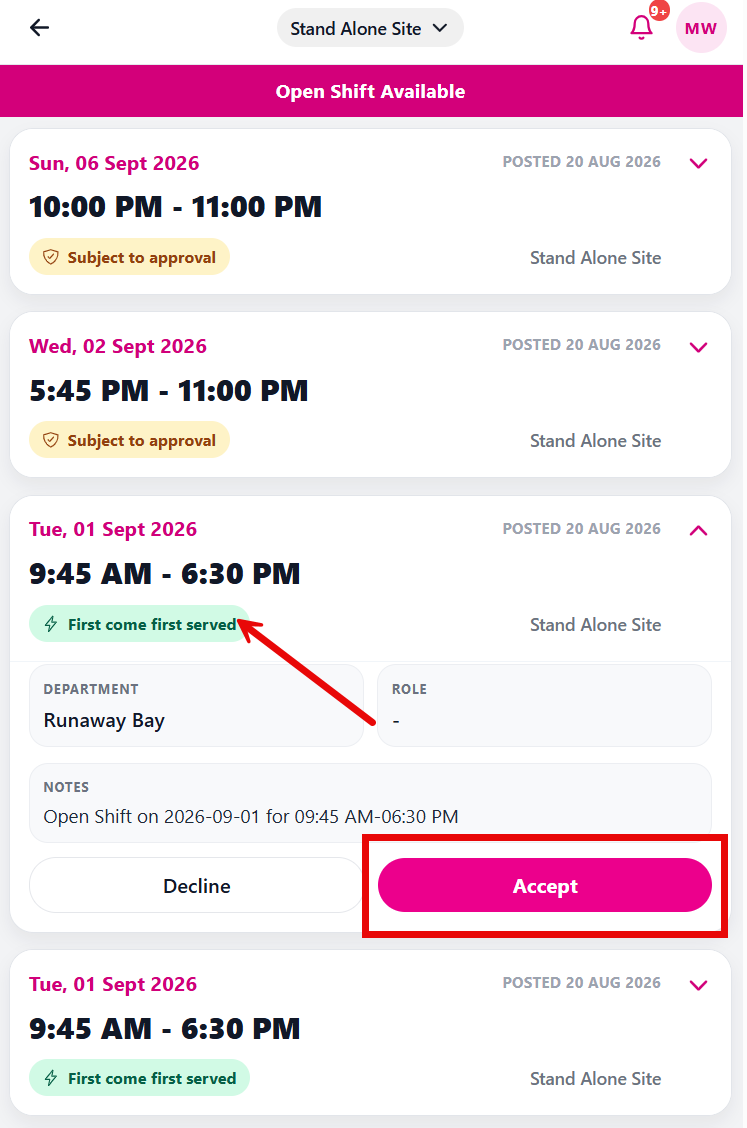
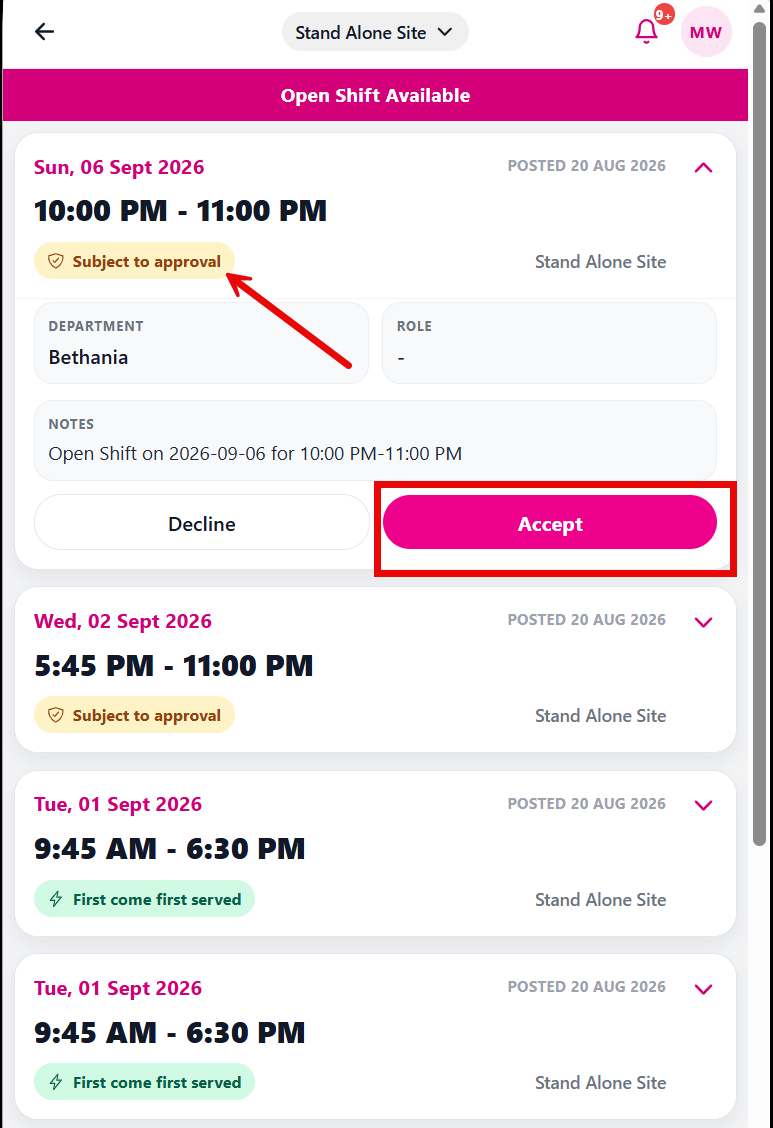
- Tap a shift to view details and select Accept or Decline.
First come first served shifts
When a shift is marked First come first served, selecting Accept automatically assigns it to you if you are still eligible and there are no scheduling conflicts. Your personal roster updates immediately, and no manager approval is needed.
If you select Decline, the shift remains open for other employees.
Shifts subject to approval
When a shift is marked Subject to approval, selecting Accept sends your interest to the manager. The shift is not automatically assigned to you yet. Your manager will review your response and make the final assignment decision.
Shift conflicts
The system prevents you from accepting a shift that overlaps with an existing shift on your roster. If a conflict is detected, an error message displays and you cannot accept the shift. If you cannot work the shift, select Decline instead.