Import Staff
2 min read
Import Staff
Import new staff and update existing staff details from your payroll system. To load accrual balances, see Import Accrual Balances.
Wageloch supports direct API imports for:
- MYOB
- Reckon
- Xero
If your payroll product is not supported by direct integration, use file-based import options instead.
INFO
If your site is managed under a central payroll site, import functions can only be accessed and run from that site. See Central Payroll.
Import new staff
- Go to Settings > Staff > Import > Staff.
- Set Format to MYOB, Reckon, or Xero.
- Select Download Staff to fetch active staff from the payroll system.
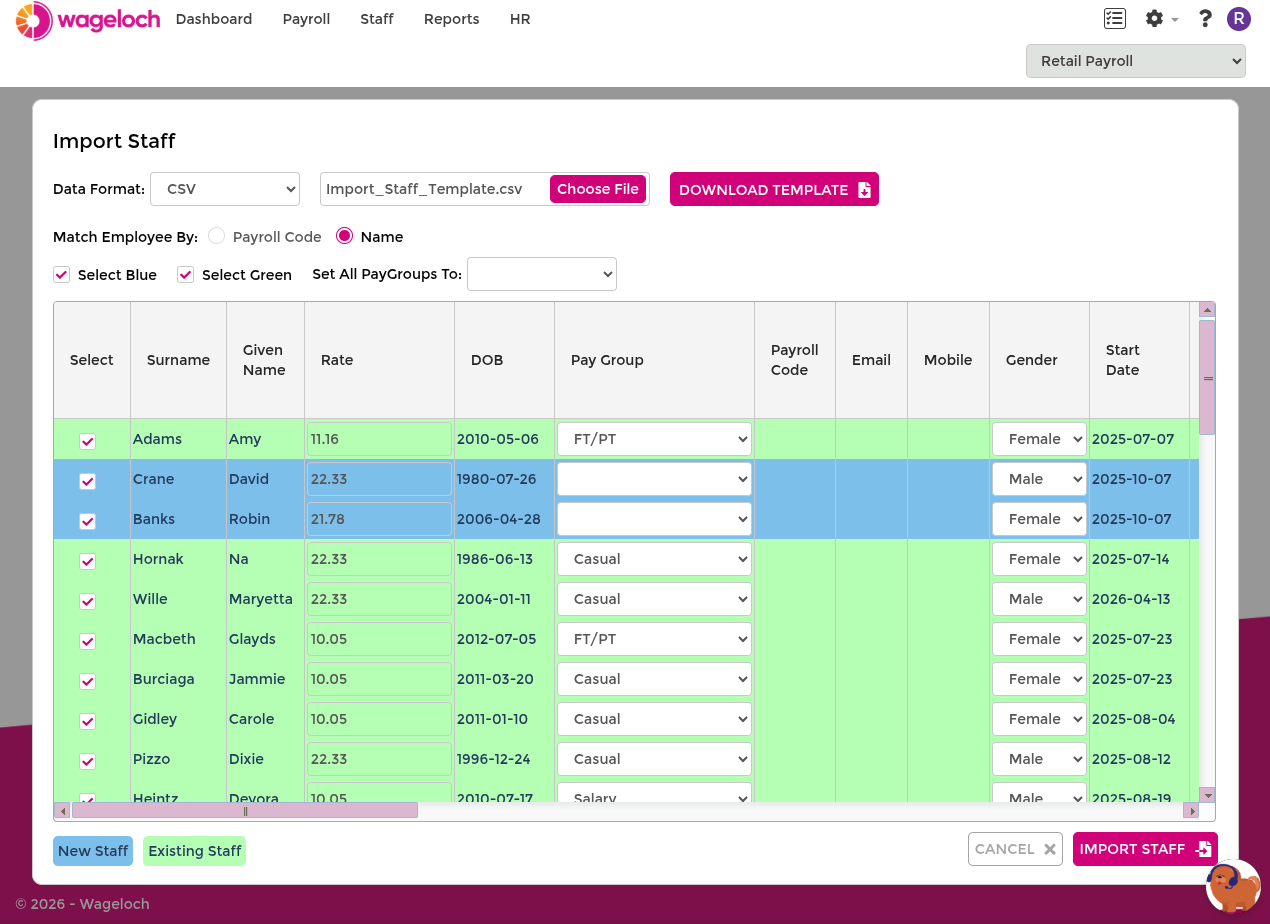
- Review the imported list:
- Blue rows are new staff not yet in Wageloch.
- Green rows match existing staff in Wageloch.
- Confirm each selected person has the correct pay group.
- Select Import Staff.
- Confirm the import prompt.
IMPORTANT
For Xero imports, match by Payroll Code for existing staff. If a person is new and does not yet have a mapped payroll code in Wageloch, use Match Employee By Name first to assign the payroll code. Then continue future imports by Payroll Code.
TIP
Import a small batch first if this is your first sync with a new payroll connection.
Update existing staff
Use this process to refresh details for people already in Wageloch.
- Go to Settings > Staff > Import > Staff.
- Set Format to MYOB, Reckon, or Xero.
- Select Download Staff.
- Select green matched rows to update existing staff records.
- Confirm pay groups are correct.
- Select Import Staff.
- Confirm the update prompt.
INFO
Blue rows during an update usually mean a person is new, inactive in payroll, or not matched to an existing Wageloch record. Review these rows before importing so unmatched records are handled correctly.