
Roster rotations
2 min read
Roster rotations
Use roster rotations when your team follows a repeating schedule across multiple weeks or fortnights.
Rotations depend on one critical setting: the start date of rotation week 1. If this date is incorrect, the wrong template period is applied when creating new rosters.
Before you start
- Confirm your cycle length (for example, 2, 3, or 4 weeks).
- Confirm the exact date for rotation week 1.
- Decide whether you need staff names pre-assigned or shift times only.
For standard template setup, see Roster Templates.
Enable rotation rosters
- Open Settings (top-right).
- Select Rosters.
- Open the Other section.
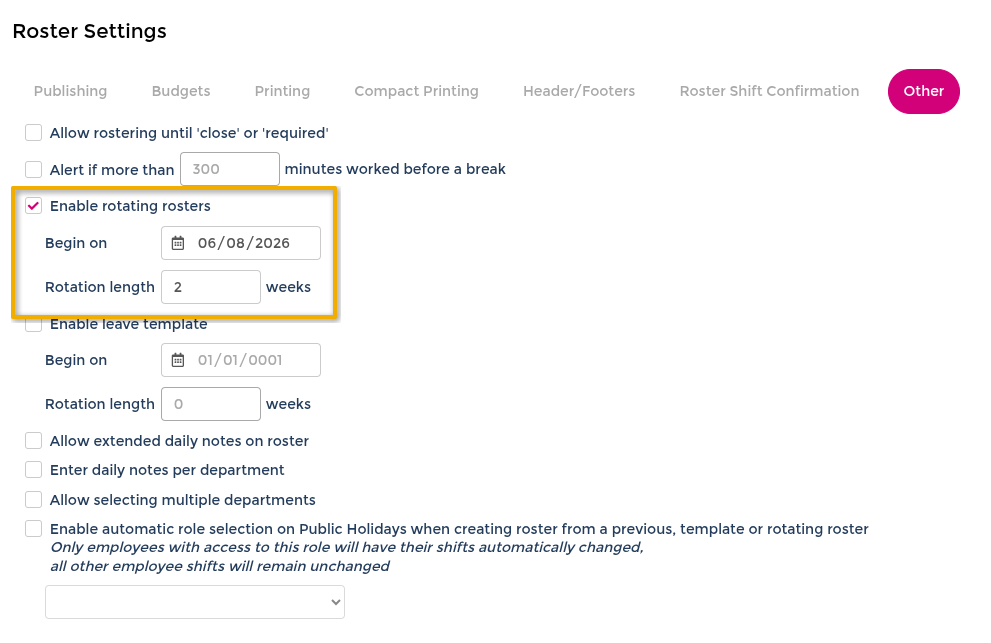
- Enable rotating rosters.
- Enter the week 1 start date.
- Enter the rotation length in weeks or fortnights.
- Select Done.
Fortnight cycles
If your operation rosters by fortnight, enter the cycle length in fortnights. Example: a 5-cycle fortnight pattern is entered as 5.
Build rotation templates
- Go back to Rosters.
- Open the roster menu (top-right).
- Select Rotations.
- Open period 1 and add shifts/staff.
- Repeat for each period in the cycle.
- Select Save as you build.
Use Copy From where appropriate to speed setup.
Shift creation behaviour is the same as normal roster creation. See Creating Rosters.

Create a roster from rotation
- From the roster home, select Create New+.
- Select From Rotation.
- Choose the roster start date.
- Confirm Copy Staff Names if you want assigned names copied.
- Select Done.
The selected date determines which rotation period is copied to the new roster.
Changes made to a created roster do not change the underlying rotation template.

Leave templates with rotations
Leave templates can be used with roster rotations. Full leave template instructions are maintained in the dedicated guide.
Use Leave Templates for:
- Enabling roster leave templates.
- Creating roster leave template periods.
- Configuring individual leave templates.
- Applying leave templates during leave booking.
When using rotations, ensure the leave template cycle and commencement date align with the roster rotation cycle.