Colour settings
3 min read
Colour settings
Colour settings help teams scan Rosters and Timesheets faster by making key states easier to spot.
These choices are shared across your site, so keep accessibility and readability in mind when selecting colours.
Accessing colour settings
- Click the Settings cog (top right).
- Select Colours.
Global colour options
These options apply across multiple colour sections.
- Use pastel colours: Softens very bright colours into pastel variants.
- Always use department colours: Prioritises department colour over role-based colour selections in roster and timesheet displays.
- Import/Export: Supports colour file exports for selected integrations such as Point of Sale Systems.
INFO
For text colour fields, choose high-contrast values (usually black or white) so labels remain readable.
Standard
Standard colours affect the display of rosters and timesheets.
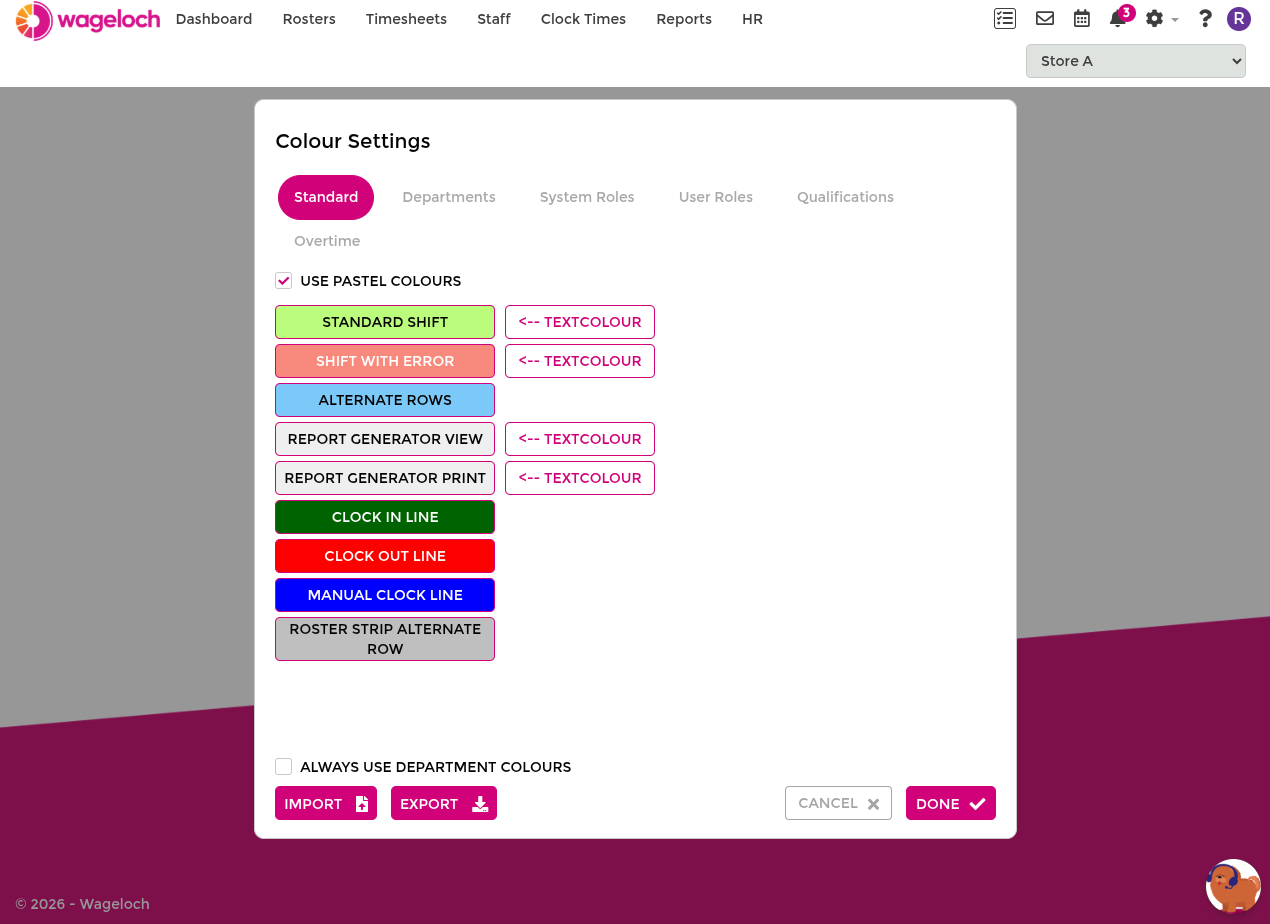
- Standard Shift: Default shift colour when no department or role colour is applied.
- Shift With Error: Highlights shifts that have issues, such as conflicts with Availability.
- Alternate Rows: Row striping colour in printed rosters and timesheet summaries.
- Report Generator View: Background/display colour for report-builder screens.
- Report Generator Print: Print colour for generated report fields.
- Clock In Line: Vertical marker colour for clock-in events.
- Clock Out Line: Vertical marker colour for clock-out events.
- Manual Clock Line: Vertical marker colour for Manual Clock Times.
- Roster Strip Alternate Rows: Alternate row colour in roster and timesheet list layouts.
Departments
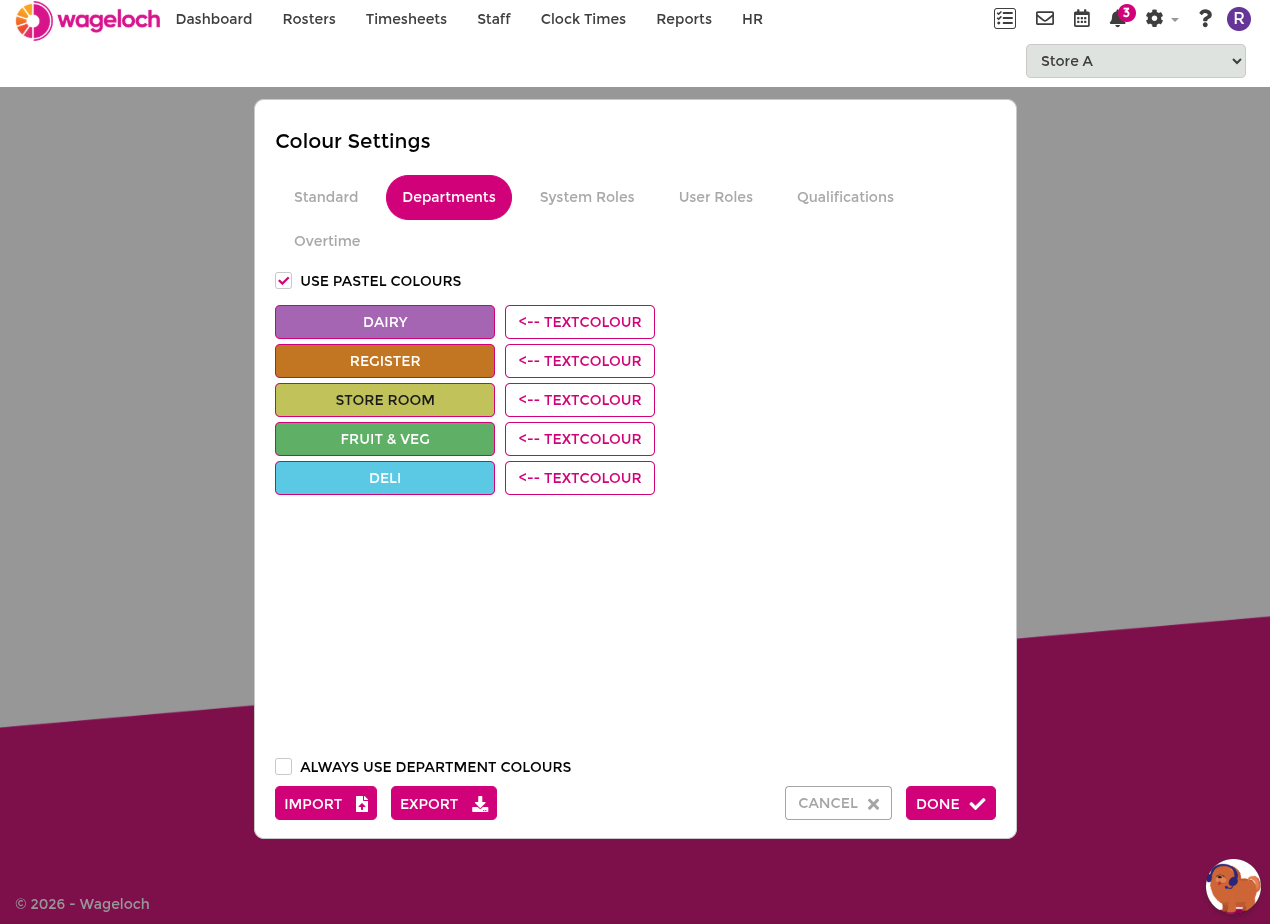
Department colours are used to visually separate teams across rosters and timesheets.
For setup and structure, see Departments and Roles.
System roles
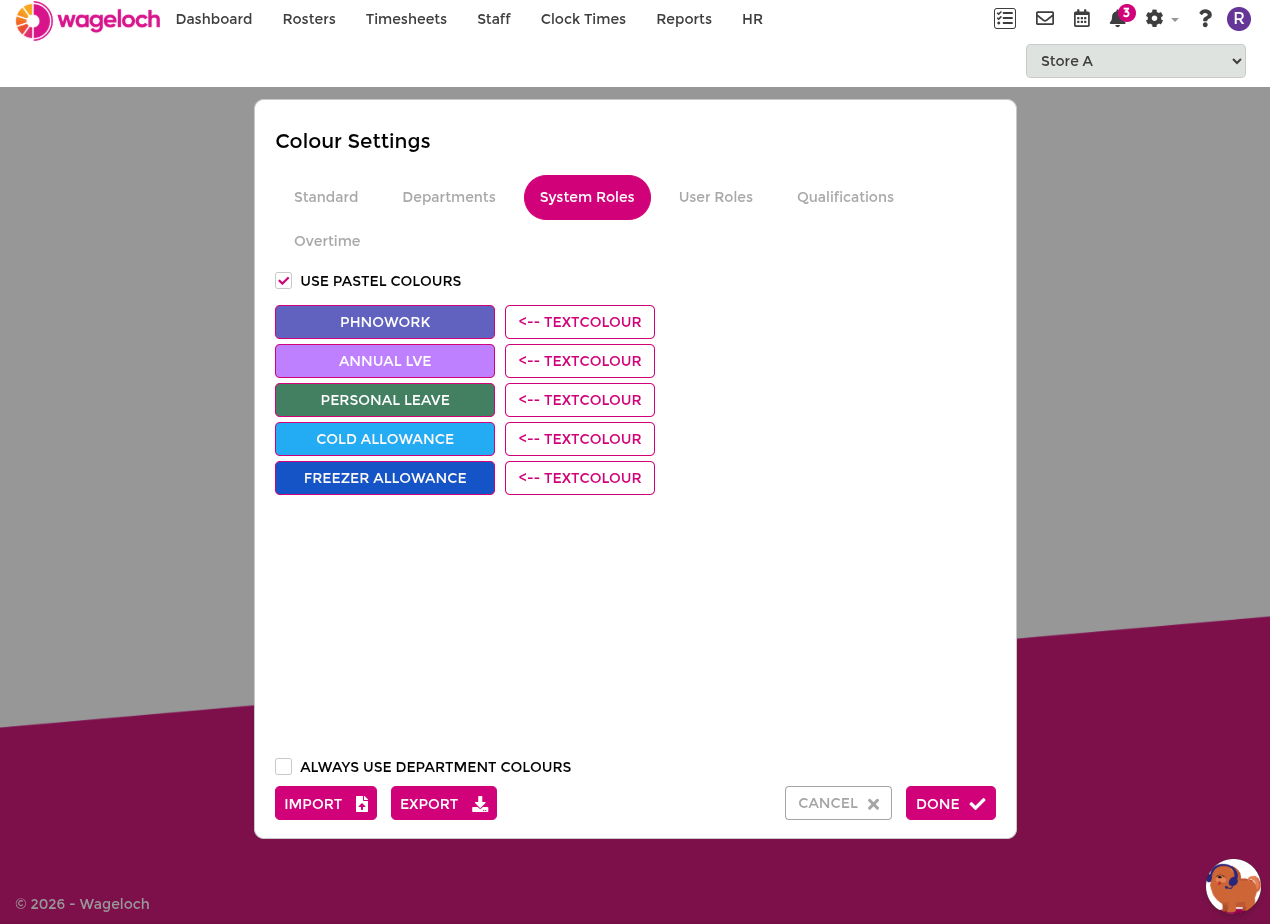
System roles can change both shift appearance and pay interpretation.
- Useful for leave-style or special-pay shifts.
- Commonly paired with Optional Entitlements and Allowances.
WARNING
System roles will change how an employee is paid, while user roles will not. Be careful when setting these up in your award and settings configuration.
User roles
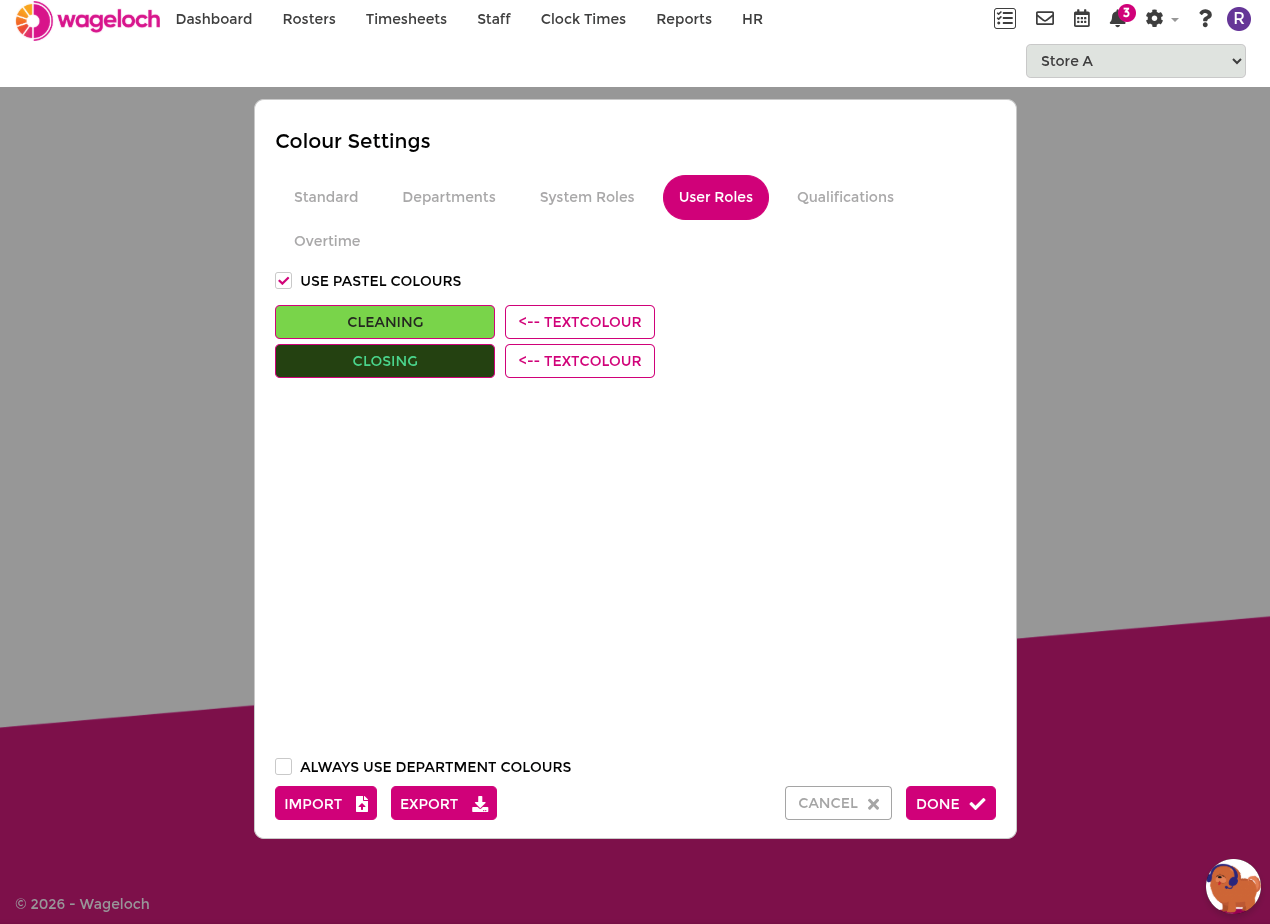
User role colours provide visual clarity for job/task allocation, without changing pay calculations.
- User role colours can override department colours in display.
- Department names may still appear in brackets, depending on view.
Qualifications
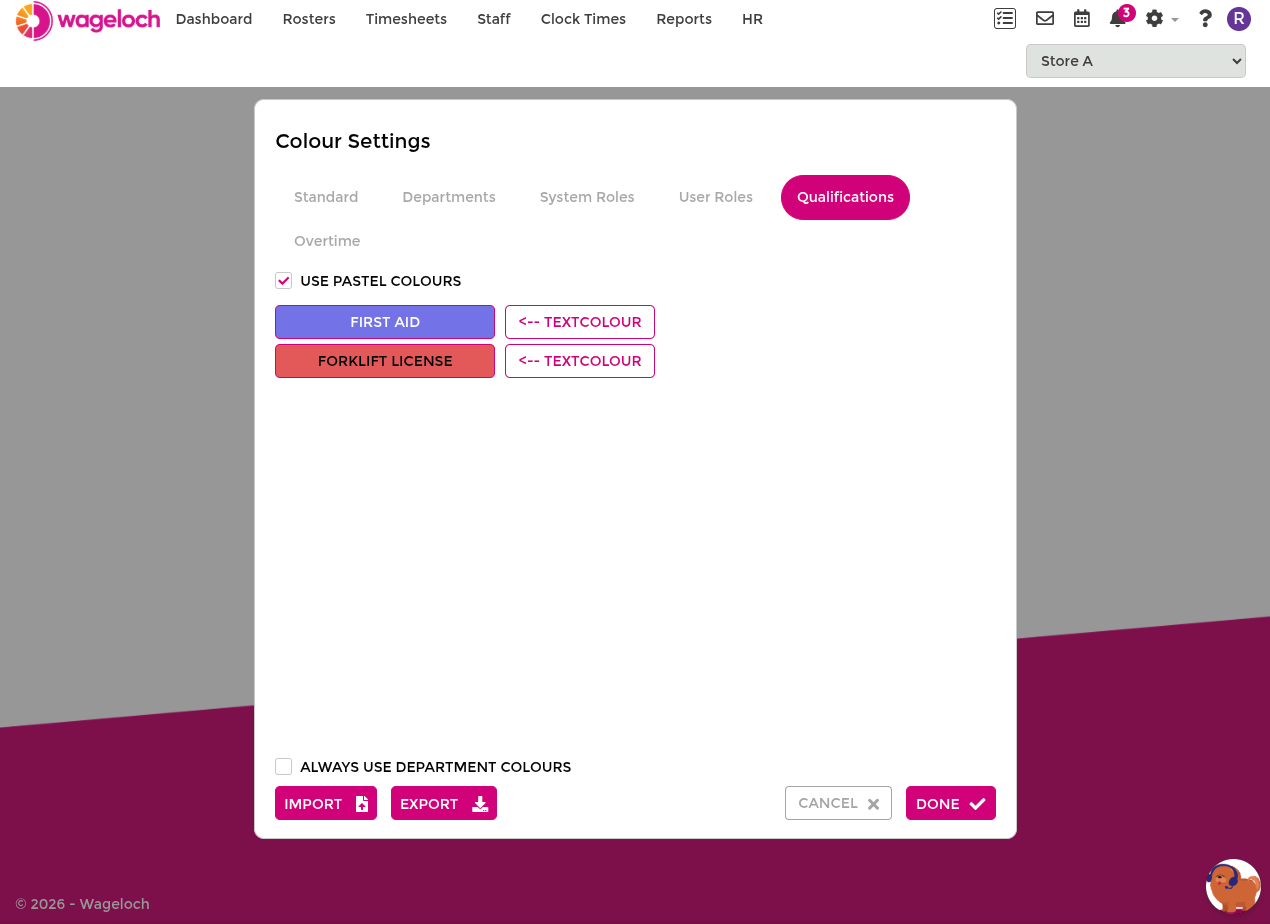
Qualification colours are mainly for quick visual checks and scheduling confidence.
Use them to spot required certification coverage in roster planning. See Qualifications.
Overtime
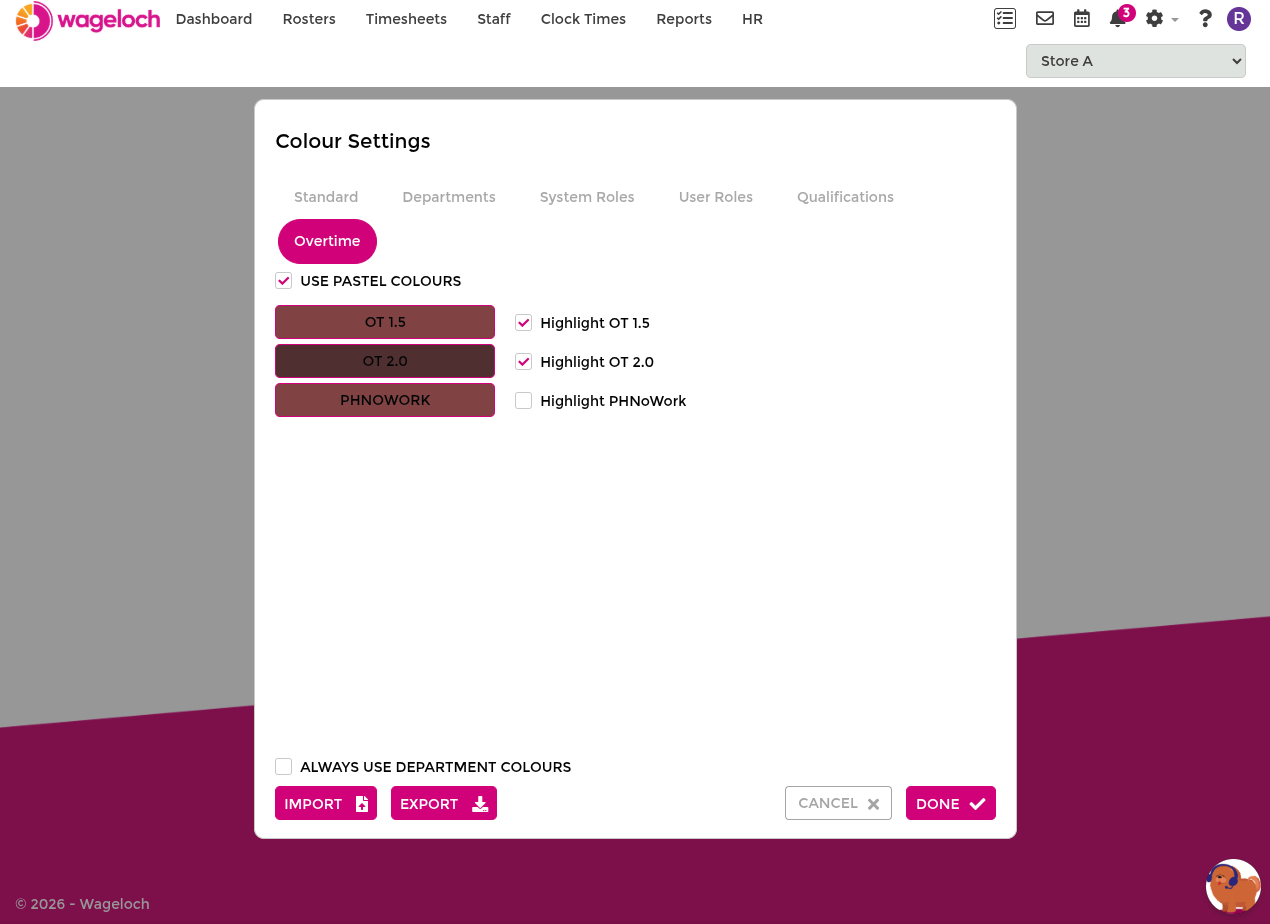
Overtime colours highlight when shifts move into higher overtime thresholds.
- Use contrast against base department colours so overtime stands out.
- Choose a consistent progression (for example light to strong) for daily, weekly, or fortnightly overtime stages.