
Tasks
2 min read
Tasks
Use Tasks to send reminders for actions that must be completed by a due date.
Common examples include:
- Following up expired licences or certificates.
- Completing employee reviews.
- Checking award or pay updates.
Tasks can be set as one-off or recurring items, and can escalate if they are not completed.
When a task is assigned to a staff member or email address, notification emails are sent with a link to mark the task as complete.
Task list
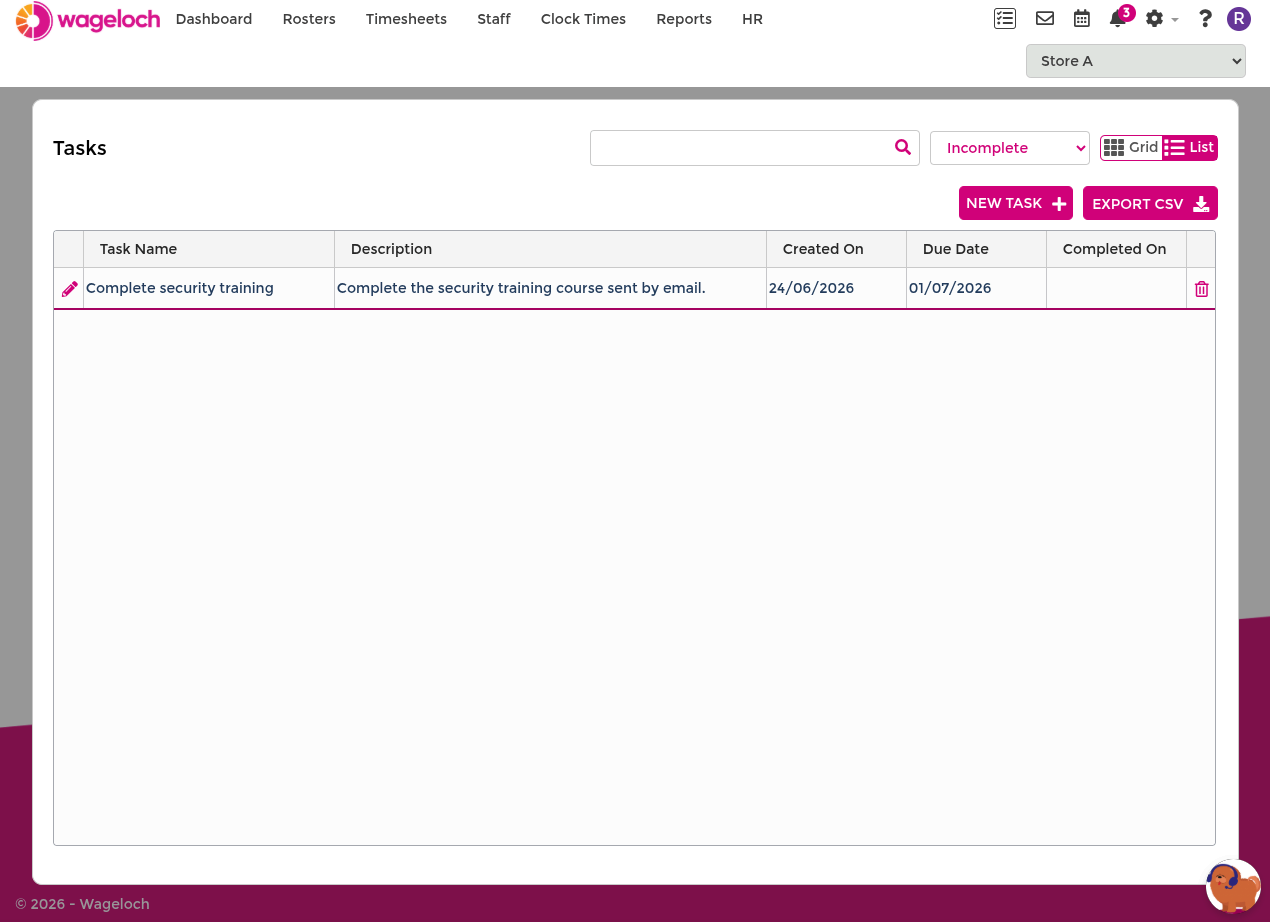
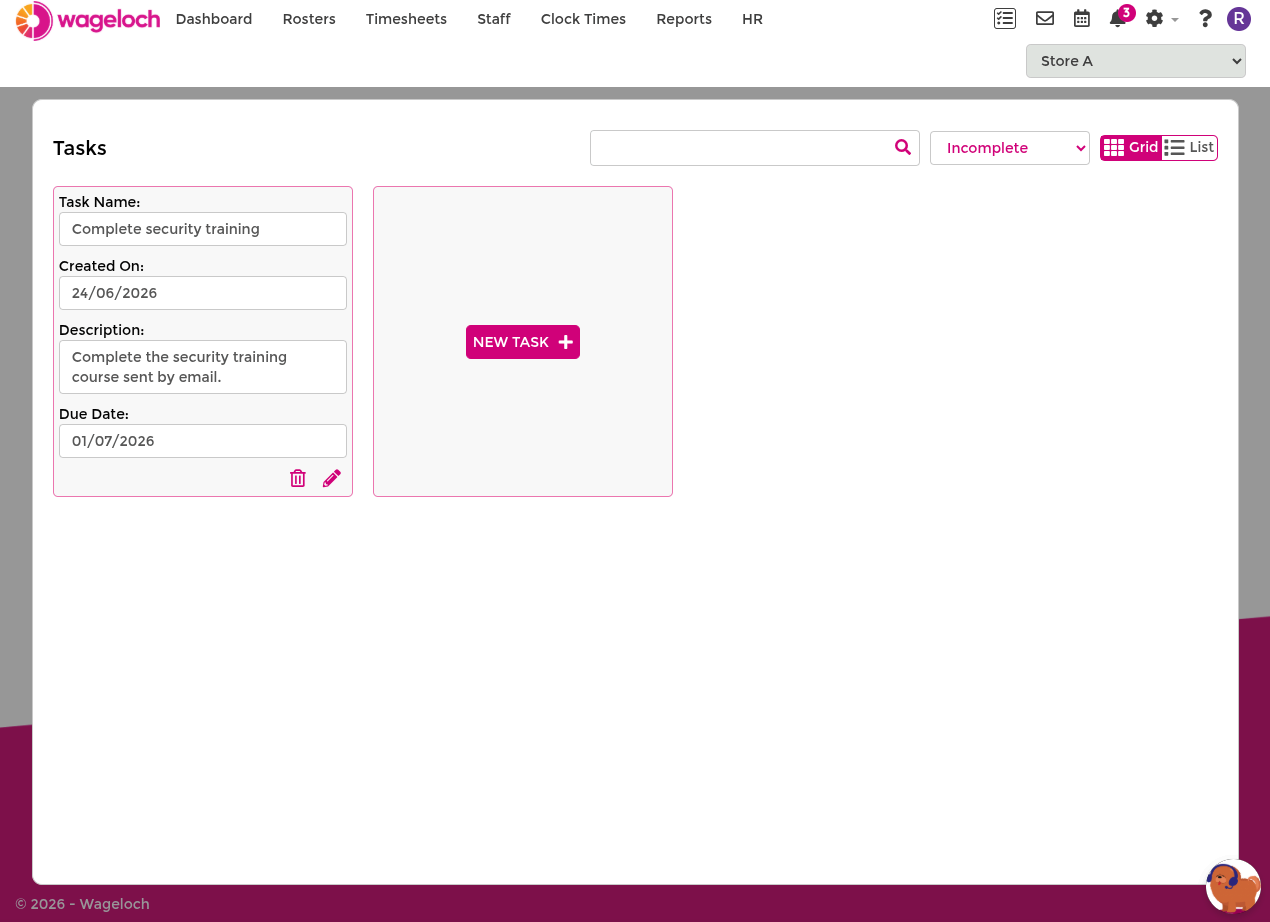
Click the Tasks icon in the top-right corner to open the task screen. From here you can:
- View task status using the Incomplete, Complete, or All filter.
- Search for a specific task.
- Switch between list and grid layouts.
Create a task
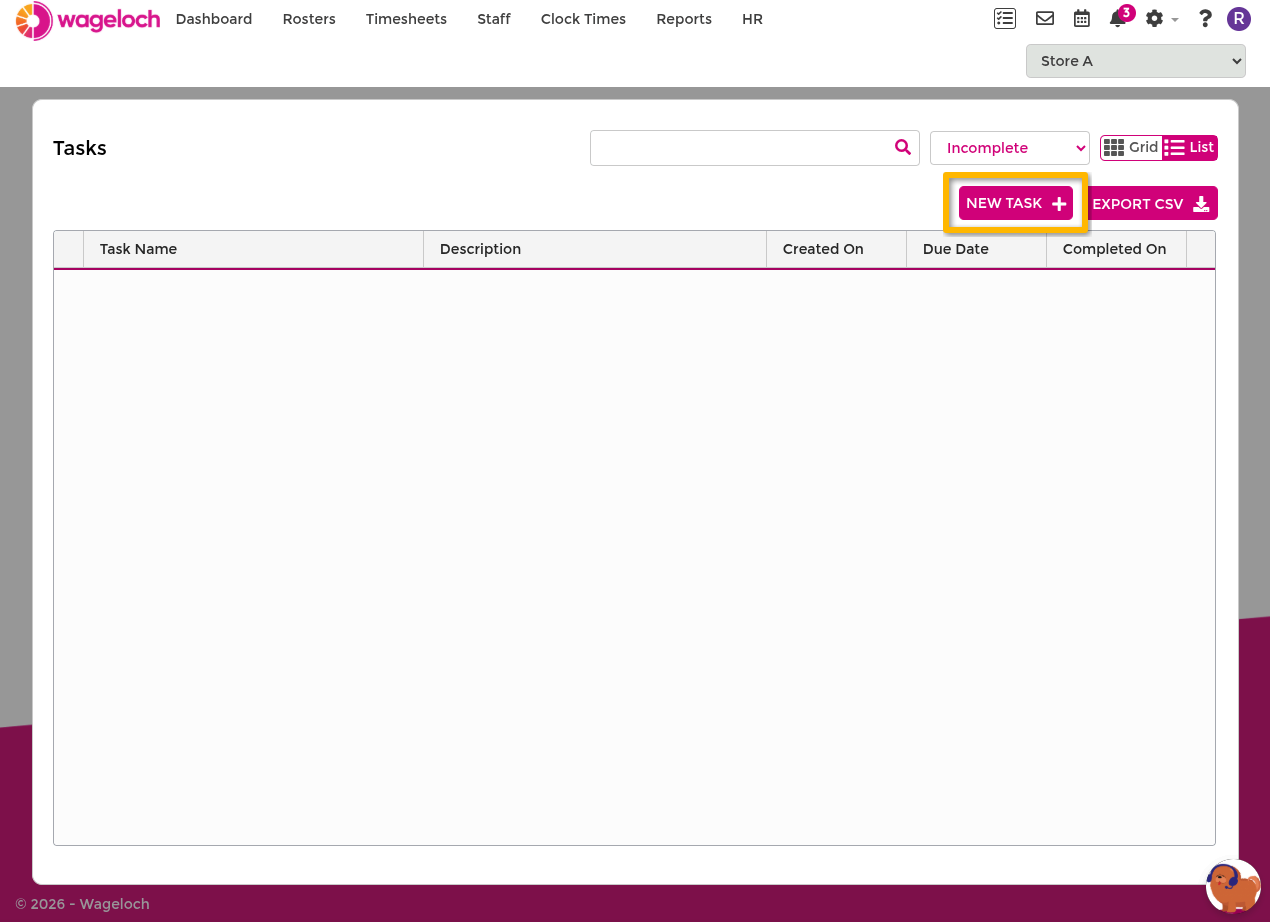
- In the task screen, select New Task +.
- Complete the task details.
- Save the task using the tick icon.
Task details fields
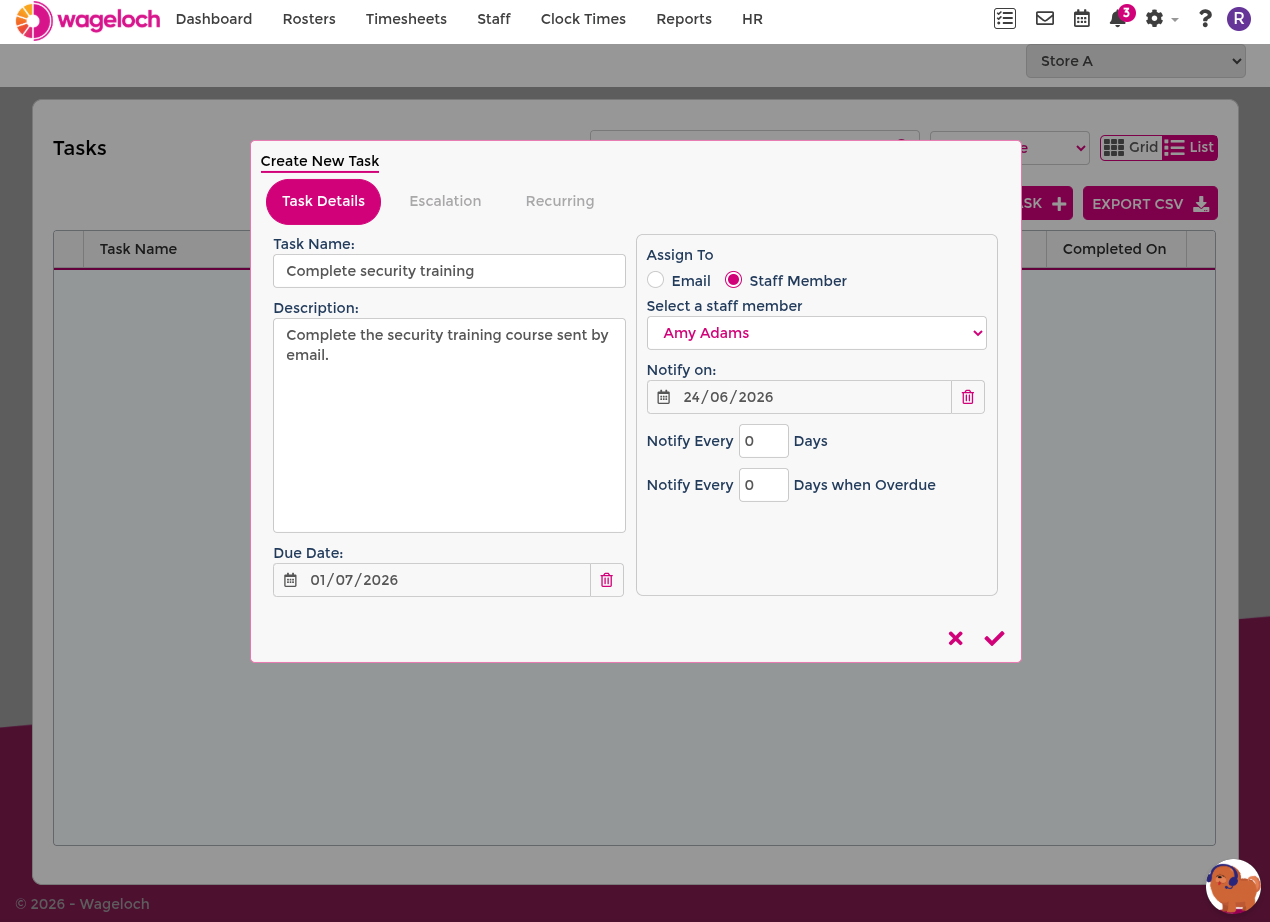
When creating or editing a task, complete these key fields:
- Due Date: date the task must be completed.
- Assign To: person or email address responsible for completion.
- Notify On: date reminder emails start.
- Notify Every: reminder frequency before and after due date.
Escalation and recurring options
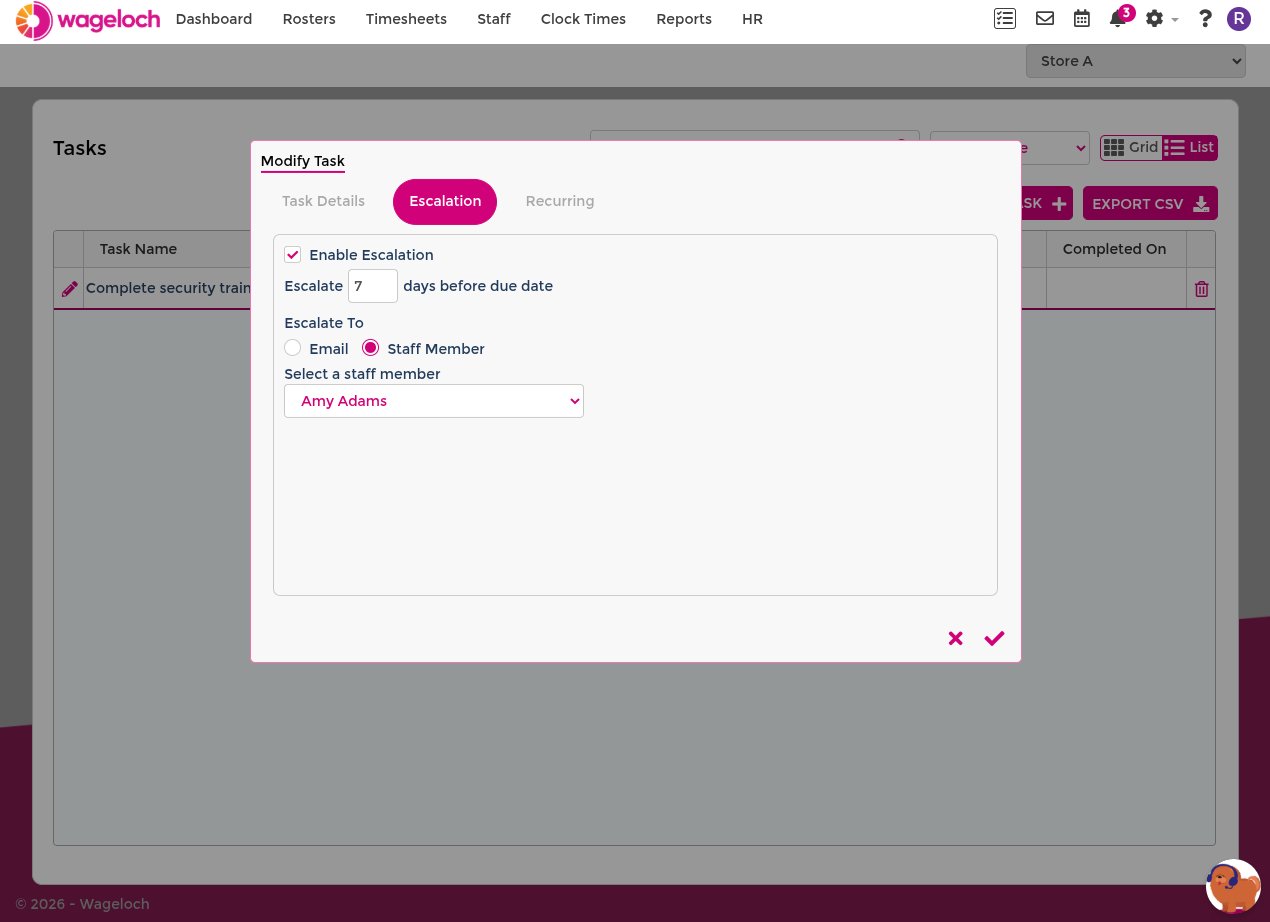
- Escalation: enable escalation, choose when escalation starts, and who receives escalation emails.
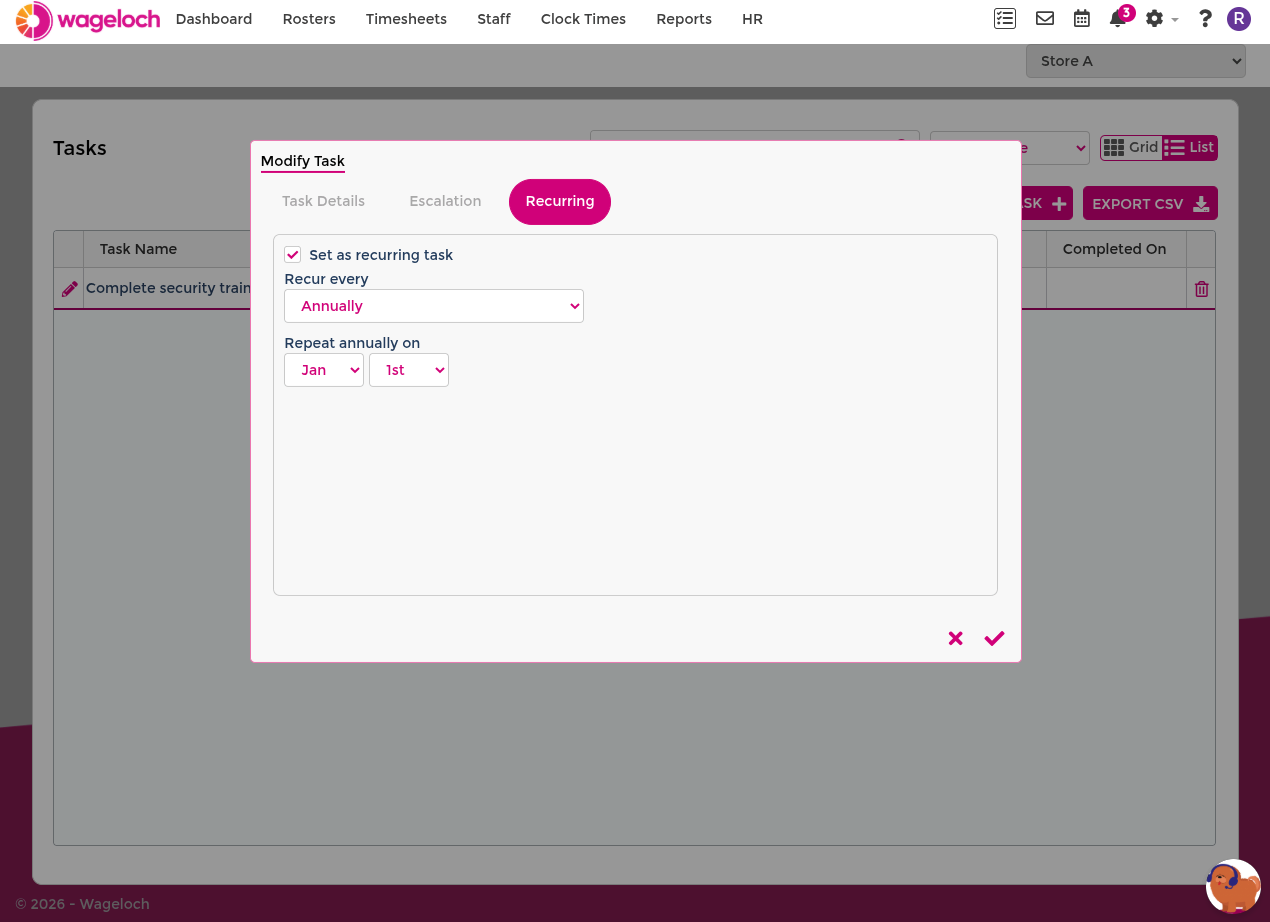
- Recurring: make the task repeat and choose how often it repeats.
Action a task when due
Assigned contacts receive email notifications with:
- Task name.
- Task description.
- Mark as Complete: action.
When the task is completed, click Mark as Complete in the email.
This updates the task status from Incomplete to Complete and stops further reminders or escalation alerts for that task.
If you need help setting up or managing tasks, contact Helpdesk.