
Time Kiosk App (Android/iOS)
4 min read
Time Kiosk App (Android/iOS)
Use this guide to set up Wageloch Time Kiosk on a shared Android tablet or iPad.
Before you start
When setting up a new tablet, complete device setup first.
- Power on the tablet and connect it to power.
- Connect to the internet.
- Install any required operating system updates.
Allow setup time
Brand-new tablets often need multiple updates and restarts before the app can be installed.
Download and sign in
- Open the relevant app store:
- iPad: Apple App Store
- Android tablet: Google Play Store
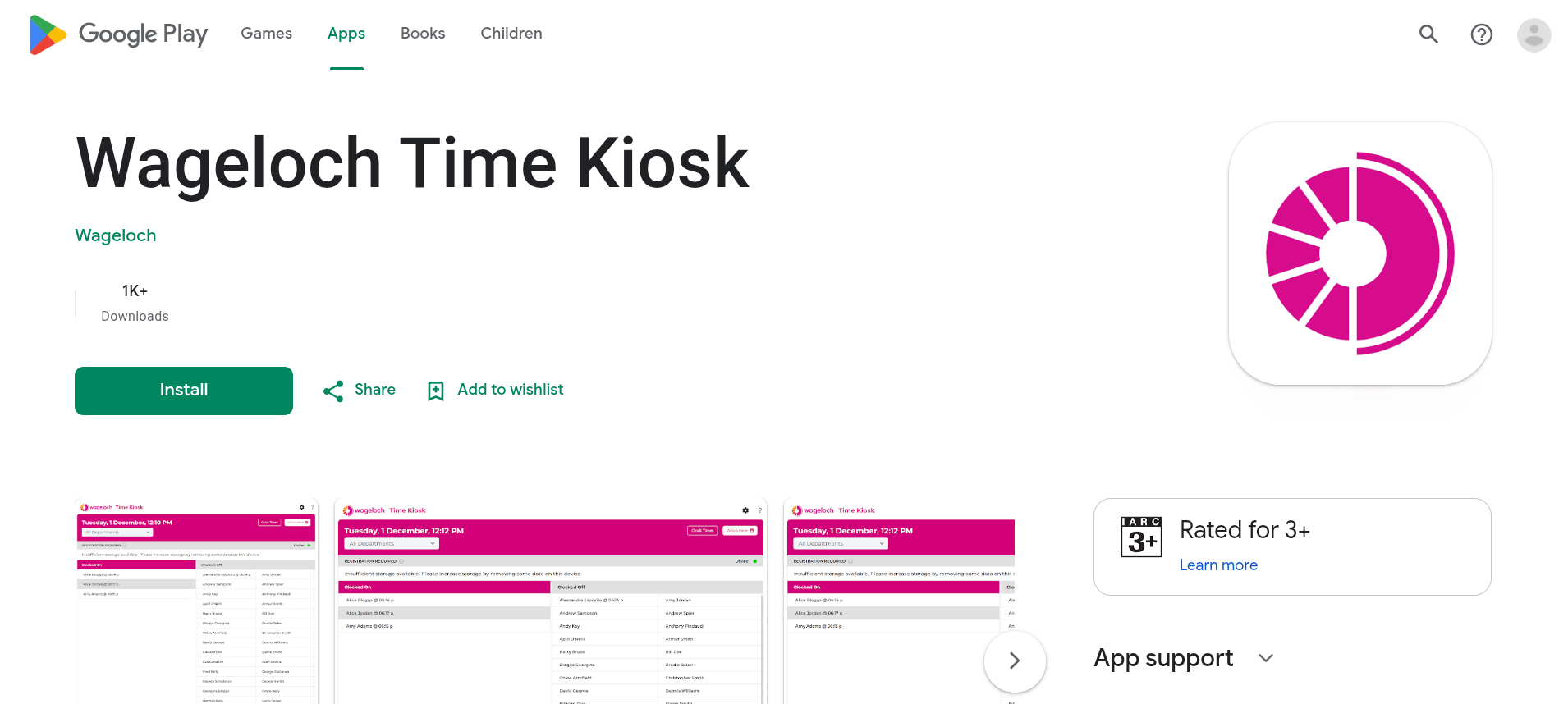
- Search for Wageloch Time Kiosk and install it.
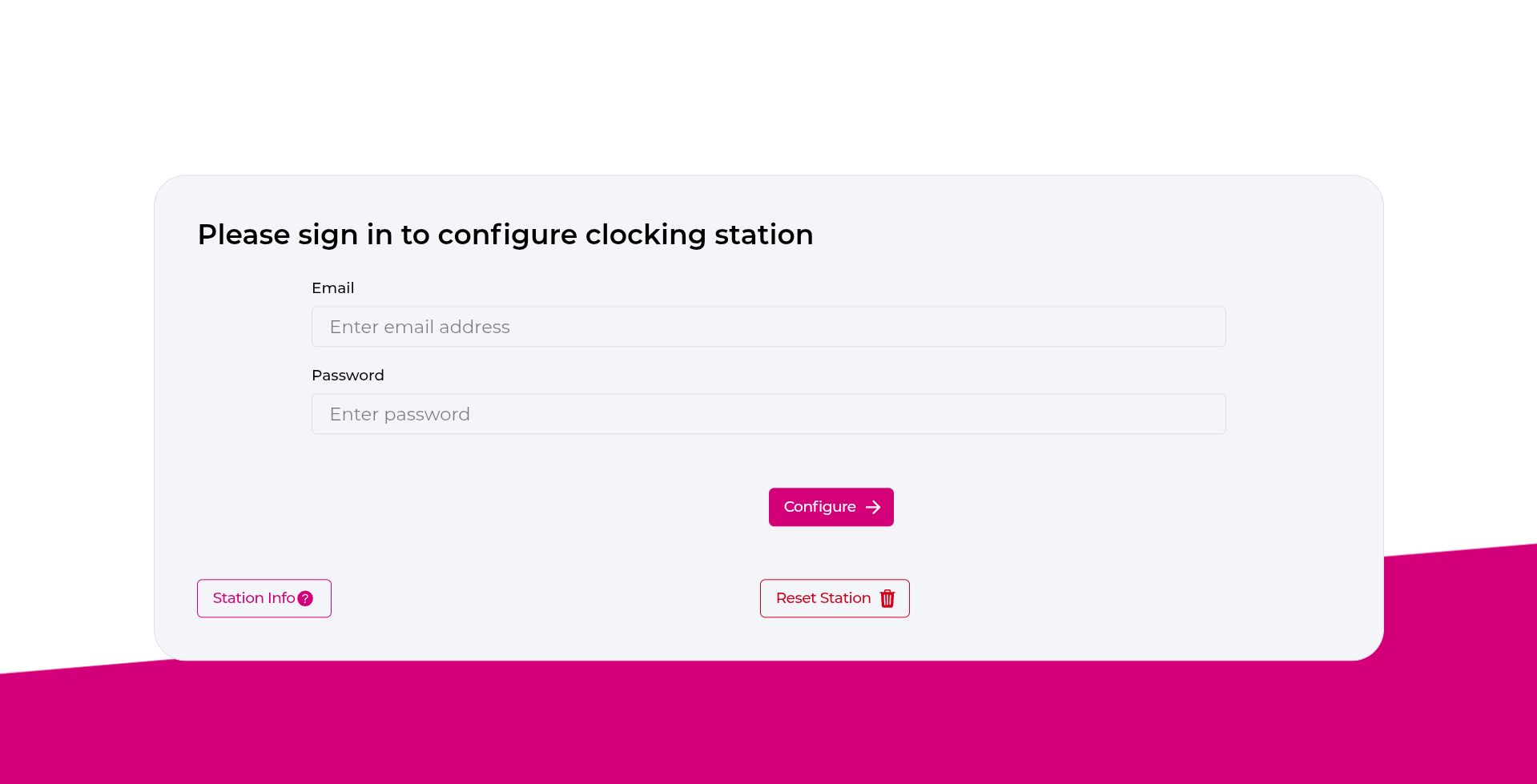
- Open the app and sign in with your Wageloch management email and password.
- Select Configure.
Configure the kiosk
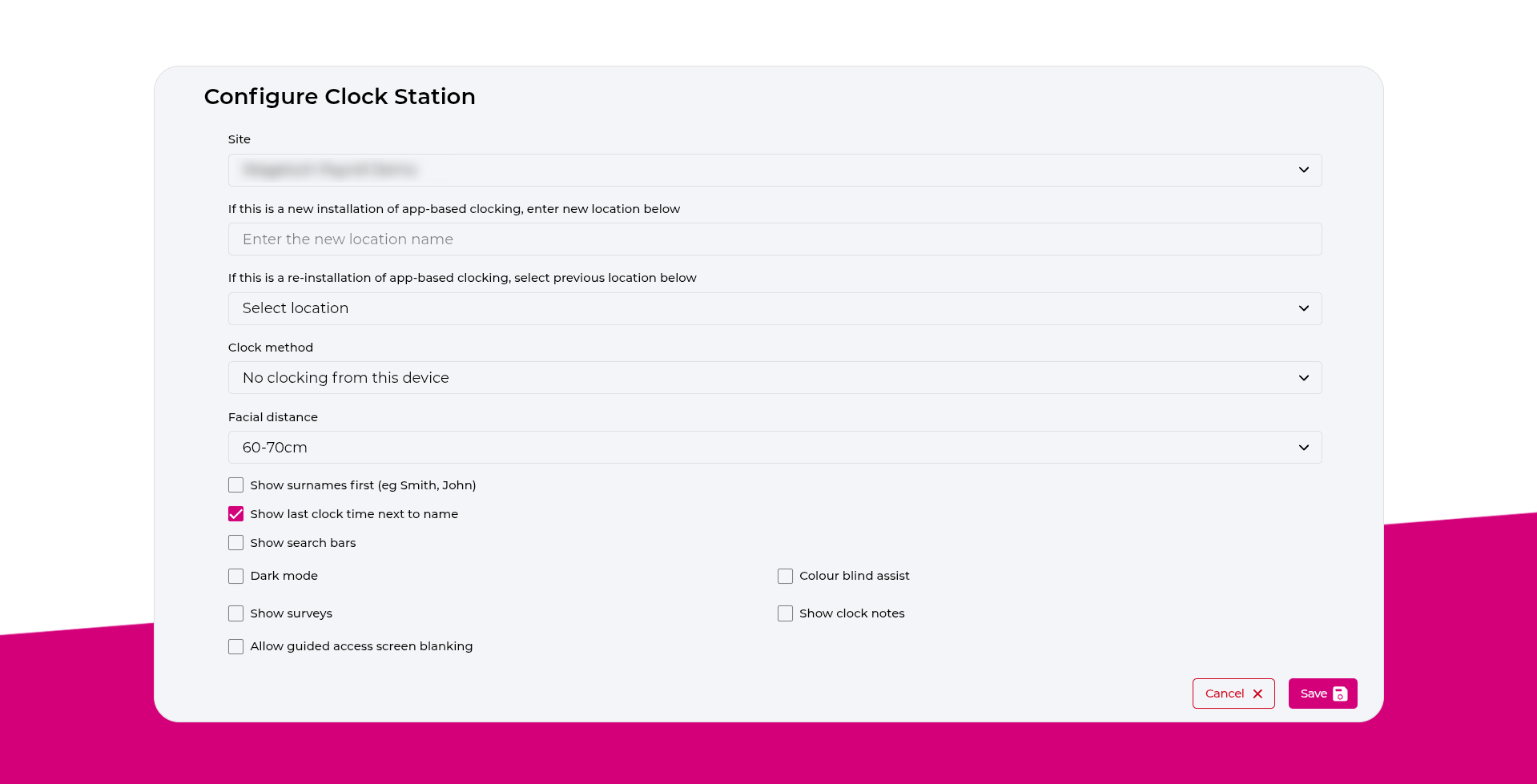
Set these fields during configuration:
- Site: Your business location (or choose from available sites).
- Add New Location: Device label (for example
Clocking Tablet,Warehouse, orKitchen). - Clock Method: Select one option:
- PIN: Staff clock with a 4-digit PIN.
- Password: Staff clock with an alphanumeric password.
- Facial Recognition - Touchless: Camera-only clocking without name selection.
- Facial Recognition - with name selection: Staff select their name, then complete facial scan.
Select Save to complete setup.
Facial Distance
If you choose a facial recognition method, you will be prompted for Facial Distance (the expected distance between staff and the tablet camera).
Register staff: PIN
After setup is complete:
- Select the employee name.
- Enter a 4-digit PIN.
- Re-enter the same PIN to confirm.
Registration is complete and the employee can test clocking in and out.
Register staff: Password
After setup is complete:
- Select the employee name.
- Enter a password (minimum 6 characters, letters and numbers supported).
- Re-enter the password for confirmation.
Registration is complete and the employee can test clocking in and out.
Register staff: Facial Recognition (Touchless)
Registration
- Open Wageloch Time Kiosk on the tablet.
- Ensure the front camera view is visible.
- Position the employee face in the frame.
- When the yellow frame appears, select Register.
- Select the employee name from the list.
Registration is complete.
Clocking in and out
- Keep Wageloch Time Kiosk open with the camera active.
- The employee stands in frame.
- If recognised, the kiosk clocks the employee in or out and shows a confirmation message.
Register staff: Facial Recognition (Name Selection)
Registration
- Open Wageloch Time Kiosk.
- Select the employee name.
- Position the employee face in the camera frame.
- When the yellow frame appears, select Register.
Registration is complete.
Clocking in and out
- Open Wageloch Time Kiosk on the tablet.
- Select your name.
- Position your face in the frame.
If recognised, the kiosk clocks you in or out and shows a confirmation message.
Delete a Registration
Use these options when credentials were entered incorrectly or have been forgotten.
Delete PIN
- Open Wageloch Time Kiosk.
- Select the Settings cog.
- Select Delete PIN.
- Enter administrator credentials when prompted.
- Select the employee name.
- Select Delete, then Done.
You can then re-register the employee.
Delete Password
- Open Wageloch Time Kiosk.
- Select the Settings cog.
- Select Delete Password.
- Select the employee name.
- Select Delete, then Done.
You can then re-register the employee.
Delete Facial Recognition
- Open Wageloch Time Kiosk.
- Select the Settings cog.
- Select Unregister Staff.
- Enter administrator credentials when prompted.
- Select the employee, then select Reset.
You can then re-register the employee.