
Creating payroll items
2 min read
Creating payroll items
Payroll items are configured in Payroll Mappings. These mappings control how timesheet columns are paid and how those amounts are reported.
Open payroll mappings
- Select Settings.
- Go to Payroll > Payroll Mappings.
- Review the mapping list columns:
- Timesheet Column
- Factor
- ATO Category
- Type
- Payslip Text
- Super
- PAYGW
- Select Edit on an item to update mapping settings.
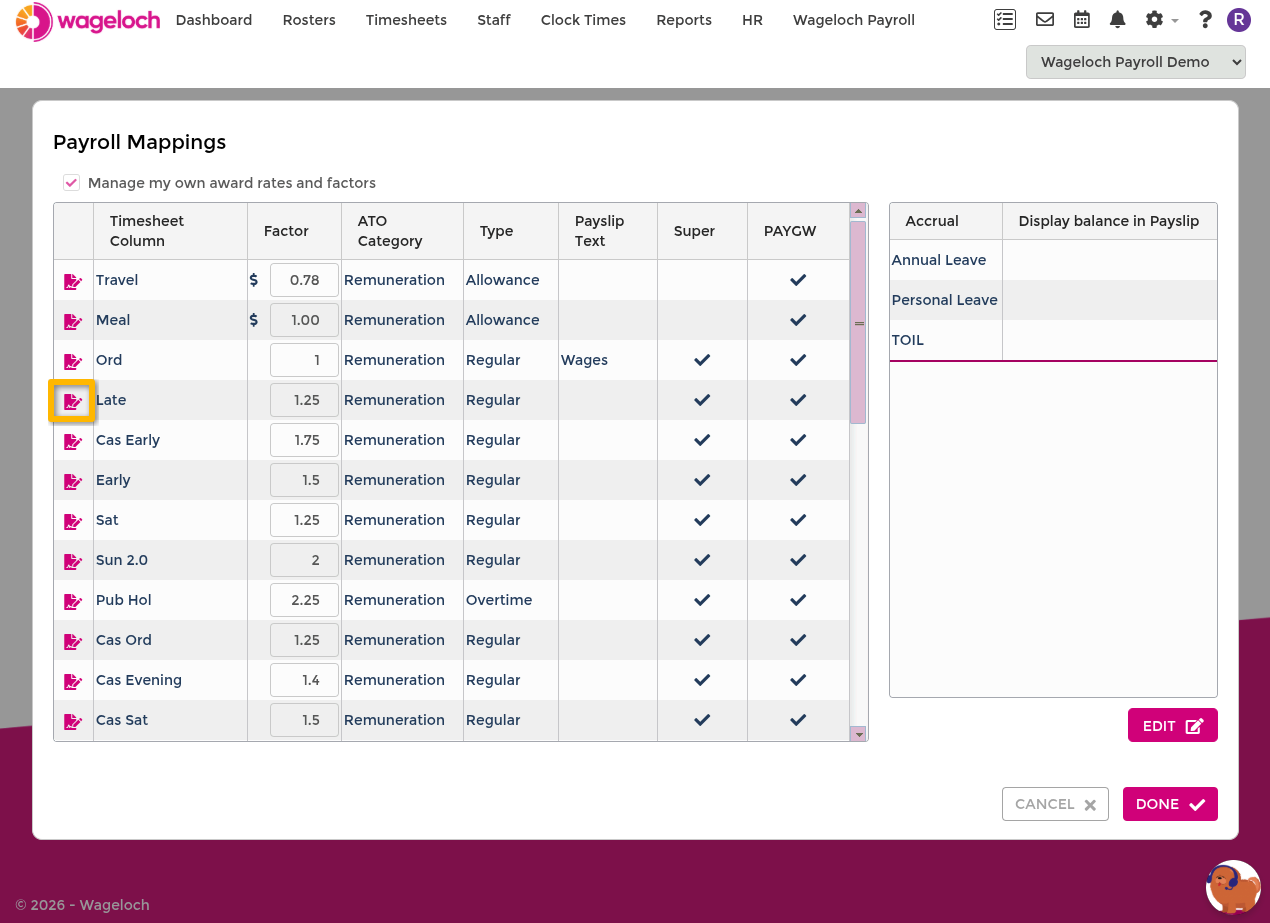
Timesheet column
The Timesheet Column is the source field from your award and timesheet configuration.
This label is what staff see in timesheet and report views.
Factor
Factor controls how the payroll item is calculated.
Common patterns include:
- Multiplier rate (for example
1.0x,1.5x,2.0x) - Fixed amount (for example
$1.00,$13.45)
TIP
If enabled in your account, Manage my own award rates and factors lets you update rates and factors directly.
ATO category, super, and PAYGW
Set these fields carefully to align payroll reporting with ATO requirements.
- ATO Category and Type determine reporting classification.
- Super controls whether the item contributes to super calculations.
- PAYGW controls whether the item is included in PAYGW reporting.
Common ATO category groups include:
- Remuneration
- Deductions
- Fringe Benefits
For ATO category guidance, see ATO Fringe Benefits information.
IMPORTANT
Incorrect category or tax settings can affect STP reporting outcomes. Confirm mapping choices with your payroll or accounting adviser when unsure.
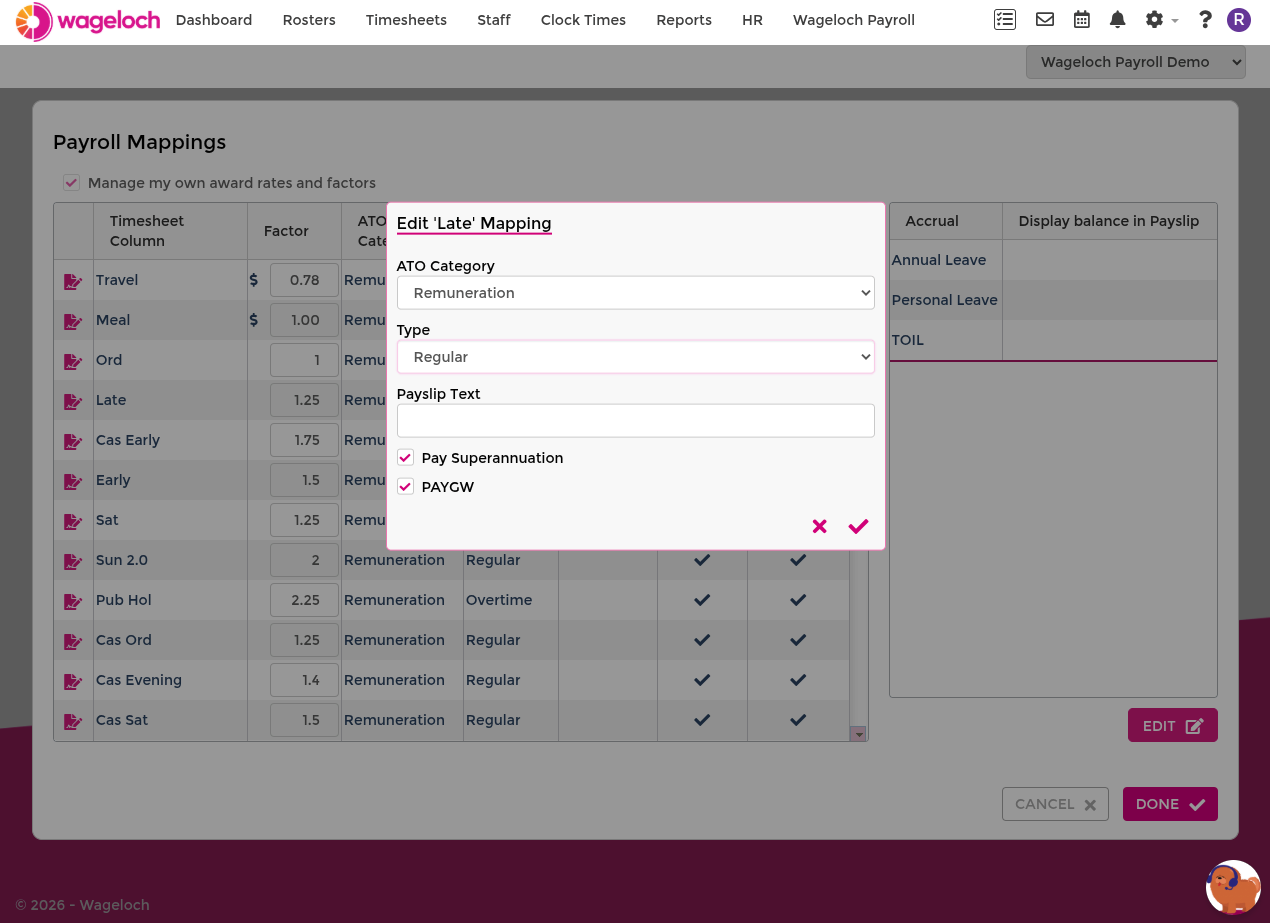
Payslip text
Payslip Text is what employees see for the item on their payslip.
Use clear names so earnings and deductions are easy to identify.
Suggested setup process
- Confirm timesheet column names from award setup.
- Set factor and payslip text.
- Set ATO category and type.
- Confirm super and PAYGW treatment.
- Save the mapping.
- Test with a sample pay run before live payroll.