Permissions and restrictions
4 min read
Permissions and restrictions
Permissions and Restrictions control what leave staff can request, when requests are allowed, and how approvals affect rosters.
Use this page to set clear policy boundaries before processing leave in Managing Leave.
Before you start
- Open Wageloch and sign in with manager access.
- Select Settings (top-right).
- Open Portal/Mobile App, then go to Leave.
Date Restrictions
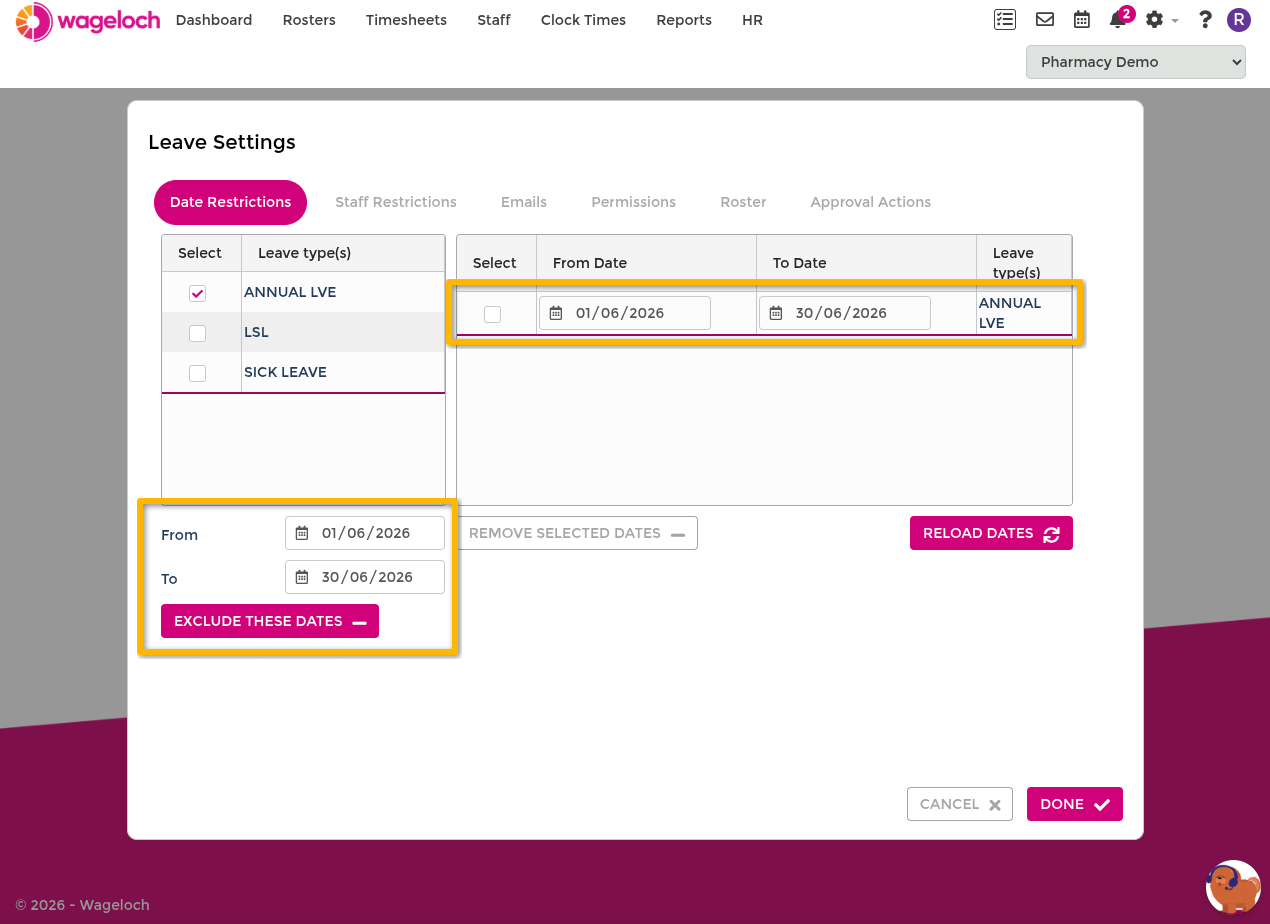
Date Restrictions block leave requests for specific date ranges and leave types.
Common examples include Christmas/New Year shutdown periods, Easter, and high-demand weekends.
- In Date Restrictions, select the leave types to block.
- Enter the start and end date range.
- Select Exclude these dates.
- Select Done to save.
After saving, staff cannot submit requests for blocked dates under the selected leave types.
Staff Restrictions
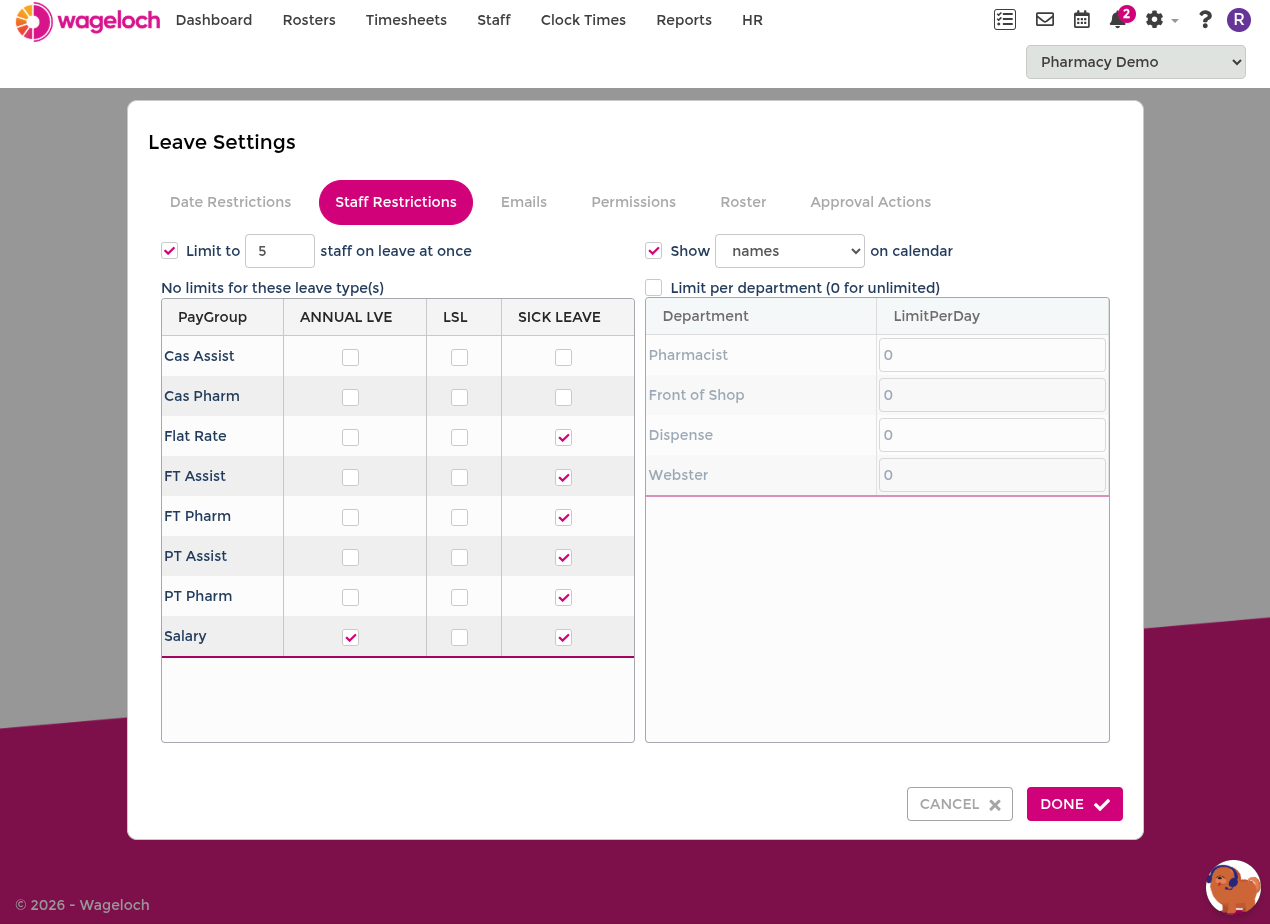
Staff Restrictions controls how many people can be on leave on the same day.
Restriction options
- No restriction: no automatic cap is applied.
- Site-wide restriction: limit total staff on leave across the business.
- Departmental restriction: limit staff on leave per department.
- Departmental and site-wide restriction: apply both limits together.
INFO
When a limit is reached, additional requests are blocked or require manual handling based on your approval settings.
Request notification emails
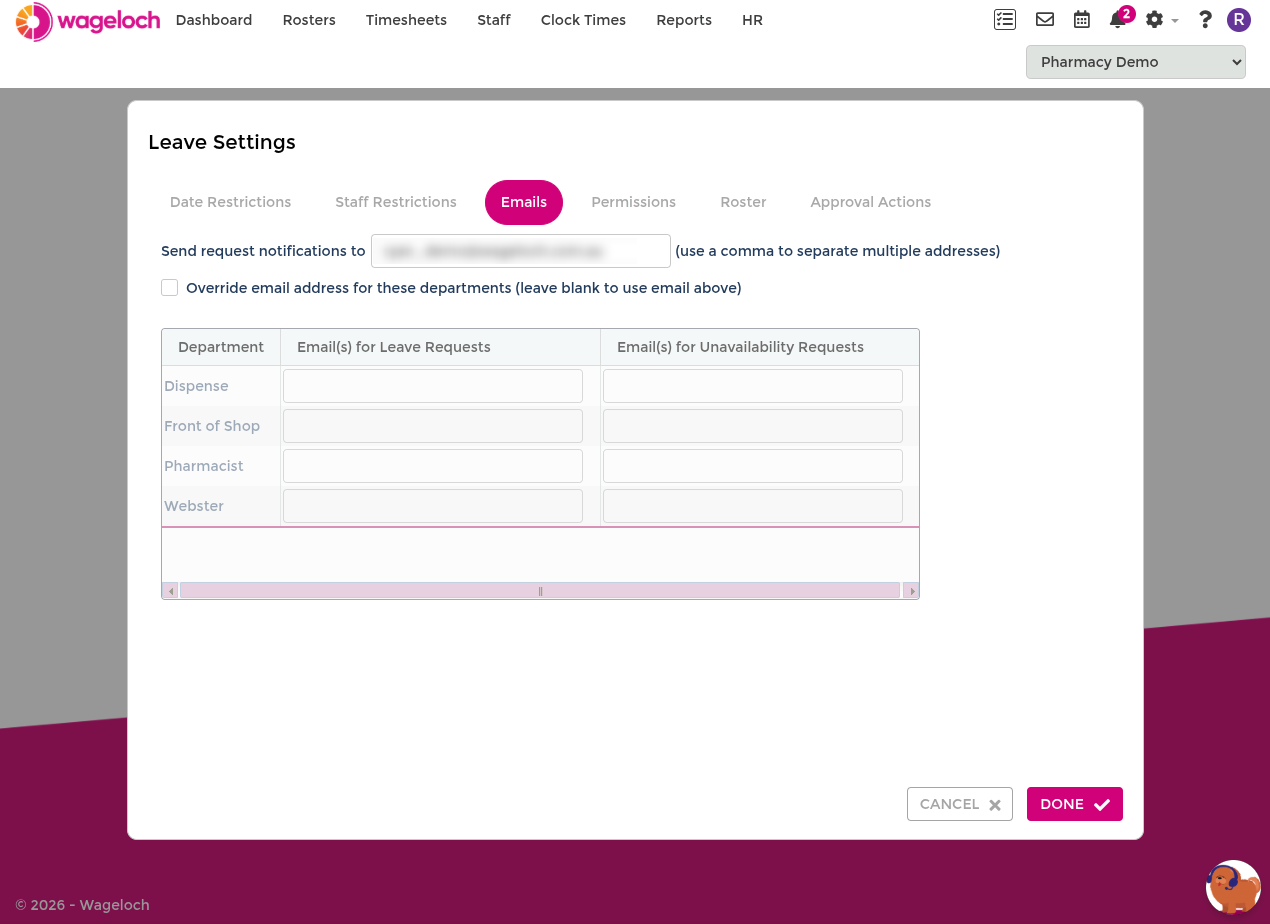
Use email notification settings to route requests to the right approvers.
- Enter a default address in Send request notifications to.
- If needed, enable Override email address for these departments.
- Add department-specific manager emails.
This helps ensure requests are reviewed quickly by the correct person.
Booking and accrual permissions
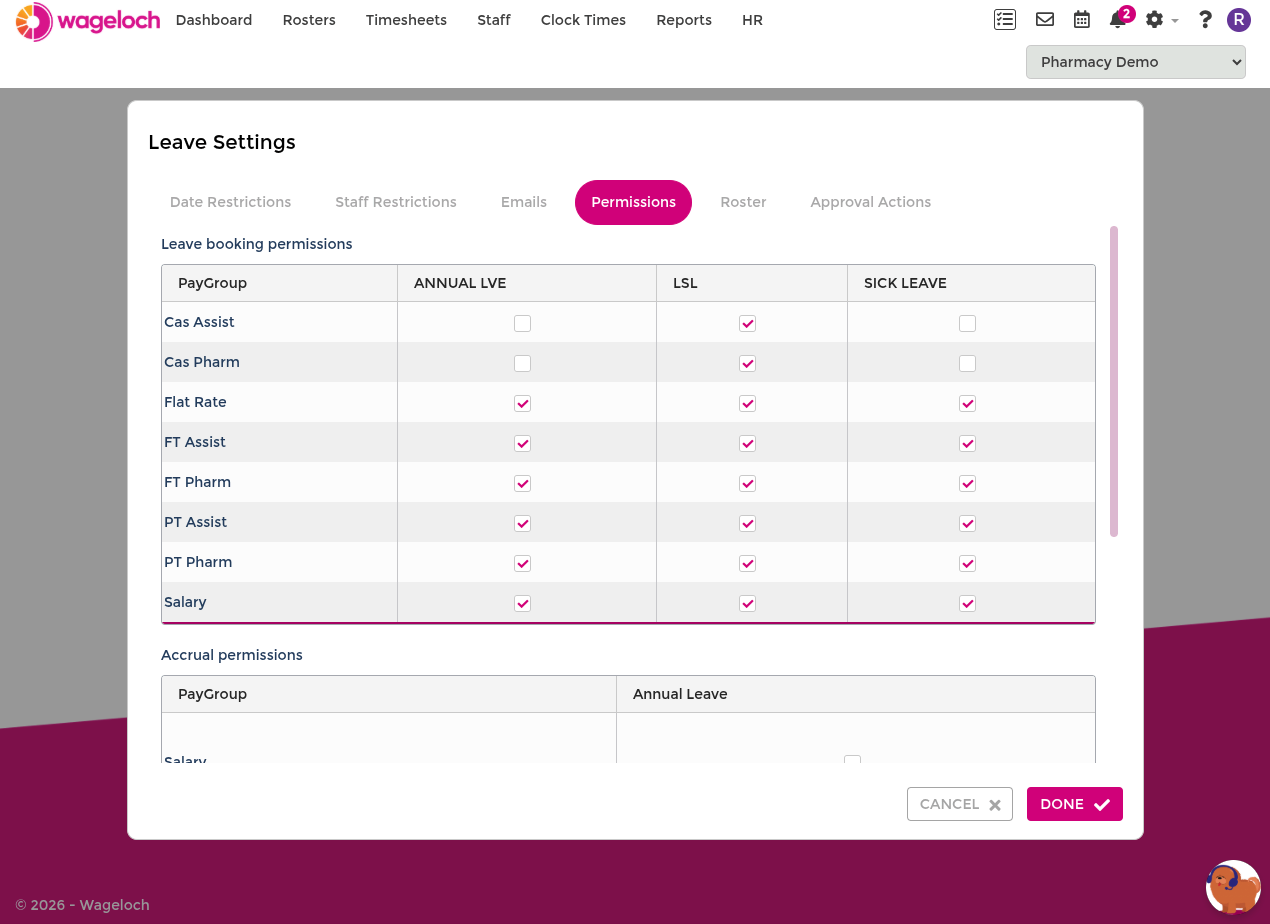
Permissions control what staff can request and what balances they can view.
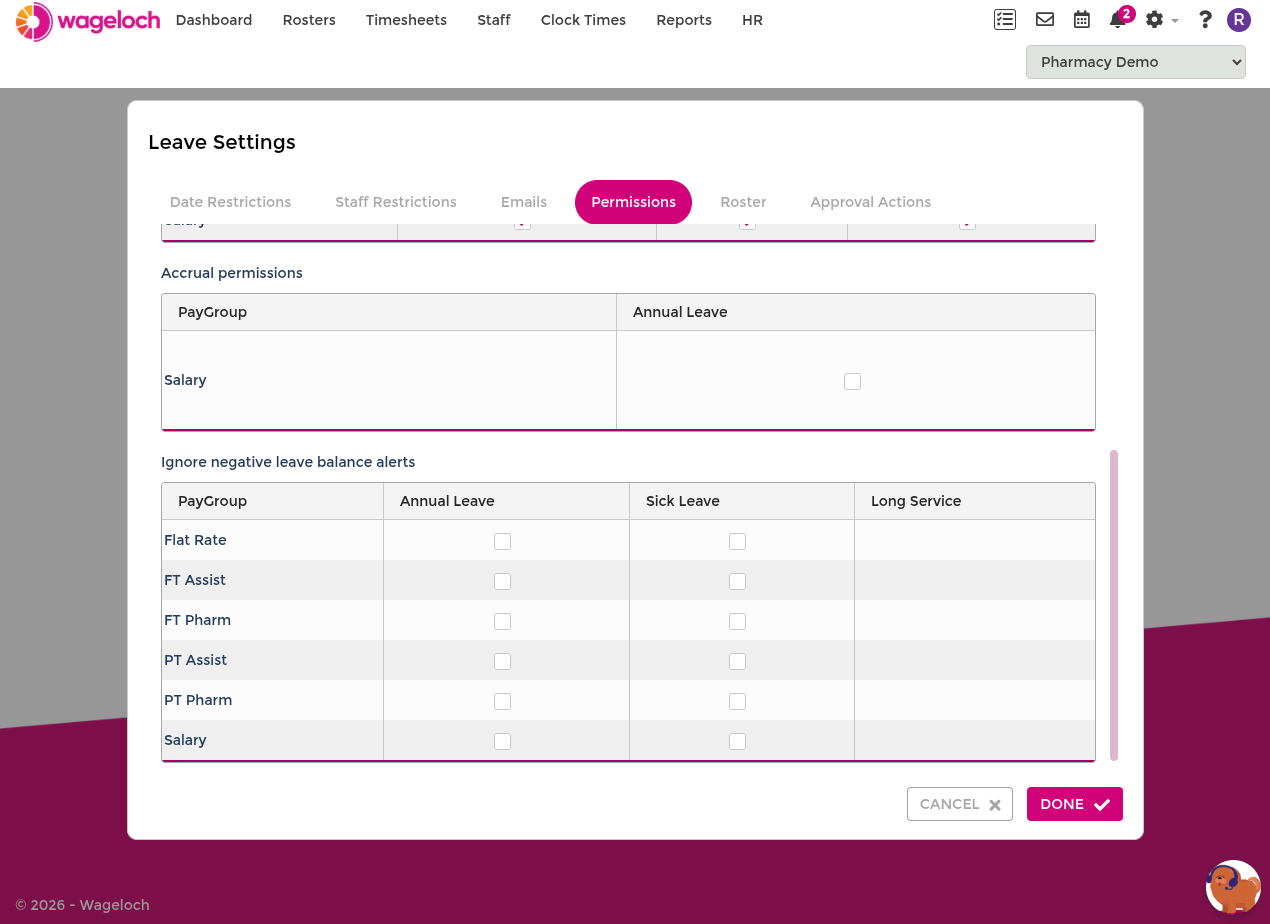
- Leave booking permissions: Choose which leave types staff can submit, such as Annual Leave, TOIL (time off in lieu), and Personal Leave (if enabled by policy).
- Accrual visibility permissions: Choose which accrual balances staff can see in the Mobile App and Staff Portal.
Roster behaviour settings
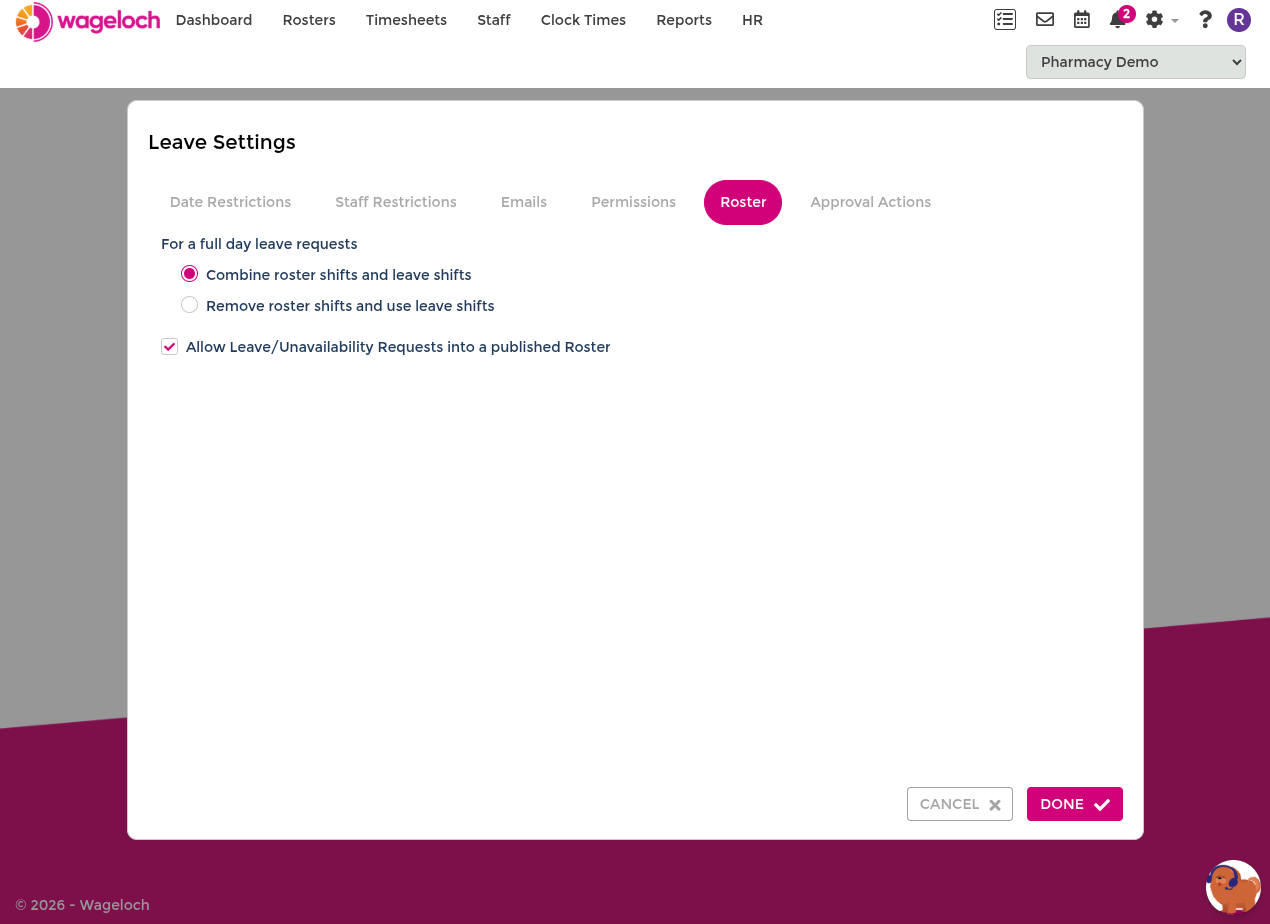
Roster settings define how approved leave interacts with existing rostered shifts.
- Combine roster shifts and leave shifts: Approved leave is merged with existing rostered shifts. Review overlaps after approval.
- Remove roster shifts and use leave shifts: Approved leave replaces the rostered shift for the affected period.
- Allow requests into published rosters: Enable this if you want leave and availability submissions to be accepted after a roster is published.
TIP
Use Leave Templates to reduce incorrect leave durations when approvals are applied automatically.
WARNING
Allowing post-publication requests can affect confirmed coverage. Review approved requests before finalising staffing decisions.
Approval Actions
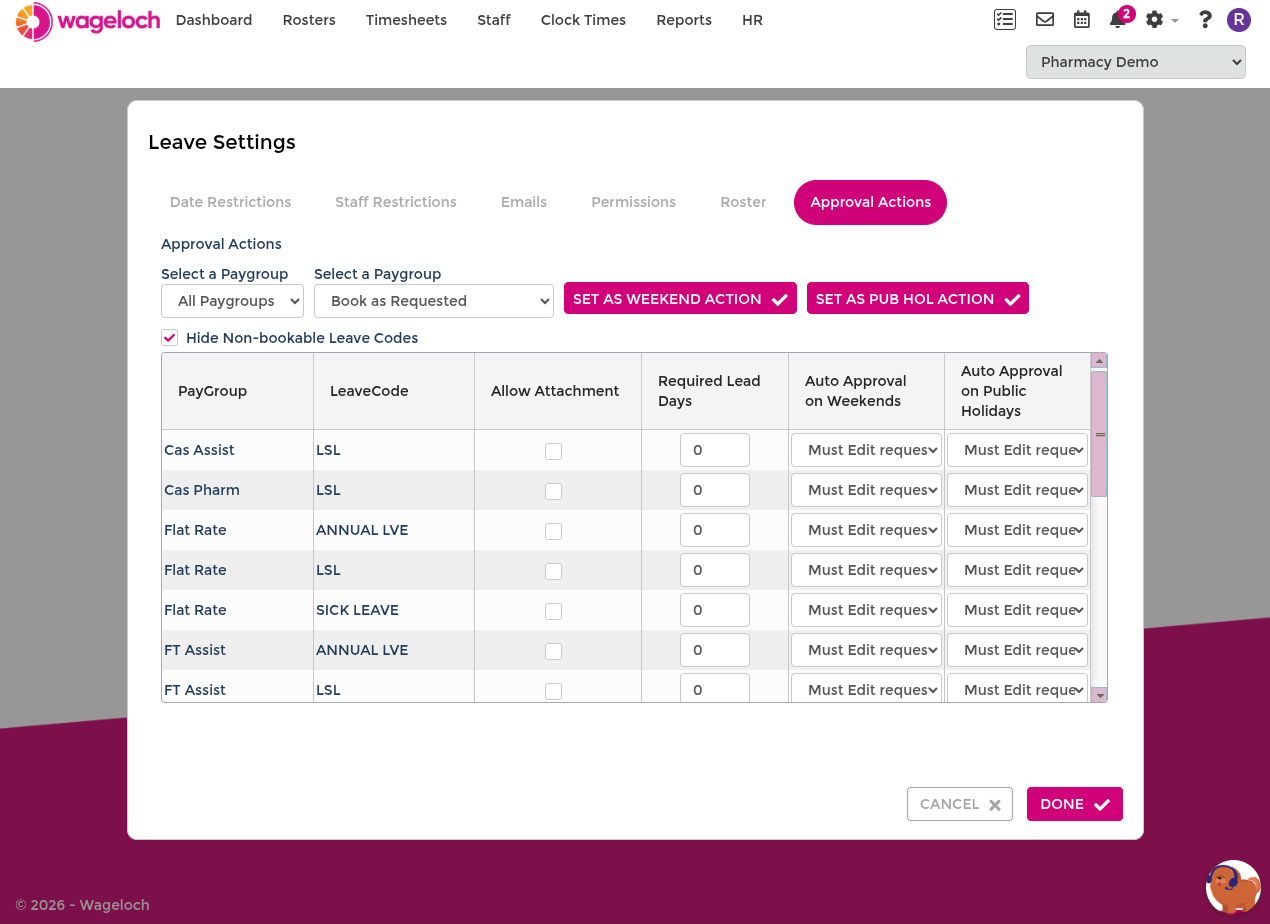
Approval Actions control default handling when managers approve pending leave requests.
- Must Edit Request Manually: Manager opens the request, reviews dates and hours, then saves to approve.
- Book but Clear: Approving removes weekends and public holidays automatically.
- Book as Requested: Approving books exactly what was submitted.
- Allow Attachment: Allows staff to attach supporting documents (for example medical certificates) to requests.
- Lead Time: Sets minimum notice days required before the leave start date.
IMPORTANT
If work patterns are not configured, Book as Requested can over-book leave on days a staff member would not normally work. Use Leave Templates to reduce this risk.