
Getting Started
2 min read
Getting Started
This article covers your first sign-in and a tour of the Home screen.
Sign in
Before you begin, make sure you have:
- Access to the mobile app from your employer or administrator.
- Your login details.
- Permission to use required device features, such as location services for Log Book.
Once you sign in, the app opens on the Home screen.
INFO
Visible features depend on your access permissions and your employer's portal settings.
The Home screen
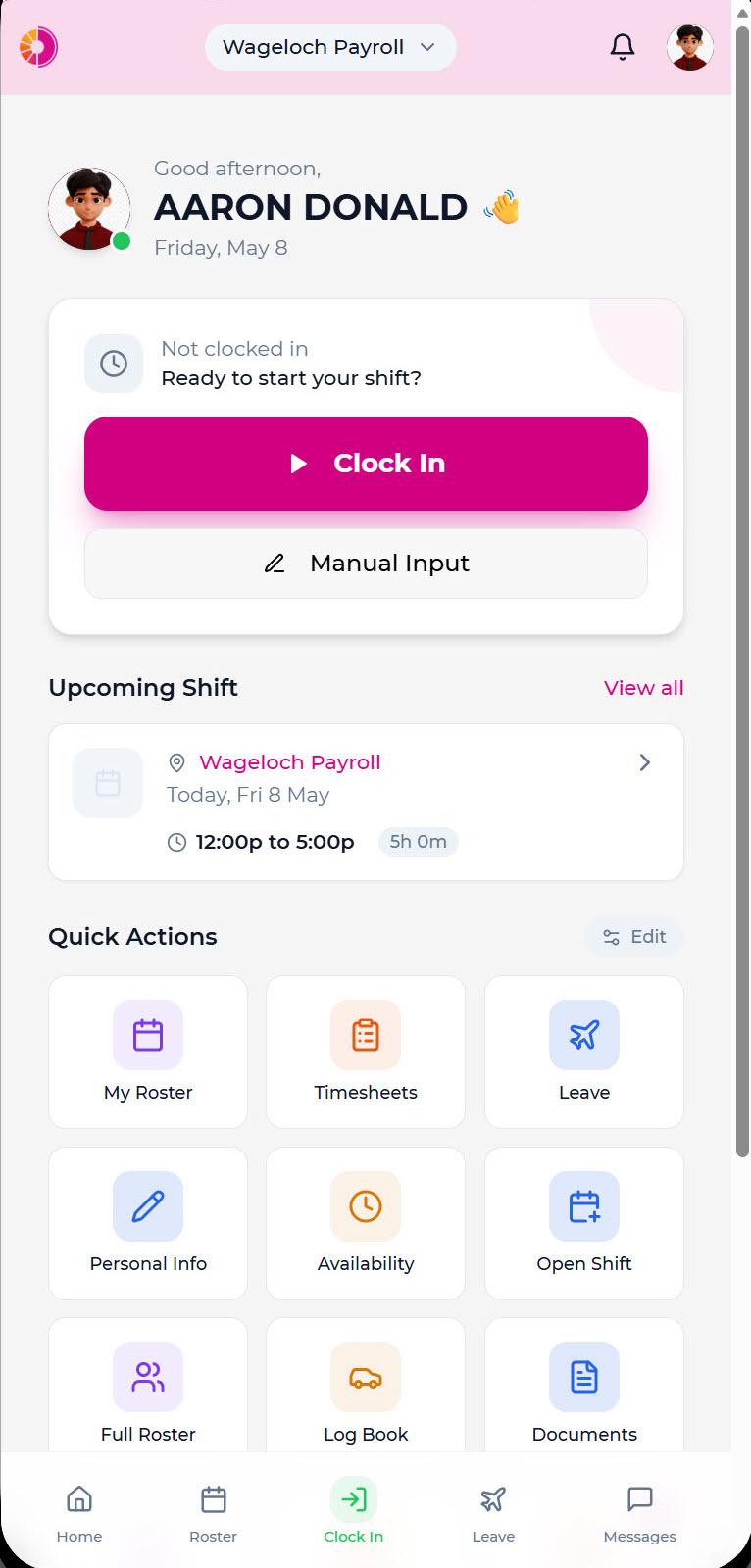
The Home screen is the main dashboard for day-to-day use.
From Home, you can:
- View your current shift status, clock in, clock out, and manage breaks.
- Open Manual Input.
- Use quick actions to jump to the main employee tools.
- View your weekly roster preview and an upcoming shift if you are not currently on shift.
Home screen header
From the Home screen header, you can:
- Access your staff portal (Wageloch logo).
- Switch sites (for multi-site employees).
- Access your personal details.
- View your notifications.
What to try first
If you are new to the app, a good first walkthrough is:
- Review My Profile.
- Practise the Home screen clock controls.
- Open My Roster.
- Review Leave, Documents, and Qualifications.
- Check Notifications.