
Contracts and policies
3 min read
Contracts and policies
Wageloch HR lets you prepare contract and policy templates, send them for signature, and track progress from one place.
Before you start
- Contract and policy templates must be PDF files.
- Add placeholders before issuing documents so staff and countersigners can complete all required fields.
- Confirm employee records are up to date before sending documents.
INFO
If you include a countersign placeholder, Wageloch will ask you to select the countersigner when issuing the document.
Contract templates
Use contract templates to issue employment agreements and role-specific terms.
Add a contract template
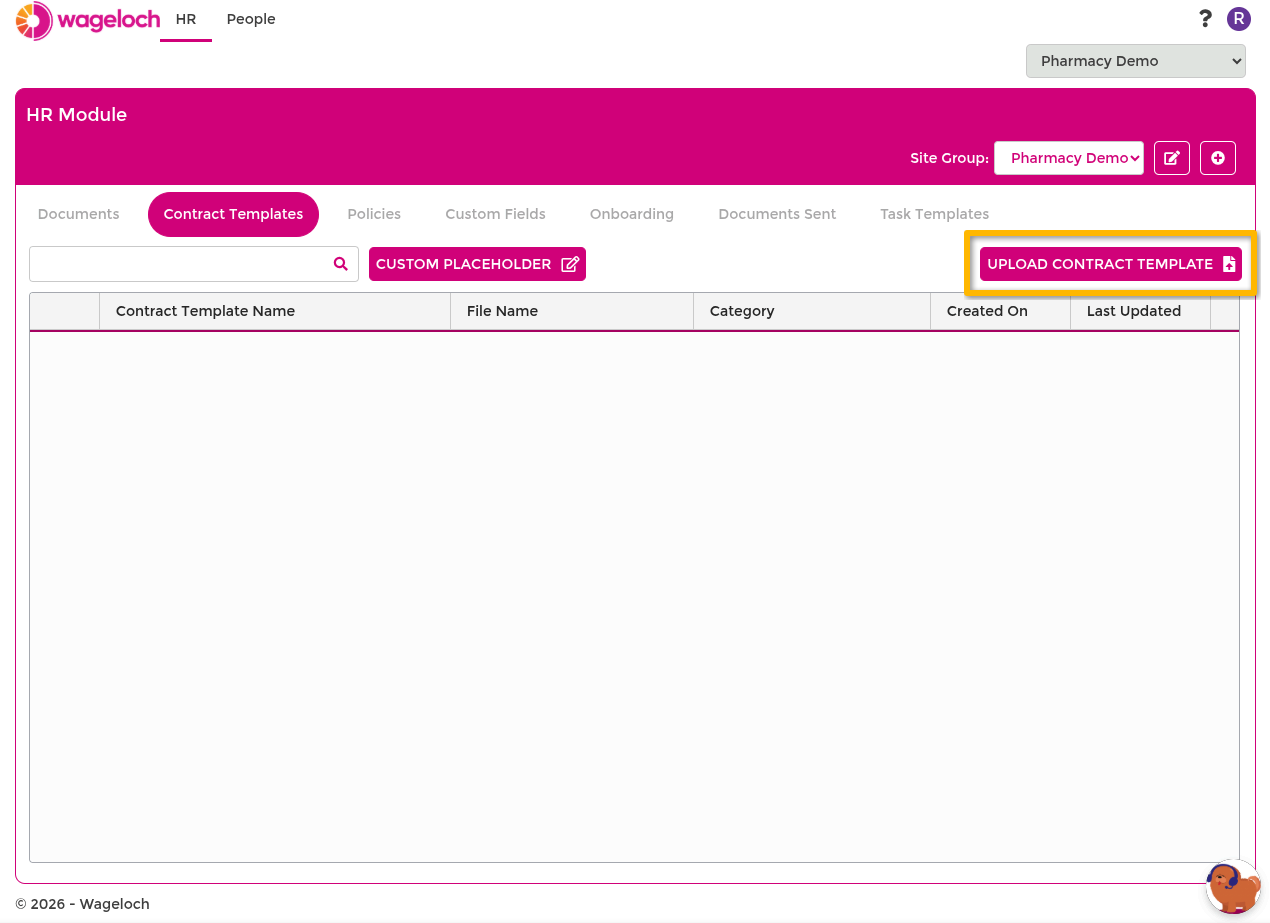
- Go to HR > Contract Templates.
- Select Upload Contract Template.
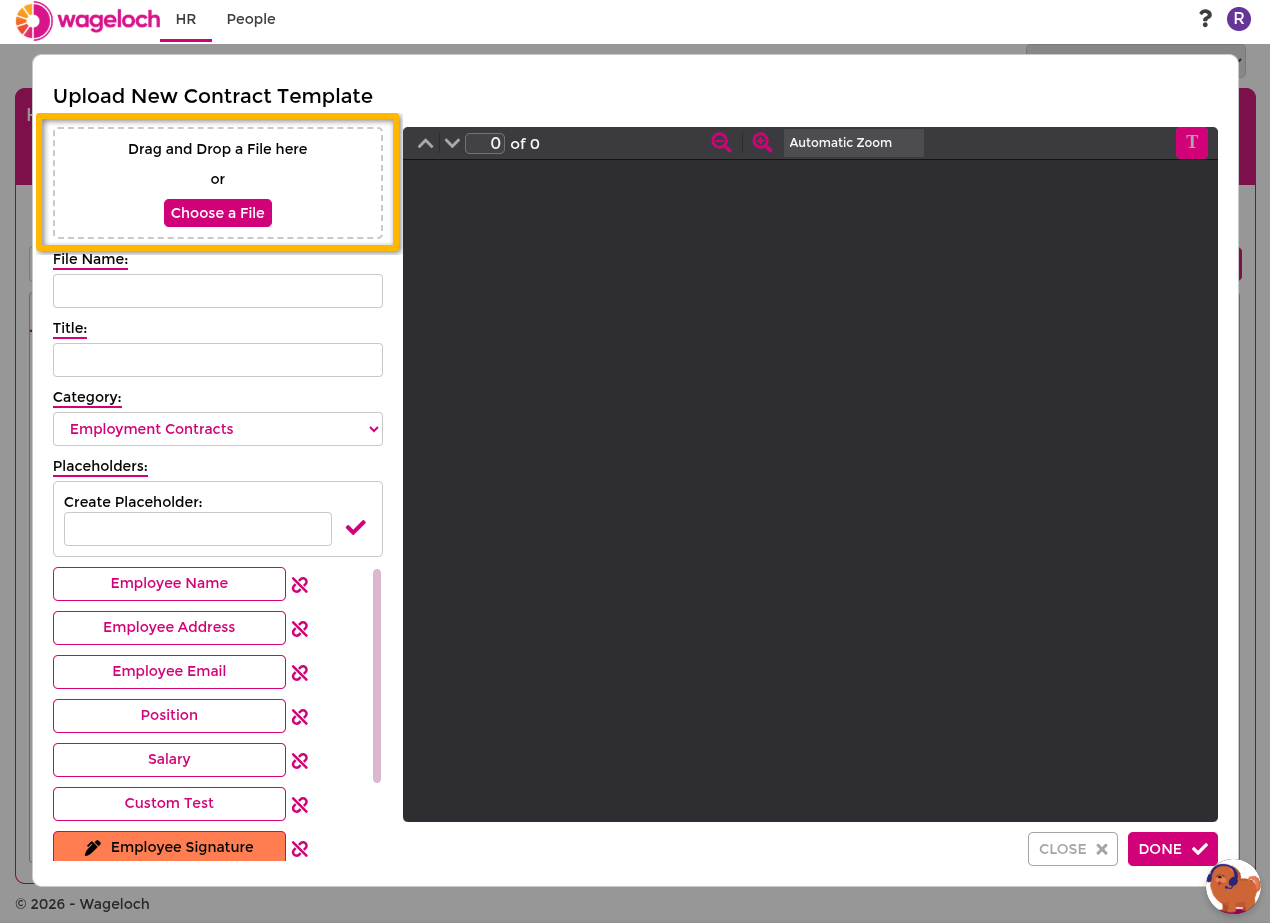
- Upload the PDF file.
- Review and set template details:
- File Name for internal naming.
- Title for the document name shown during issue.
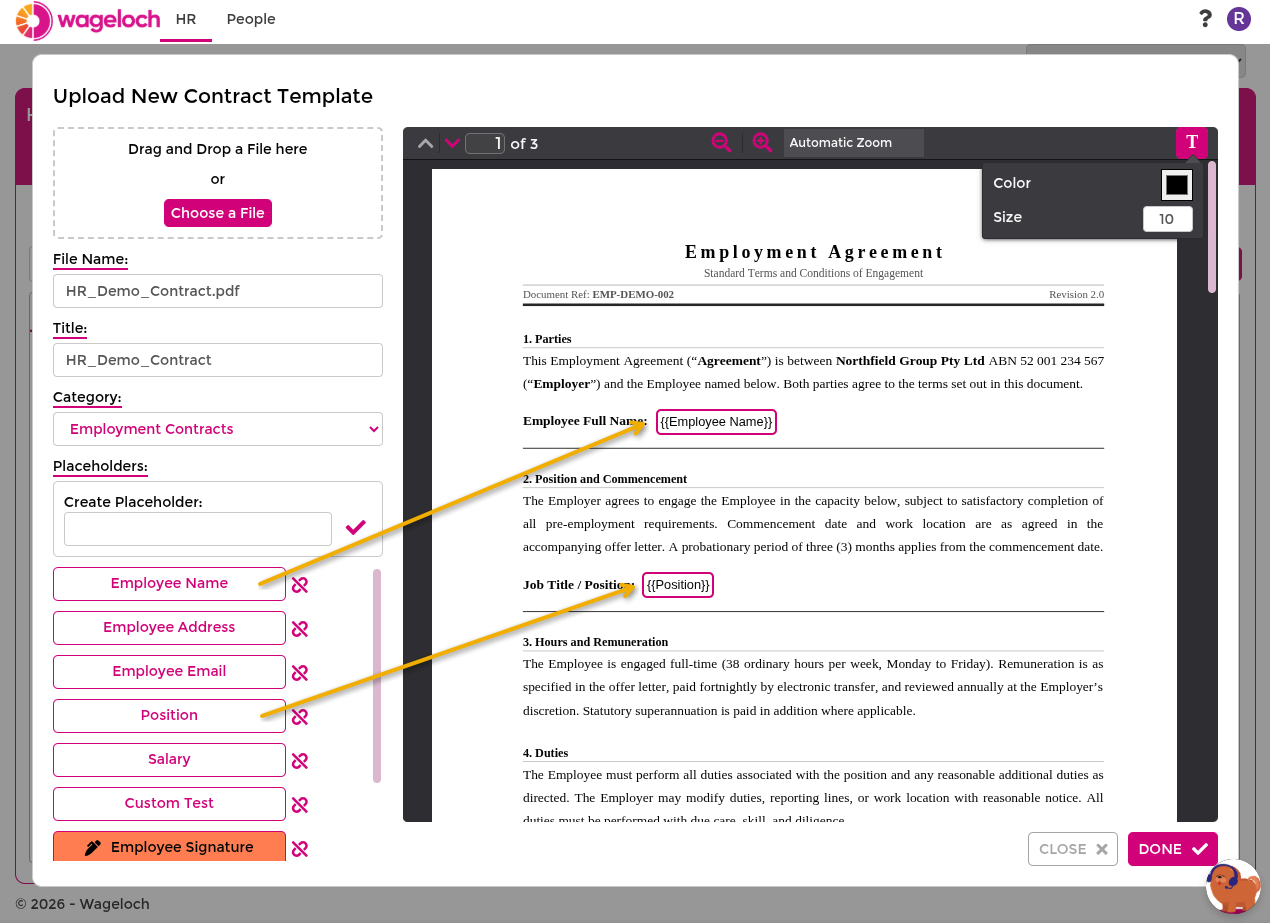
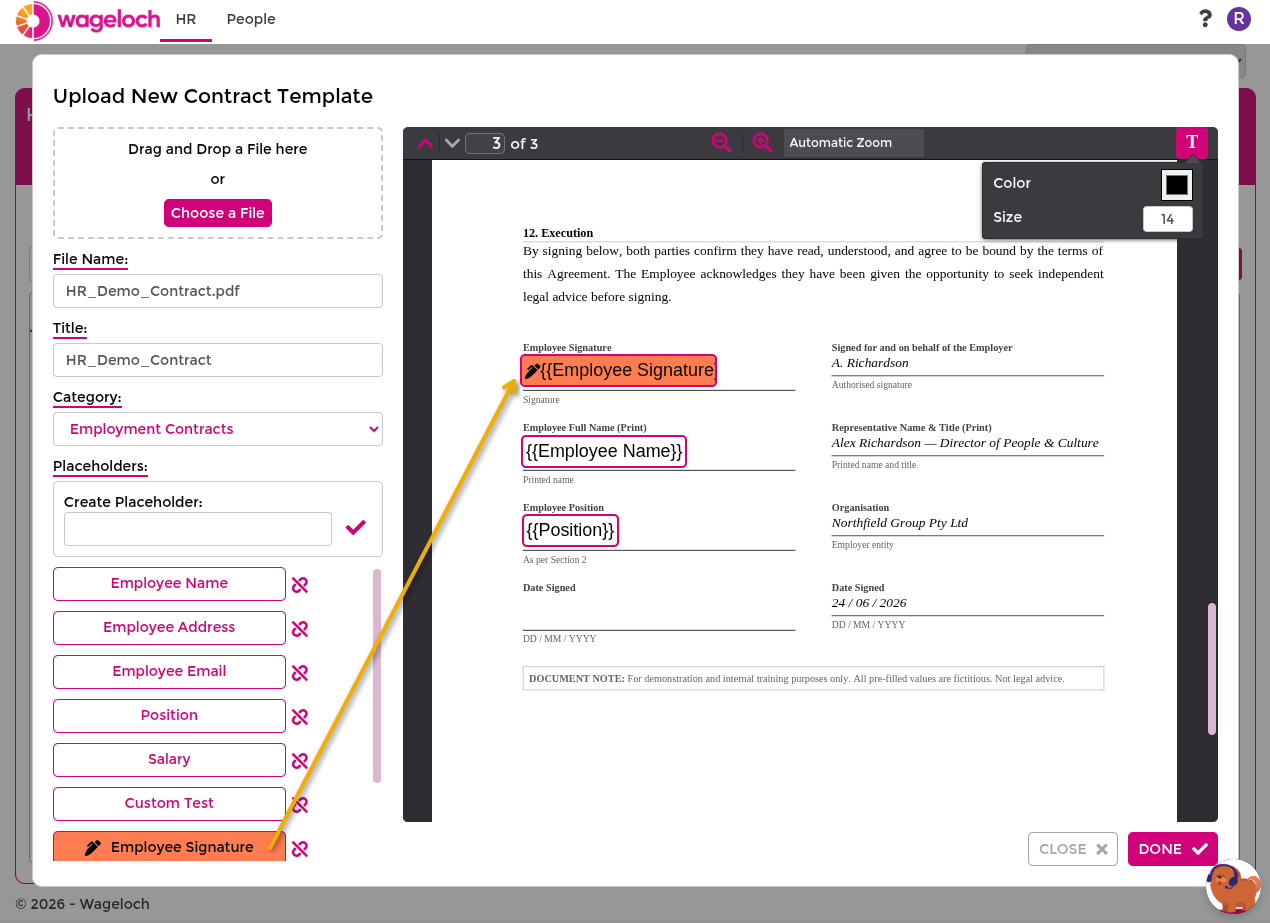
- Placeholders for fields such as employee name, position, salary, and signatures.
- Drag placeholders into the document preview where each value should appear.
- Select Done to save the template.
TIP
Default placeholders cannot be deleted. Custom placeholders can be edited or removed.
Issue a contract
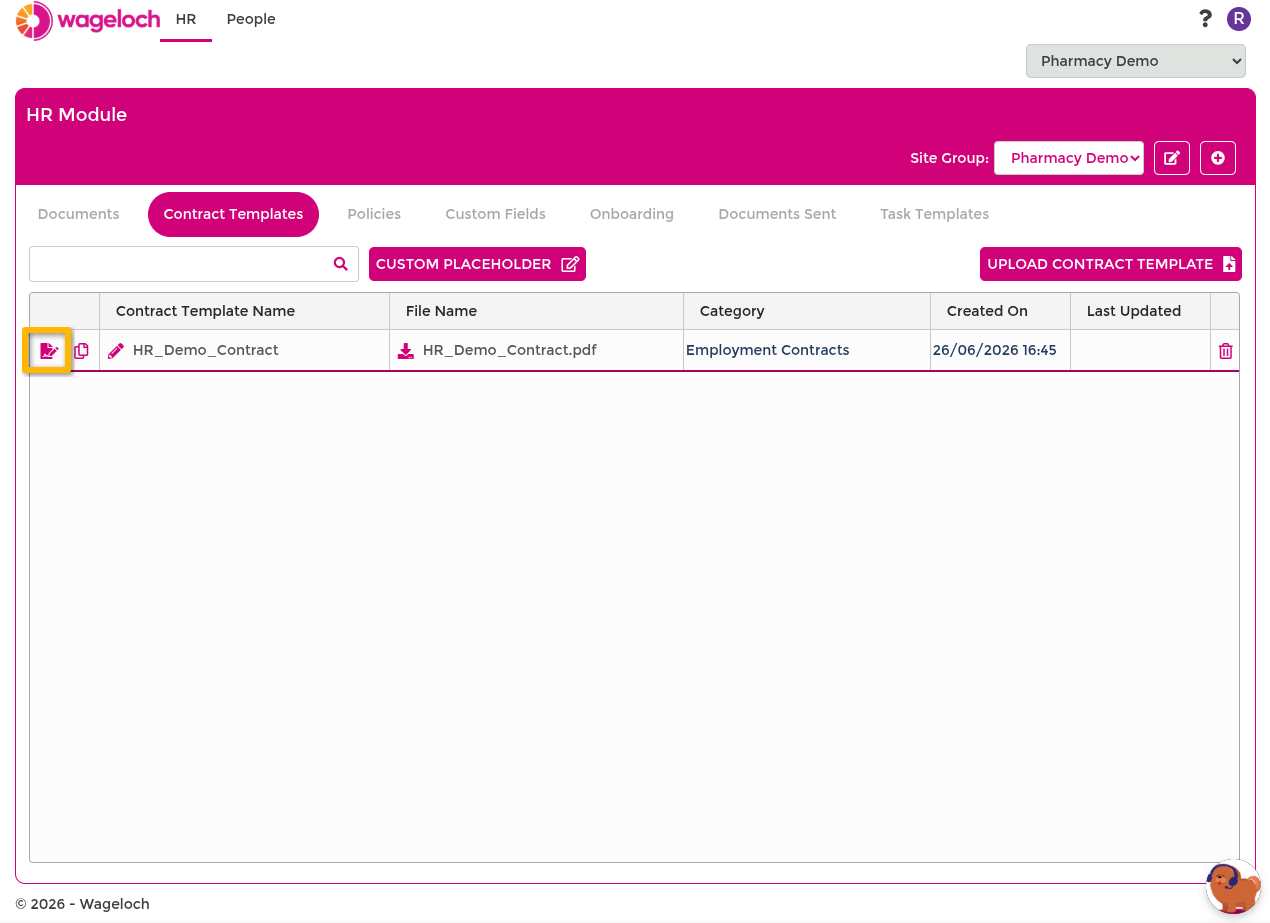
- Go to HR > Contract Templates.
- Select the Issue Contract action for the template you want to send.
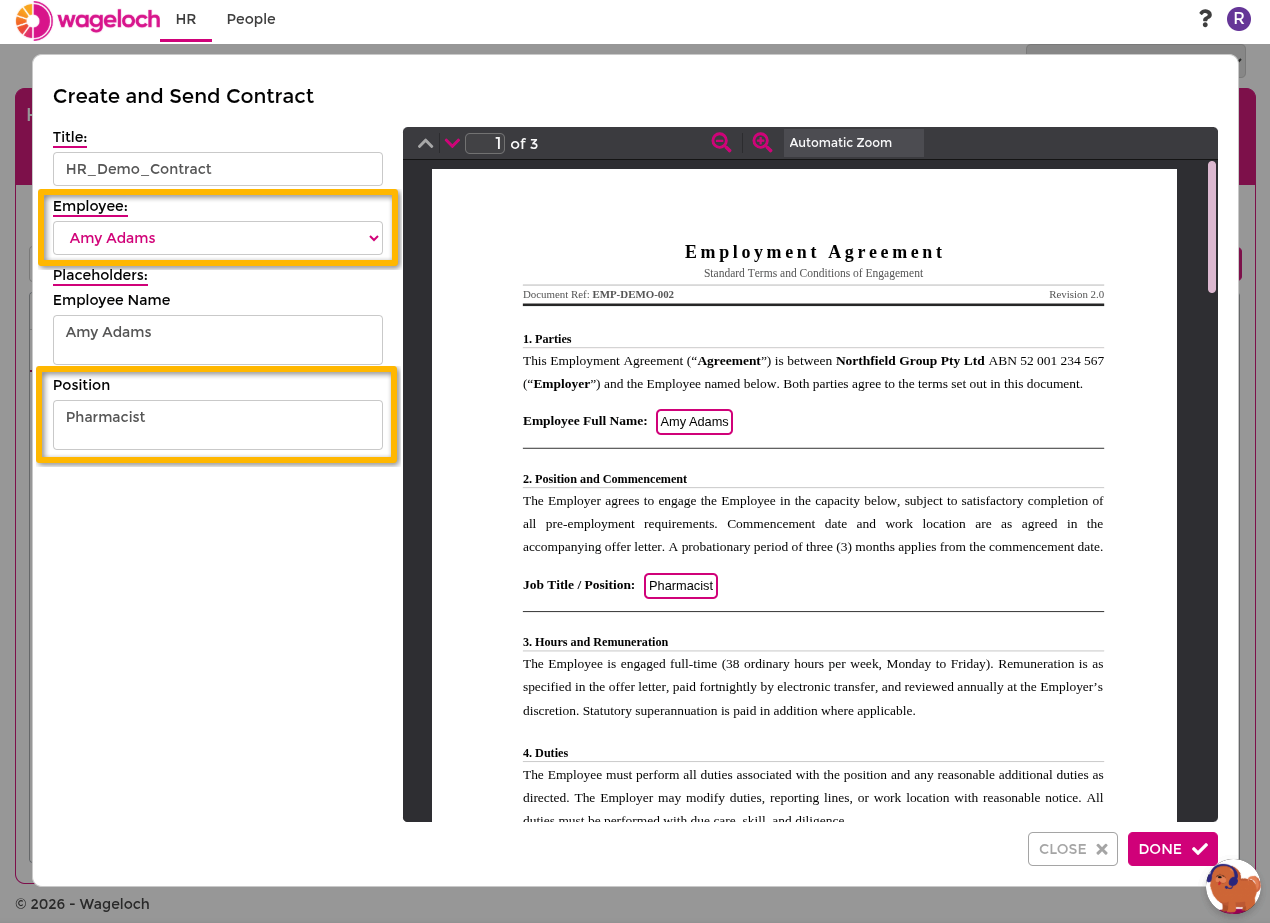
- Complete the issue form:
- Title
- Employee
- Placeholder values
- If prompted, select the countersigner.
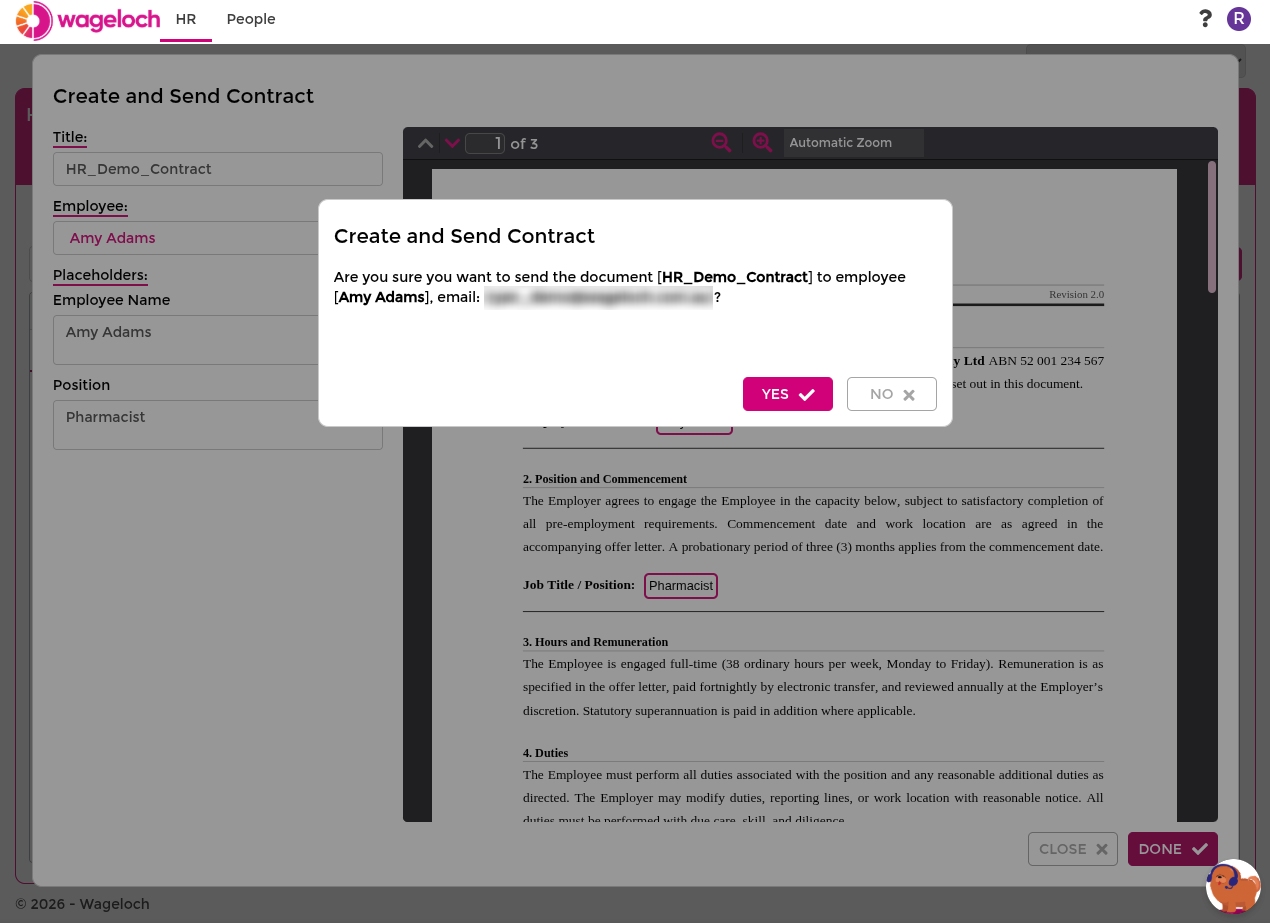
- Select Yes to send.
Edit or delete a contract template
- Go to HR > Contract Templates.
- Select the Edit action to update template details or placeholders.
- Select the Delete action to remove a template you no longer use.
- Confirm the prompt.
IMPORTANT
Deleting or editing a template does not change documents that were already issued.
Policy templates
Policy templates follow the same steps as contracts, with fewer default placeholders available.
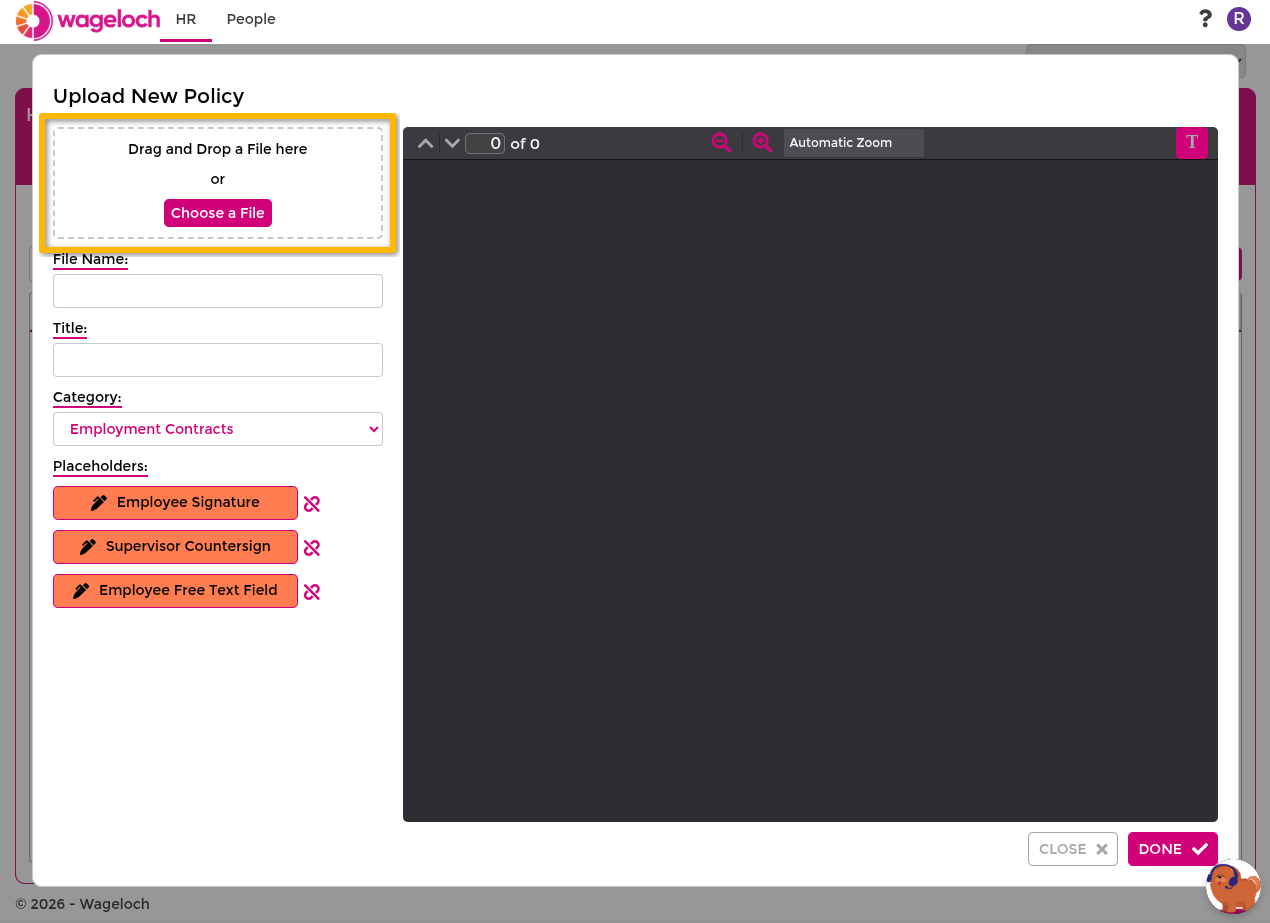
Add a policy template
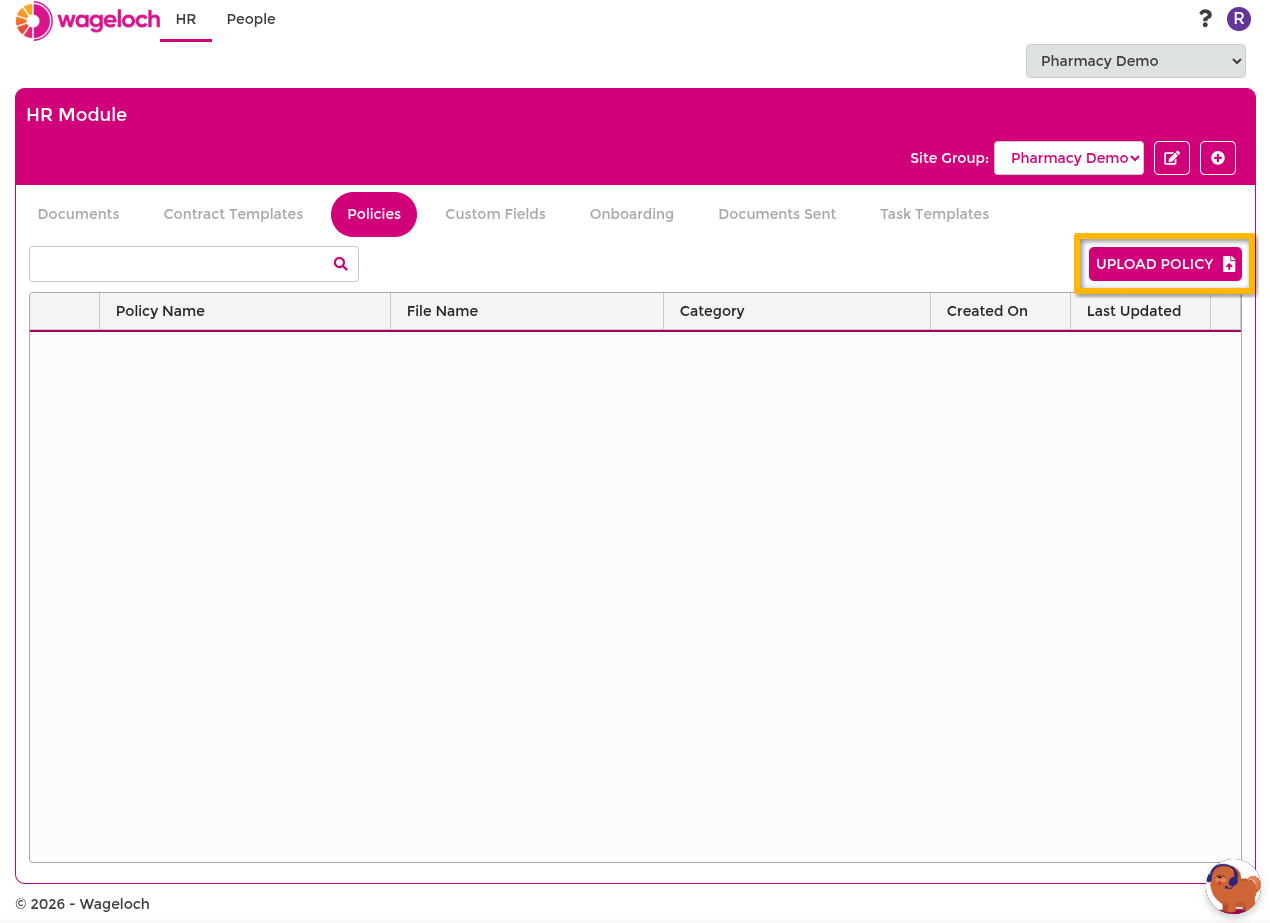
- Go to HR > Policies.
- Select Upload Policy.
- Upload the PDF file.
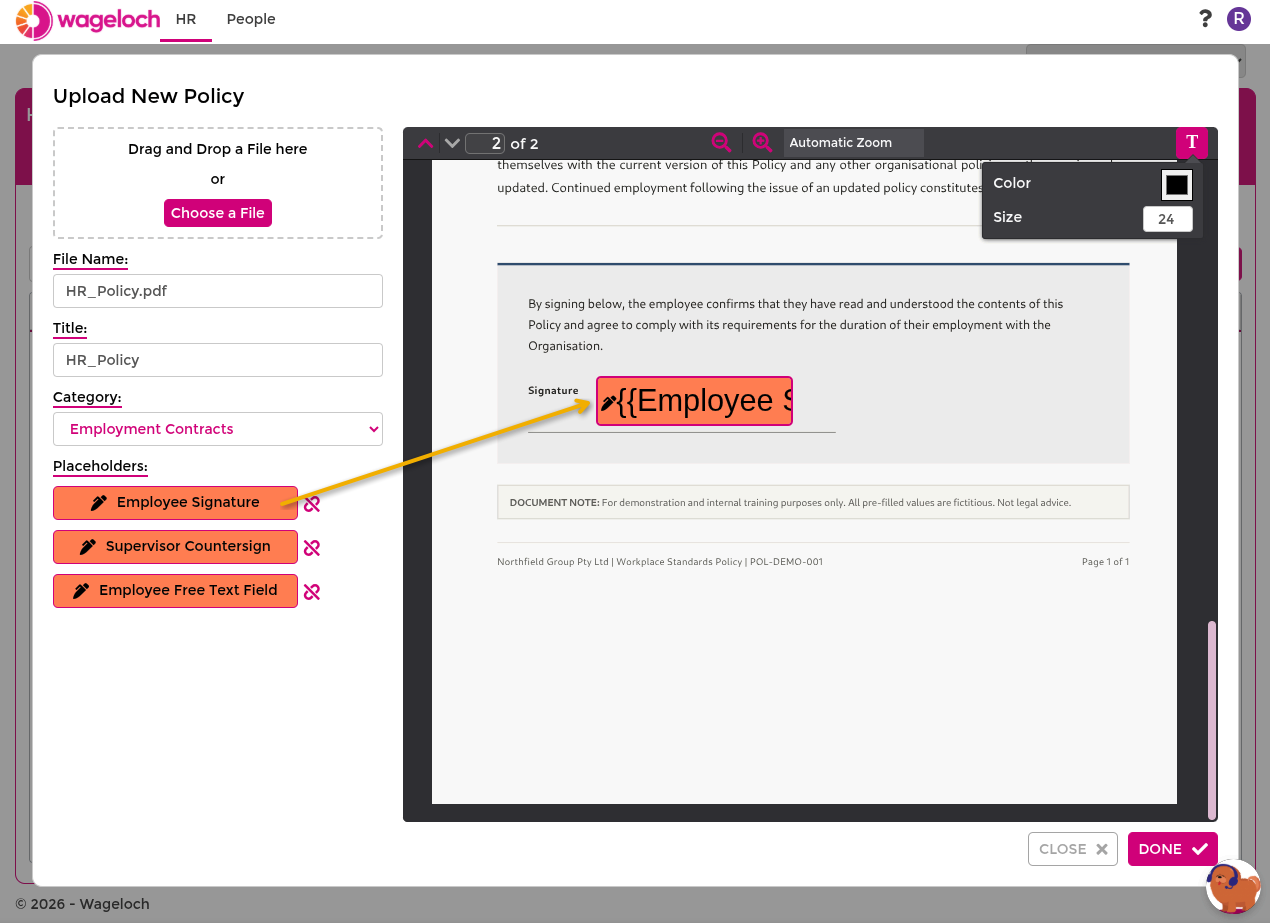
- Set File Name, Title, and placeholder positions.
- Select Done to save.
Issue a policy
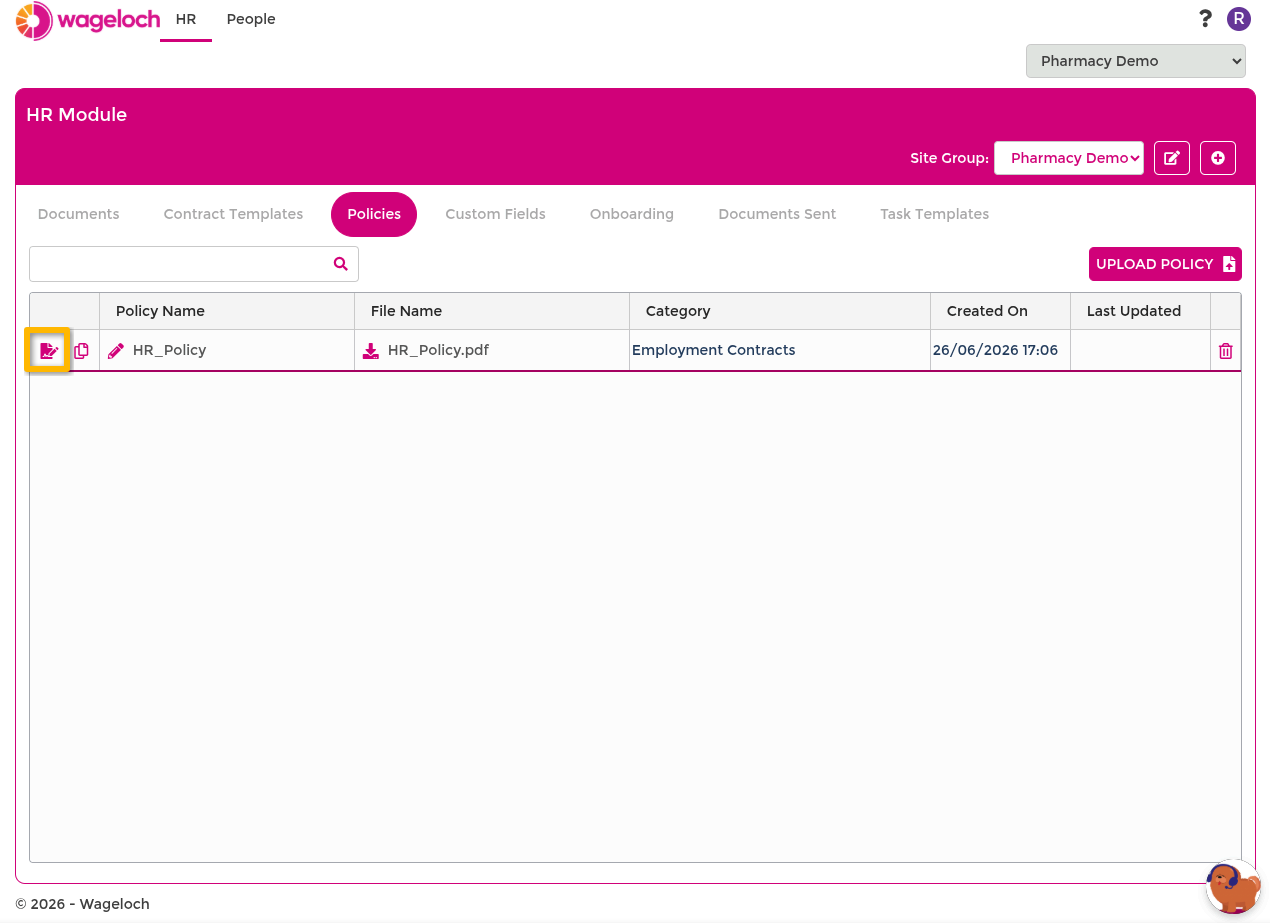
- Go to HR > Policies.
- Select the Issue Policy action for the template.
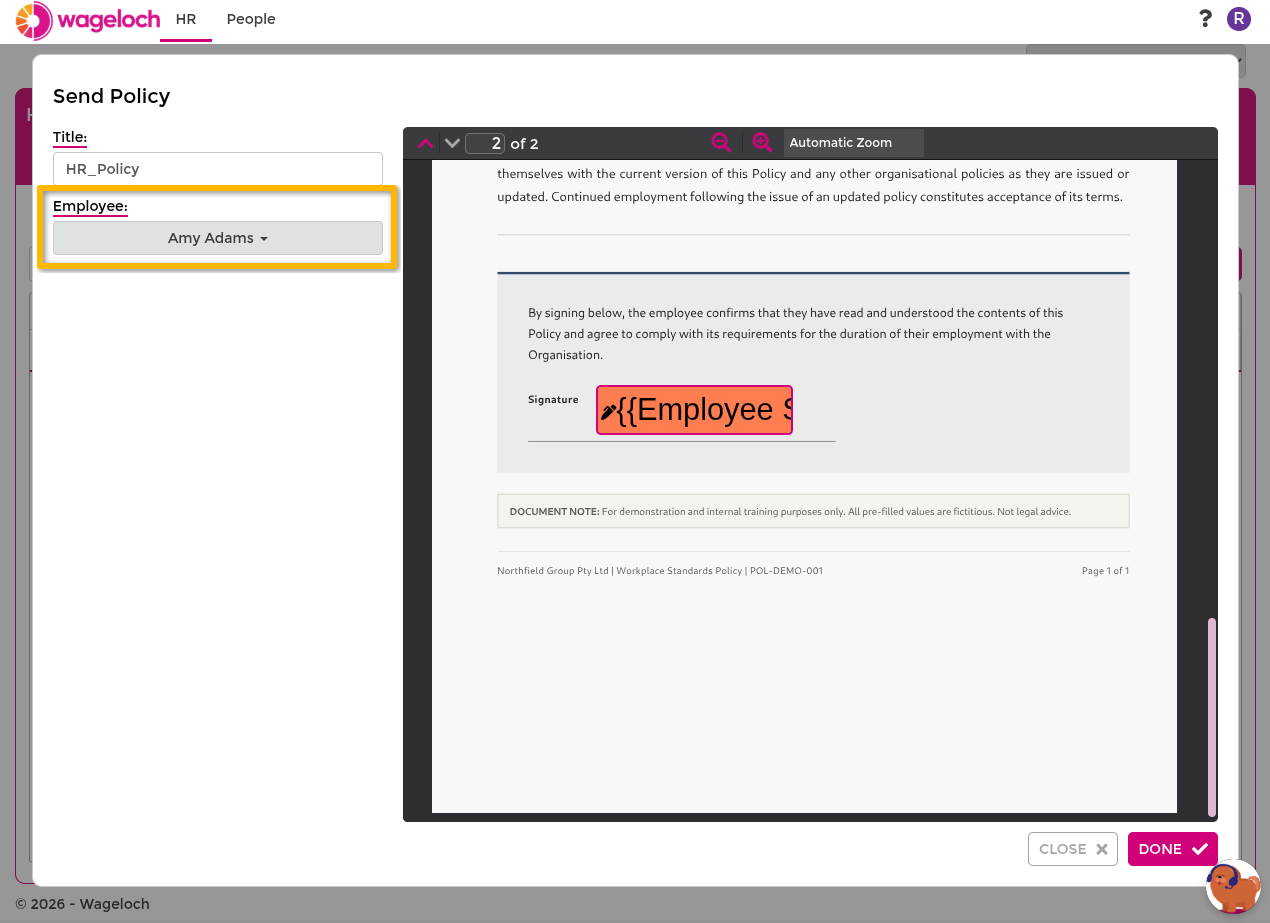
- Complete the policy issue form:
- Title
- Employee
- Placeholder values
- If prompted, select the countersigner.
- Select Yes to send.
Edit or delete a policy template
- Go to HR > Policies.
- Select the Edit action to update an existing template.
- Select the Delete action to remove the template.
- Confirm the prompt.
Track issued documents
After issuing a contract or policy, monitor progress in Locating documents.