Departments
3 min read
Departments
Departments help you organise teams, assign shifts clearly, and report by operational area.
Before you start
- Confirm the department names you want to use.
- Decide whether staff can belong to more than one department.
- See Roles if you are also using role-based shift assignment.
Enable and create departments
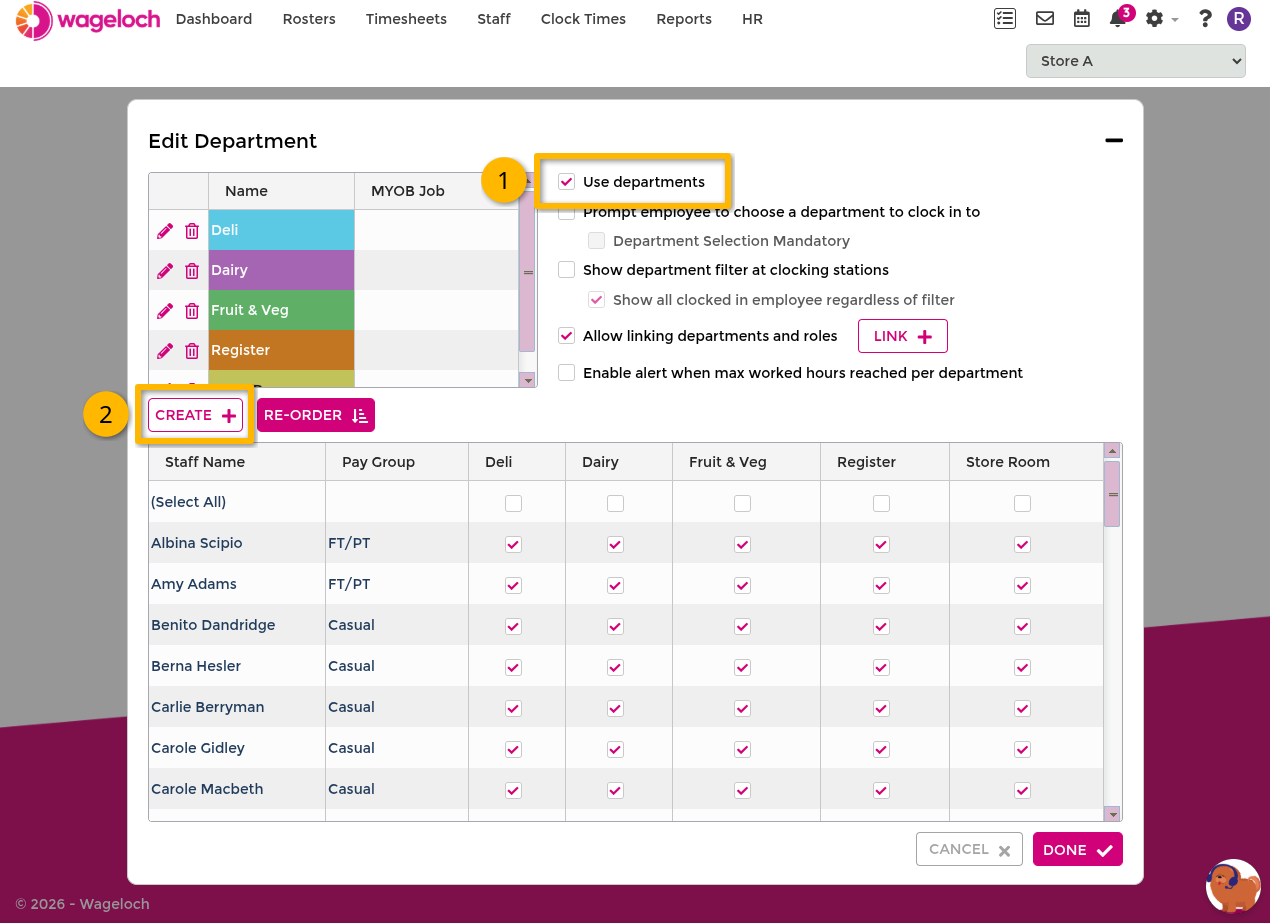
- Open Settings > Departments.
- Enable Use Departments.
- Click Create.
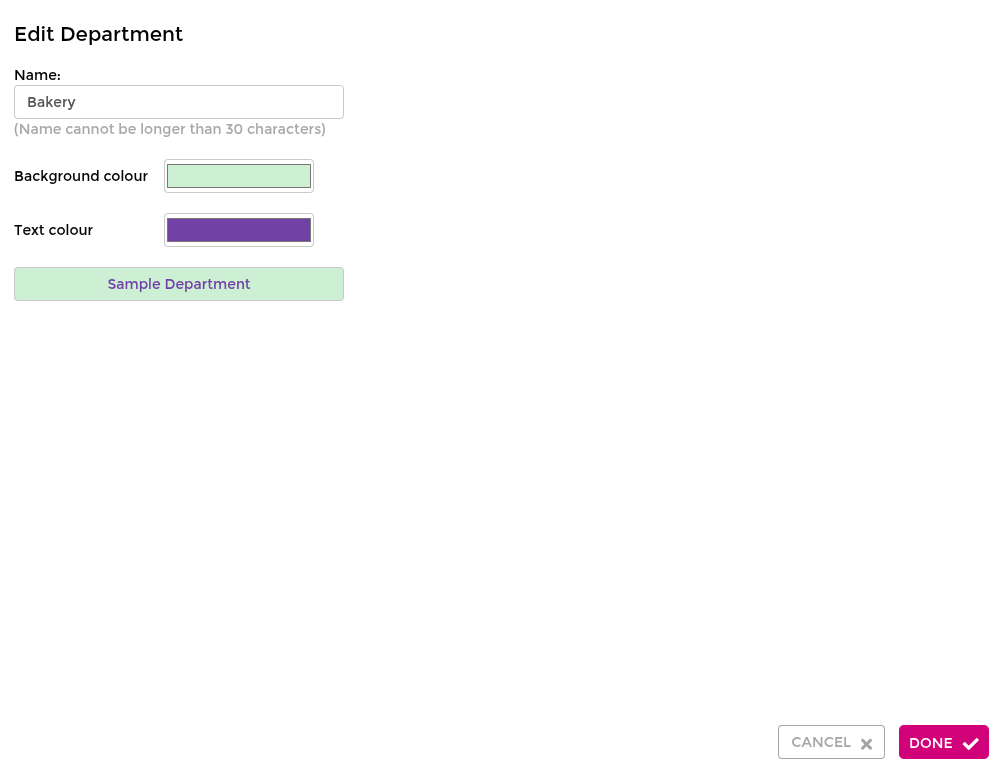
- Enter a department name.
- Choose a colour.
- Click Done.
- Repeat for each department you need.
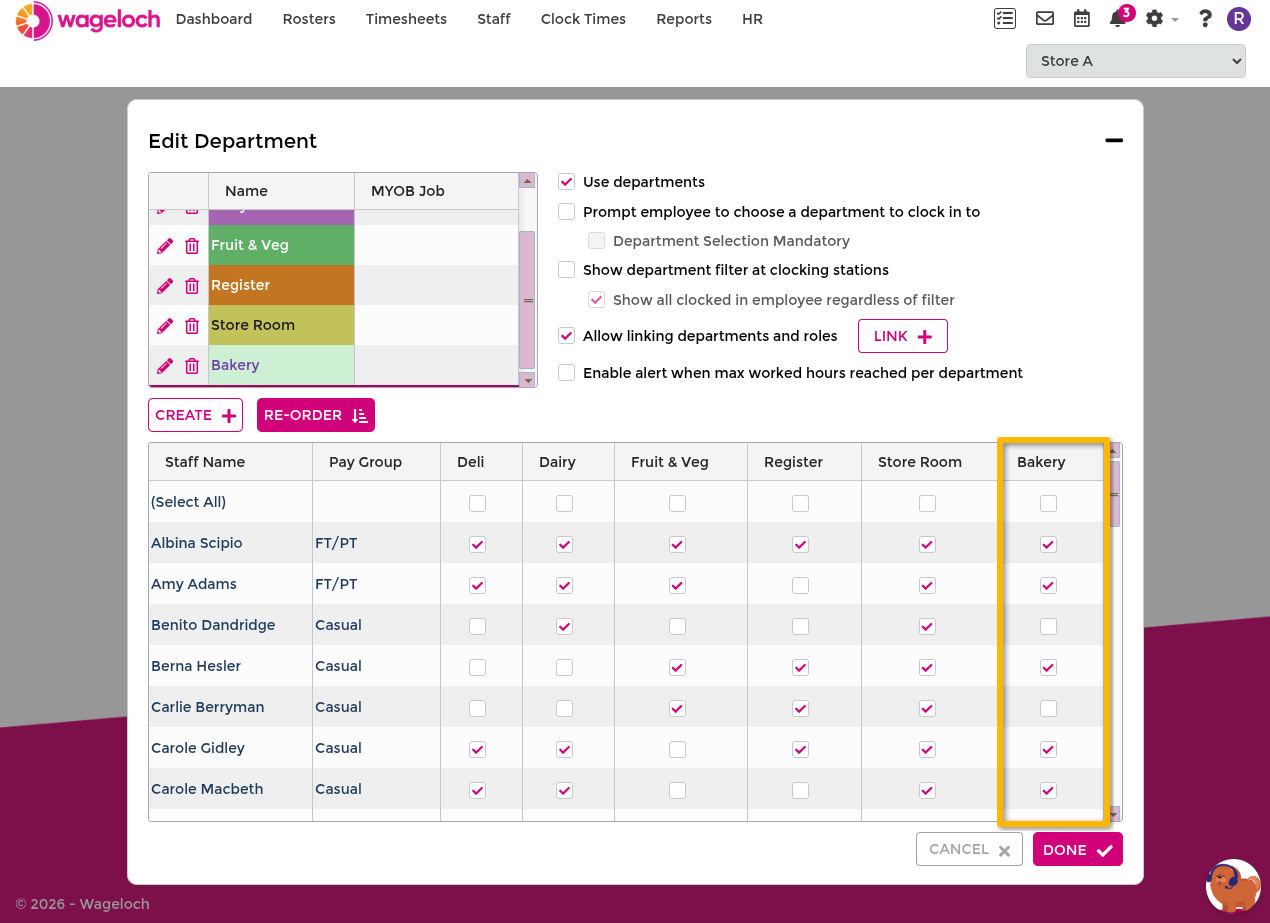
Assign staff to departments
- Open Settings > Departments.
- Find each employee in the assignment list.
- Tick the department checkboxes that apply.
- Click Done to save.
You can assign people to multiple departments when they work across teams.
INFO
If a staff member is imported without an assigned department, Wageloch can default them to the first department in your list.
Where departments are used
- In Creating Rosters, departments support shift allocation and filtering.
- In Completing Timesheets, departments support clear checks and reporting.
- In reports, use departments to filter operational and wage analysis.
If rosters existed before departments were enabled, you may see a prompt to re-map existing shifts when reopening an older roster.
Department settings
- Prompt on clock in: lets staff choose a department when clocking.
- Filter at clocking stations: narrows options shown at kiosks or stations.
- Link departments and roles: restricts role options by department. See Roles.
- Maximum worked hours: supports controls around shift duration and monitoring.
Restrict manager access by department
Department restrictions are useful when a manager should only see specific teams.
- Use this for non-admin users.
- Super-admin and admin users still have full visibility.
- This protects payroll and staffing visibility outside the manager's area.
For full steps, see Users and Security.
Department-based job costing
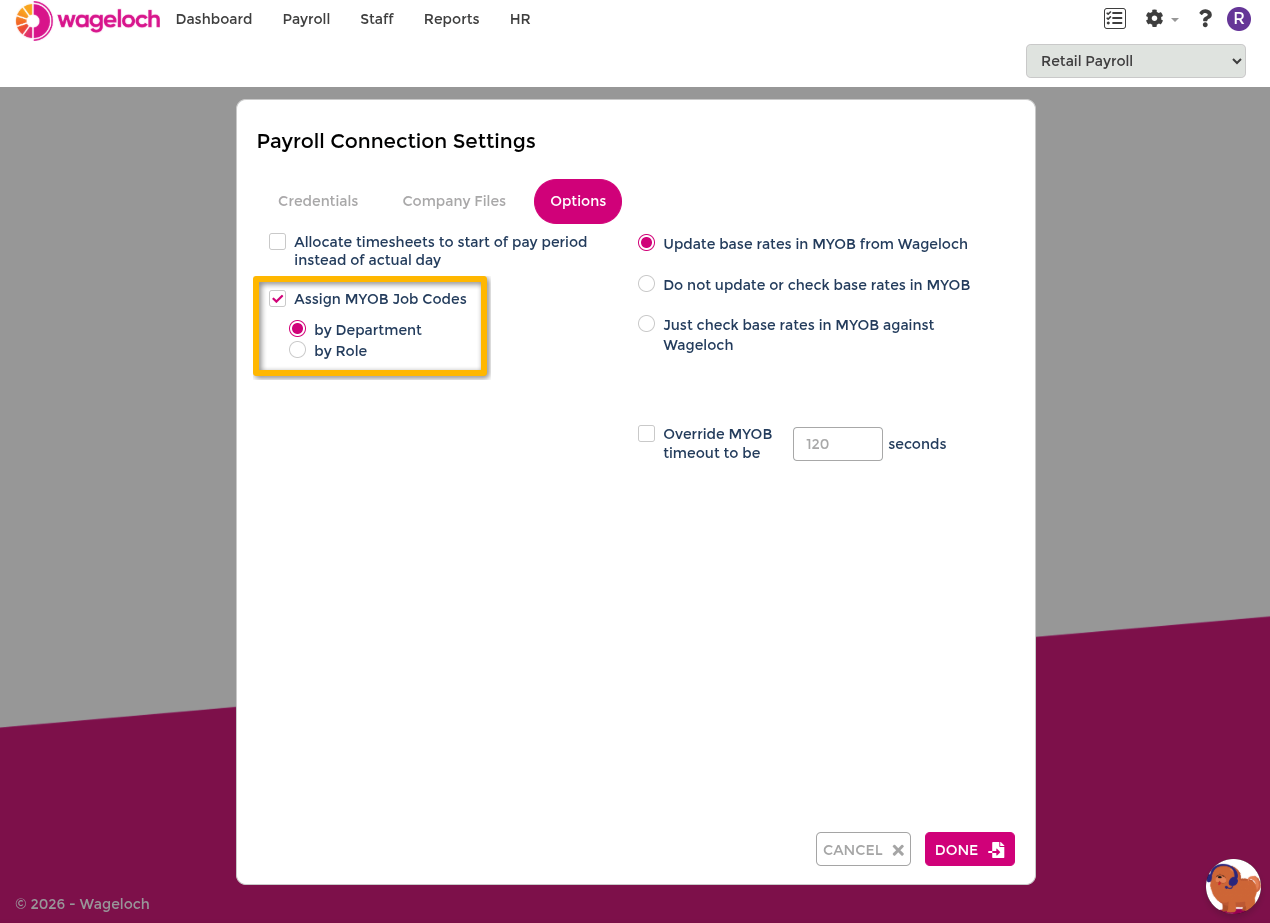
If your payroll integration supports cost centres or similar coding, you can map those values to departments.
INFO
If your site is managed under a central payroll site, payroll settings can only be accessed and configured from that site. See Central Payroll.
- Open Settings > Payroll Connection.
- Open the payroll options area.
- Set job costing assignment to Department.
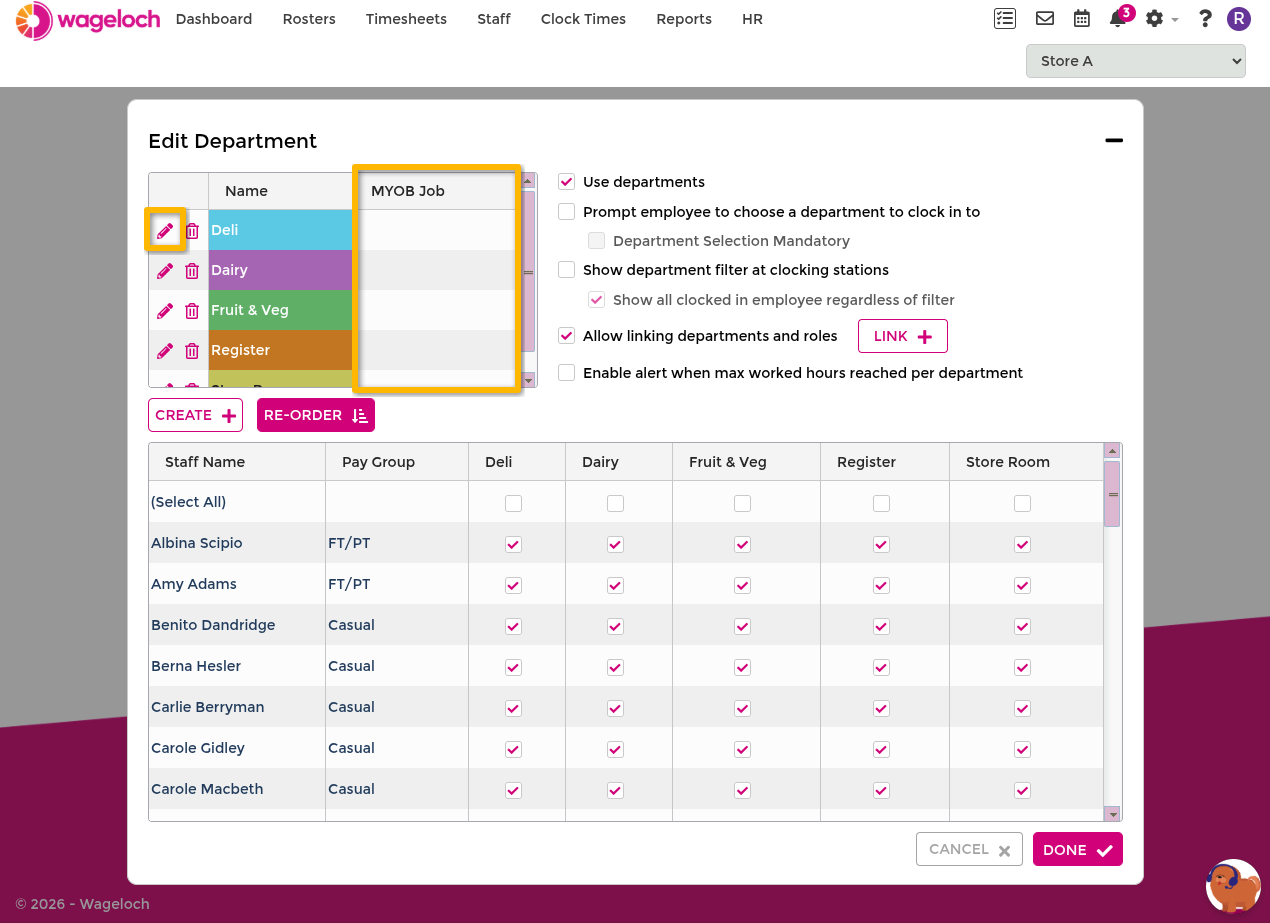
- Save and return to Settings > Departments.
- Enter or select the relevant code for each department.
- Click Done.