
Staff settings
3 min read
Staff settings
Use Staff settings to manage how employee data is imported, how accrual balances are refreshed, where staff can clock in, and how onboarding defaults are applied.
Accessing staff settings
- Click the Settings cog (top right).
- Select Staff.
Import staff
Use Import Staff to add new employees and update existing employee records from payroll.
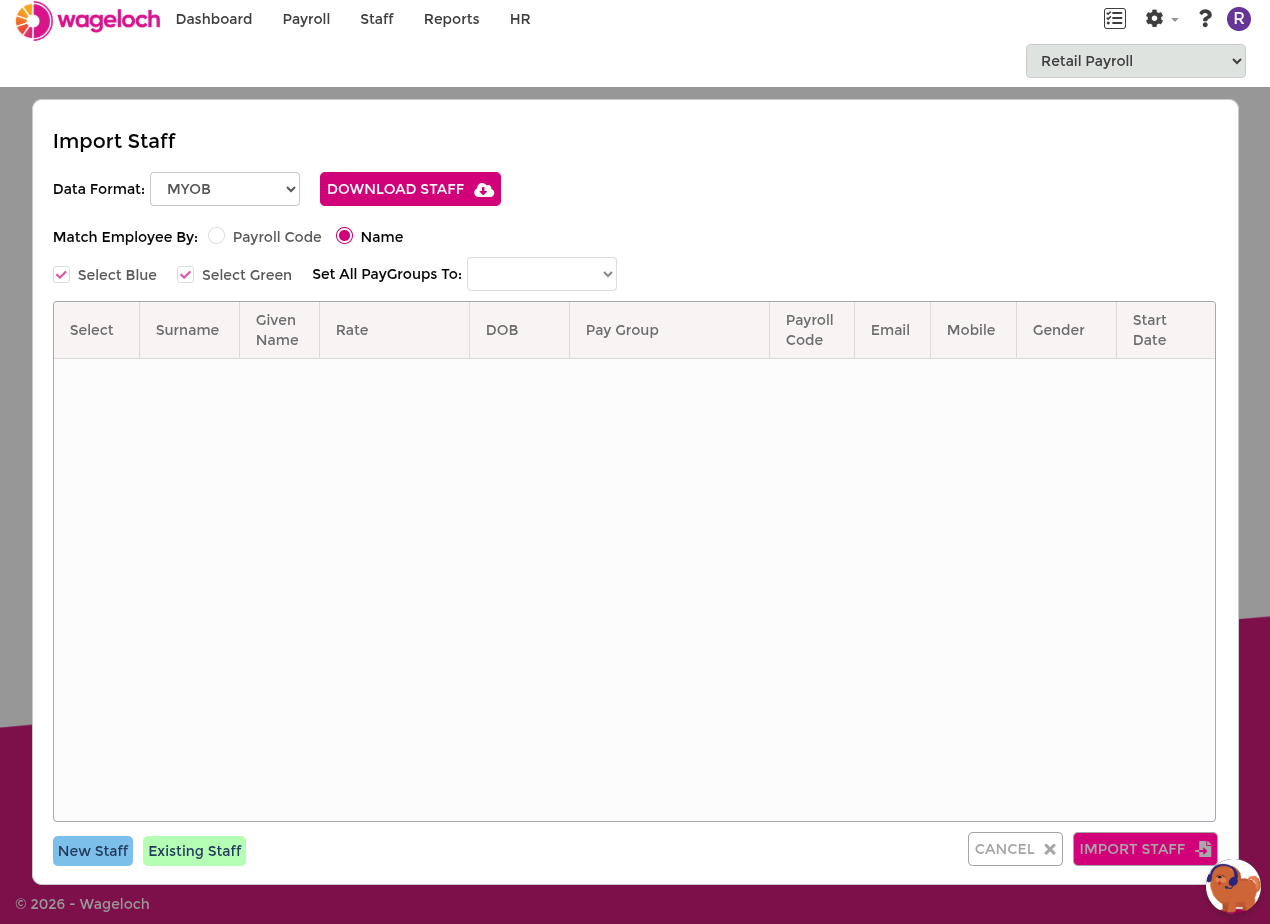
During preview, imported rows are colour-coded:
- Blue: New employee record.
- Green: Existing employee record with differences to update.
INFO
If an employee already exists but appears in blue, their name or payroll code does not match between systems.
Direct integration
- Open Staff > Import > Staff.
- Data Format: Leave this as your integrated payroll platform.
- Match Employee By: Usually Name. Some integrations (for example Xero) may also allow Payroll Code.
- Click Download Staff to load current payroll employee data.
- Review blue/green rows and select which employees to import.
- Assign a Pay Group for new employees.
- Click Import Staff and confirm the import prompt.
File import
- Open Staff > Import > Staff.
- Data Format: Choose your file-based payroll format or CSV.
- Match Employee By: Usually Name.
- Click Download Template if you need a compatible template.
- Upload your file using Choose File.
- Review the import preview and select employees to import.
- Assign a Pay Group for new employees.
- Click Import Staff and confirm the import prompt.
Import accruals
Importing accrual balances is optional, but it helps keep leave balances accurate for managers and employees.
This improves visibility in the Leave Calendar, Rosters, Timesheets, and Reports.
INFO
Wageloch sends worked hours and leave activity to payroll, but does not export accrual balances back to payroll platforms.
Your payroll software will always be the source of truth for leave accrual balances.
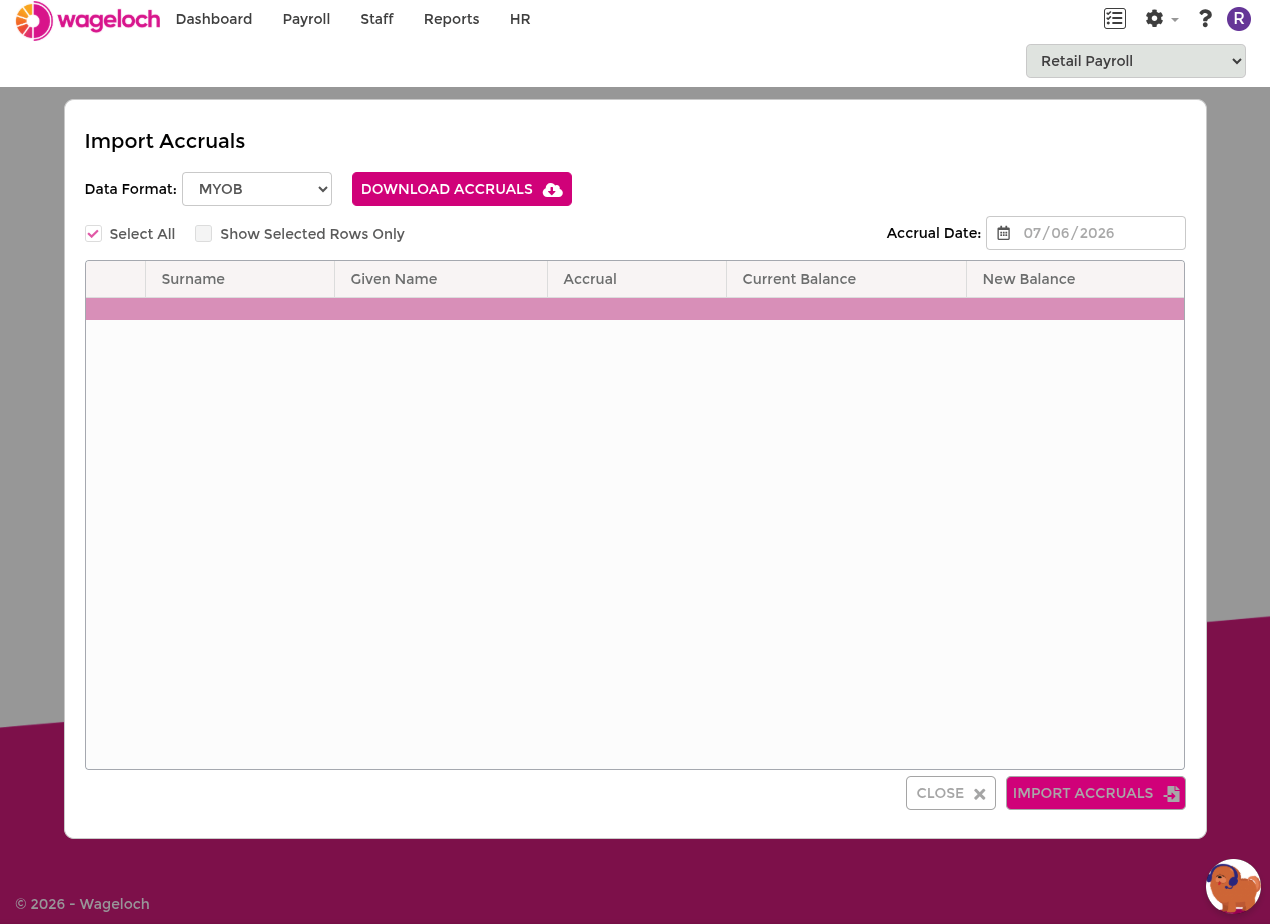
Direct integration (MYOB, Xero, Reckon)
- Open Staff > Import > Accrual Balances.
- Data Format: Leave this as your integrated payroll platform.
- Match Employee By: Usually Name.
- Click Download Accruals.
- Review Current Balance versus New Balance.
- Select the employees to update.
- Click Import Accruals and confirm the prompt.
File import
- Open Staff > Import > Leave Balances.
- Data Format: Choose your file-based payroll format or CSV.
- Match Employee By: Usually Name.
- Use Download Template if your export is not in a compatible format.
- Upload your file using Choose File.
- Review balances and select the employees to update.
- Click Import Accruals and confirm the prompt.
Staff locations
Staff Locations controls which employees appear on each Time Kiosk or Mobile App Clocking endpoint.
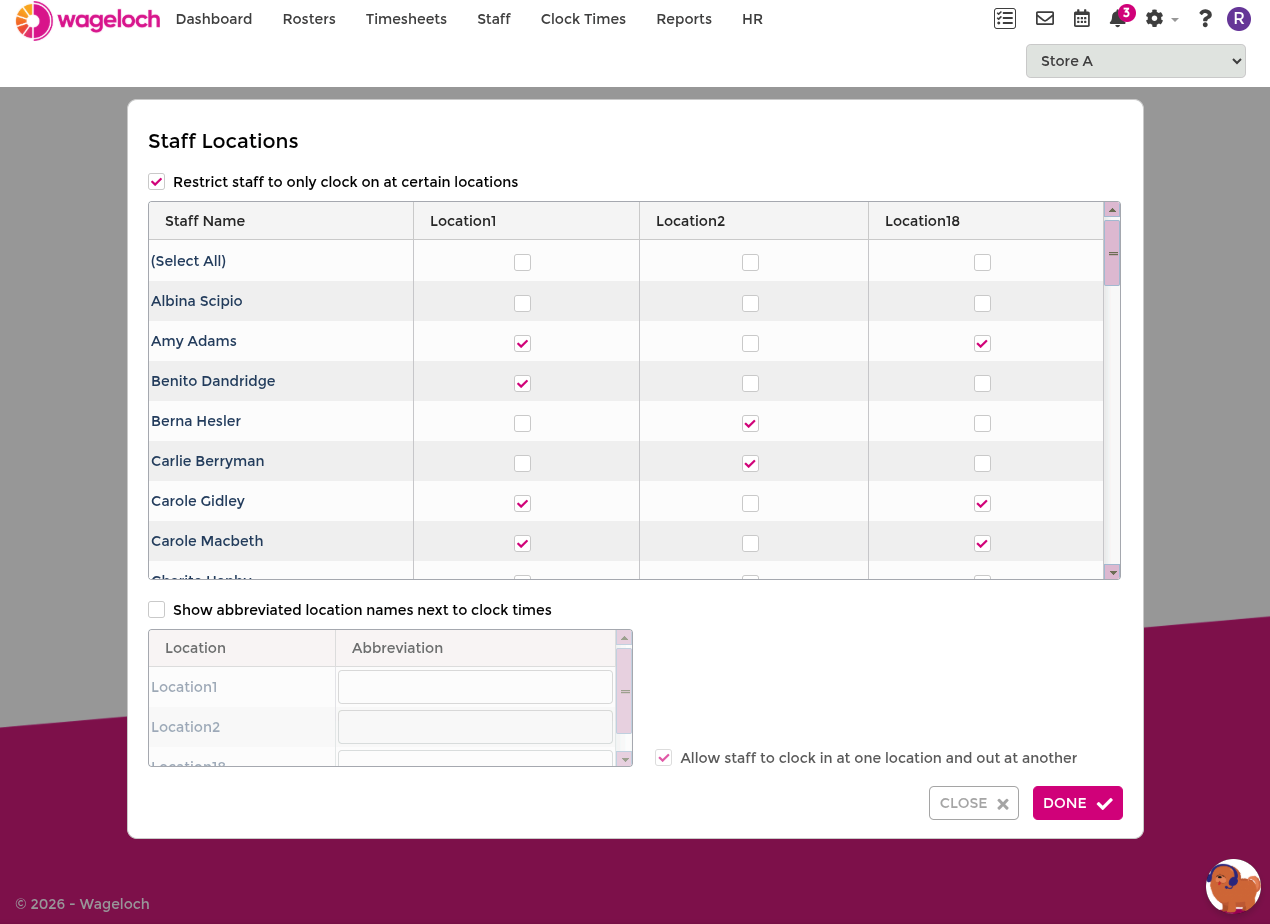
- Open Staff > Staff Locations.
- Enable Restrict staff to only clock on at certain locations.
- Assign each employee to the allowed location/device list.
- Show abbreviated location names: Optional shortened labels for clocking displays.
- Allow staff to clock in at one location and out at another: Enable when teams move between kiosks or mobile devices.
INFO
If biometric clocking is used across multiple devices, staff must register biometrics on each device separately.
Onboarding
Staff settings include onboarding defaults used when adding new employees.
- Onboard new employees by default: Automatically enables onboarding for newly created staff records.
- Onboarding admin email address: Receives notifications when onboarding steps are completed.
- Default super fund: Required before onboarding invitations can be sent.
For more information, see Onboarding.