
Tasks
3 min read
Tasks
Use Tasks to see the work your manager has assigned to you, tick off each step and finish the task by its due date. Tasks assigned to you by staff member or by shift appear in the mobile app.
Before you start
- Log in to the Wageloch mobile app.
- Tasks assigned by email or through the org chart are sent to an email address and do not appear in the app.
View your tasks
-
Open the Wageloch mobile app.
-
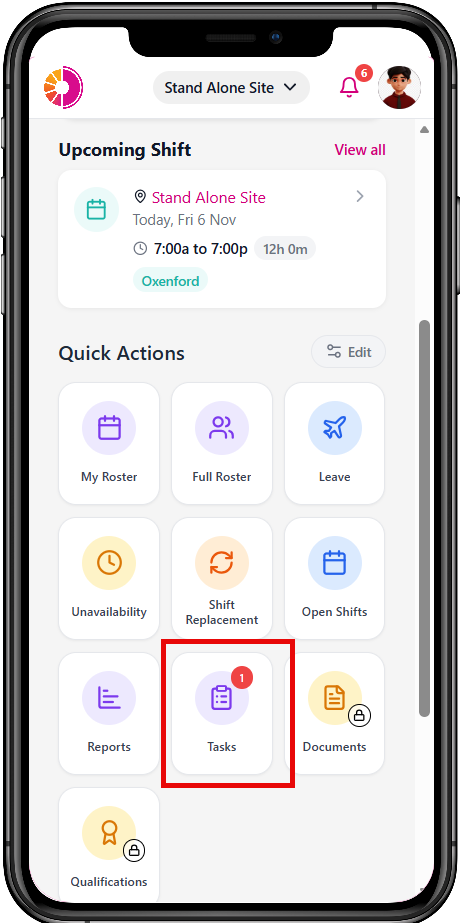
Under Quick Actions, select Tasks.
-
Select To Do to see open tasks, or Completed to see finished tasks.
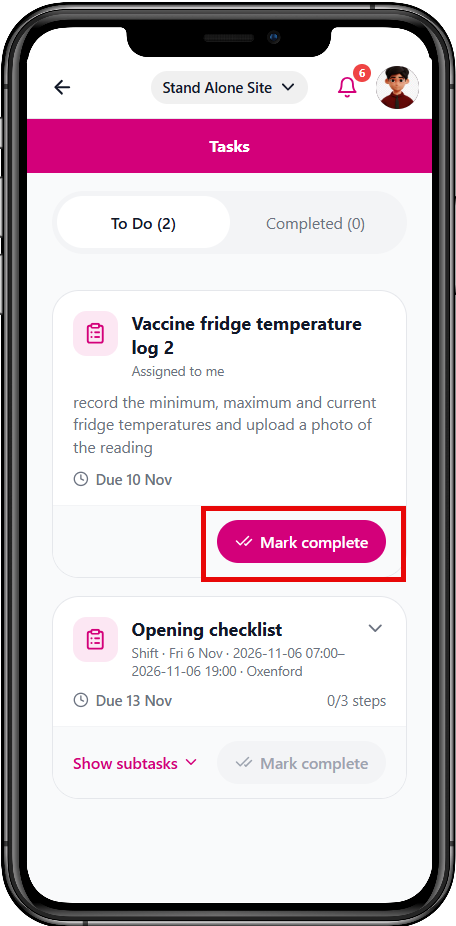
Tasks are sorted by due date.
Complete a task
For a task without subtasks, open the task and select Mark complete.
For a task with subtasks:
-
Open the task and select Show subtasks.
-
Tick each item as you complete it. Each tick saves straight away.
-
For a Photo Upload subtask, select Add, then take a photo or choose one from your phone.
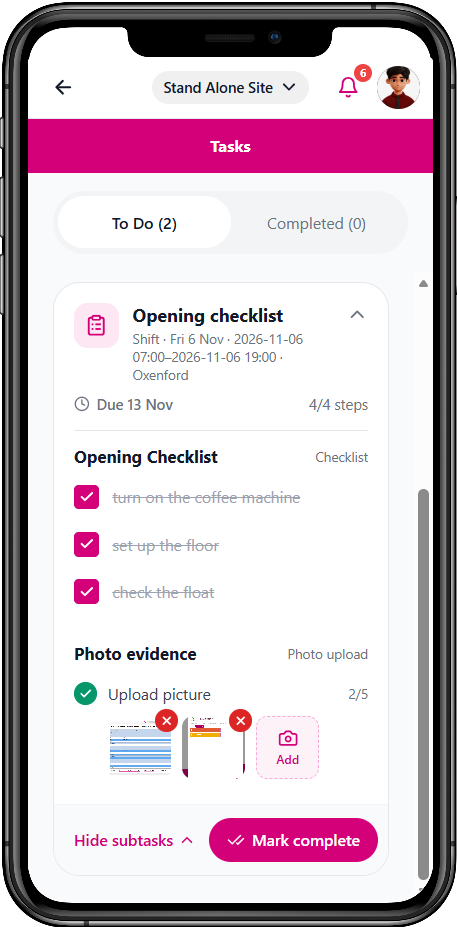
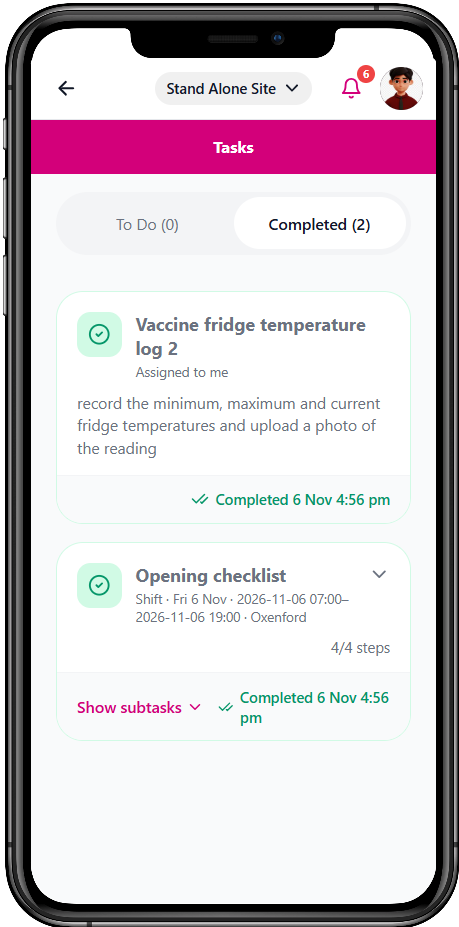
Once you tick the first item, the task changes from Open to In Progress in the web app. When all subtasks are complete, the task moves to the Completed tab.
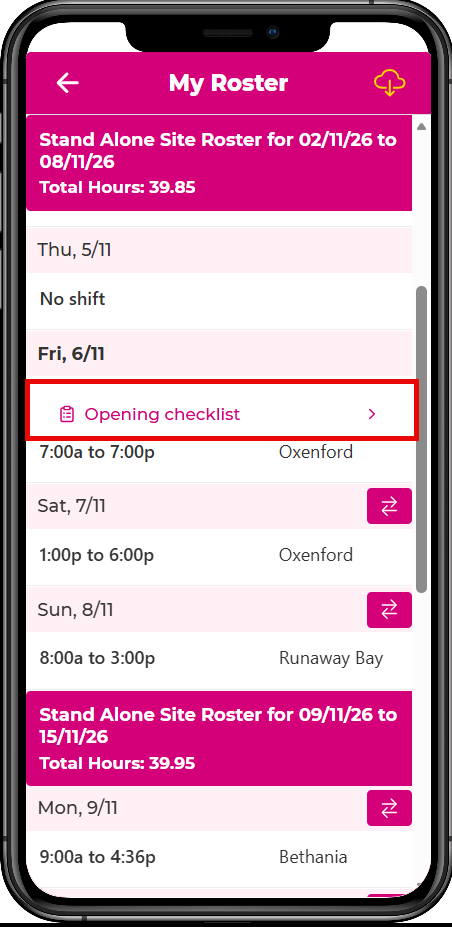
Find a task from My Roster
A shift that has a task shows a task icon in My Roster.
- If the shift has one task, select it to open that task.
- If the shift has more than one task, select it to open your To Do list.
Troubleshooting
You cannot see a task. Tasks assigned by email or through the org chart are sent by email and do not appear in the app. For a shift task, check with your manager that the task is assigned to your shift. Check that you are logged in to the correct site.
You finished a task but forgot to tick it off. Ask your manager. They can mark the task complete.
Managers create and assign tasks in the web app. See Tasks for how tasks are set up.