
Multifactor authentication
2 min read
Multifactor authentication (MFA)
Multi-factor authentication (MFA) adds an extra verification step to your Wageloch login, improving account security by requiring more than your email address and password.
Where MFA is required
MFA is required for Digital Onboarding, Wageloch HR, and Wageloch Payroll.
Before you start
- Install an authenticator app on your mobile phone (for example Google Authenticator, Microsoft Authenticator, or Authy).
- Confirm you can access your Wageloch account at https://app.wageloch.com.au.
Use an authenticator app
Do not rely on your phone camera alone for QR setup. If MFA is activated without a working authenticator app, you will be locked out and will need Helpdesk assistance.
Enable MFA
- Sign in to https://app.wageloch.com.au.
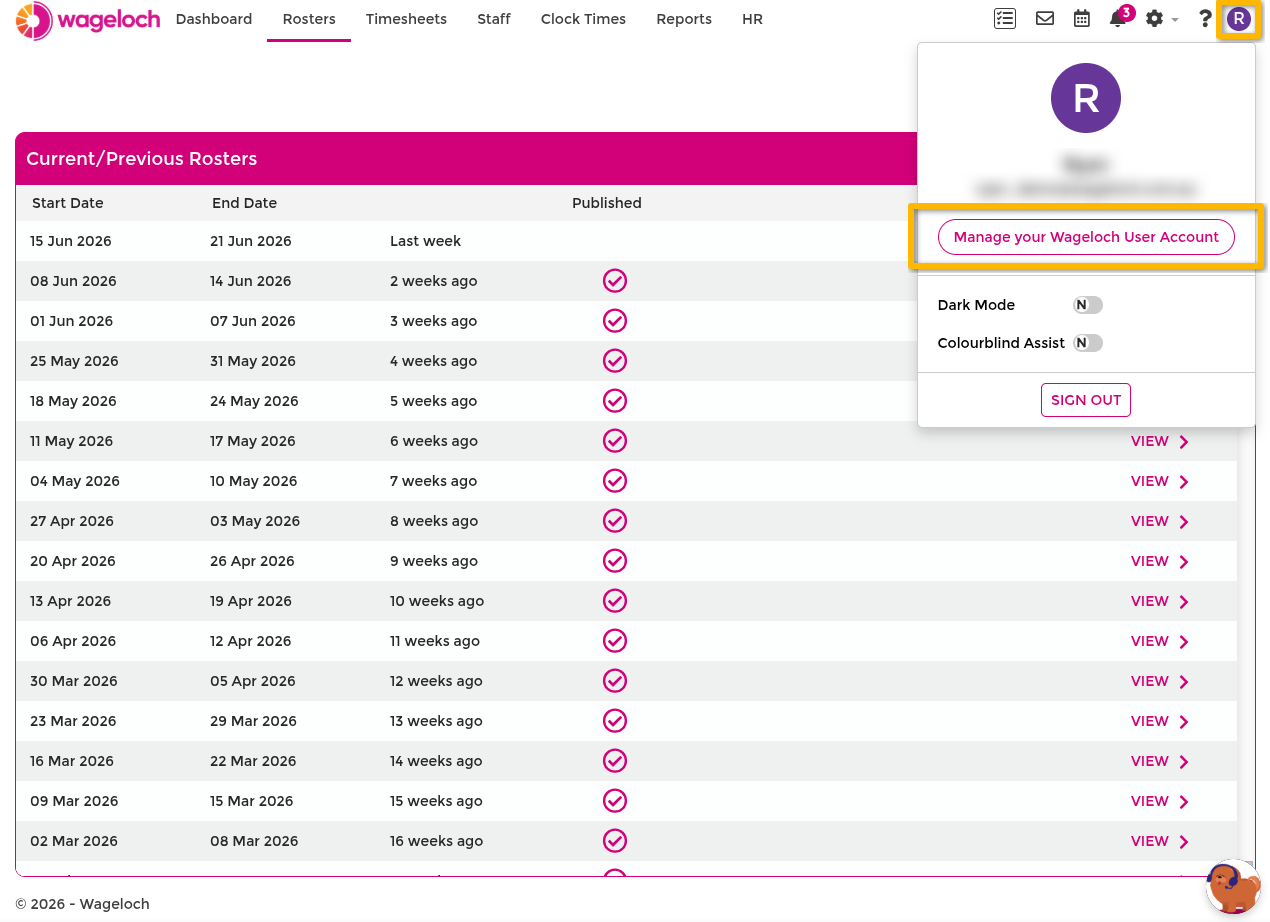
- Select your profile initial in the top-right corner.
- Choose Manage your Wageloch user account.
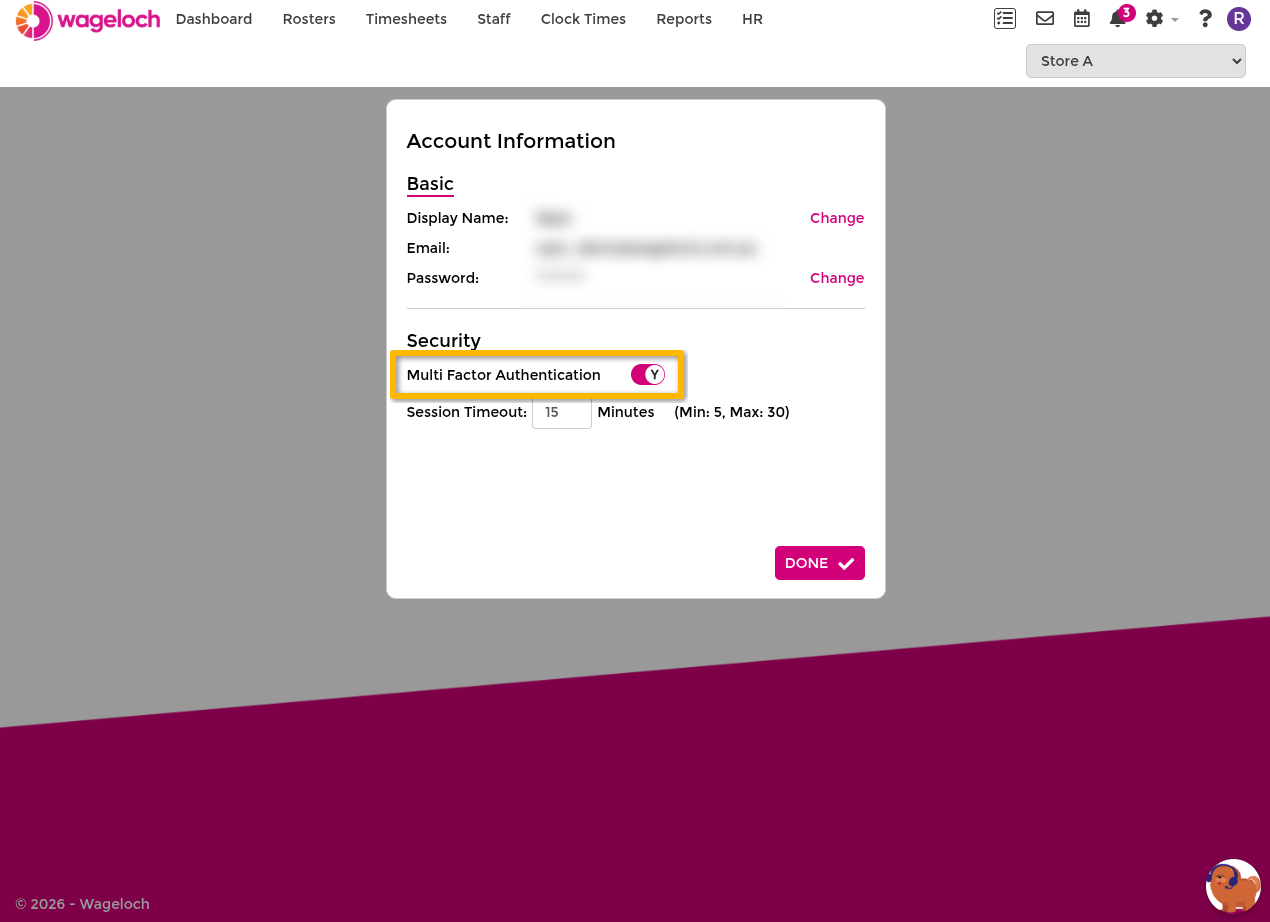
- Open the Security section.
- Turn Multi Factor Authentication on.
- Scan the displayed QR code with your authenticator app.
- Enter the one-time code from the app to verify setup.
- Complete login.
Trust this device
After MFA verification, you can trust the current device for a limited period (for example 24 hours or 30 days), depending on available options.
Only use this option on secure, personal, or managed business devices.
Troubleshooting
I scanned the QR code incorrectly
If you completed setup without a working authenticator app, contact Helpdesk to request MFA reset assistance.
I cannot complete MFA login
Use the contact options in Contact us and include:
- your account email address.
- the exact error shown (if any).
- whether MFA was previously working on this device.