
Create an unscheduled pay run
3 min read
Create an unscheduled pay run
An unscheduled pay run lets you pay staff outside your regular timesheet-driven pay schedule — for example, a one-off backpay, correction, or ad hoc payment. Unlike a regular pay run, staff aren't added automatically from a submitted timesheet — you select them manually.
Before you start
- Confirm no existing unscheduled pay run is already open for the period you need — Wageloch adds new unscheduled entries to an already-open unscheduled pay run rather than creating another one.
- Have the week-ending date and payment date ready.
- Know which staff need to be included and what pay items or leave they require.
Create the pay run
- Open Wageloch Payroll.
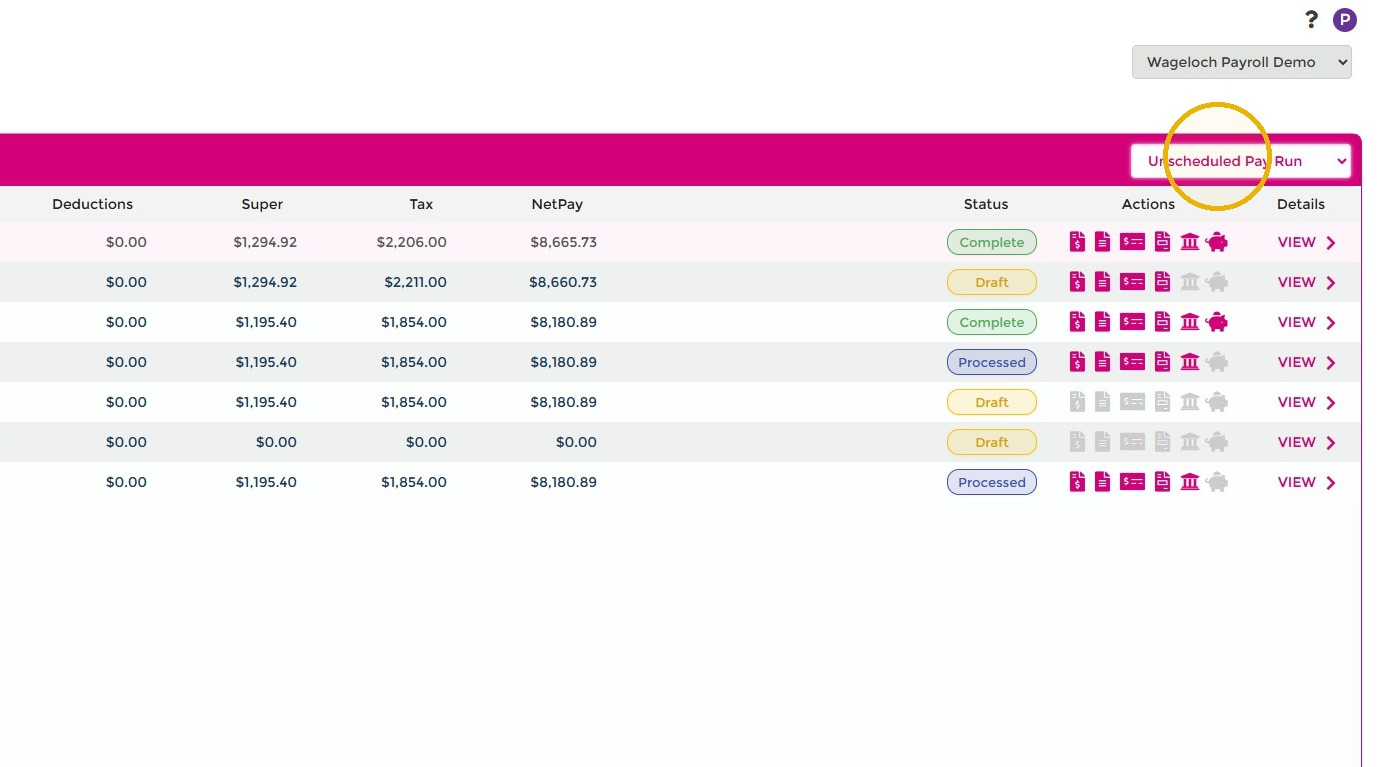
- Select Unscheduled Pay Run under the Create New + dropdown.
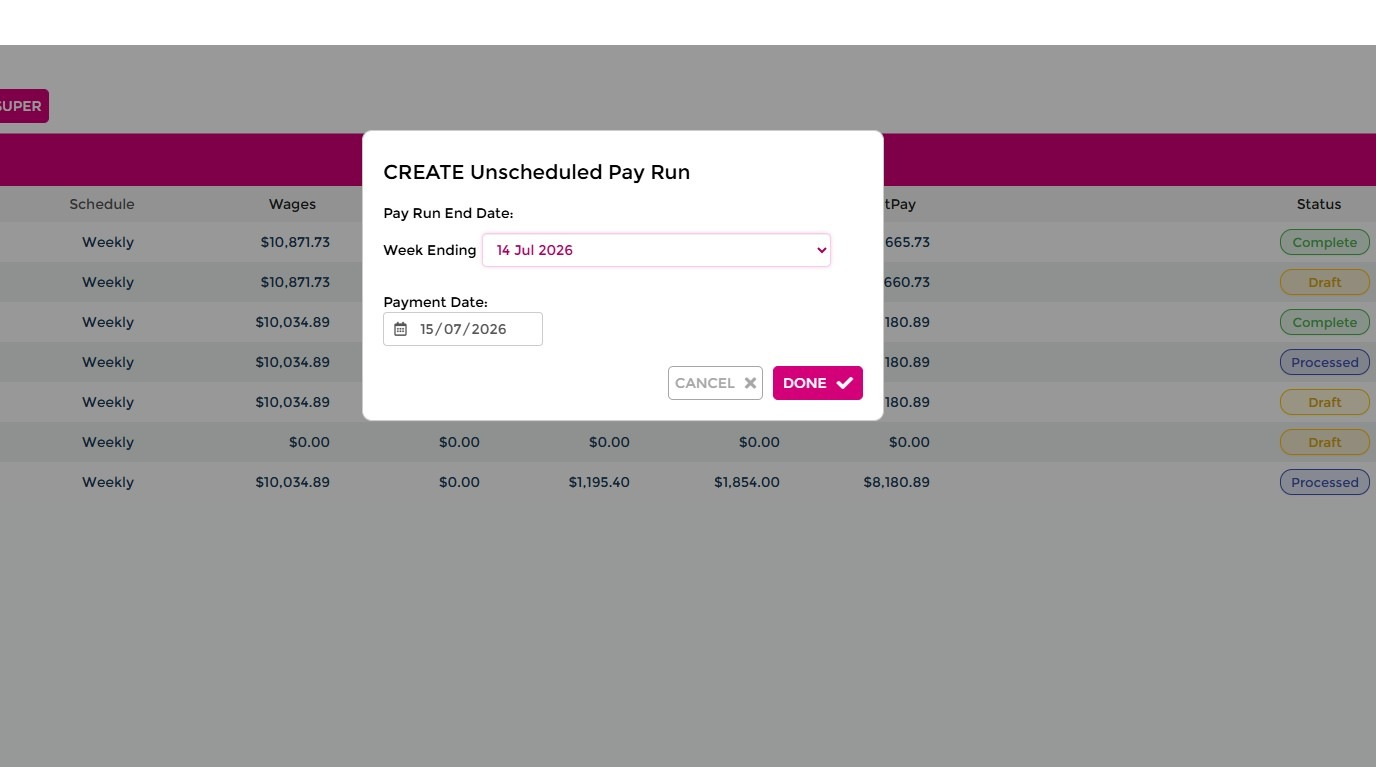
- Select the Week Ending and Payment Date, then select Done.
Add staff and pay details
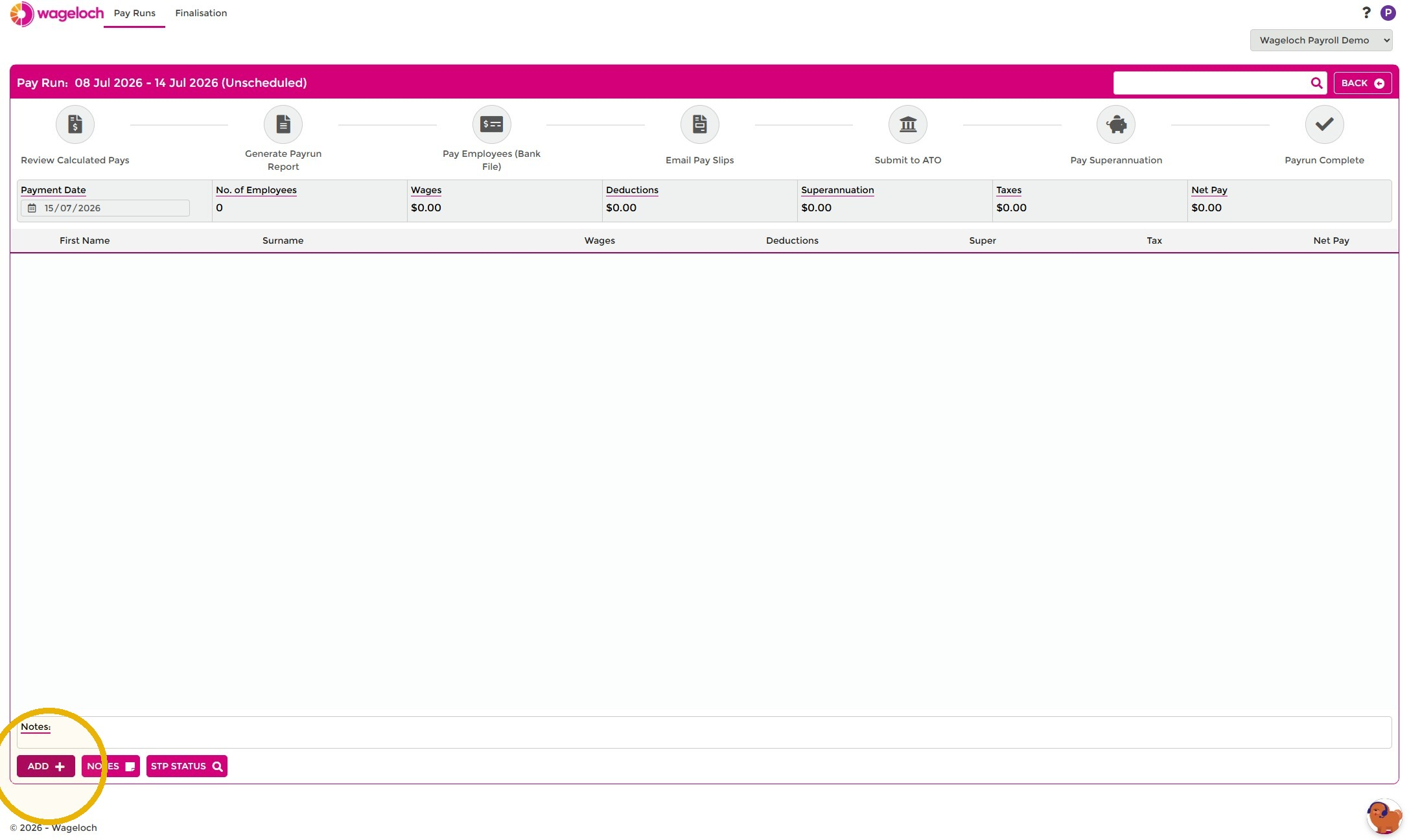
- On the new pay run, select + Add.
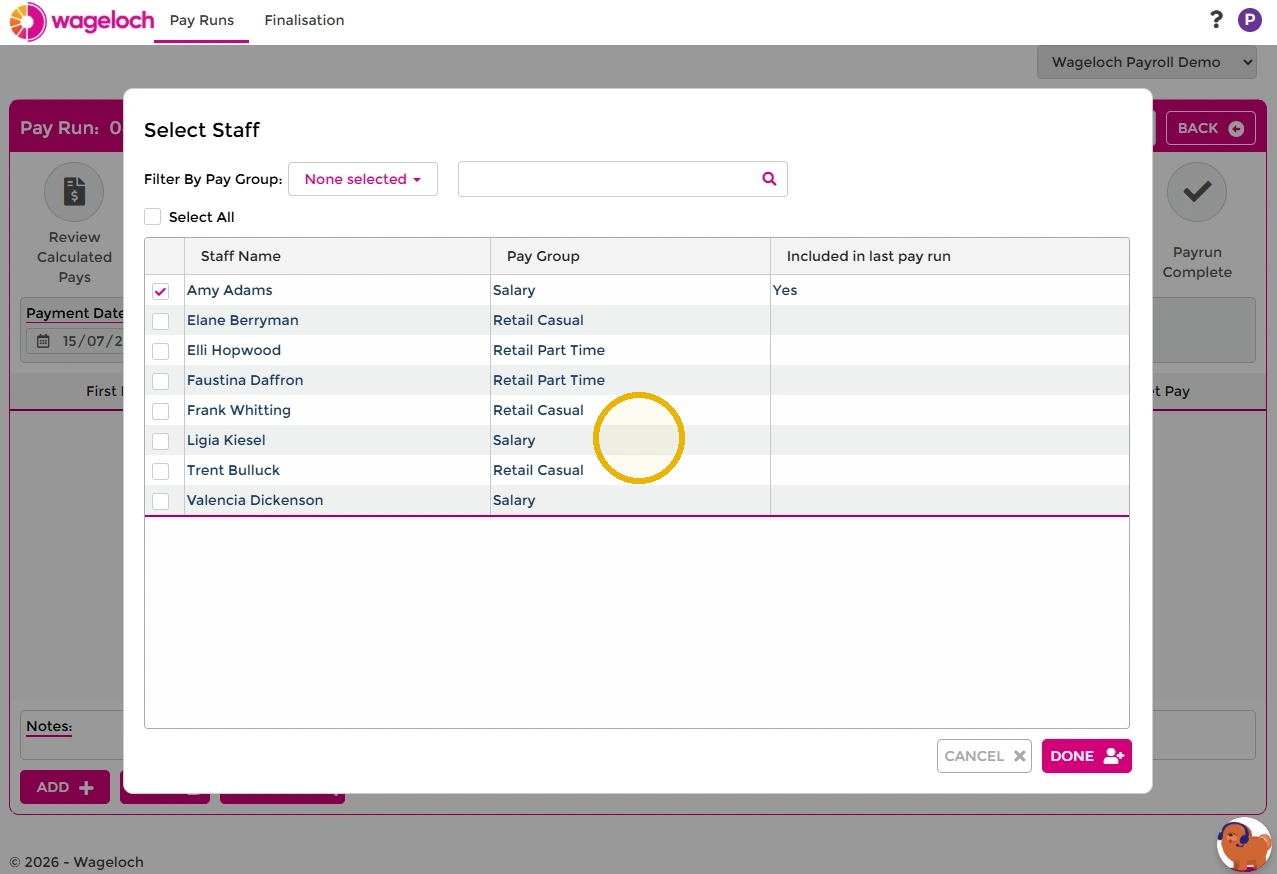
- Select the staff members to add to the pay run, then select Done. You can search by name or filter by pay group.
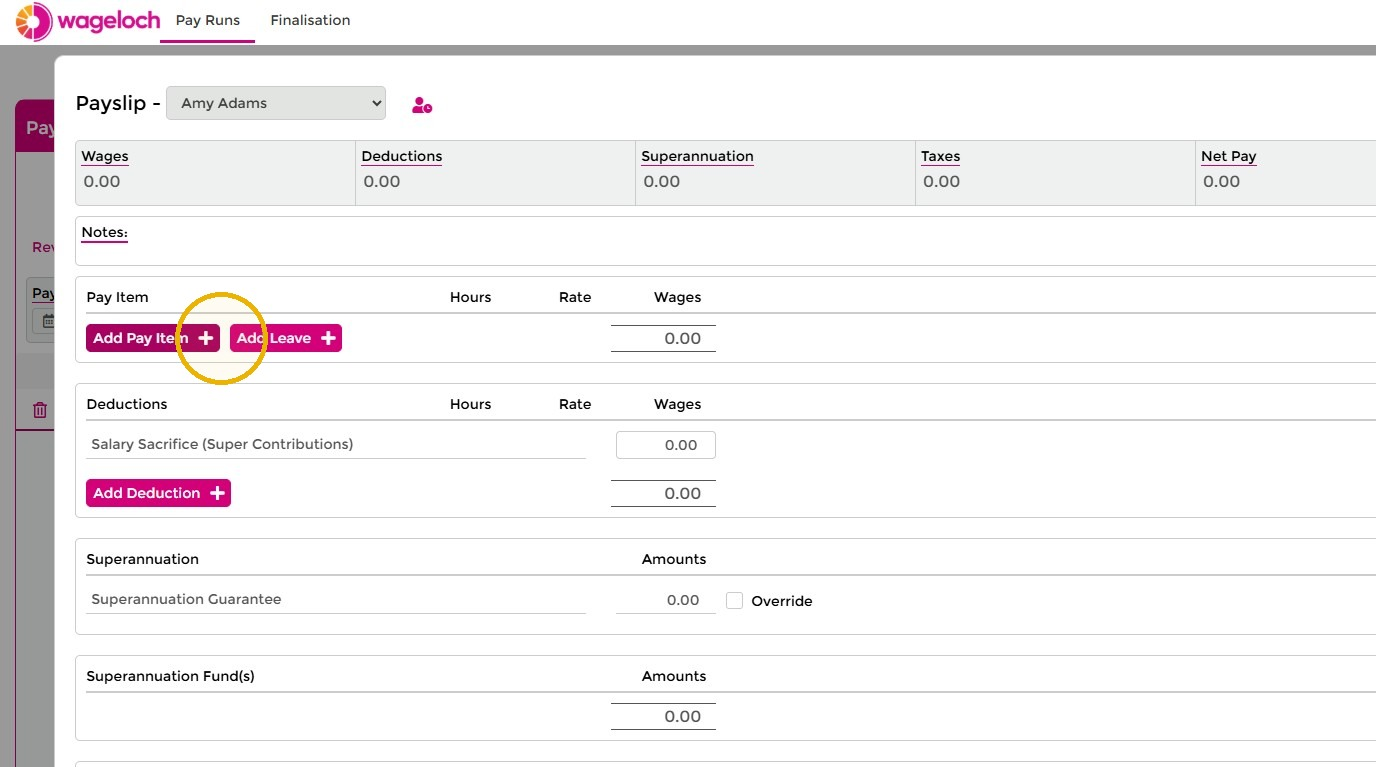
- Select Add Pay Item or Add Leave, depending on what you need to add.
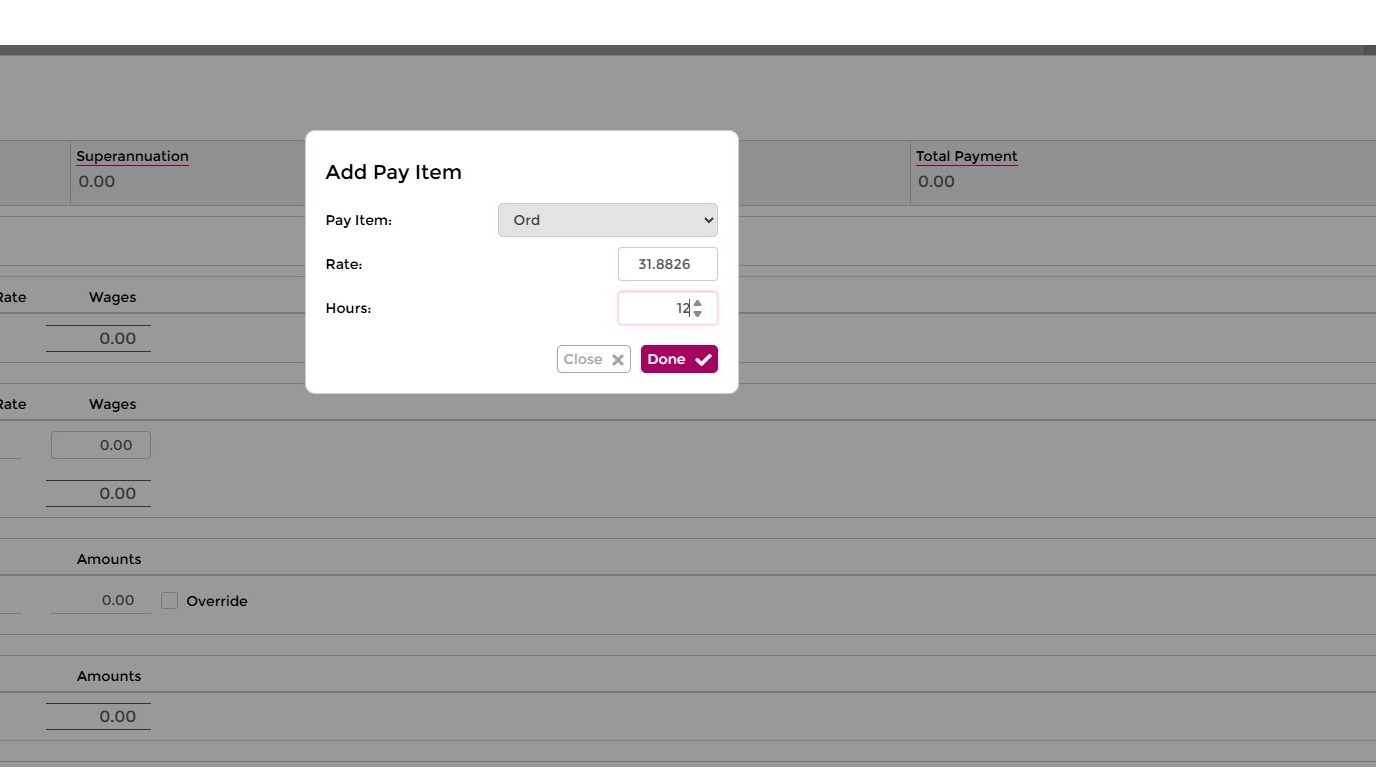
- Select the pay item from the dropdown, enter the amount of hours or dollars, then select Done.
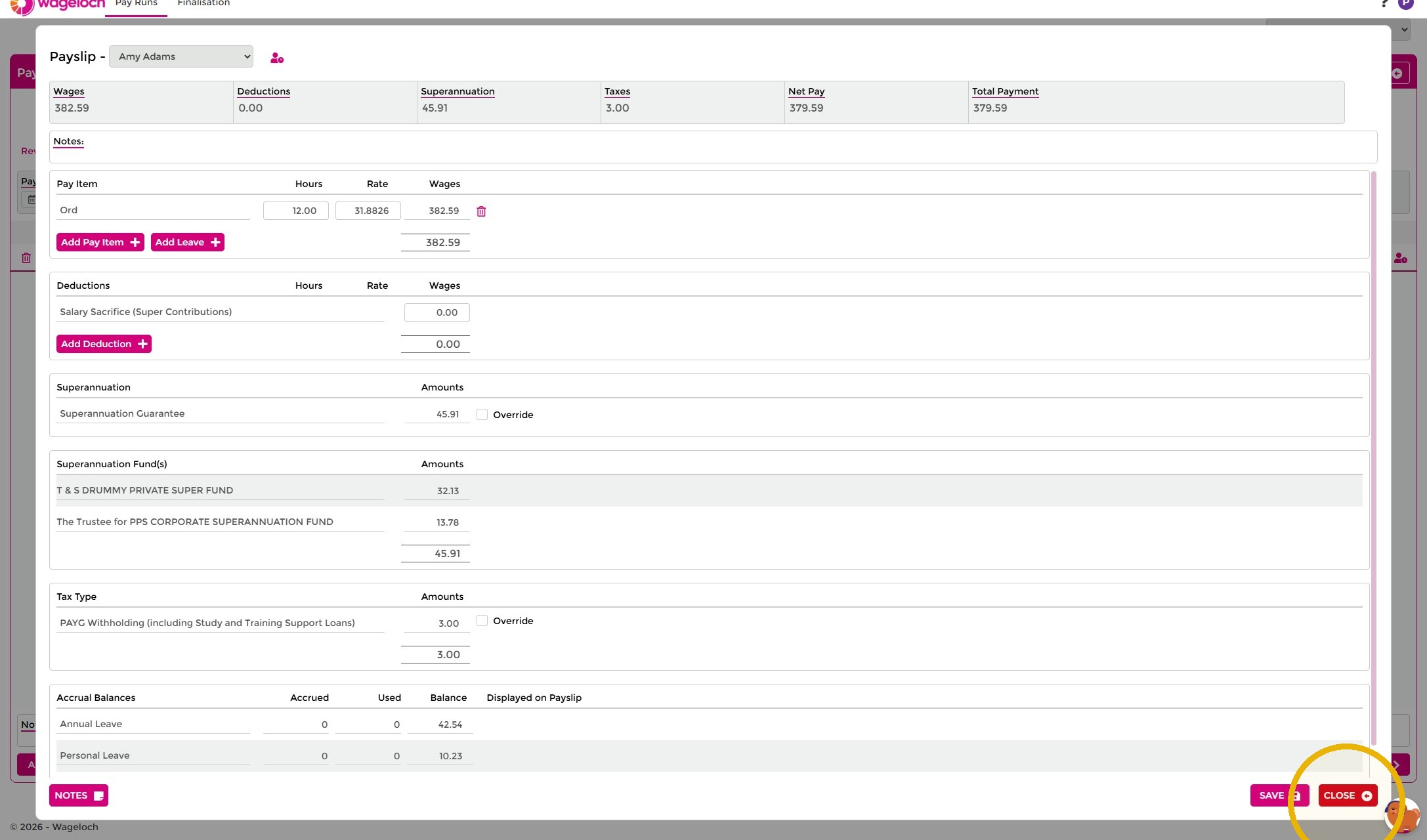
- Review the PAYG and superannuation calculated from the new items, adjusting if needed, then select Save and Close to return to the pay run screen.
Complete the pay run
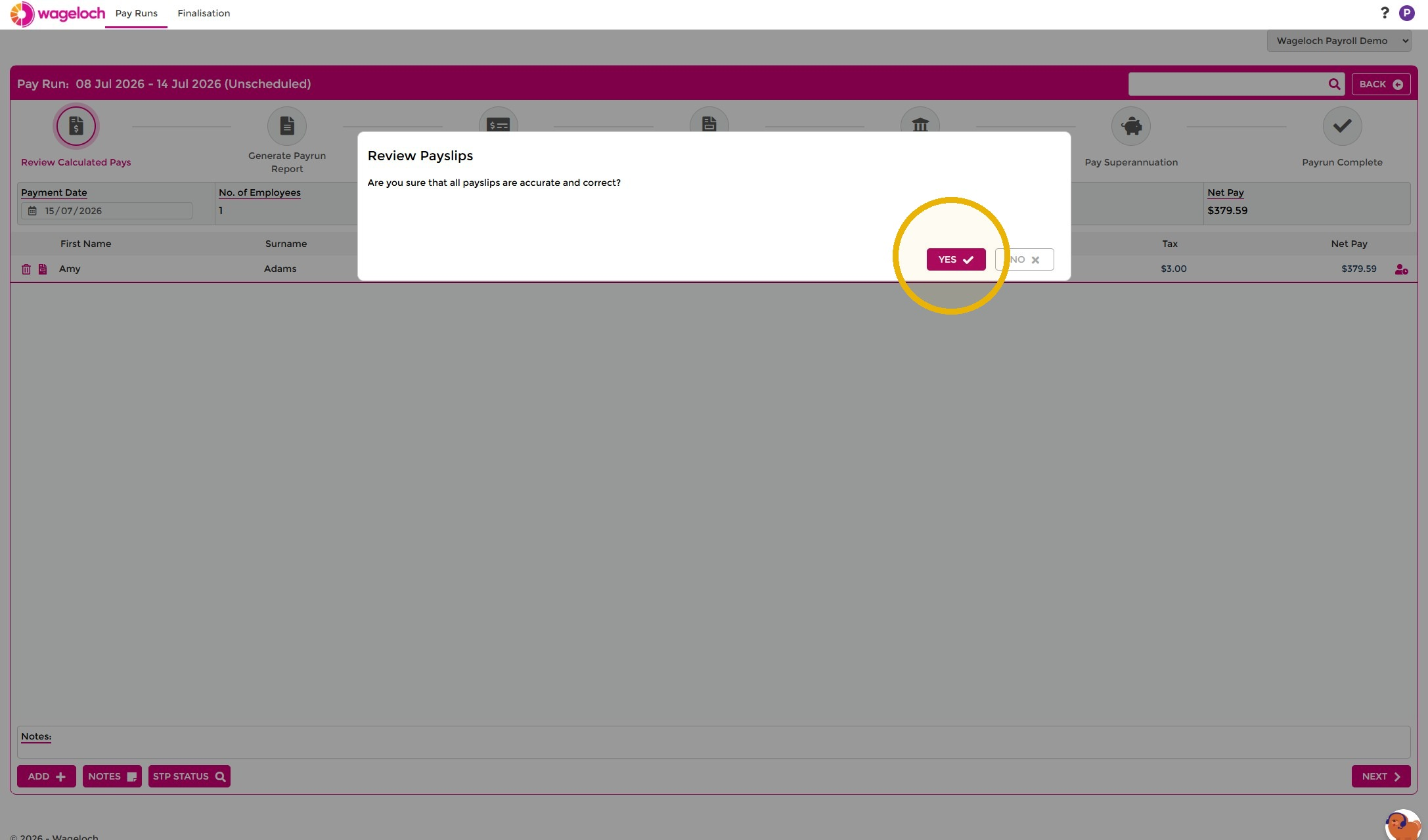
Once you've added the required employees, select Next, then Yes to confirm the payslips are accurate. From here, step through the rest of the pay run exactly as you would for a regular pay run — generating the payrun report, bank file, payslips, superannuation, and ATO submission.
For the remaining steps, see Process a pay run.
Troubleshooting
Why did my reversal or correction get added to an existing pay run instead of a new one?
Wageloch adds unscheduled entries to an already-open unscheduled pay run rather than creating a new one each time. Check Pay Runs for a Draft unscheduled entry before creating another.
Can I add staff who aren't in any timesheet?
Yes. Unscheduled pay runs don't depend on a submitted timesheet — select any active staff member from Select Staff.