Mobile App settings
2 min read
Mobile App settings
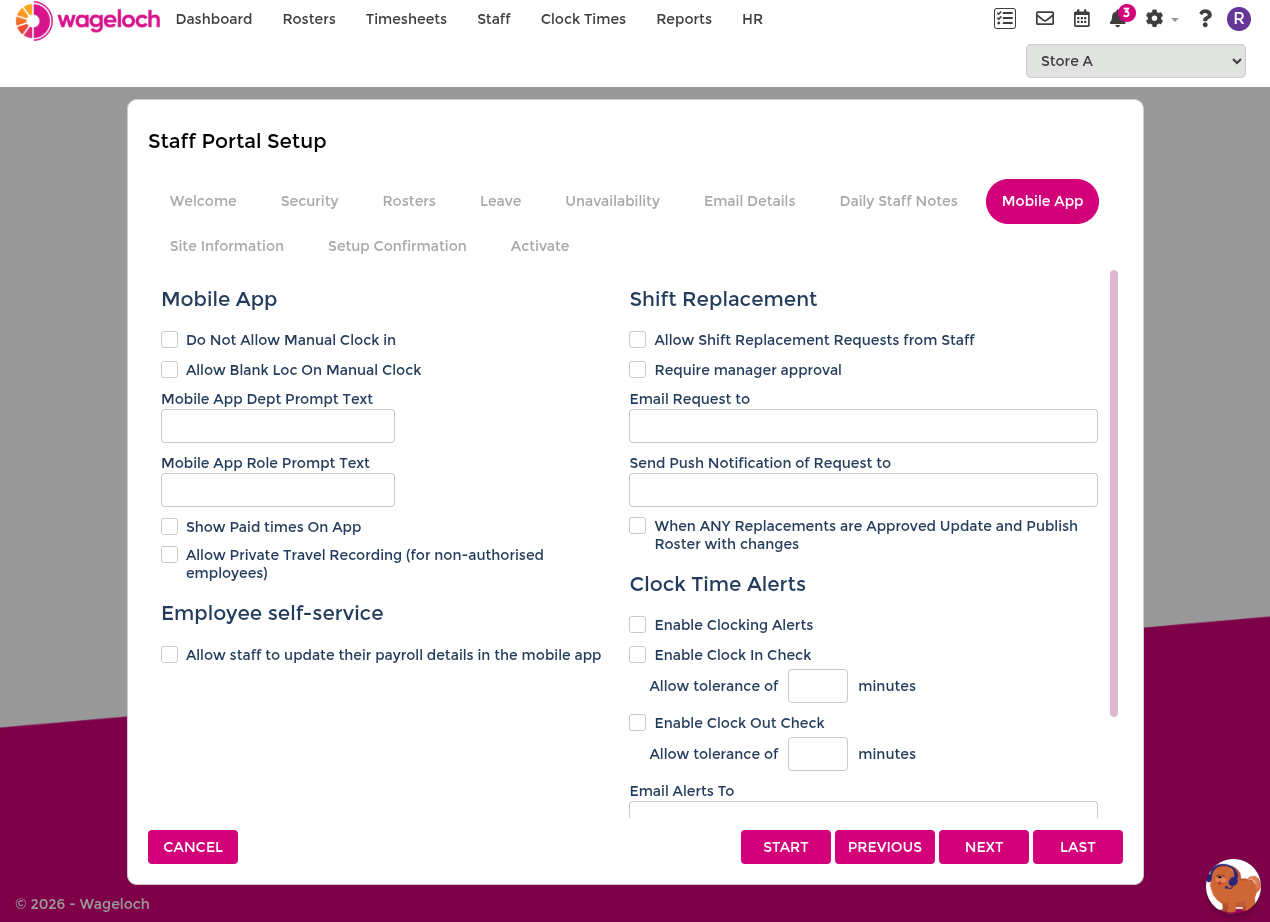
Use the Mobile App tab to configure clocking controls, prompt text, employee self-service options, shift replacement requests, and clock time alerts.
Mobile App
- Do Not Allow Manual Clock in: prevents staff from submitting manual clock entries through the app.
- Allow Blank Loc On Manual Clock: allows manual clocks without a captured location.
- Mobile App Dept Prompt Text: custom label shown to staff when prompted to select a department on clock.
- Mobile App Role Prompt Text: custom label shown to staff when prompted to select a role on clock.
- Show Paid times On App: displays paid shift bar times to staff in the app.
- Allow Private Travel Recording (for non-authorised employees): enables travel time recording for staff who are not otherwise authorised for it.
Employee self-service
- Allow staff to update their payroll details in the mobile app: lets staff view and update their payroll details from the app.
Shift Replacement
- Allow Shift Replacement Requests from Staff: enables staff to submit shift replacement requests through the app.
- Require manager approval: replacement requests require approval before taking effect.
- Email Request to: email address to receive shift replacement request notifications.
- Send Push Notification of Request to: app users to notify when a replacement request is submitted.
- When ANY Replacements are Approved Update and Publish Roster with changes: automatically publishes roster updates when a replacement is confirmed.
Clock Time Alerts
- Enable Clocking Alerts: turns on late clock-in and clock-out reminders.
- Enable Clock In Check: triggers an alert when staff have not clocked in within the tolerance window after a shift starts.
- Enable Clock Out Check: triggers an alert when staff have not clocked out within the tolerance window after a shift ends.
- Allow tolerance of ___ minutes: minutes after the scheduled time before an alert fires (set separately for clock-in and clock-out).
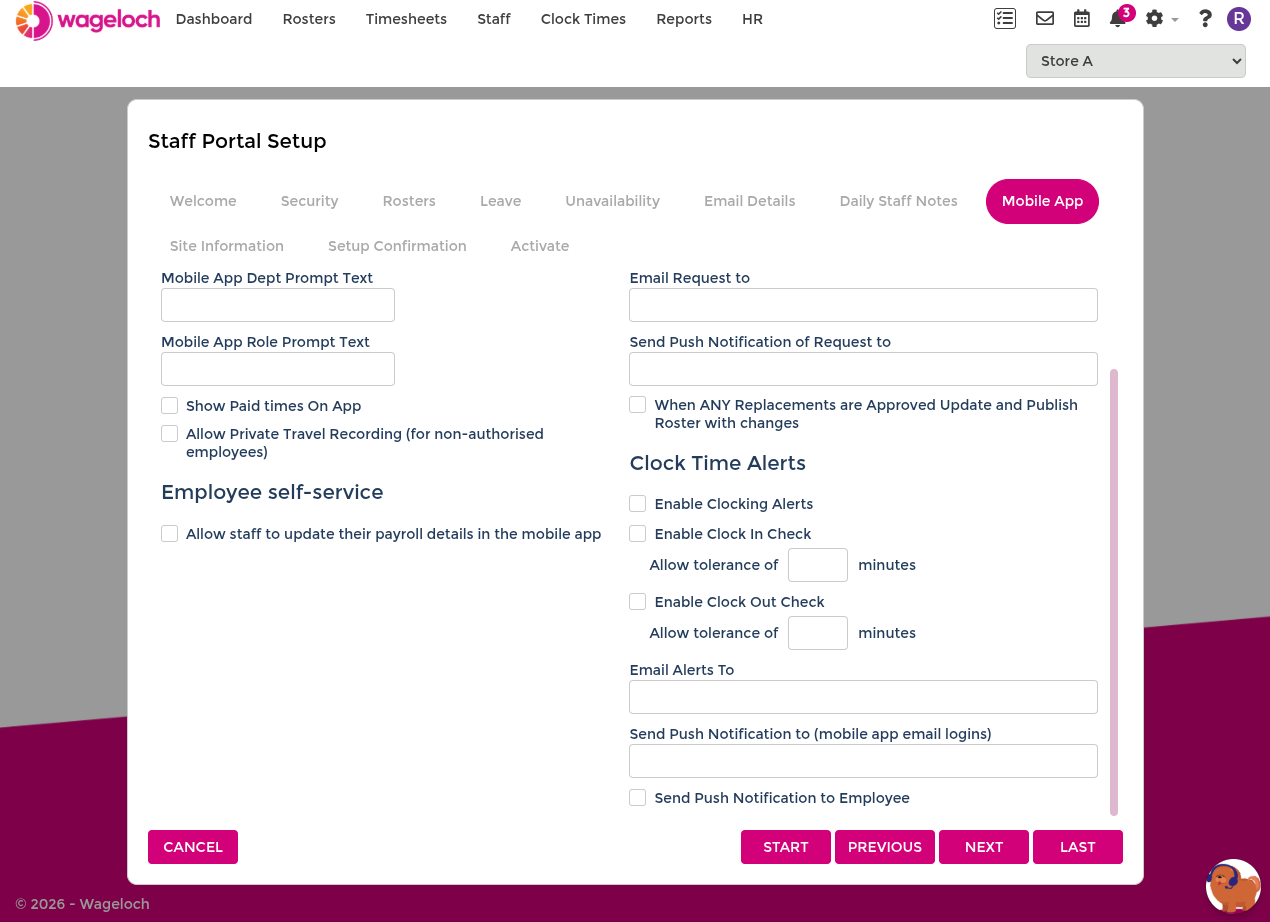
- Email Alerts To: email address to receive clock time alert notifications.
- Send Push Notification to (mobile app email logins): app users to notify via push when an alert fires.
- Send Push Notification to Employee: sends the push notification to the employee directly.
INFO
Clock time alerts rely on rostered shifts. If no shift is rostered, alerts may not send.