
Payroll mapping
3 min read
Payroll mapping
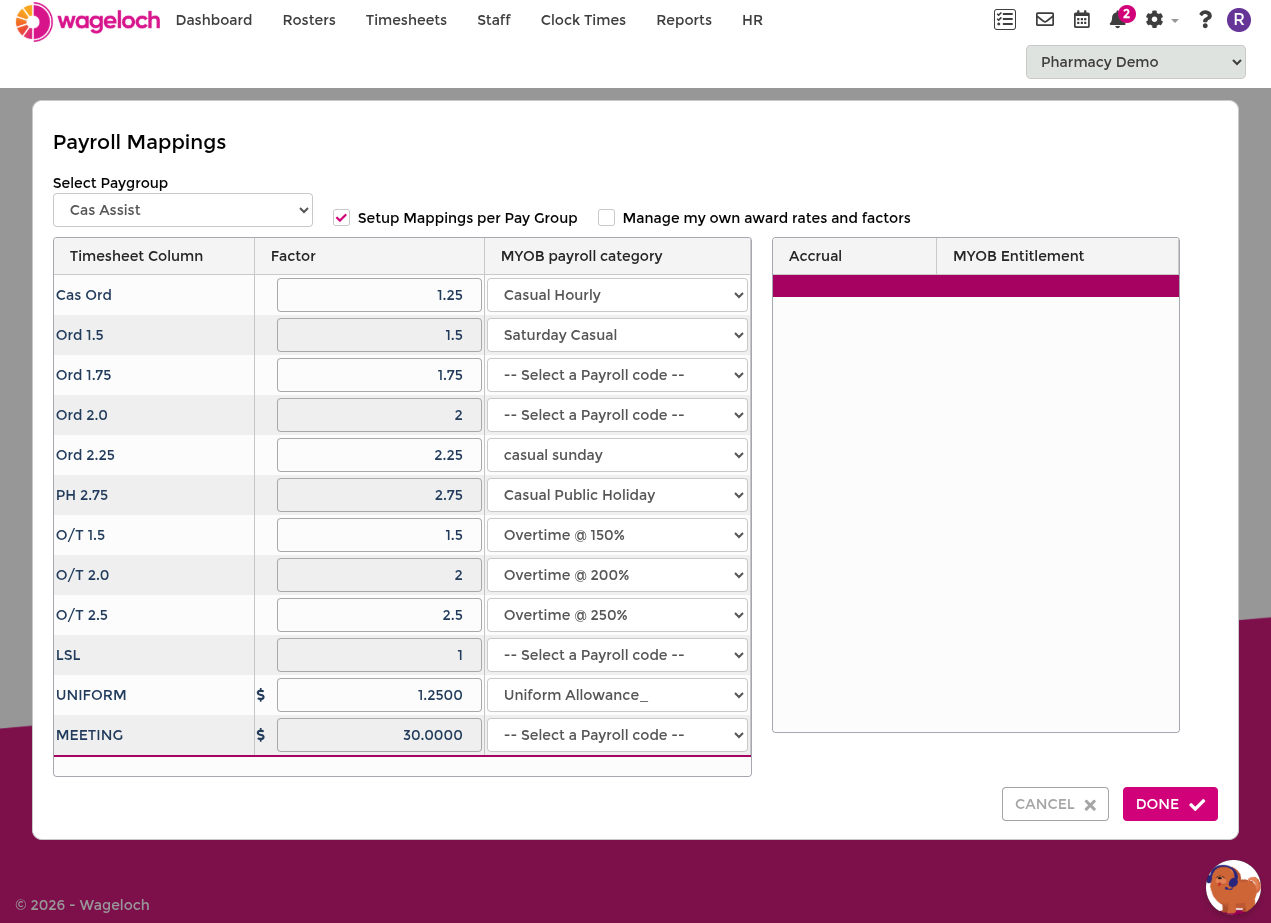
Payroll mappings define where Wageloch sends each timesheet column in your payroll system, including ordinary hours, penalty rates, overtime, and leave.
Use this guide to map Wageloch timesheet columns to payroll codes in your connected payroll platform.
Before you start
- Make sure your payroll pay items or earnings rates are already set up to match your award structure.
- Confirm you can access Settings > Payroll > Payroll Mappings in Wageloch.
- If you plan to import leave balances, make sure leave entitlements exist in your payroll solution.
IMPORTANT
Payroll mappings control where hours export in payroll. Missing or incorrect mappings can block successful payroll exports.
Common mapping process
- Sign in to Wageloch.
- Go to Settings > Payroll > Payroll Mappings.
- Choose a Pay Group if prompted.
- For each timesheet column, choose the matching payroll code.
- Repeat until all required columns are mapped.
- If leave integration is enabled, map accruals on the right-hand side.
- Select Done, then confirm the save prompt.
NOTE
If Setup mappings per pay group is enabled, map each pay group separately. If it is not enabled, one mapping set applies across all pay groups.
Field names by payroll solution
The same concept can appear under different names depending on the payroll platform.
| Mapping concept | MYOB | Xero | Acumatica | Reckon |
|---|---|---|---|---|
| Timesheet target field | Payroll Category | Earnings Rate or Pay Item | Earnings Code or Pay Rule | Payroll Item |
| Leave target field | Leave Entitlement / Accrual | Leave Type / Leave Earnings Rate | Leave Code | Leave Item |
| Optional costing/tracking | Category or Job (if configured) | Tracking Category | Branch or Department (if configured) | Class or Department (if configured) |
NOTE
Labels may vary by payroll file configuration and product version. Map by meaning, not similar wording.
Mapping leave accruals
If you use leave imports or exports, complete accrual mappings as part of setup.
- Match each Wageloch leave column to the equivalent leave entitlement in payroll.
- Keep leave mappings separate from ordinary hours or overtime pay items.
- Test with one leave transaction to confirm export behaviour.
WARNING
If leave hours are mapped to an ordinary earnings code, leave can export incorrectly. Remap the leave column to the payroll leave entitlement and retry.
Award rates and factors
By default, Wageloch manages your award rates and factors on your behalf. If you want to control these values yourself, see Self-manage award rates and factors.
Program-specific notes
MYOB
- You will usually map to Payroll Categories.
- Accrual imports require accrual links to be mapped correctly.
Xero
- You will usually map to Earnings Rates and Leave Types.
- If tracking is enabled, ensure the default tracking selection is configured.
MYOB Acumatica
- Mapping labels can differ by tenant setup, but the mapping flow is the same.
- Validate one employee export after setup to confirm code alignment.
Reckon
- Mapping may appear as payroll item or text-based code selection depending on product or version.
- Complete at least one end-to-end export test before go-live.
Troubleshooting checklist
- Confirm every active timesheet column has a mapping.
- Check each pay group separately.
- Verify leave columns are mapped to leave entitlements, not ordinary earnings.
- Save changes and reopen mappings to confirm they persisted.
- If exports still fail, contact Helpdesk.