
Replace a rostered shift
5 min read
Replace a rostered shift
Shift Replacement lets you offer an employee's existing rostered shift to other eligible employees from the web app roster. Use it when an employee can no longer work a shift you have already assigned to them. You send the request, review the responses, and approve a replacement without leaving the roster.
Shift Replacement works similarly to Open Shifts, but it offers a shift that already has an employee assigned. Employees receive the request in the Mobile App and accept or decline it there. For the employee side, see Shift Replacement in the employee guide.
Before you start
- Open a current or future roster. Requests cannot be sent for shifts on past dates.
- Decide whether the request uses First to accept or Manager approval. Step 8 describes each option.
List view only
Shift Replacement is currently available from the List view only. The right-click menu is not yet available in Grid view.
Send a shift replacement request
- Go to Rosters.
- Open a current or future roster.
- Select LIST in the top-right corner, next to GRID.
- Select the date that contains the shift you want to replace.
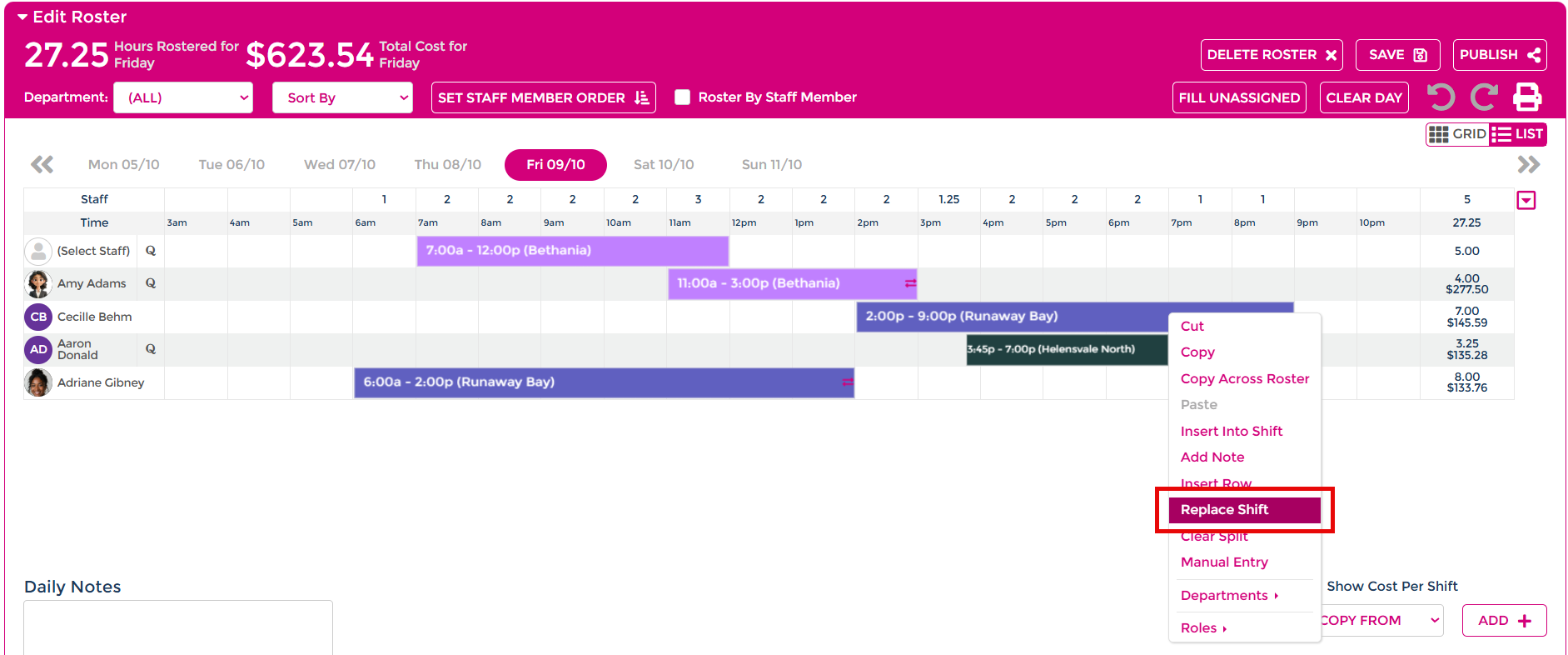
- Right-click the employee's shift. If the employee has more than one shift that day, see Replace one shift or the whole allocation, below.
- Select Replace Shift.
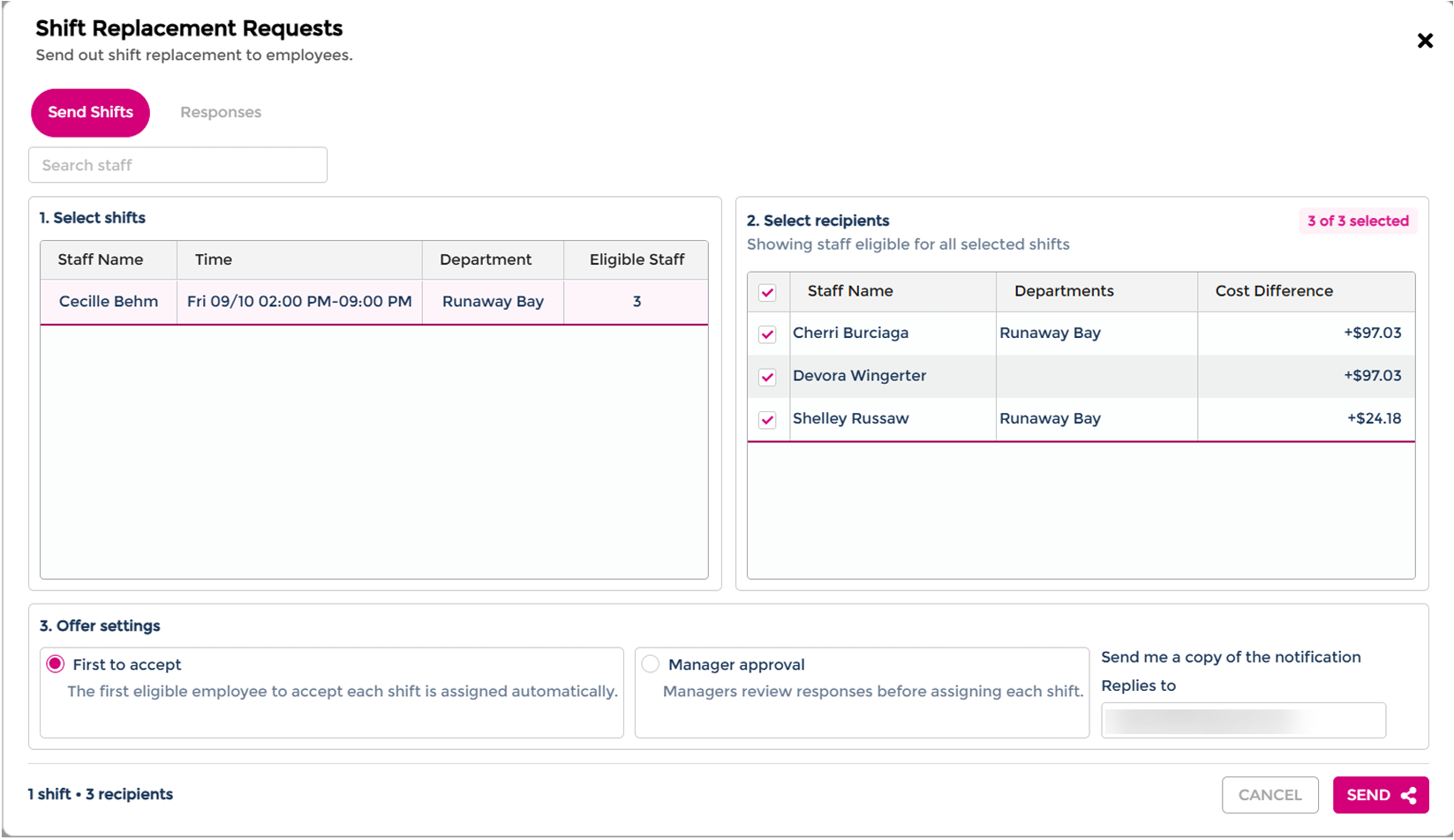
- In the Shift Replacement Requests window, select the employees who should receive the request. Use Search staff to find an employee. The Cost Difference column shows the cost difference for each eligible employee.
- Under 3. Offer settings, select an allocation method:
- First to accept: The first eligible employee to accept each shift is assigned automatically.
- Manager approval: Managers review responses before assigning each shift.
- Check the Replies to field next to Send me a copy of the notification.
- Select SEND. Select CANCEL to return without sending the request.
Employees receive a notification in the Mobile App and can accept or decline the request.
Replace one shift or the whole allocation
An employee can have more than one shift on the same day, such as a split shift. You choose whether to replace one shift or the full allocation.
- Individual shift: Right-click the shift you want to replace and select Replace Shift.
- Entire shift: Right-click the space that covers the full shift allocation and select Replace Shift.
One employee at a time
You can send a shift replacement request for one employee at a time.
Review responses and approve a replacement
After you send a request, a Shift Replacement icon appears at the end of the shift on the roster. The icon is two arrows pointing in opposite directions.
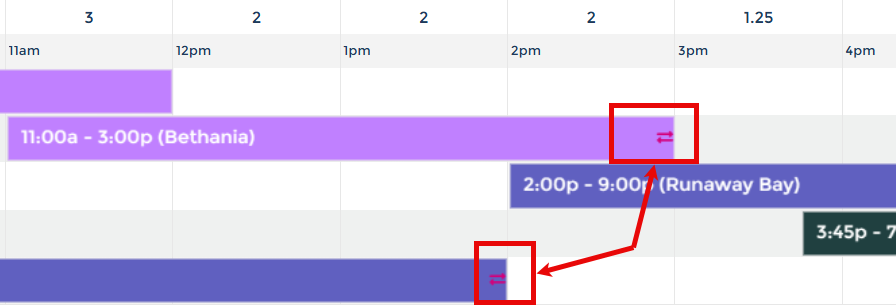
- Click the Shift Replacement icon on the rostered shift. You can also right-click the shift and select Replace Shift.
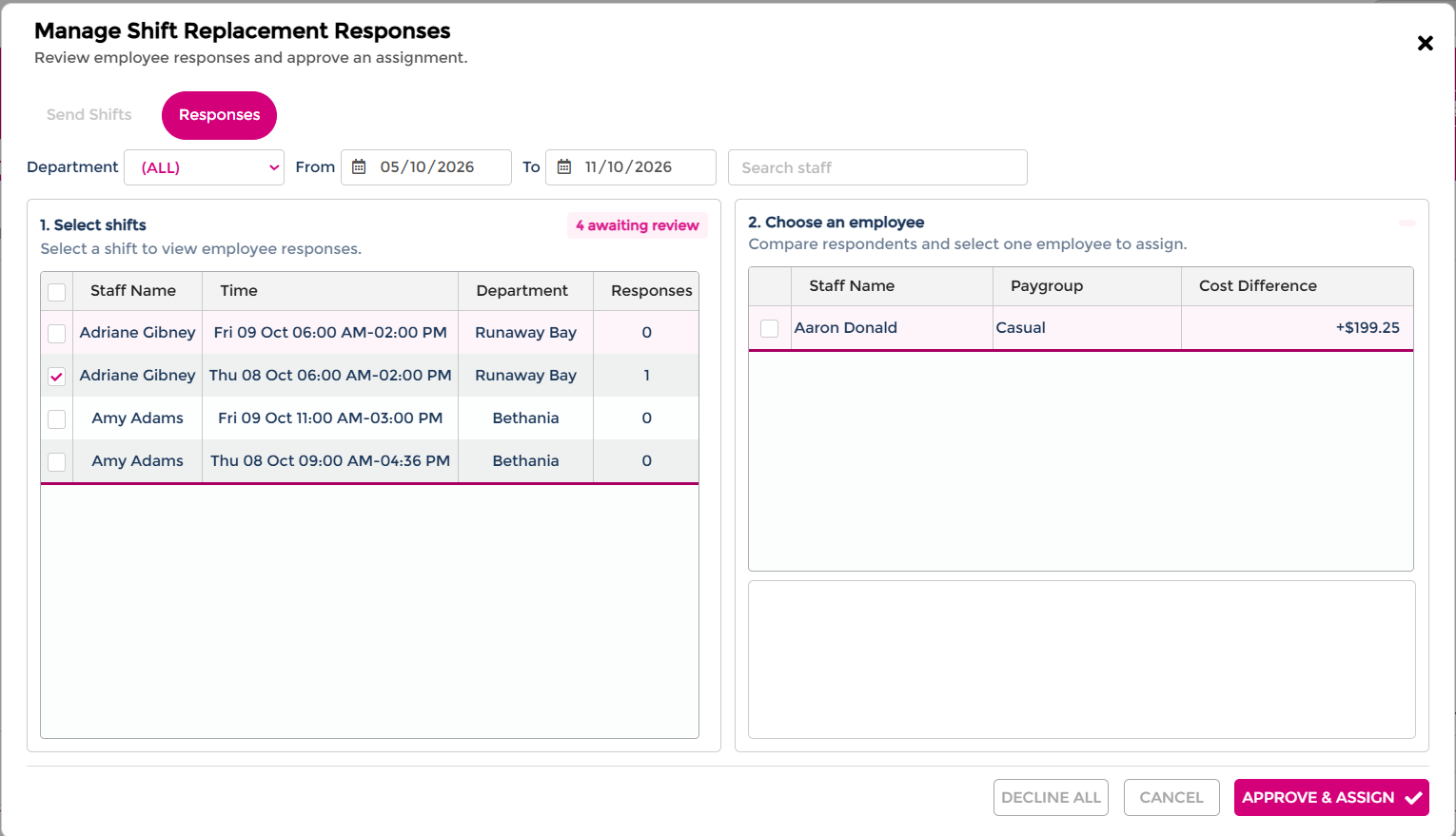
- In the Manage Shift Replacement Responses window, review the request and the employees who have responded.
- Use the Department, From, and To filters, or Search staff, to narrow the list of shifts.
- Select a shift in 1. Select shifts to view its responses.
- If you chose Manager approval, select the employee you want to assign under 2. Choose an employee. Compare the Cost Difference column before you choose.
- Click APPROVE & ASSIGN.
The window also has DECLINE ALL and CANCEL buttons.
Replace an employee manually
You can still replace an employee from the roster after you send a shift replacement request.
- Click the employee's name on the rostered shift.
- Select the new employee.
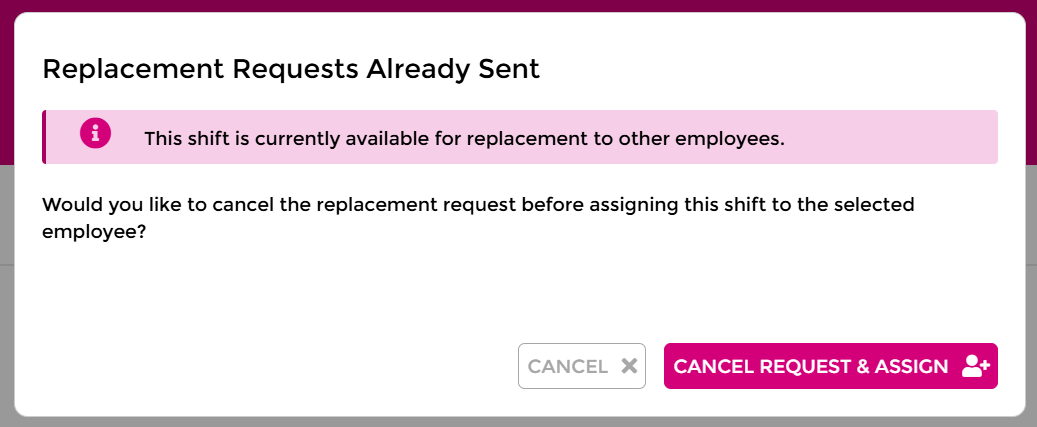
- If an active replacement request exists, read the Replacement Requests Already Sent message.
- Click CANCEL REQUEST & ASSIGN to cancel the request and assign the new employee.
Click CANCEL to return to the roster without making the change.
Shift Replacement and Open Shifts
Both features offer work to eligible employees. The difference is whether the shift already has an employee assigned.
| Open Shifts | Shift Replacement |
|---|---|
| Used for shifts that are not assigned to an employee. | Used for shifts already assigned to an employee who needs replacing. |
| Offers an unassigned shift to eligible employees. | Offers an existing employee's shift to eligible replacement employees. |
| Fills vacant roster positions. | Finds cover for employees who are unavailable. |