PIN and Password
2 min read
PIN and Password
Use this guide to configure PIN and password clocking in Wageloch Time Kiosk on Windows PC.
Set up during a fresh installation
After completing Time Kiosk (Windows PC) setup:
- Open Wageloch Time Kiosk from the desktop.
- In Clocking Method settings:
- Select Password for alphanumeric passwords.
- Tick PIN as well if you want staff to use 4-digit PIN codes.
- Open the Other tab.
- Select Get current time from computer time.
- Select Done to save.
Change method after installation
If Time Kiosk is already installed:
- Open Wageloch Time Kiosk.
- Select the Settings cog (top-right).
- Sign in with Wageloch administrator credentials.
- Select General.
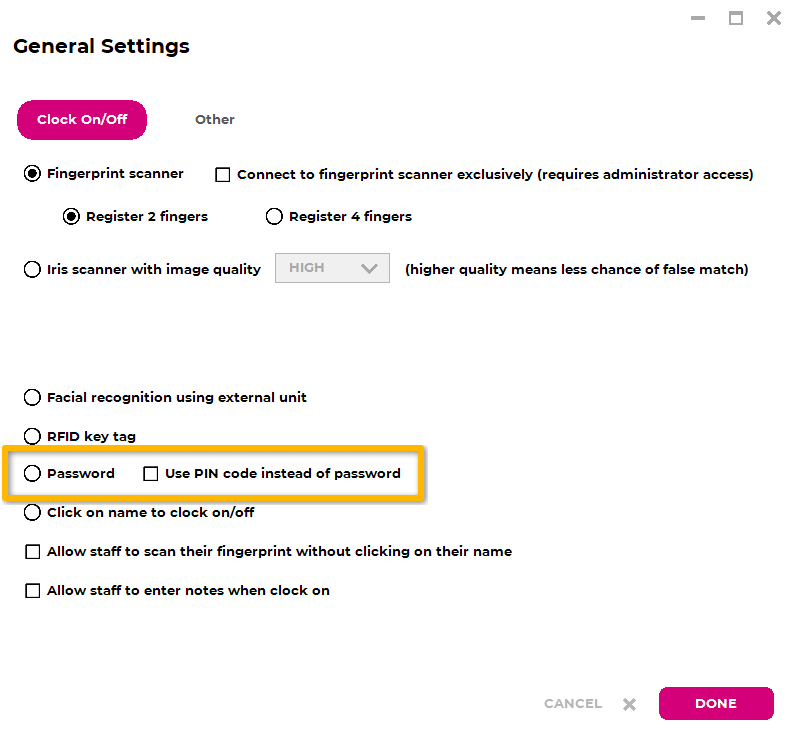
- In Clocking Method:
- Select Password for alphanumeric passwords.
- Tick PIN if 4-digit PIN login is required.
- Open the Other tab.
- Select Get current time from computer time.
- Select Done.
Register staff PIN or password
After configuration, register each staff member:
- Select the employee name.
- Enter a password or PIN.
- Re-enter credentials when prompted.
- Confirm registration.
The staff member can now test clocking in and out.
Credential requirements
Passwords should include letters and numbers with a minimum of 6 characters. PINs are 4-digit numbers.
Clock in and clock out
- Select your name from the staff list.
- Enter your PIN or password.
- If successful, a confirmation message appears (for example, Good Morning, Good Afternoon, or Goodbye).
Delete PIN or password
Use this when a password or PIN has been forgotten or entered incorrectly.
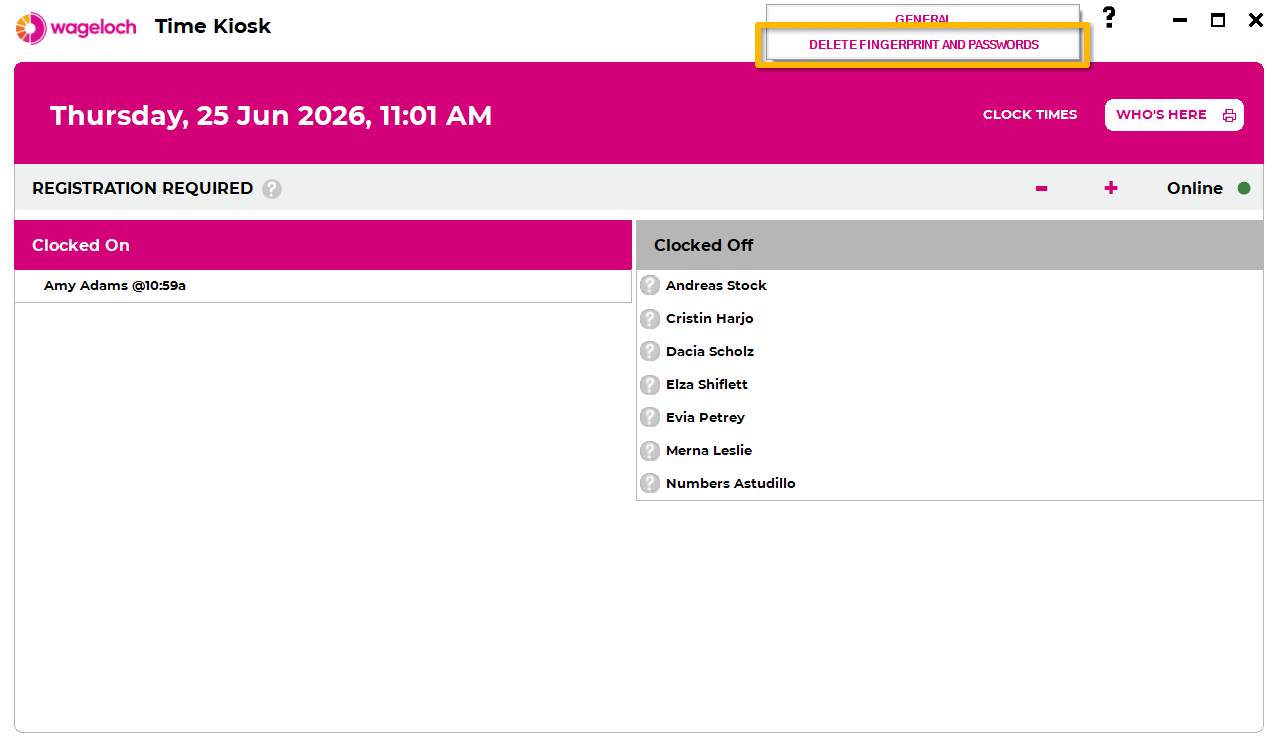
- Open Wageloch Time Kiosk.
- Select the Settings cog.
- Sign in with admin credentials.
- Select Delete PIN/Password.
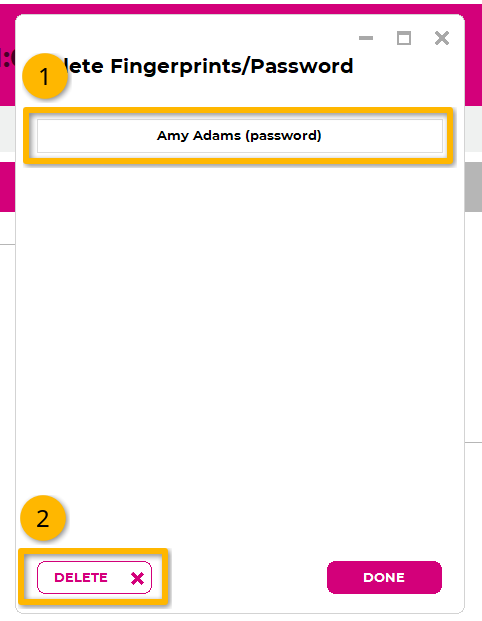
- Select the employee name.
- Select Delete.
- Confirm the prompt.
- Select Done.
You can then re-register the employee with a new PIN or password.