Departments and roles
2 min read
Departments and roles
Departments and roles help define who is working, where they are working, and what work they are doing. Departments group staff into teams or cost centres, while roles label the job performed on each shift in rosters, timesheets, and reporting.
What each feature does
- Departments: group staff into teams or cost centres. See Departments.
- Roles: label the job performed on a shift. See Roles.
- Department-role linking: limits role choices to the selected department.
Departments and roles can be used separately, but many businesses use both so shifts are easier to allocate and reporting is clearer.
INFO
Departments and user roles do not change pay rates by themselves. System roles configured in your award can change pay outcomes.
Department-role linking
Linking is useful when only certain roles should be available in a specific department.
Why link departments and roles
- It keeps shift assignment menus focused on relevant options.
- It helps staff choose the correct role when clocking in.
- It improves consistency for role-based reports and job costing.
Before you enable linking
- Create and assign your departments first.
- Create your user roles first.
- Confirm your team understands whether role selection is optional or mandatory at clock in.
Enable and configure linking
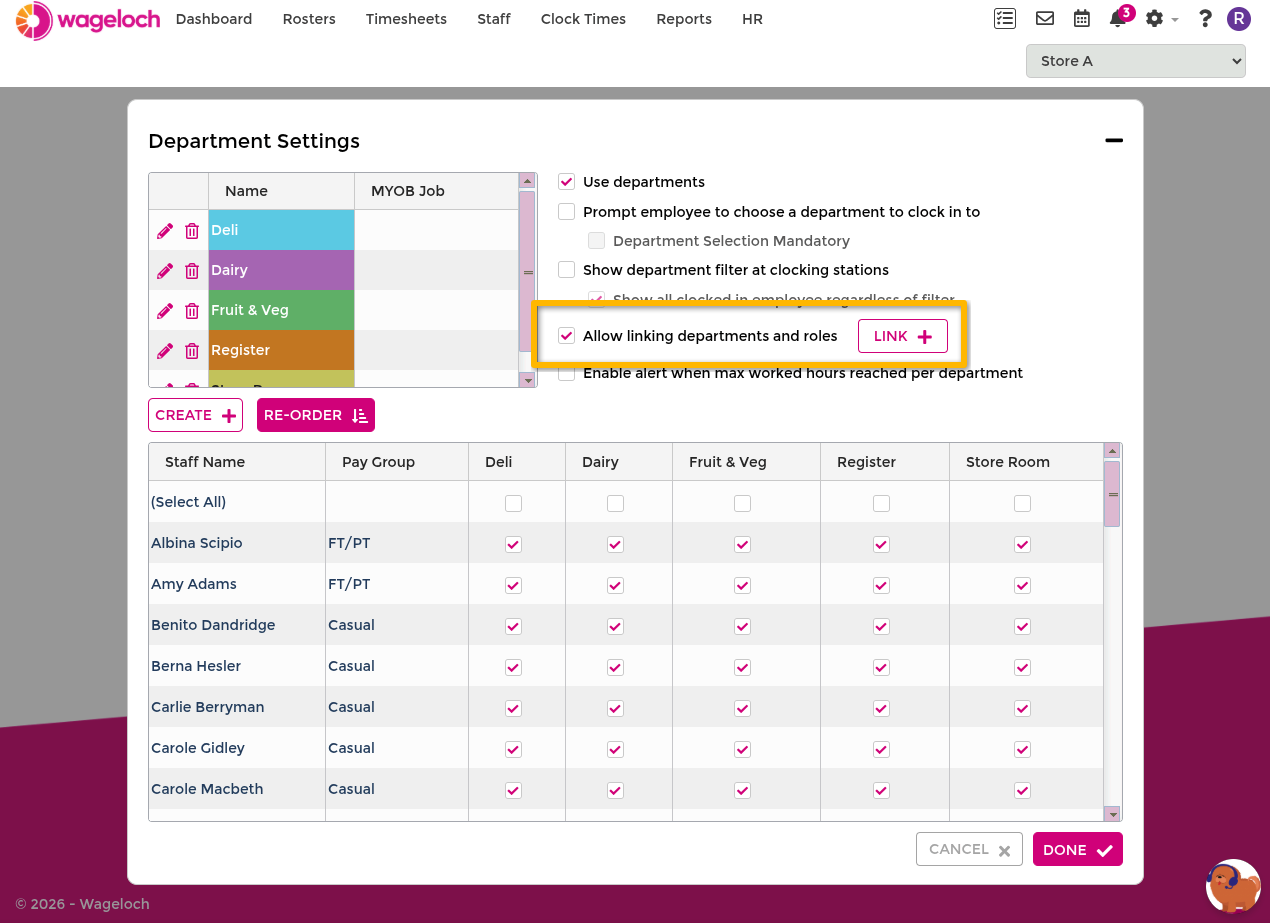
- Open Settings > Departments.
- Enable Allow linking departments and roles.
- Open the linking panel.
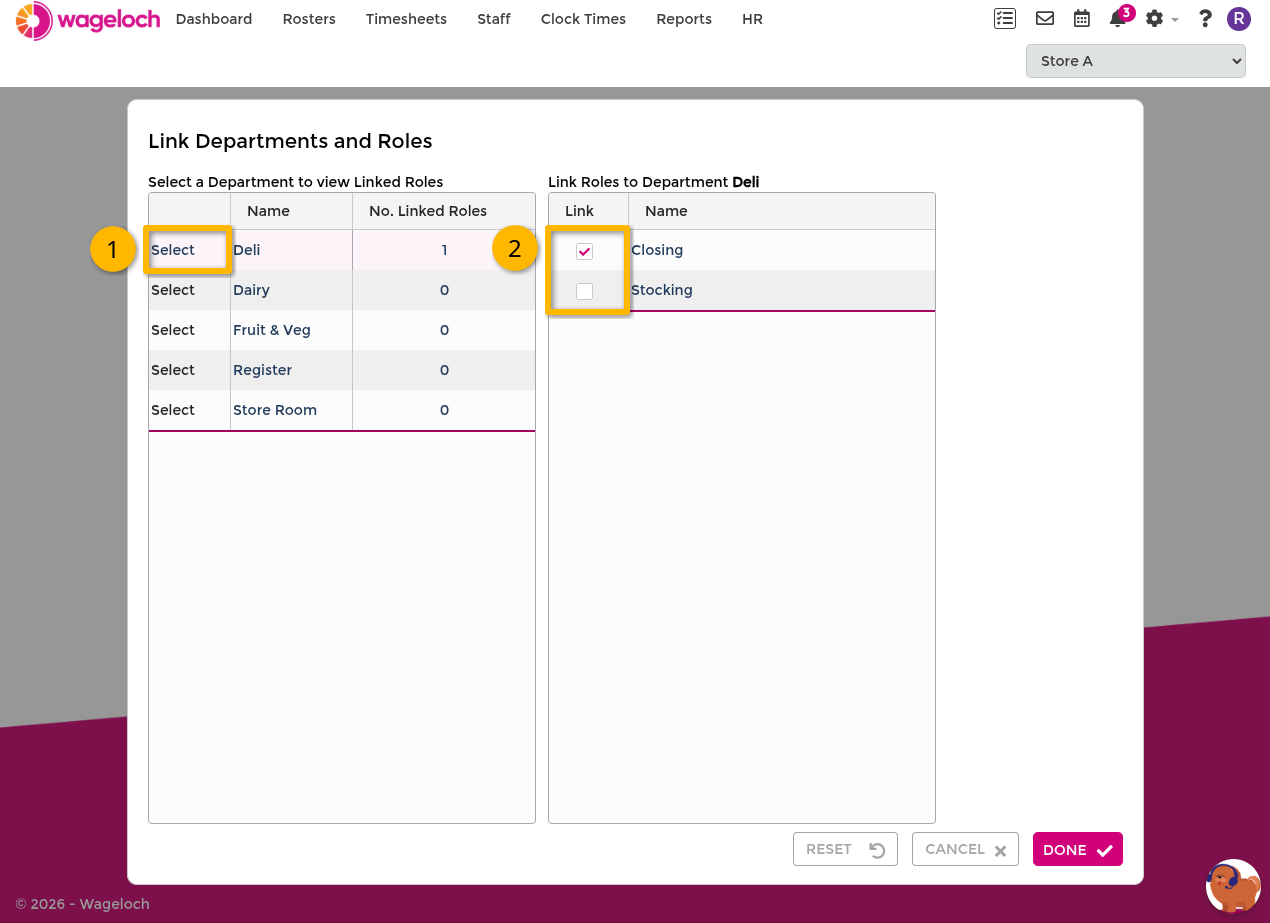
- Select a department.
- Tick the roles that should be available for that department.
- Repeat for each department, then click Done to save.
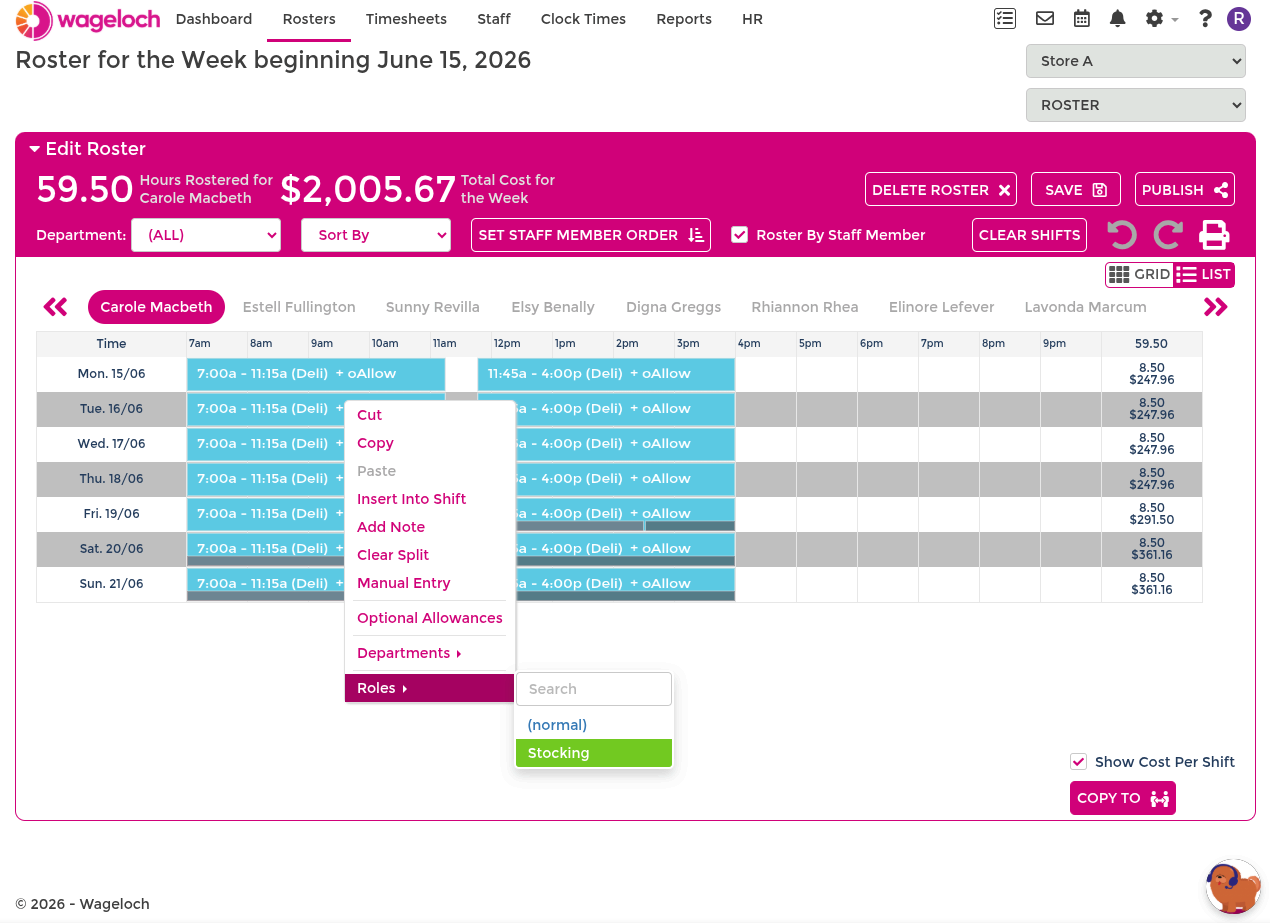
How linking appears in shifts
In Creating Rosters and Completing Timesheets, assign the department first, then choose a role from the filtered list.