Pay levels
4 min read
Pay levels
Pay levels let you control rates centrally, keeping staff cards consistent and easy to maintain.
Before you start
- Confirm your pay groups and rate structure are already configured in payroll setup.
- Decide whether levels should be shared across all pay groups or specific to one pay group.
- Decide whether you need age-based rates.
INFO
If casual loading is calculated by award rules, enter unloaded base rates where required and let Wageloch apply loading during calculation.
Create pay levels for all pay groups
Use this when one set of rates applies broadly across employment types.
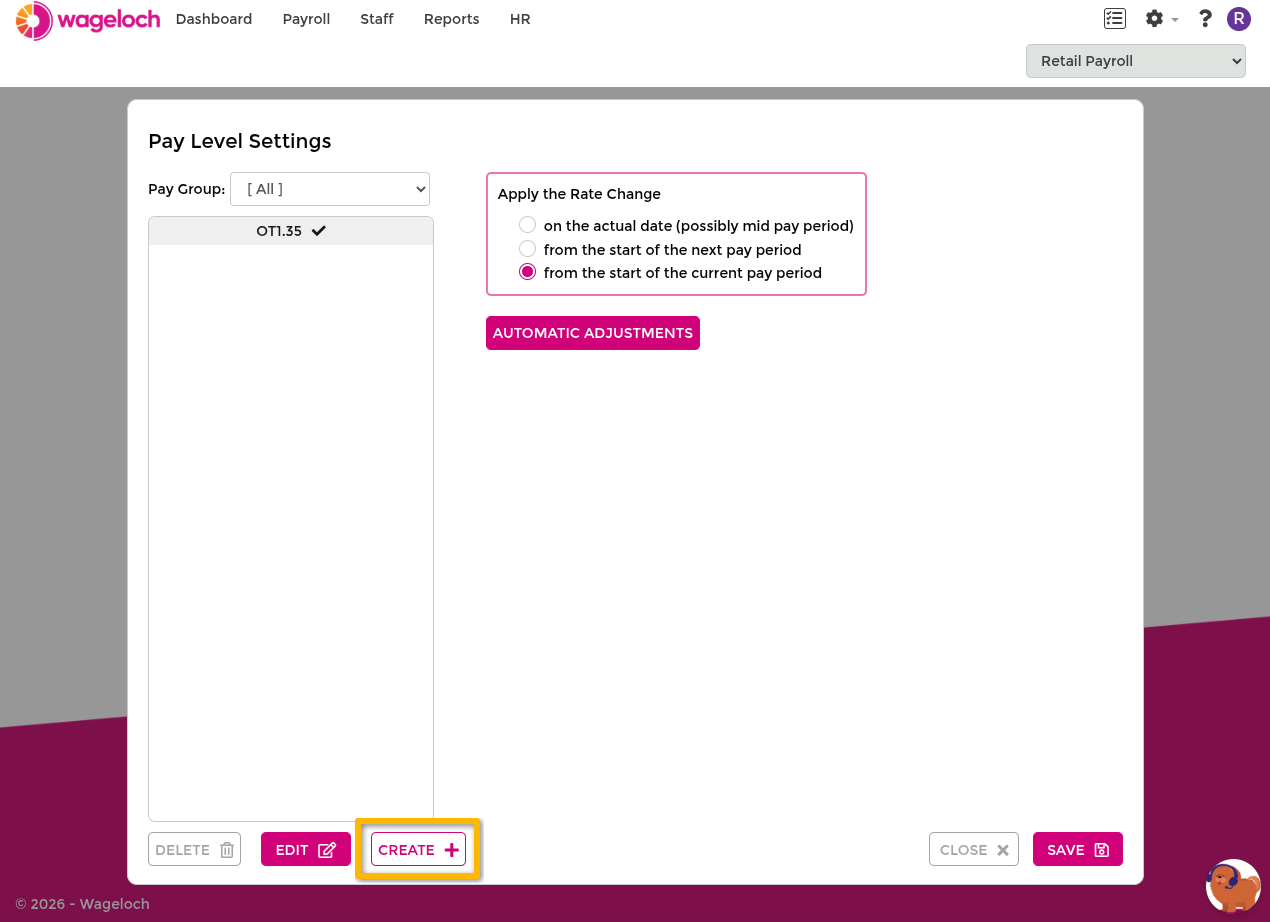
- Open Settings > Pay Levels.
- Set the pay group filter to [All].
- Select Create.
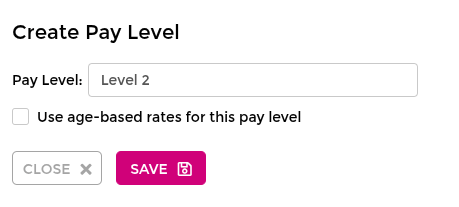
- Enter a clear pay level name.
- If needed, enable Use age-based rates for this pay level.
- Select Save to create.
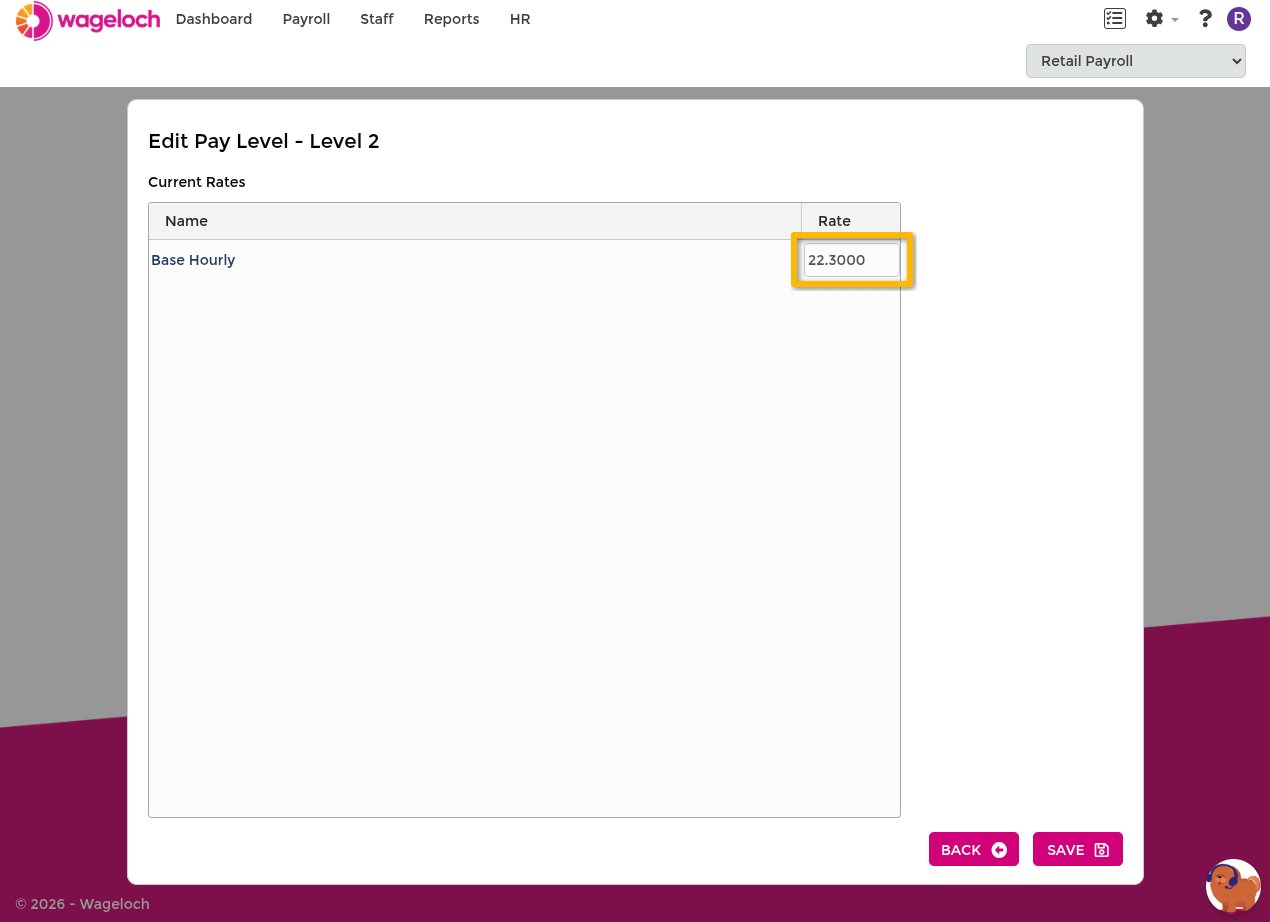
- Enter base rates in the table.
- Select Save, then save again on the Pay Levels screen.
Create pay levels for a specific pay group
Use this when one pay group needs its own base and alternate rates.
- Open Settings > Pay Levels.
- Select the required pay group from the filter.
- Select Create and enter a pay level name.
- Enable age-based rates only if required.
- Select Save.
- Enter base and any alternate rates.
- Use control checkboxes to choose which rates the pay level controls.
- Select Save, then save again on the Pay Levels screen.
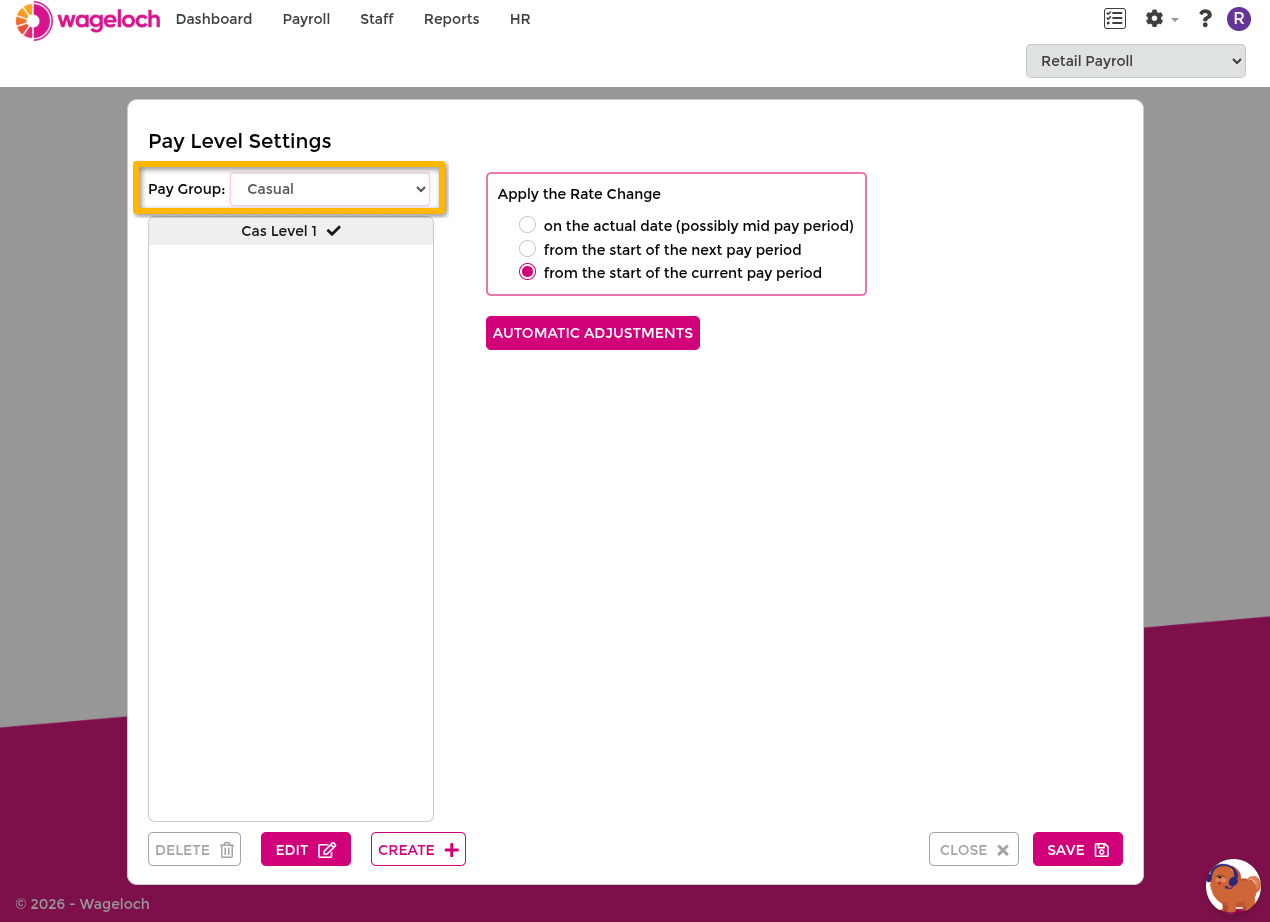
If alternate rates should differ by employee, leave those rates uncontrolled and maintain them in Staff Information.
Create age-based pay levels
Age-based levels use the employee date of birth from their staff card.
- Create a pay level under [All] or a specific pay group.
- Enable Use age-based rates for this pay level.
- Enter rates for each age bracket.
- Save the level, then save again on the Pay Levels screen.
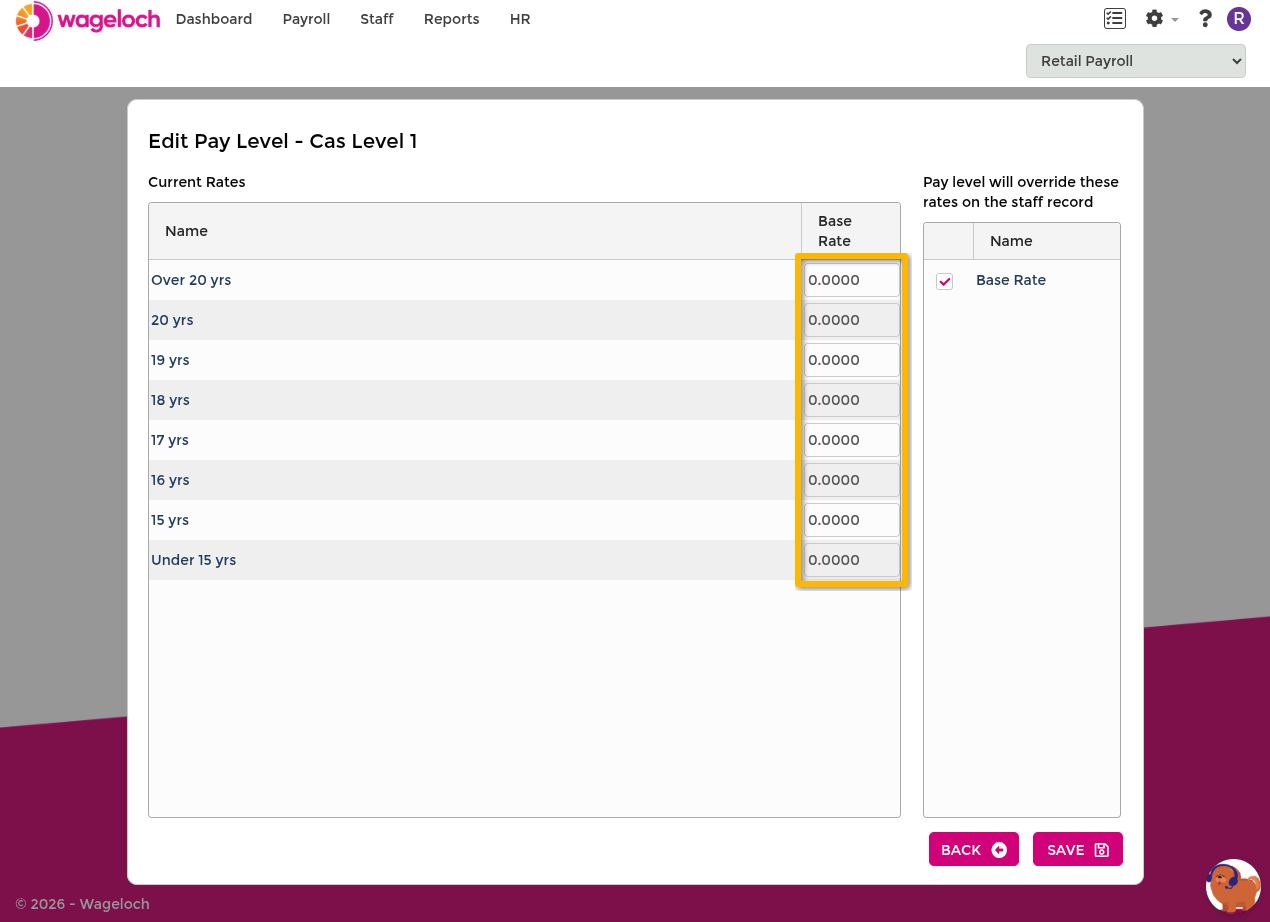
INFO
Use pay-period boundaries for age-based rate transitions where possible, to avoid partial-period export issues.
Maintain existing pay levels
When rates change, update the level directly.
- Open Settings > Pay Levels.
- Select the pay level and choose Edit.
- Update required rates (including all age rows if applicable).
- Save the level.
- Save again on the Pay Levels screen.
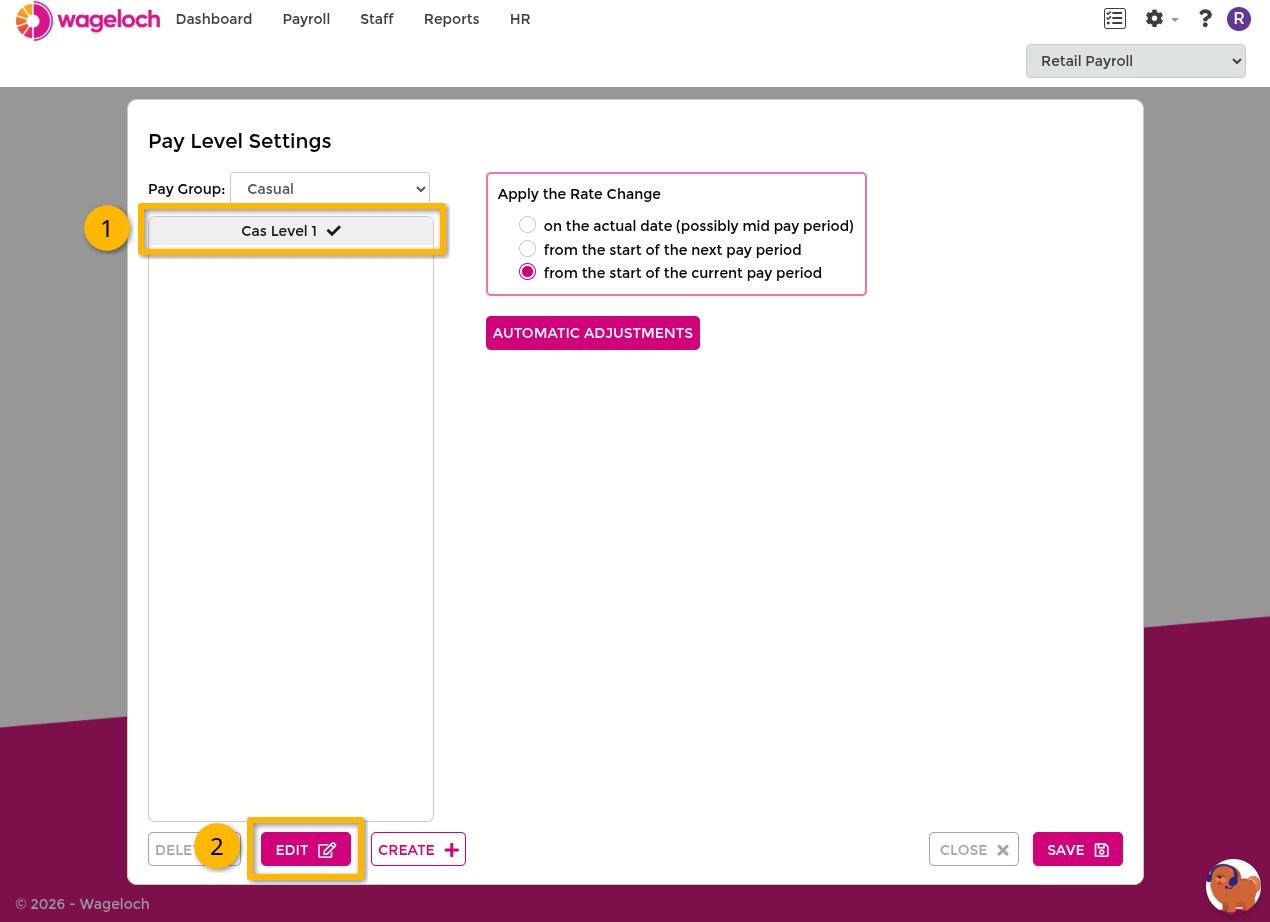
If a staff member does not receive expected rates, confirm the pay level values and the correct pay level assignment on their staff card.
Delete a pay level
- Open Settings > Pay Levels.
- Select [All] or the relevant pay group.
- Select the pay level.
- Choose Delete and confirm.
- Save on the Pay Levels screen.
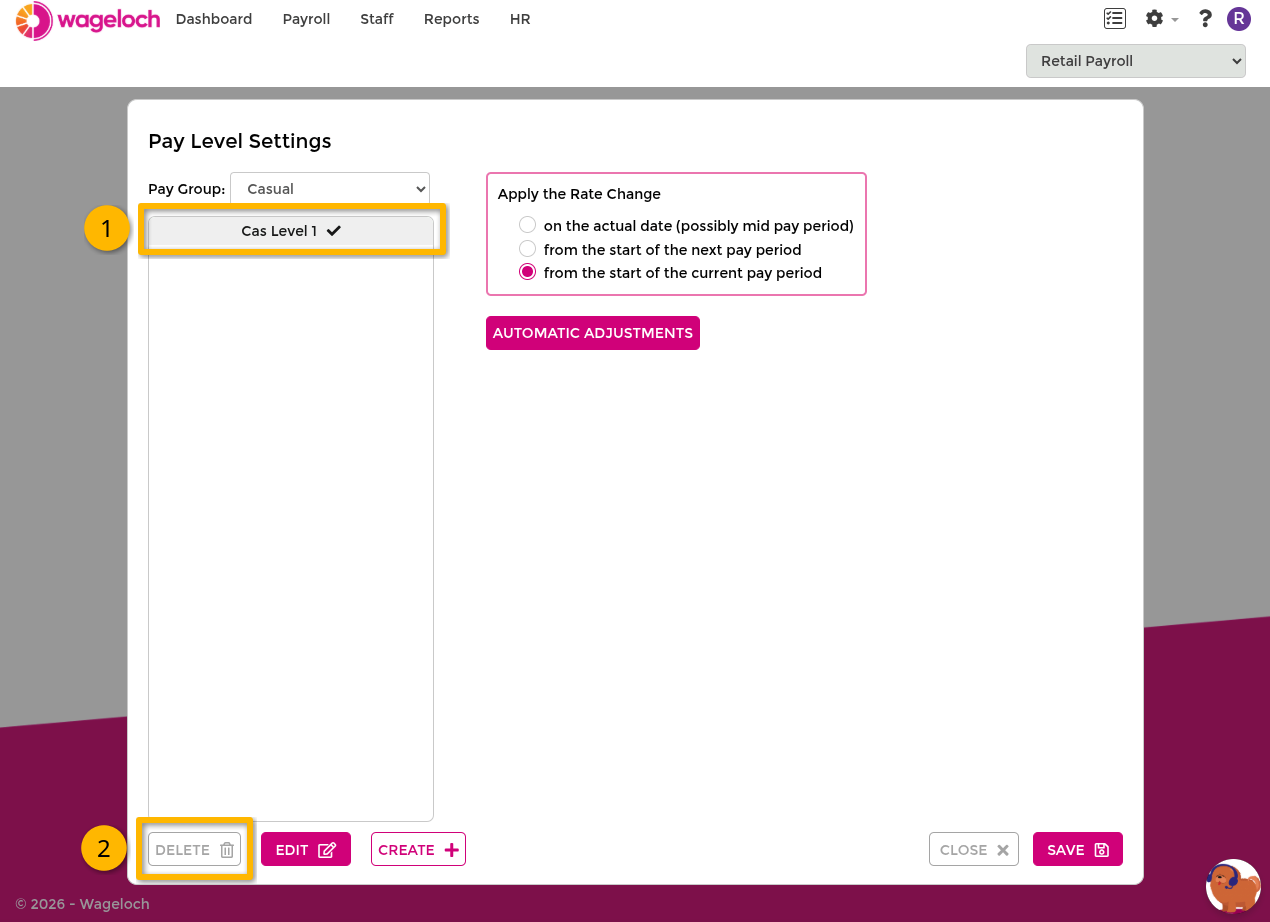
Configure automatic pay level adjustments
Automatic Adjustments move employees from one level to another after a set number of months.
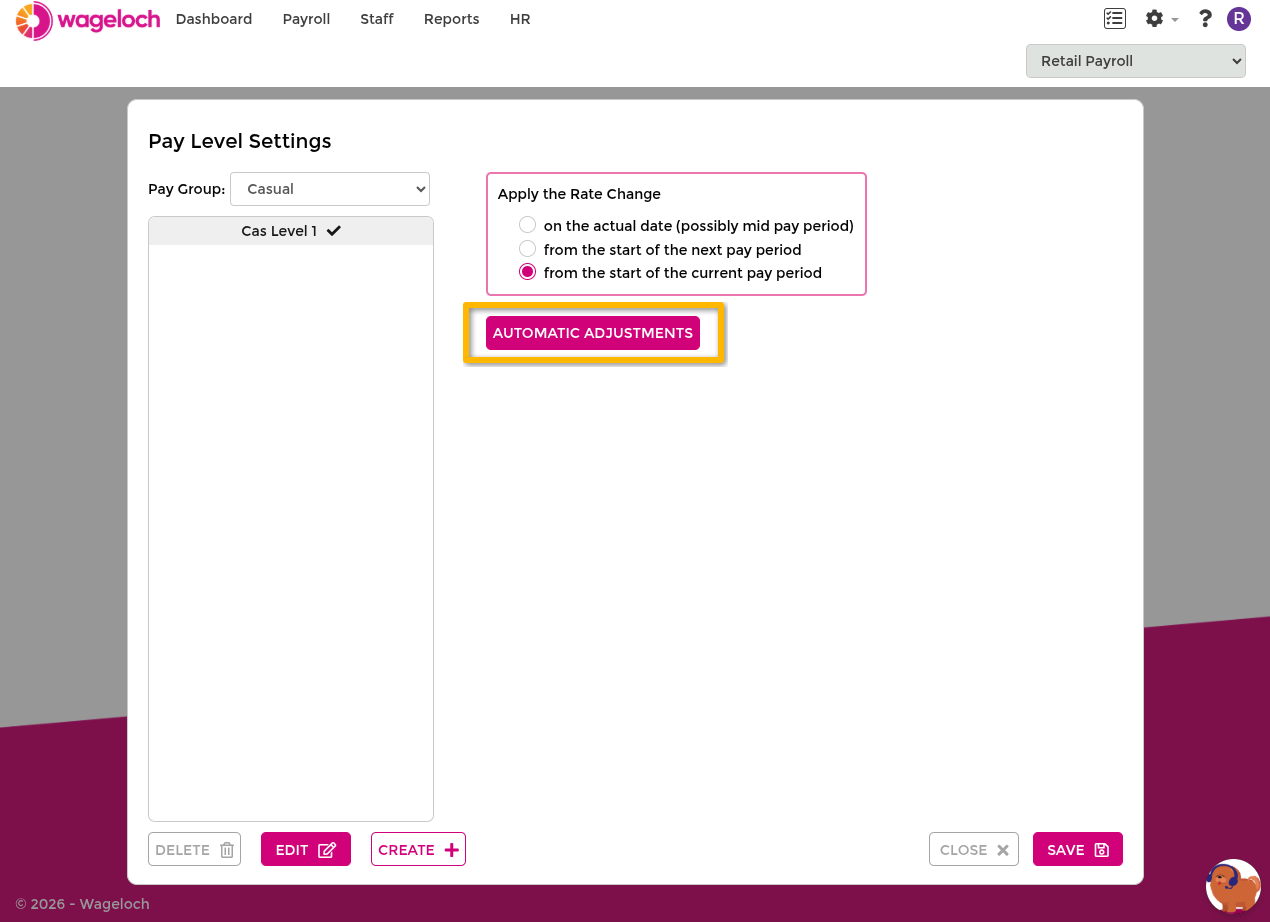
- Open Settings > Pay Levels.
- Select Automatic Adjustments.
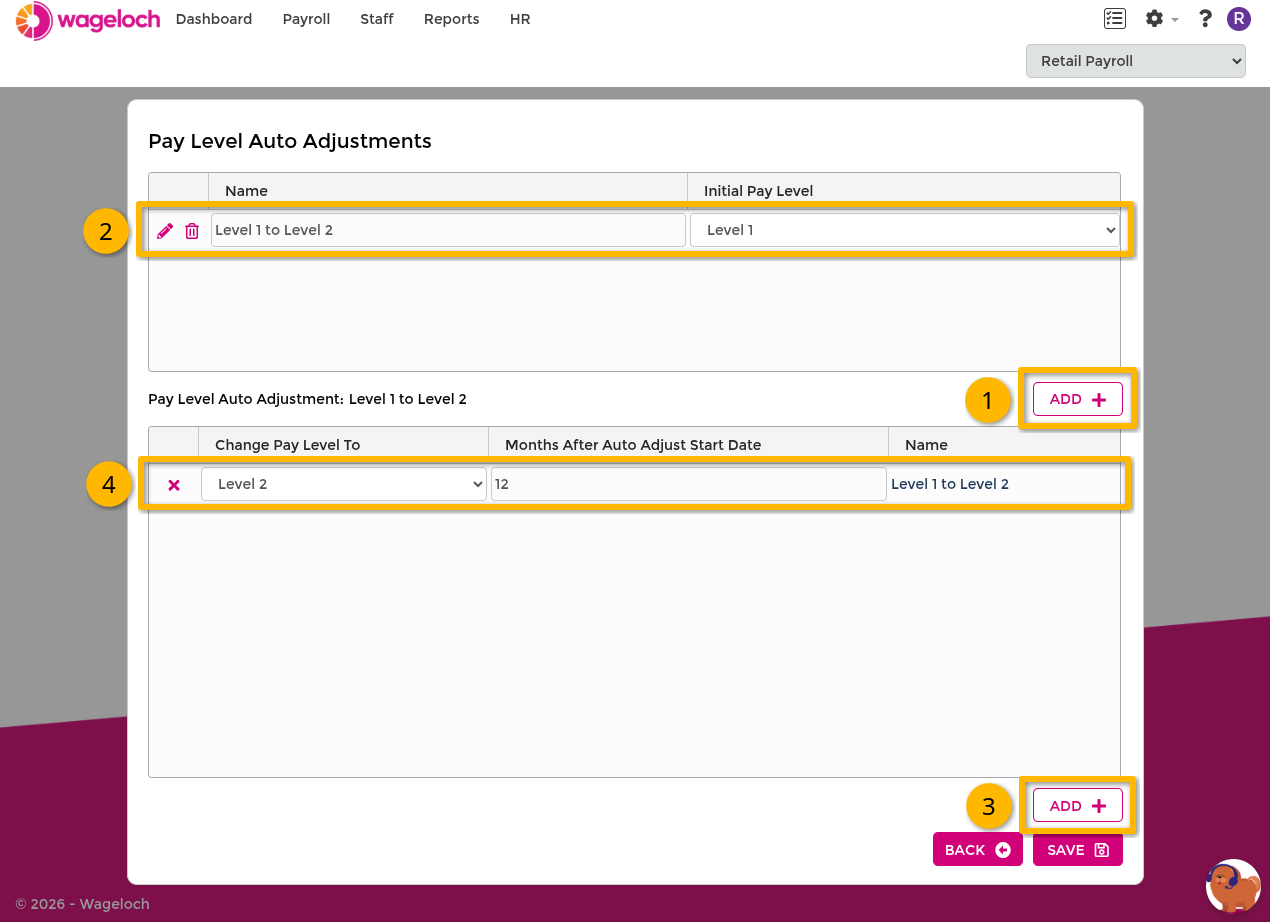
- Select Add and name the adjustment.
- Set the initial pay level.
- Add one or more transitions:
- Change Pay Level To
- Months After Auto Adjust Start Date
- Save the adjustment, then save again on the Pay Levels screen.
Assign pay levels to staff
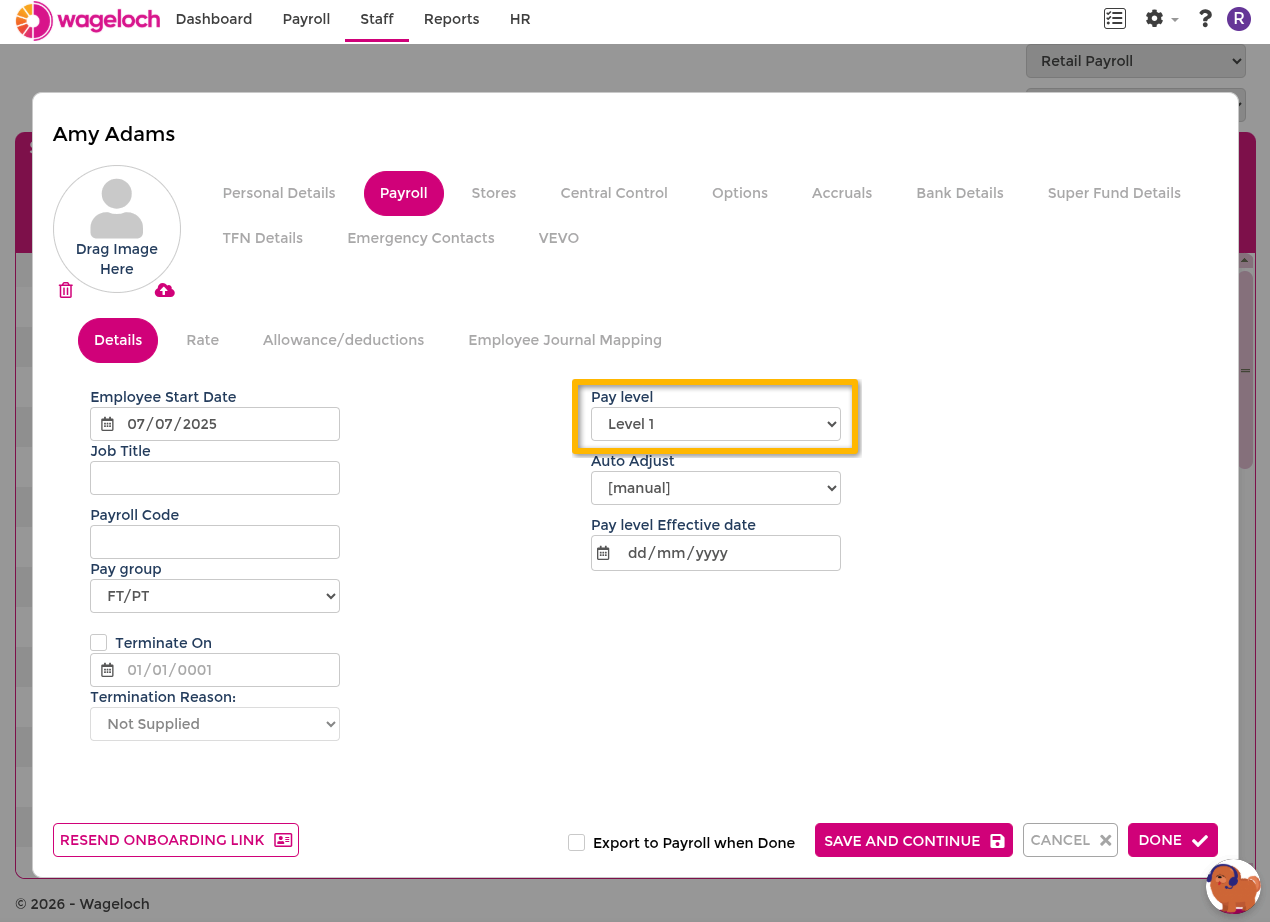
- Open Staff.
- Open the employee card.
- In Payroll, choose a Pay Level.
- Select Done to save.
Visibility rules:
- Levels created under [All] appear for all pay groups.
- Levels created under a specific pay group appear only for that pay group.
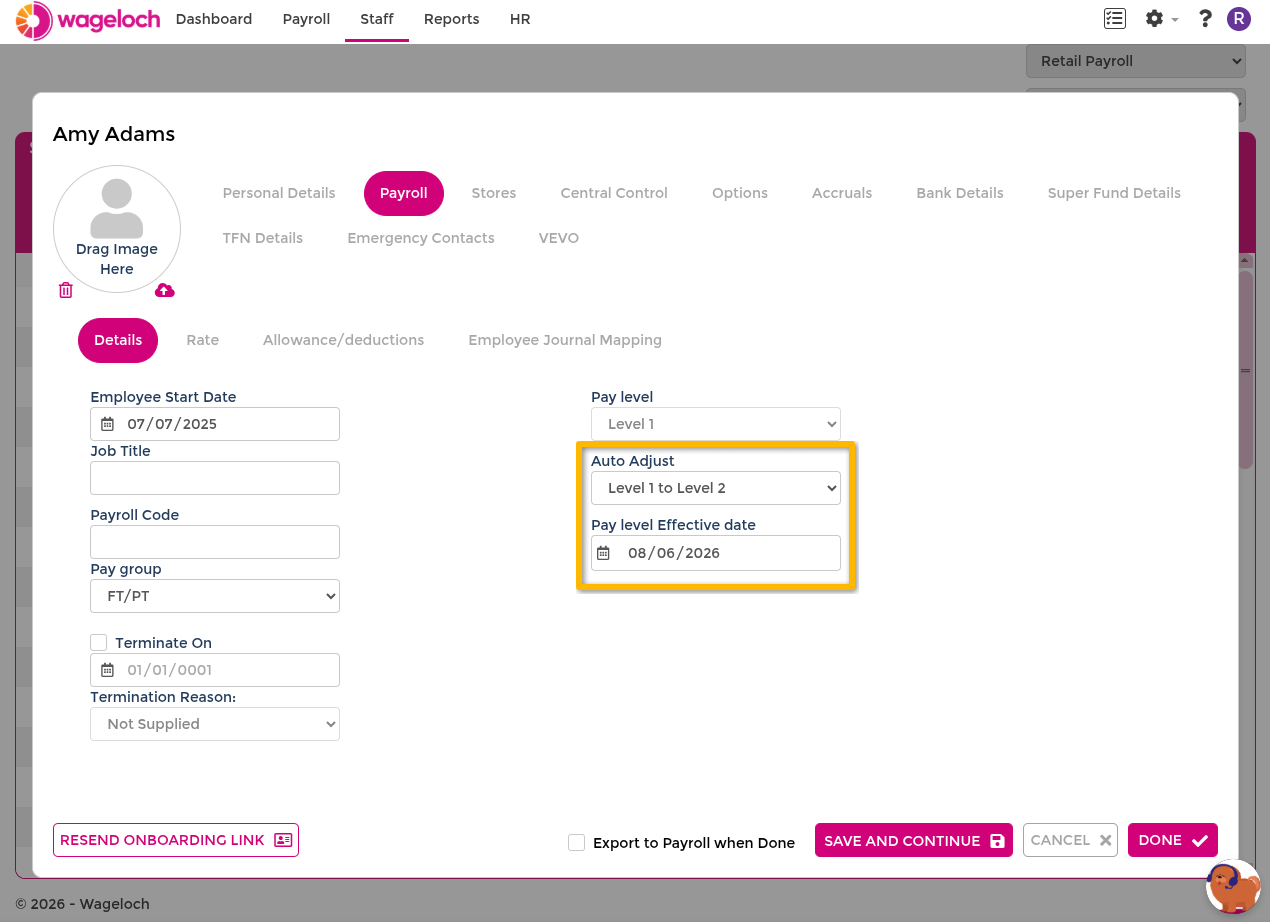
Assign automatic adjustments to staff
- Open the employee card.
- In Payroll, select the pay level.
- Select the automatic adjustment.
- Set the adjustment Start Date.
- Select Done.