
Audit
2 min read
Audit
Audit shows the most recent user activity on key records so you can quickly confirm who made the latest update and when.
Use Audit to check updates for:
What Audit shows
For each selected item, Audit displays:
- The email address of the user who made the latest change.
- The timestamp of that latest update.
Scope of audit data
Audit confirms the latest editor and timestamp only. It does not provide a full field-by-field history.
Accessing Audit
- Sign in to Wageloch.
- Select Settings (cog icon).
- Choose Audit.
- Select Staff, Roster, or Timesheet.
Audit by record type
Staff audit
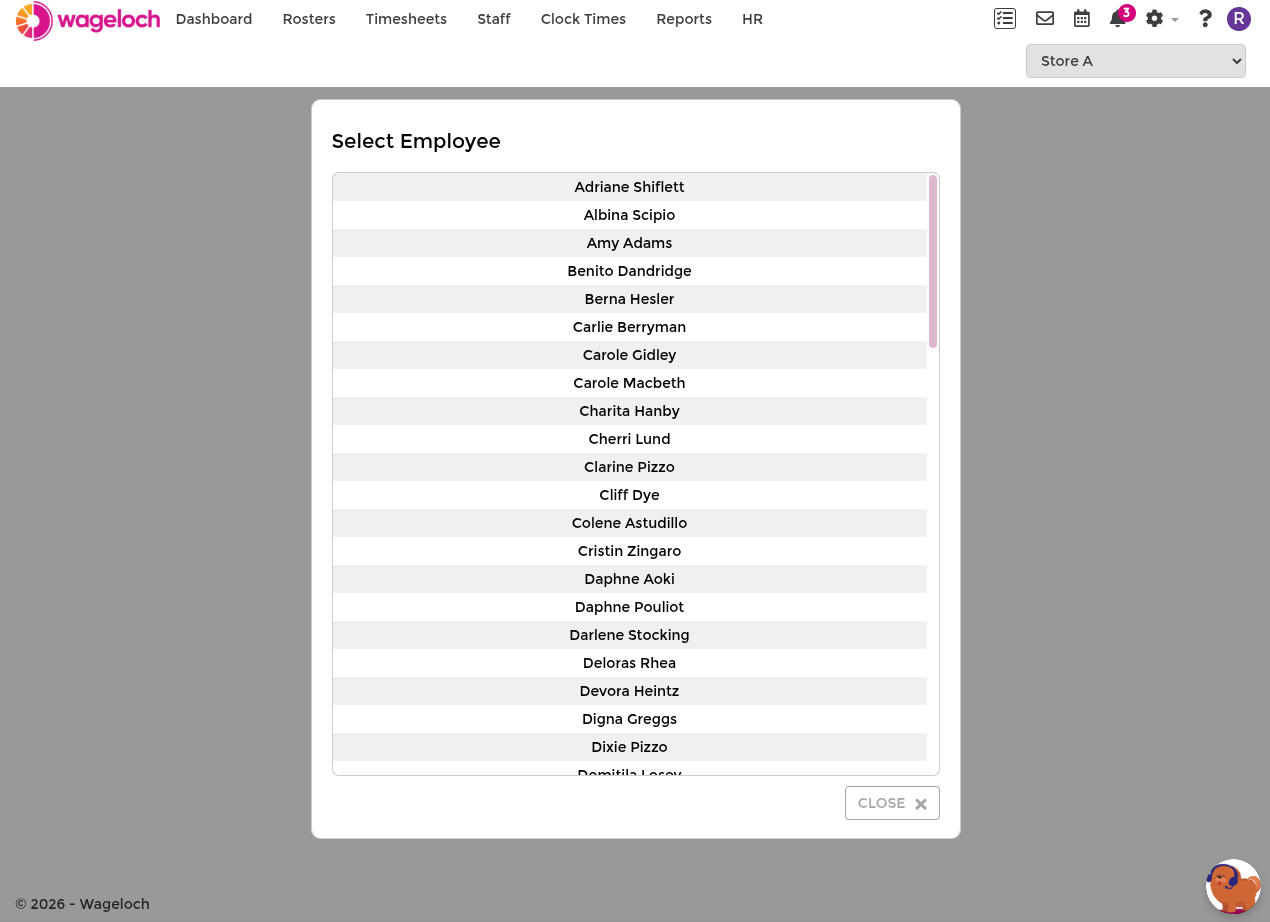
Select an employee to view the latest staff-card update details.
Roster audit
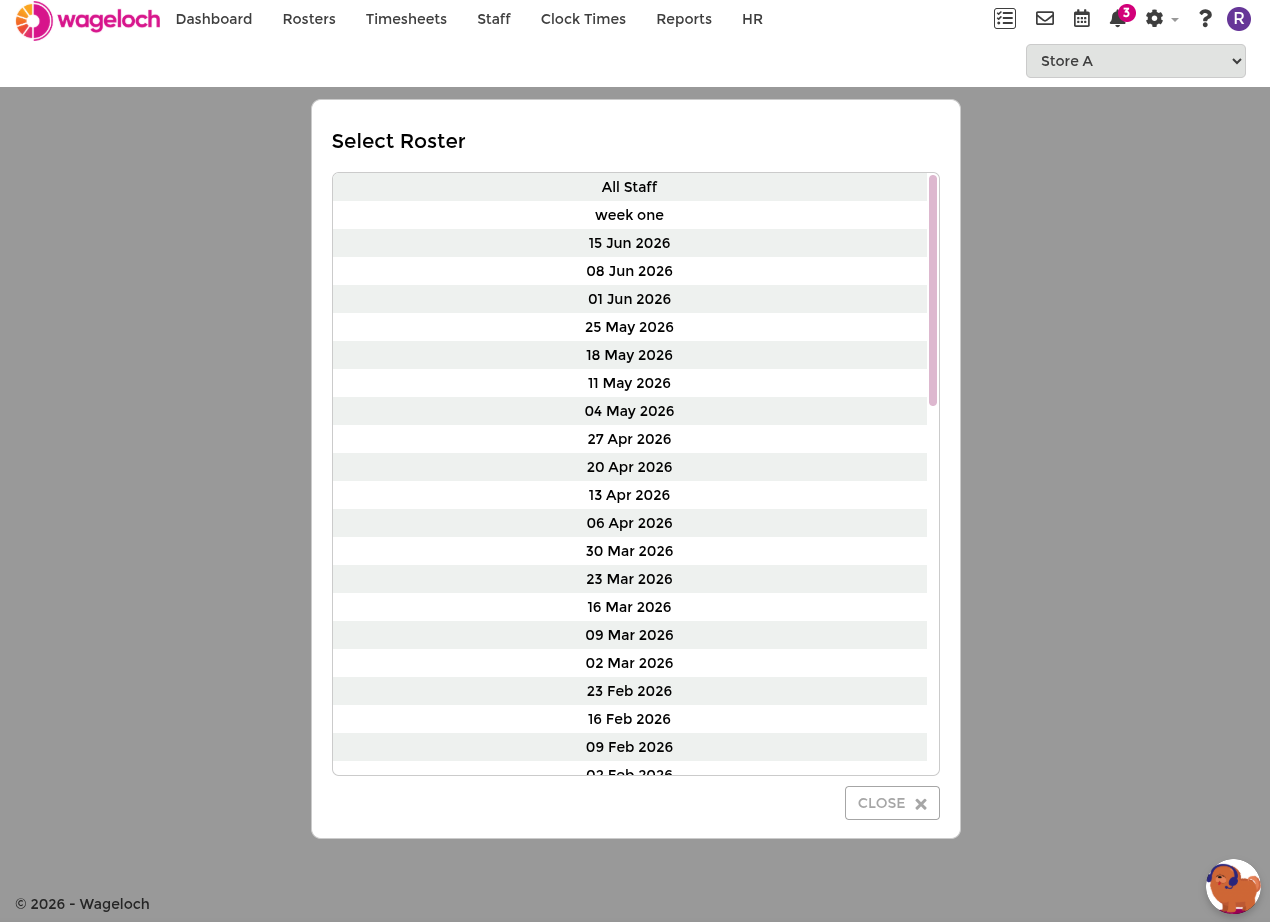
Select a roster period to view the latest roster update details.
Timesheet audit
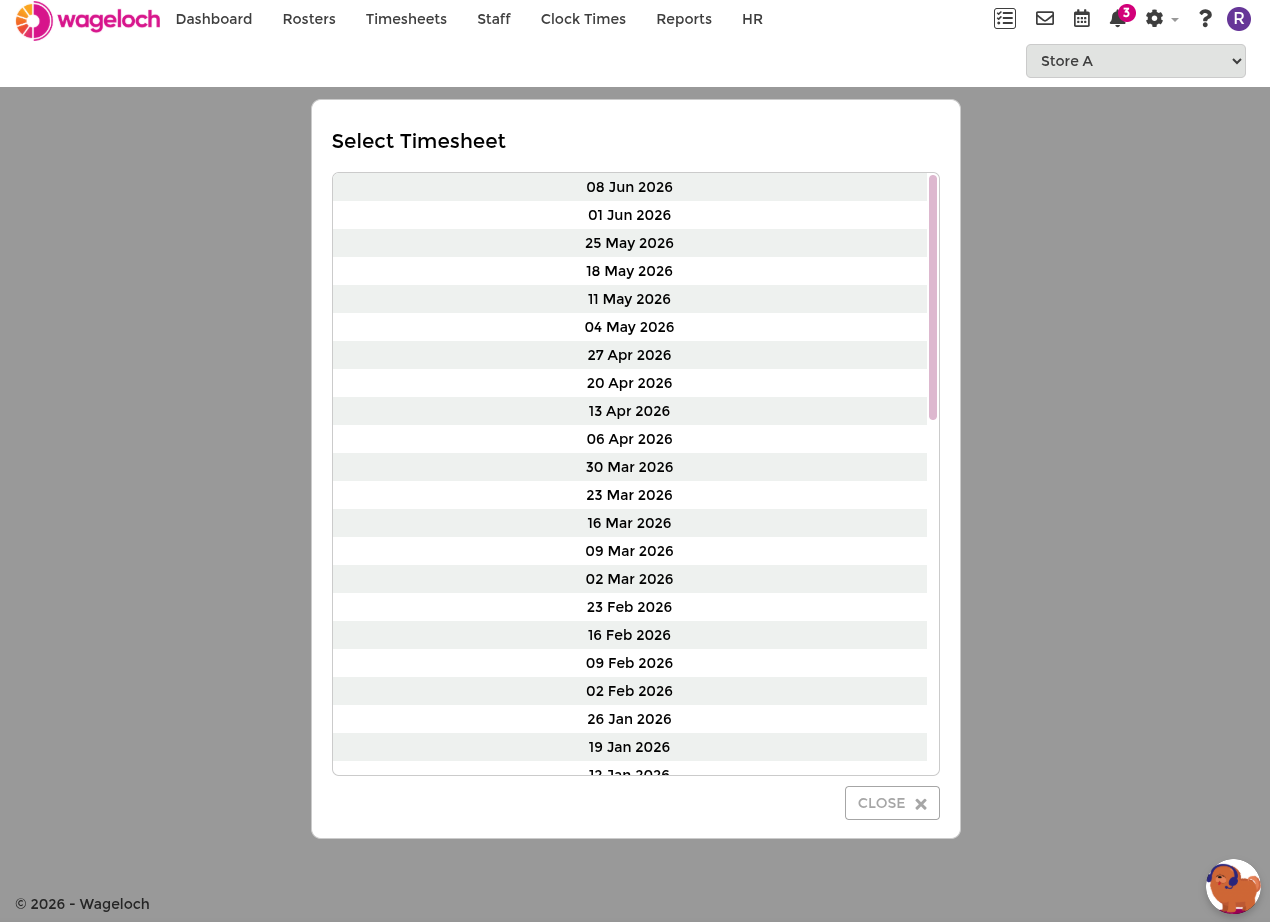
Select a timesheet period to view the latest timesheet update details.
Common troubleshooting uses
Audit is most useful when you need to:
- Confirm who changed a record before follow-up.
- Verify whether an update was made before payroll submission.
- Validate the latest edit timestamp during incident review.
Need more detail?
If you need a deeper audit investigation, contact Wageloch Helpdesk and include:
- The affected employee, roster period, or timesheet period.
- The approximate date and time of the issue.
- Screenshots of the audit result where possible.