
Managing Open Shifts
5 min read
Managing Open Shifts
Open Shifts sends unassigned shifts to eligible employees instead of you assigning each shift manually. After sending, you review responses, approve an employee, or cancel the shift — depending on whether you chose First to accept (automatic assignment) or Manager approval (manual review) when sending.
Before you start
- Confirm you have access to the roster and permission to manage or fill unassigned shifts.
- Confirm the shifts you want to offer are unassigned in the roster.
- Confirm employee eligibility and availability information is current.
- Decide whether each shift should use First to accept or Manager approval.
- Have the email address ready for open-shift response notifications, if your process requires one.
How to send an open shift
- Open the roster.
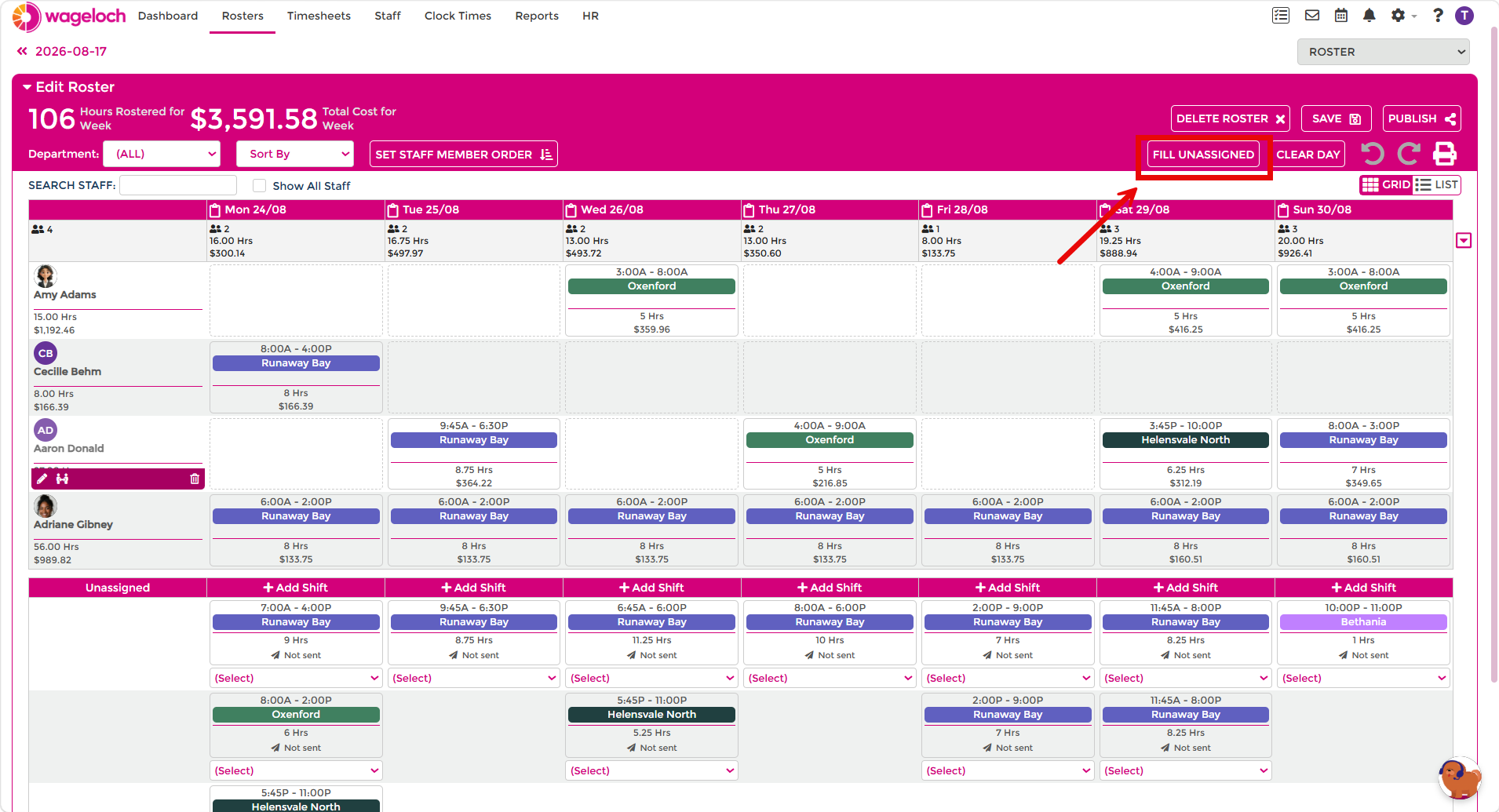
- Select FILL UNASSIGNED.
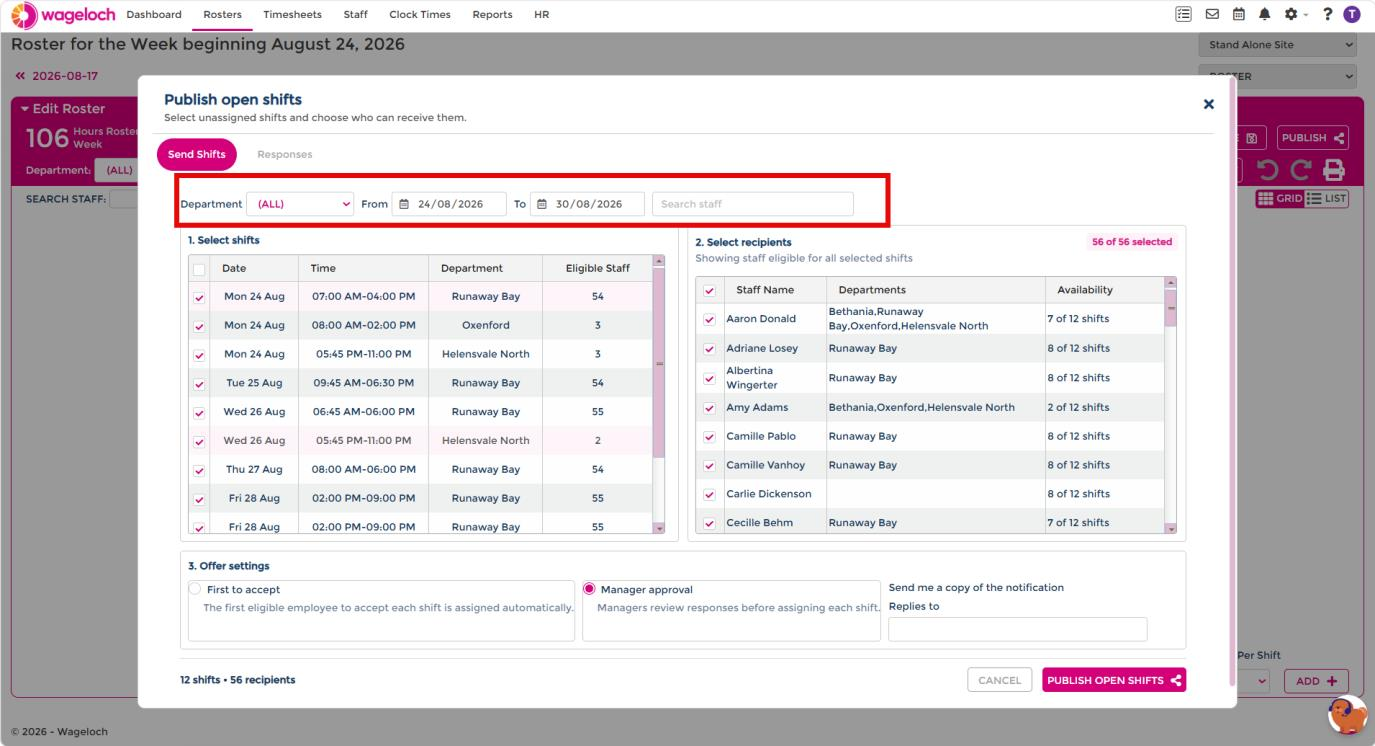
- On the Send Shifts tab, use the department filter, date filter, or employee search to narrow the list.
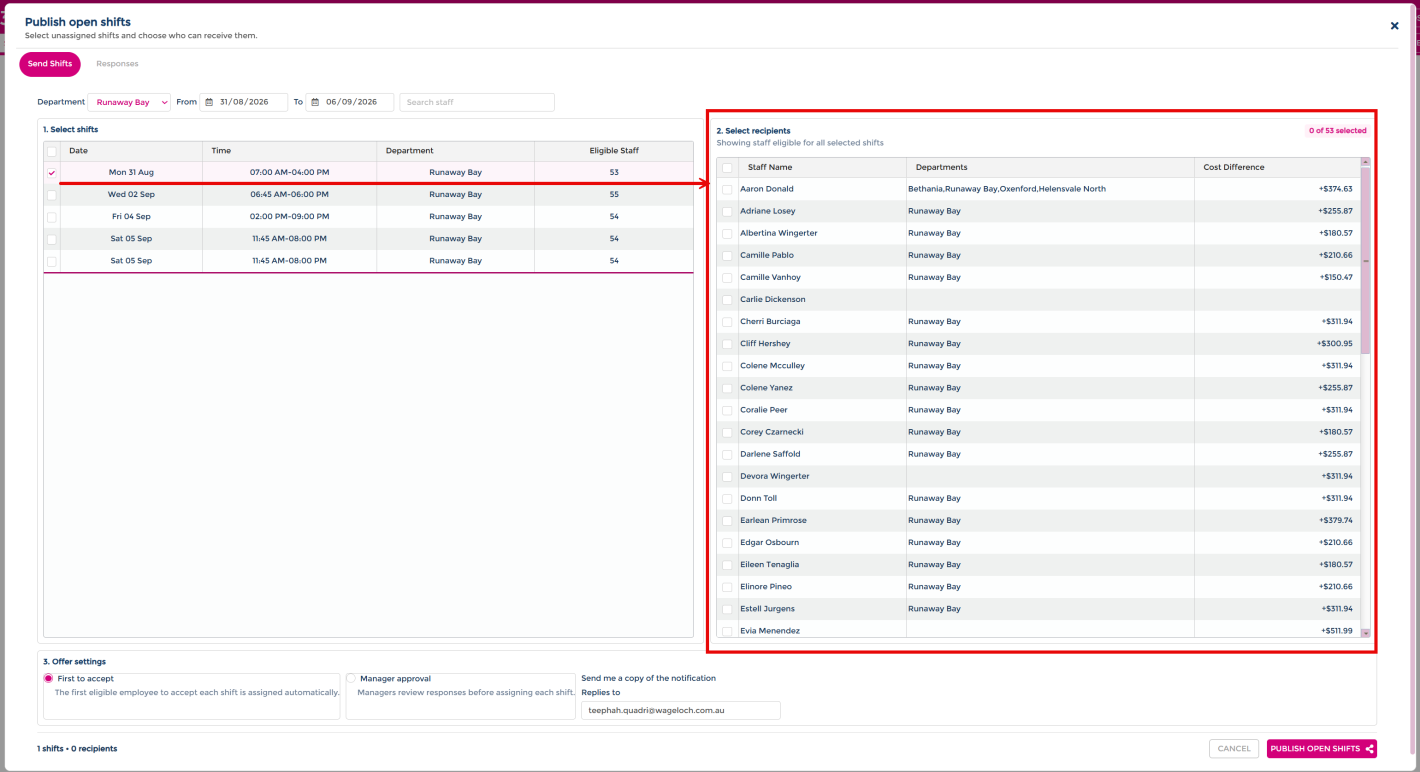
- Select a shift to see which employees are eligible, including the cost difference between them.
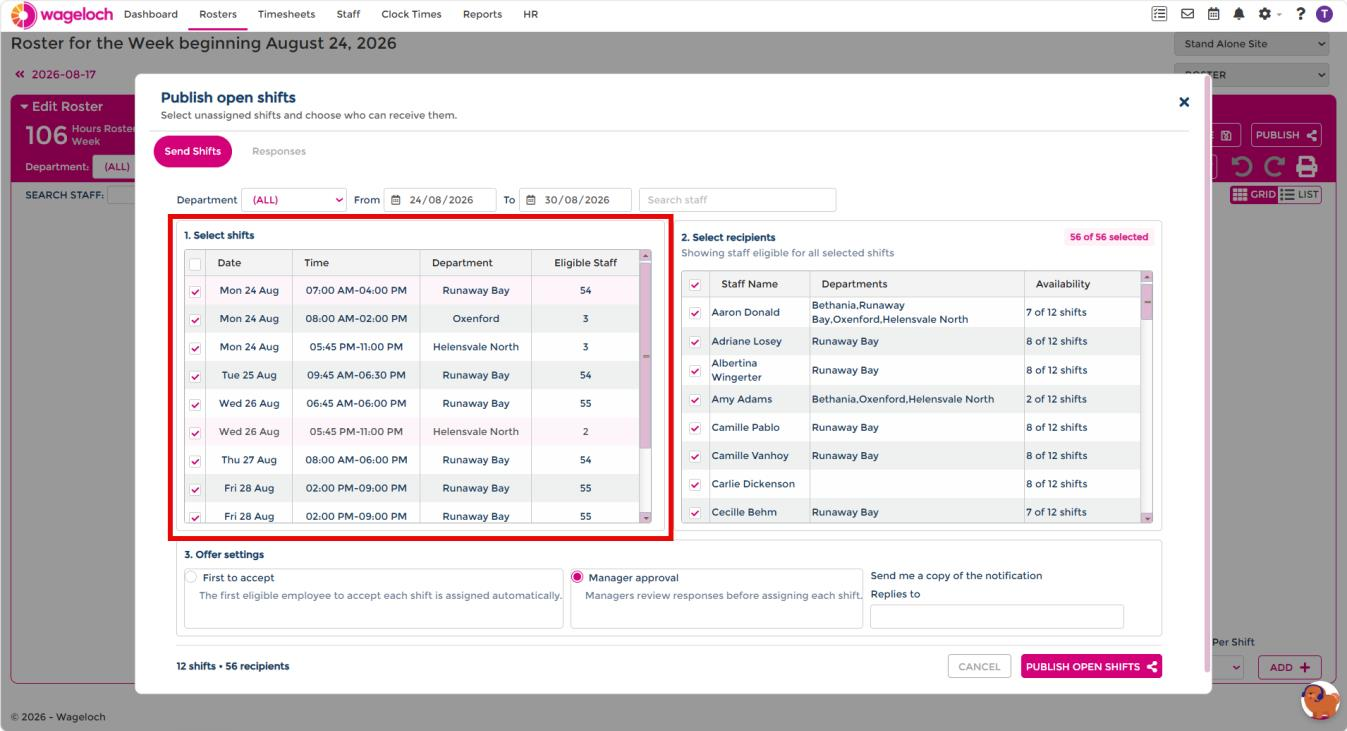
- Select one or more shifts you want to offer.
- Select the eligible employees who should receive the notification.
- Choose the allocation method: First to accept or Manager approval.
- Enter the notification email address, if required.
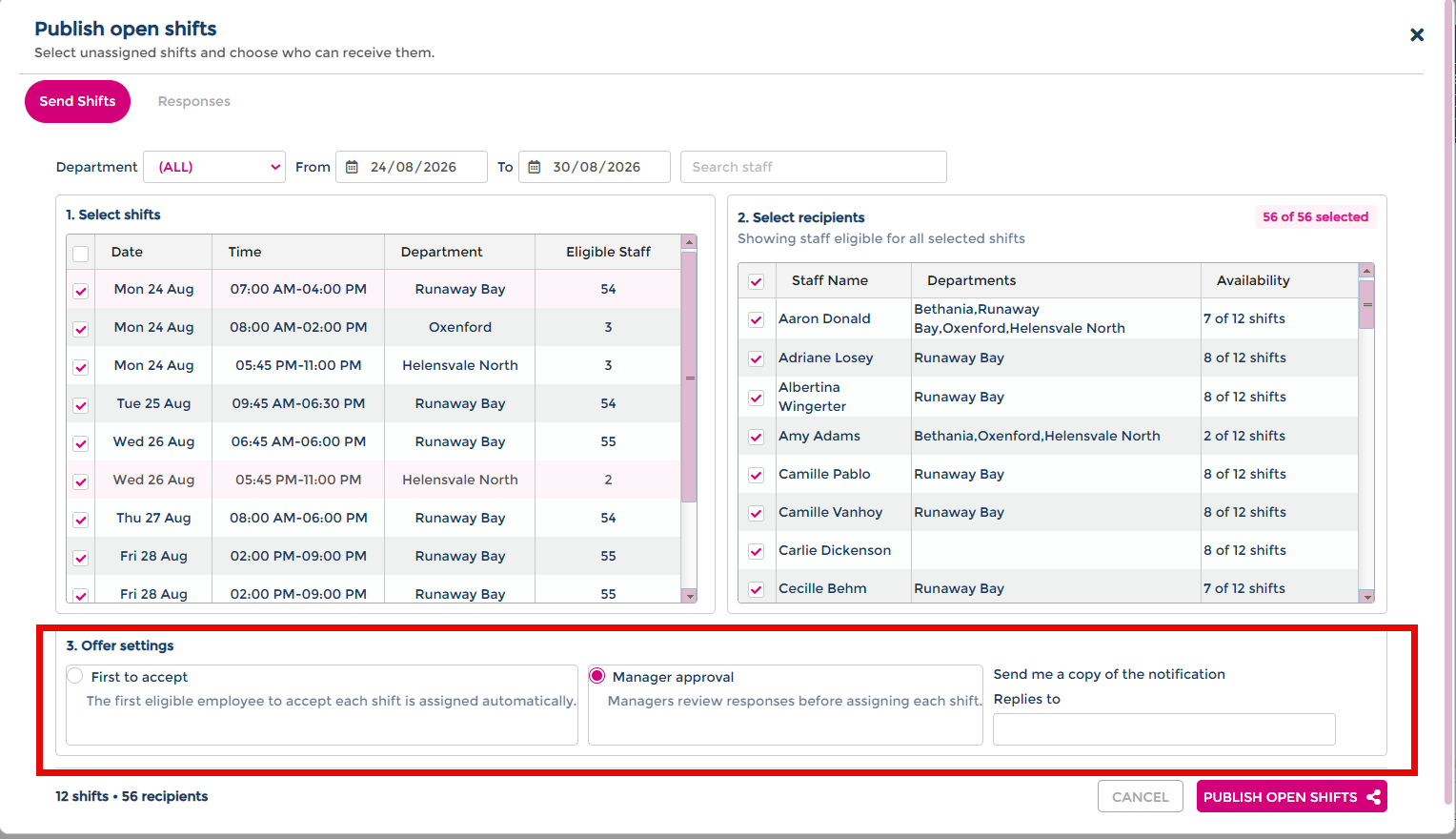
- Select PUBLISH OPEN SHIFTS.
Assignment depends on the allocation method
First to accept shifts are assigned automatically as soon as an eligible employee accepts. Manager approval shifts stay unassigned until you review a response and approve an employee.
Review and approve responses
For Manager approval shifts, come back here to review responses and approve an employee. For First to accept shifts, assignment happens automatically and this section does not require action.
- Open Fill Unassigned from the roster.
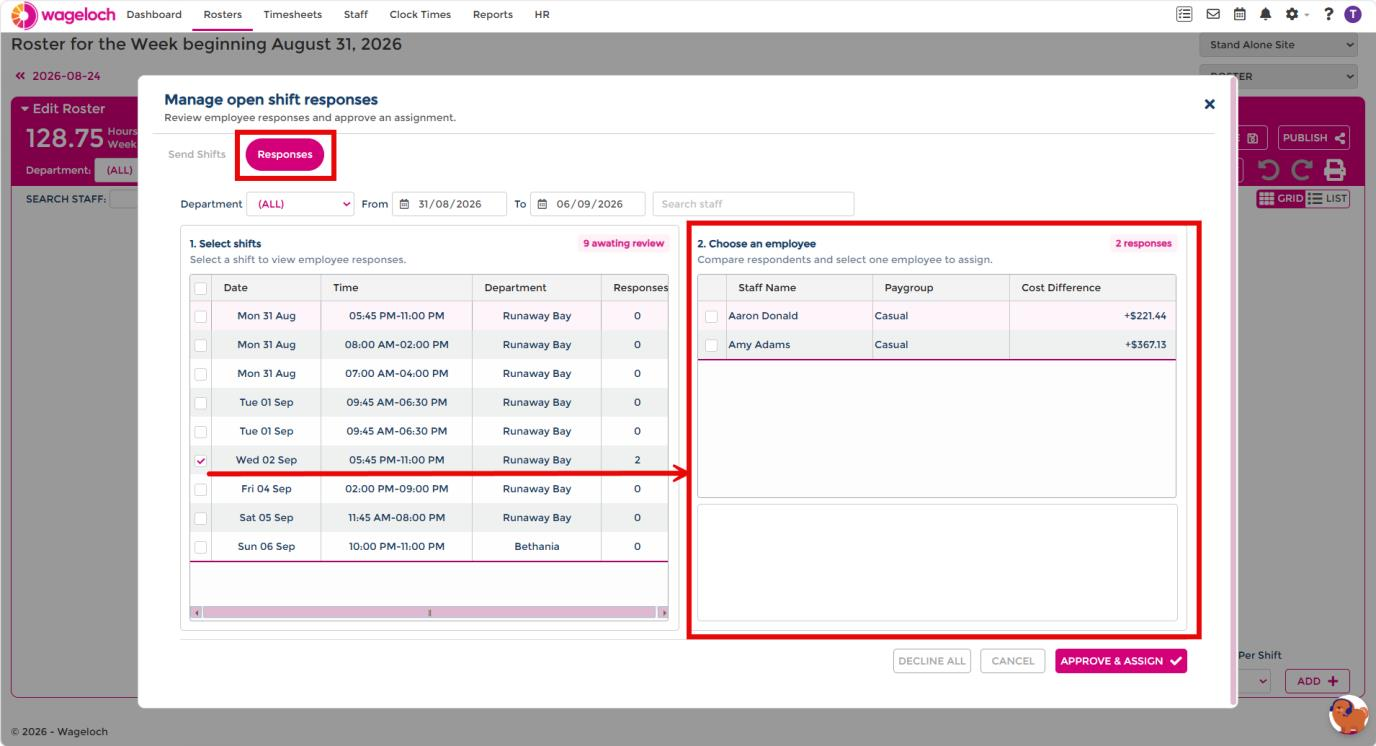
- Select the Responses tab.
- Locate the relevant open shift.
- Review the employees who have responded and expressed interest.
The response view allows you to compare employees, including the displayed cost difference, eligibility, availability, and current roster commitments before choosing who should receive the shift.
Approve and assign an employee
- Select the employee you want to assign to the shift.
- Click APPROVE & ASSIGN.
- Confirm that the shift has been assigned successfully.
If the employee is no longer available
An employee may become unavailable between responding to an open shift and you approving it — for example, they may have accepted another shift that conflicts.
- Close or dismiss the conflict message.
- Return to the available responses.
- Select another eligible employee.
- Click APPROVE & ASSIGN again.
Cancel a sent open shift
To cancel an open shift that has already been sent:
- Open Fill Unassigned from the roster.
- Go to the Responses tab.
- Select the shift or shifts you want to cancel.
- Select DECLINE ALL.
The shift shows Not sent in the roster once cancelled.
Check the roster
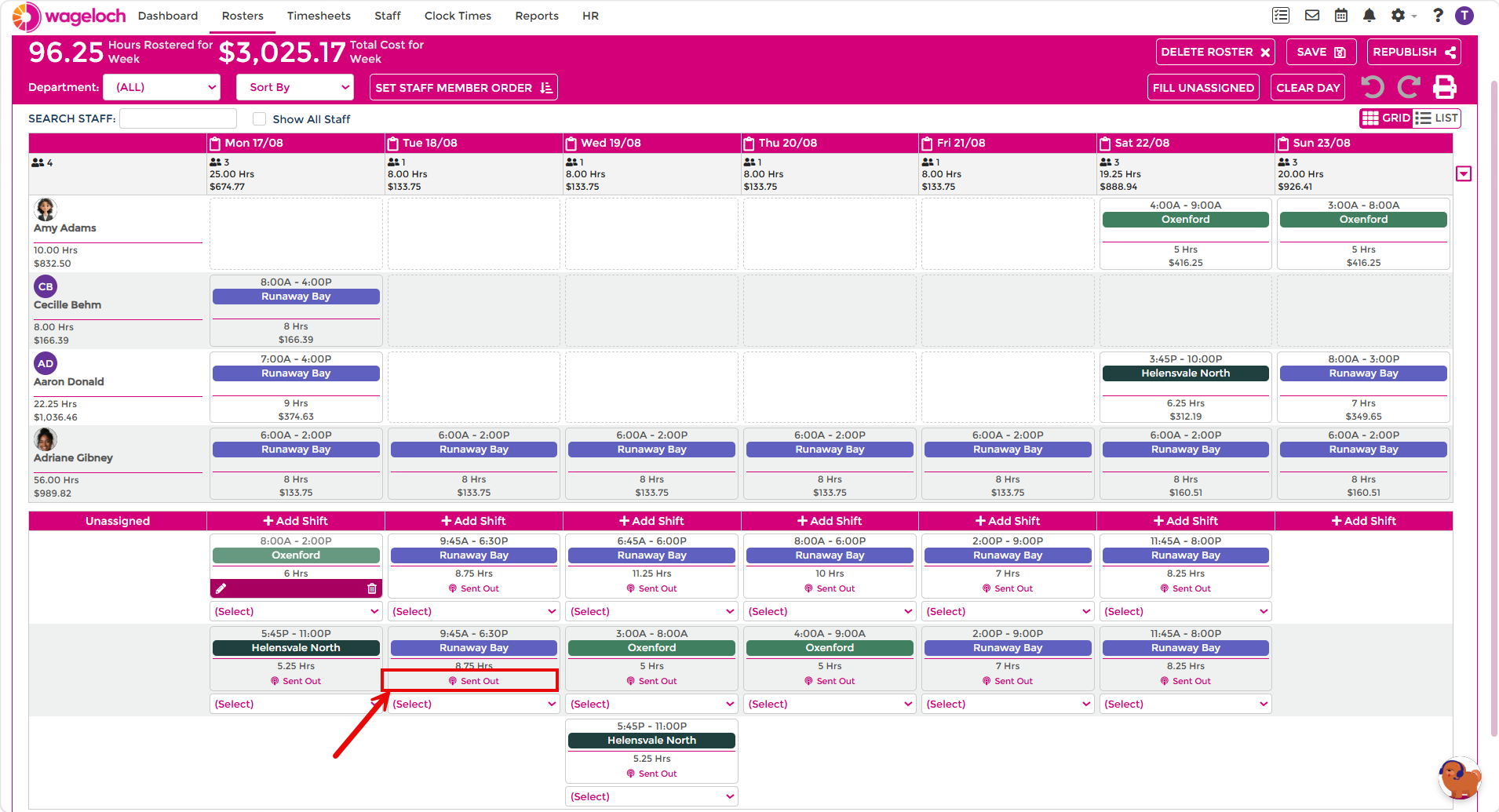
After approving an employee or cancelling a shift, verify the result in the main roster:
- Return to the Roster grid.
- Refresh the page if required.
- Locate the relevant date and shift.
- Confirm that the selected employee is now assigned, or that a cancelled shift shows Not sent.
First to accept shifts update automatically after the employee accepts. Manager approval shifts update after you approve and assign an employee. Shifts sent to employees show a Sent Out indicator, while shifts not sent show Not sent text.
Troubleshooting
An employee cannot accept an open shift
- Check whether the shift overlaps with an existing shift in their roster.
- Confirm the employee is still eligible for the shift.
- If the shift cannot be worked, the employee should decline it.
An employee is not shown as eligible for a shift
- Check the selected department and date filters.
- Confirm the employee is eligible and available for the selected shift.
- Select the individual shift to refresh the list of available employees.
A manager cannot assign a responding employee
- Check whether the employee now has a conflicting rostered shift.
- Return to the response list and select another eligible employee if available.
- Confirm the assignment again from the roster after approval.
Responses are not visible for a First to accept shift
First to accept does not require manager approval because the first valid acceptance is assigned automatically. Use the roster to confirm that the accepted shift has been assigned.
Always confirm the final assignment in the roster
If a shift cannot be assigned because of a conflict, review the remaining eligible responses and choose another employee. Verify the assignment completes before considering the shift filled.