
Timesheets
2 min read
Timesheets
Open Timesheets to review and update recorded work time.
Review timesheet periods
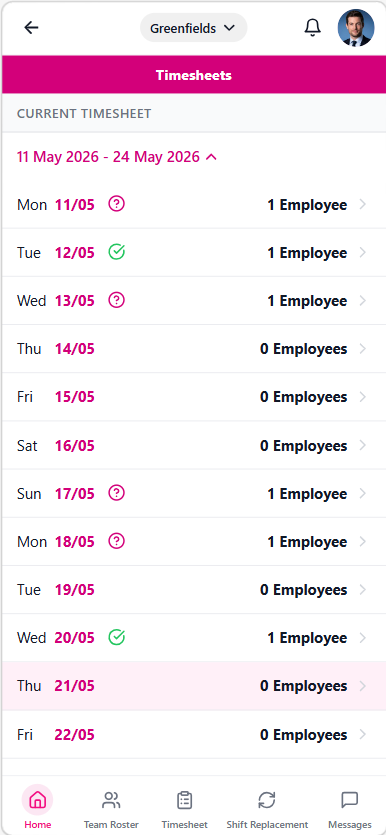
The main timesheet screen shows current and previous periods, with day-level status indicators.
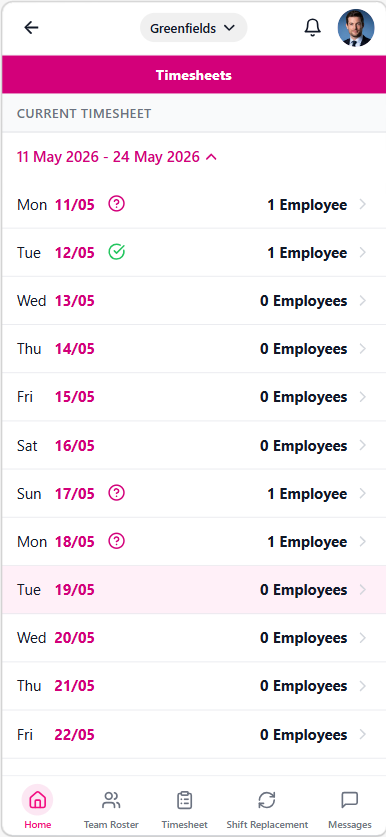
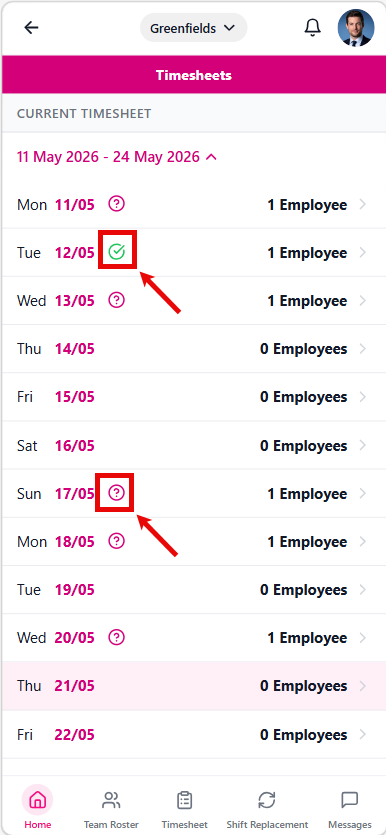
Status indicators in the period view:
- A green tick for finalised days.
- A question mark for saved but not finalised days.
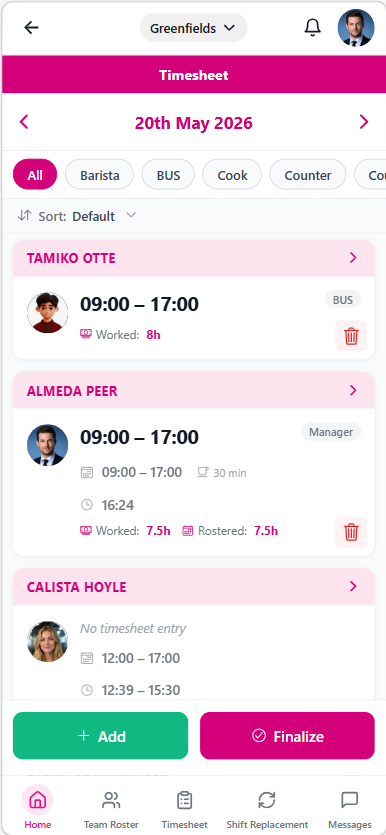
Review a timesheet day
Open a day to review all employee entries, search staff, sort records, and open each employee entry.
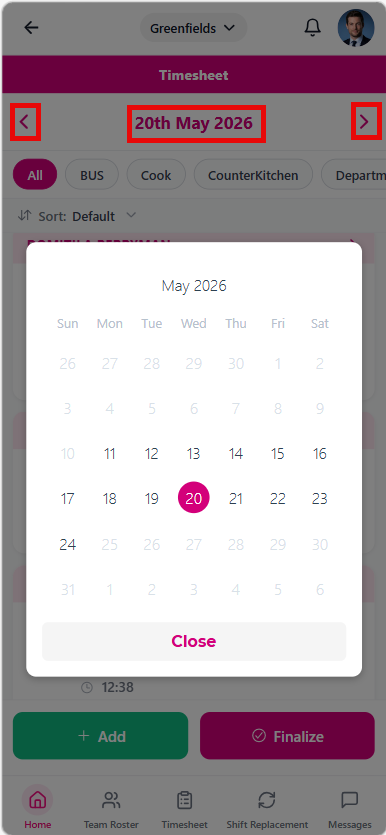
Use the date picker to jump to another day.
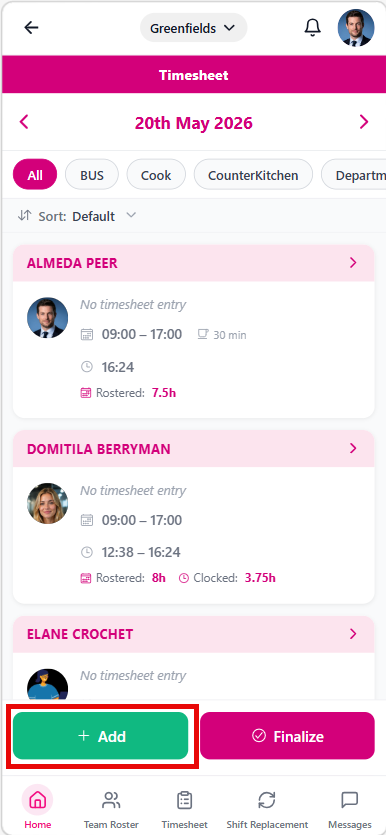
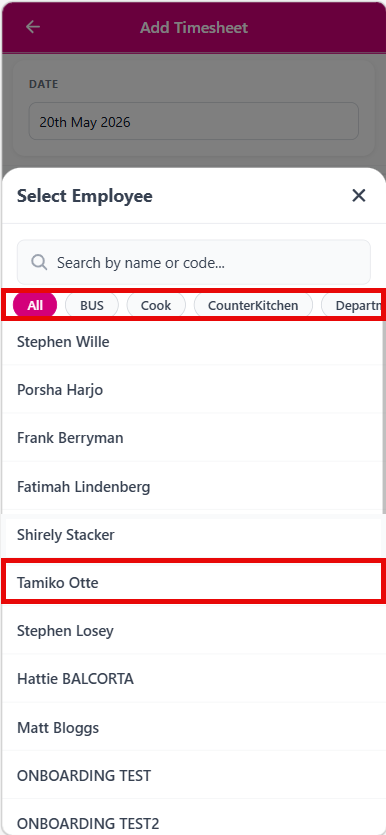
Add an employee timesheet entry
- Open Timesheets and select the day.
- Tap Add.
- Select the employee.
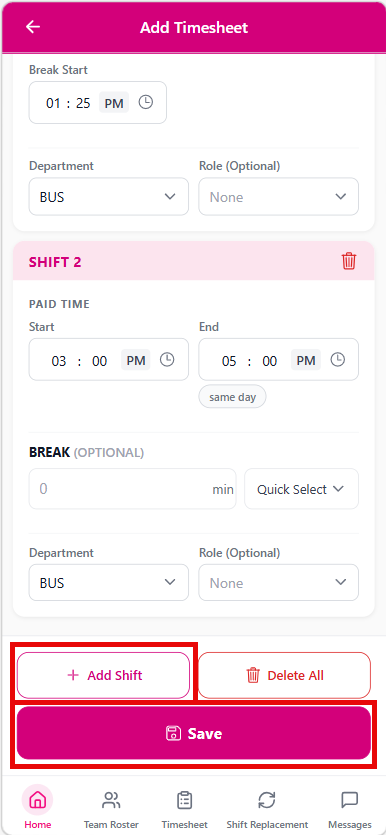
- Enter department and role.
- Add one or more paid shifts.
- Tap Save.
Edit or delete timesheet entries
Open an employee card to edit paid times, department, role, and shifts.
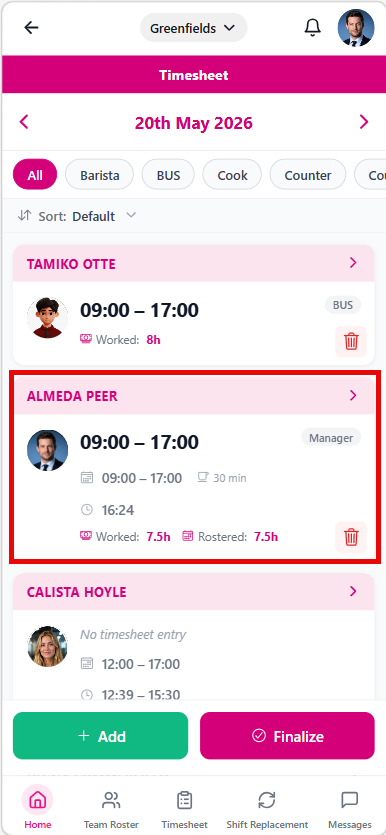
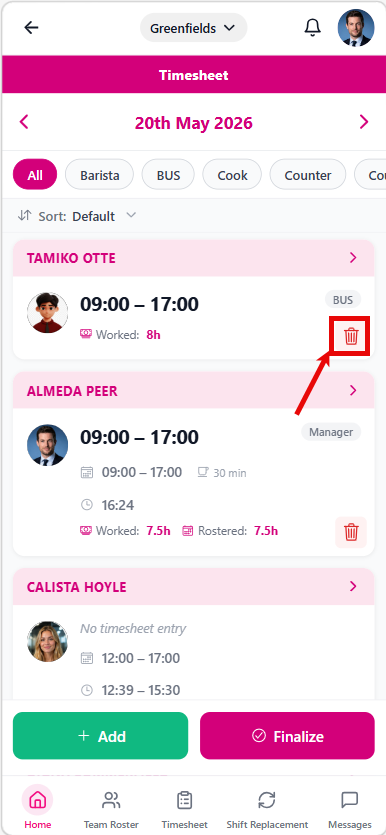
You can also delete individual shifts or remove all shifts for that employee entry.
Finalise and unfinalise a day
- Open a day from the selected period.
- Review all entries.
- Tap Finalise to lock the day.
- If edits are required later, tap Unfinalise first, then make your updates.
IMPORTANT
When a day is finalised, you cannot edit employee entries until you unfinalise that day.