Optional entitlements and allowances
4 min read
Optional entitlements and allowances
Allowance configuration depends on who is eligible, when the payment should occur, and whether a manager or employee triggers it manually.
Why allowance setup matters
Before configuration, confirm:
- whether the allowance is always applied or only in certain shifts
- whether all staff receive it or only selected employees
- whether values are fixed, alternate, or entered at the time of use
These answers determine which allowance behaviour to use.
Allowance behaviour types
Automatic calculation
- Built into pay group behaviour.
- Calculates automatically in timesheets (for example per hour, per day, per shift, or per week).
- Best for all-the-time entitlements.
Example
Leave loading for all eligible full-time and part-time employees.
Optional entitlement
- Usually linked to system roles and pay groups.
- Only paid when enabled for eligible staff on the staff card.
- Can be configured for always-applied or occasional scenarios.
Example
Leading Hand allowance paid only to selected employees.
Automatic calculation + optional entitlement
- Pay groups configure the automatic behaviour.
- Payment still requires staff-level eligibility to be enabled.
- Useful when an allowance is recurring, but only for specific staff.
Example
First Aid allowance calculated each pay period, but only for enabled employees.
Automatic calculation + flagged hours
- Calculation triggers from selected timesheet columns.
- Triggers only when hours appear in those flagged columns.
- Often used for always-available allowances that depend on specific work types.
Example
Workers retention payment calculated on selected ordinary and leave columns.
Optional allowance
- Applied manually to a shift.
- Can be configured as yes/no or number input.
- Useful for sometimes scenarios such as reimbursements or occasional shift payments.
Example
Delivery allowance entered as a supplied value on selected shifts.
Award configuration approach
During implementation, the team maps each allowance to the required behaviour and rate method.
Common rate methods:
- fixed rate (same for all eligible staff)
- alternate rate (can differ per employee)
Common controls include caps per day, week, or pay period, and calculations based on selected columns.
Configure optional allowances in settings
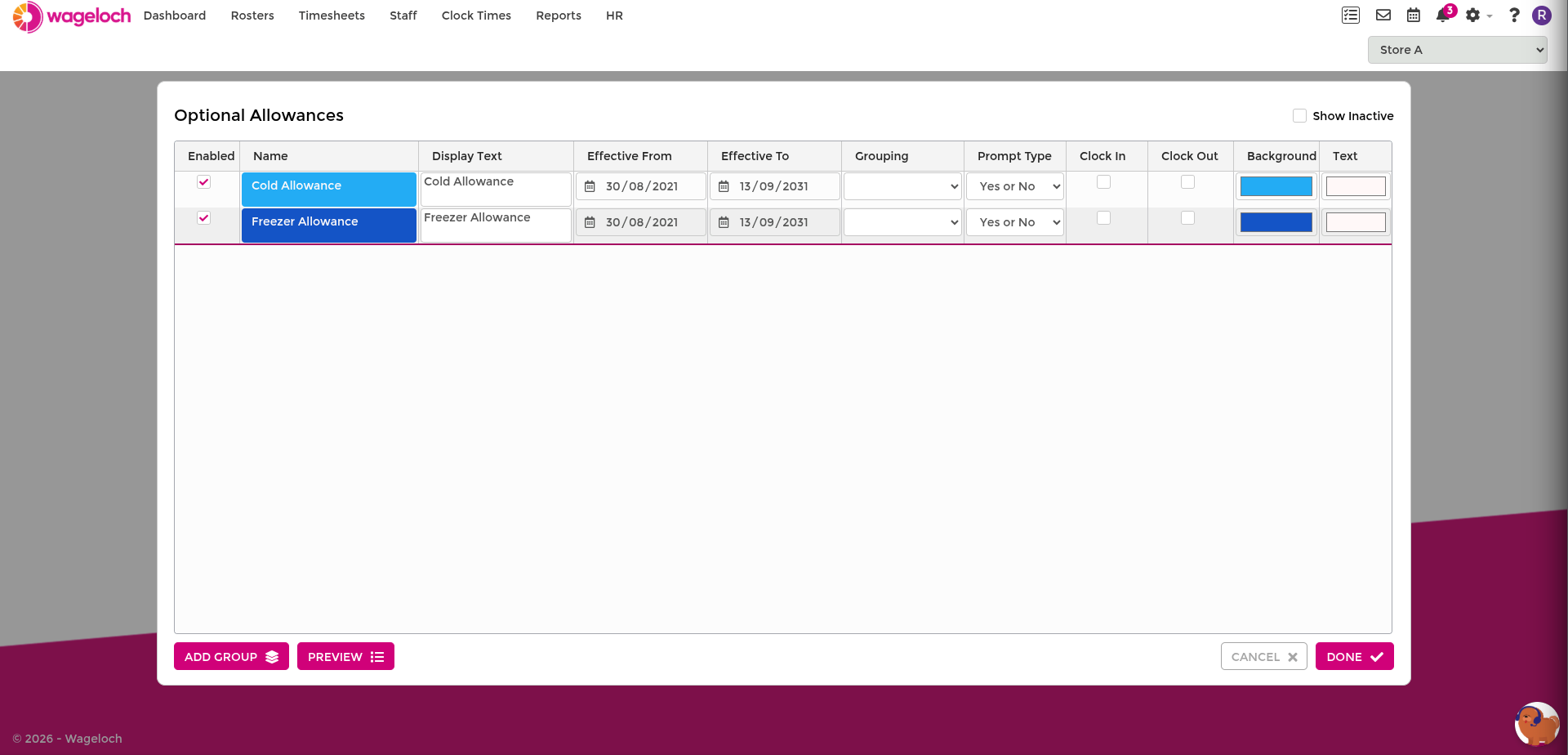
- Open Settings > Optional Allowances.
- Check each allowance row is set up correctly.
Key fields:
- Enabled: Turns the allowance on or off without deleting its configuration.
- Name: Internal setup name used in award configuration and administration.
- Display Text: Label shown to users when selecting allowances on shifts or at clocking.
- Effective From / Effective To: Date range where the allowance is valid for calculation.
- Grouping: Organises related allowances together in selection menus.
- Prompt Type: Controls entry style, usually yes/no or number input.
- Clock In / Clock Out: Allows employees to select the allowance during clock events.
- Background / Text: Sets allowance colours for readable display in roster and timesheet views.
WARNING
Set Effective From to a valid date before allowance usage. If this date is missing or too late, the allowance may not calculate.
Apply optional allowances in rosters and timesheets
Managers most often apply optional allowances in timesheets. Staff cannot see optional allowances in published roster views.
A successfully applied allowance shows + oAllow on the shift.
Added by manager or admin user
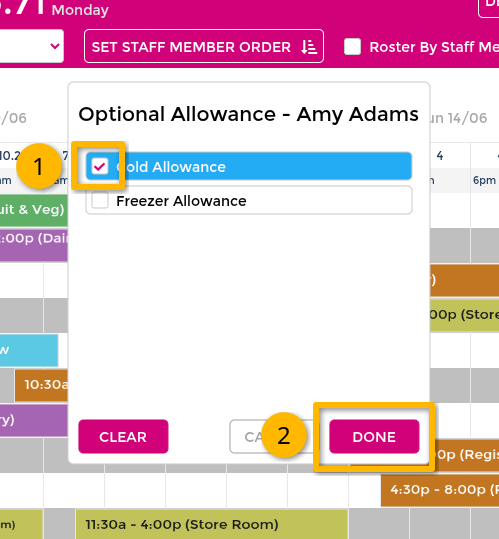
- Open the target roster or timesheet.
- Right-click the shift.
- Select Optional Allowance.
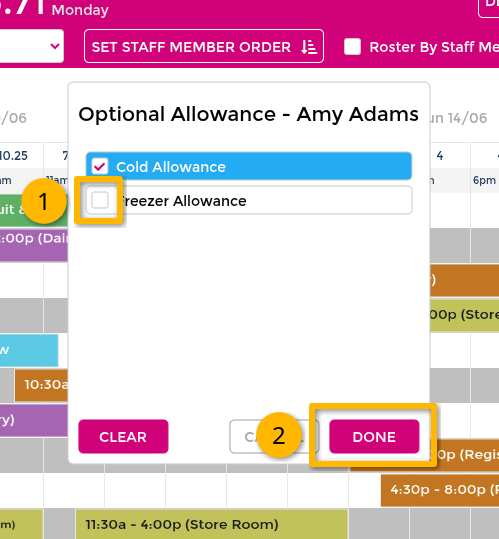
- Tick one or more allowances.
- Enter values where the prompt type is Number Input.
- Select Done.
Added by employee at clock in/out
If enabled in settings, employees can select allowances during clock in or clock out.
- Managers can later confirm or correct entries in Completing Timesheets.
- Employee-added allowances generally apply to the full shift.
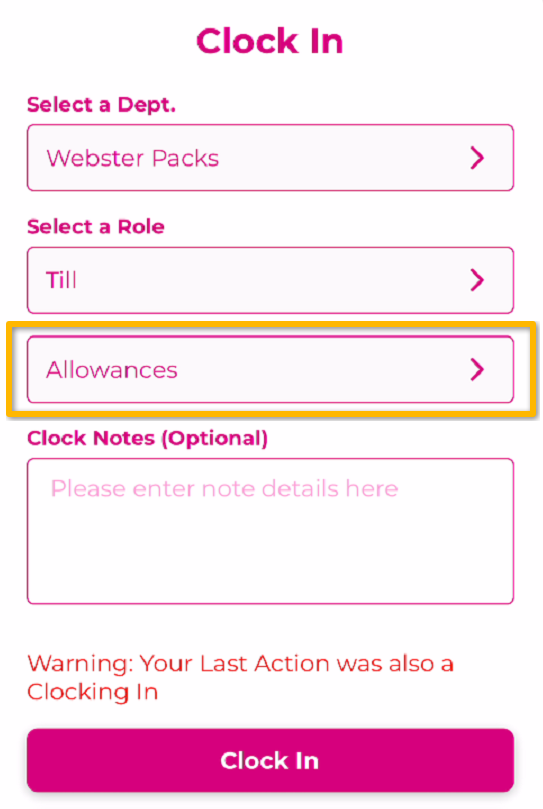
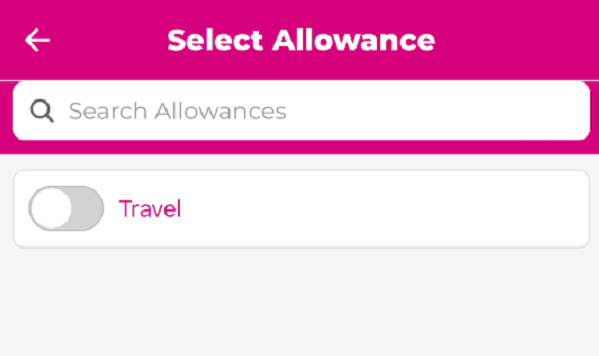
Mobile App clocking
- Open the Wageloch mobile app.
- Select Clock In or Clock Out.
- Select allowances from the prompt.
- Enter values where prompted.
- Confirm clock action.
Time Kiosk clocking
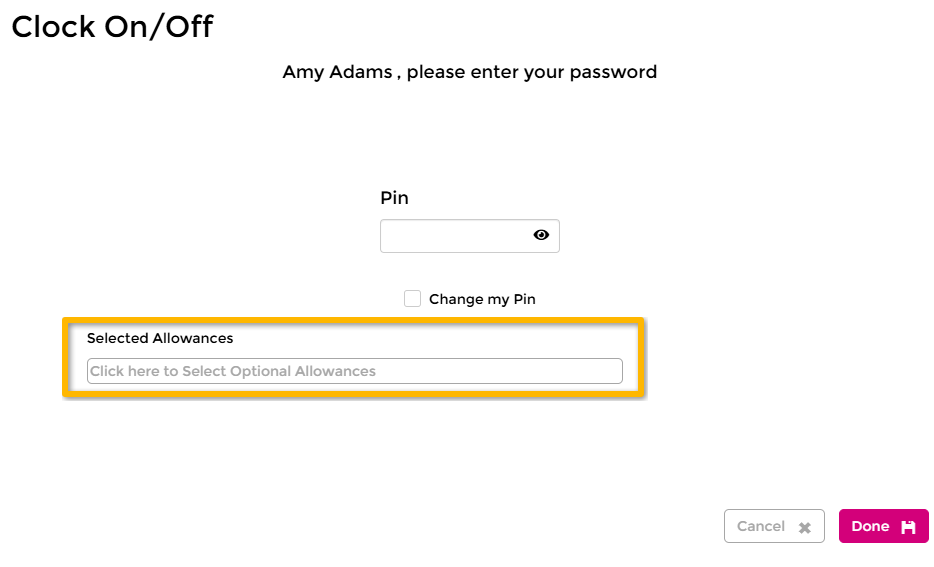
- Start clock in or clock out on Time Kiosk.
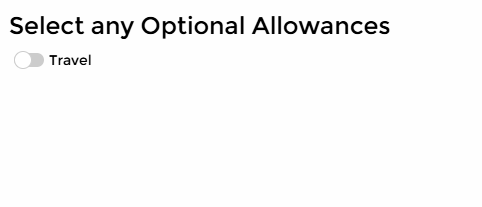
- Select allowances from the prompt.
- Enter values if prompted.
- Select Done.
Remove or correct an allowance on a shift
- Open the roster or timesheet.
- Right-click the shift.
- Open Optional Allowance.
- Untick allowances that should not apply.
- Select Done.
INFO
Manager-applied allowances can be targeted to a specific shift block. Employee-selected allowances at clocking usually apply to the whole shift.