
Process a pay run
7 min read
Process a pay run
Once timesheets are submitted, use Wageloch Payroll to review calculated pays, adjust payslips if needed, and complete the pay run through to ATO submission.
Before you start
- Confirm the relevant timesheets have been submitted for the pay period.
- Check whether you access Wageloch Payroll from site level or Central Payroll level — the entry point differs.
- Have your nominated bank account details ready if you plan to generate the bank file in this session.
Open the pay run
From site level:
- If you submitted the timesheet and have access to Wageloch Payroll, the pay run opens in a new tab automatically.
- If you didn't submit the timesheet, or you're returning to finish a pay run, select Wageloch Payroll from the top menu.
From Central Payroll level:
- Store names appear under Ready to Process once sites have submitted their timesheets.
- Select Export to Payroll (reallocate hours first if needed).
- Wageloch Payroll opens in a new tab.
- You can also reopen the pay run afterwards by selecting Wageloch Payroll from the top menu.
Review calculated pays
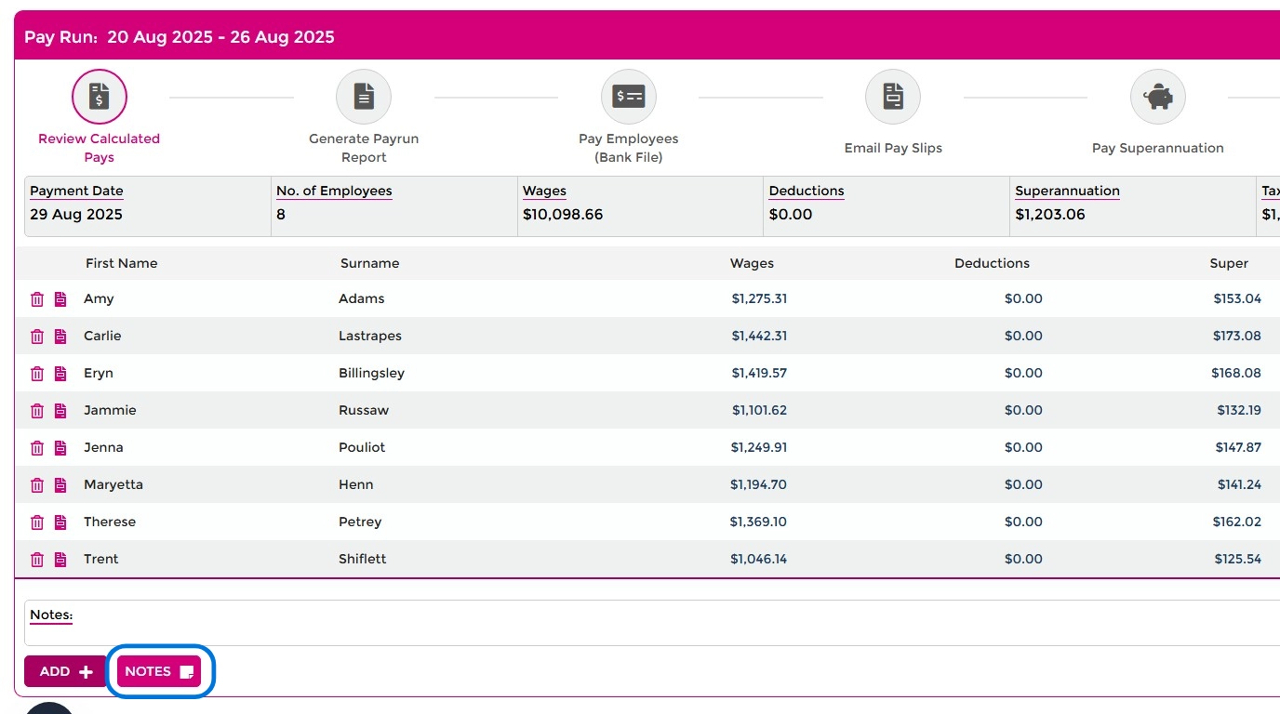
The pay run shows staff names submitted in the timesheet, along with a summary of gross wages, deductions, superannuation, tax, and net pay.
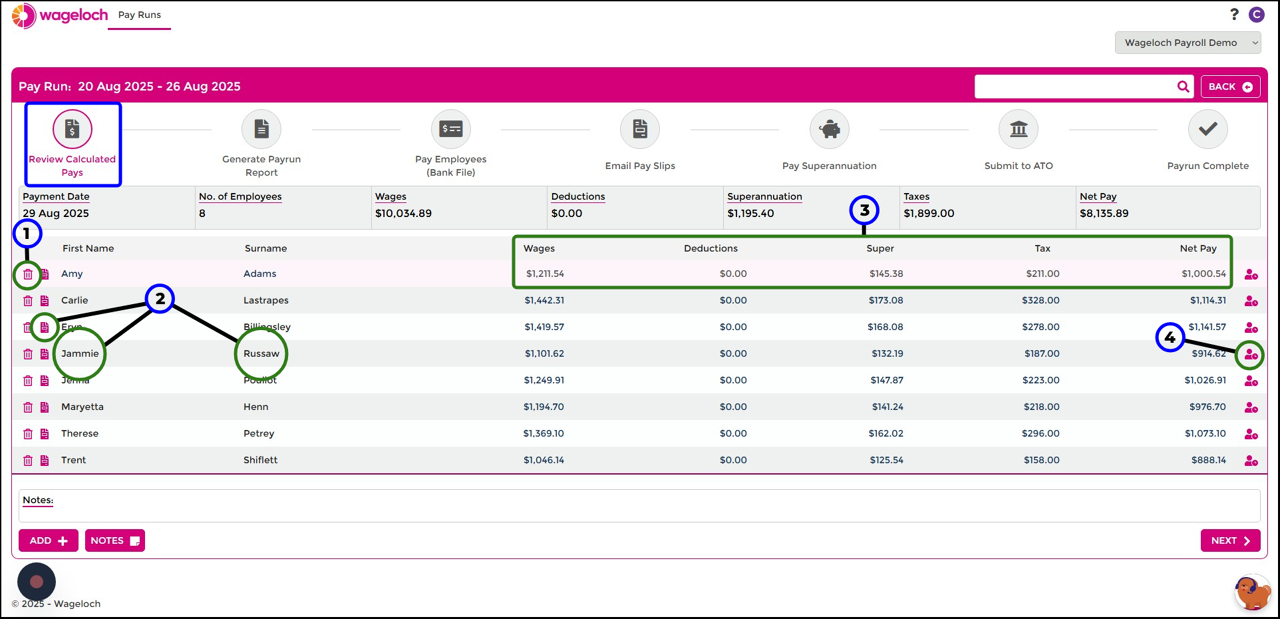
From this screen, you can:
- Select the page icon or an employee's name to open and edit their payslip.
- Select the trash icon to delete an employee from the pay run.
- Select the people icon to view the timesheet that was submitted for that employee.
- Select Notes at the bottom of the screen to add a note visible to all staff on their payslip.
View and adjust a payslip
Opening a payslip shows the employee's gross and net wages, superannuation, and tax, calculated from the submitted timesheet hours and the award configuration. Automated deductions, superannuation, salary sacrifice, and tax withheld appear further down the page.
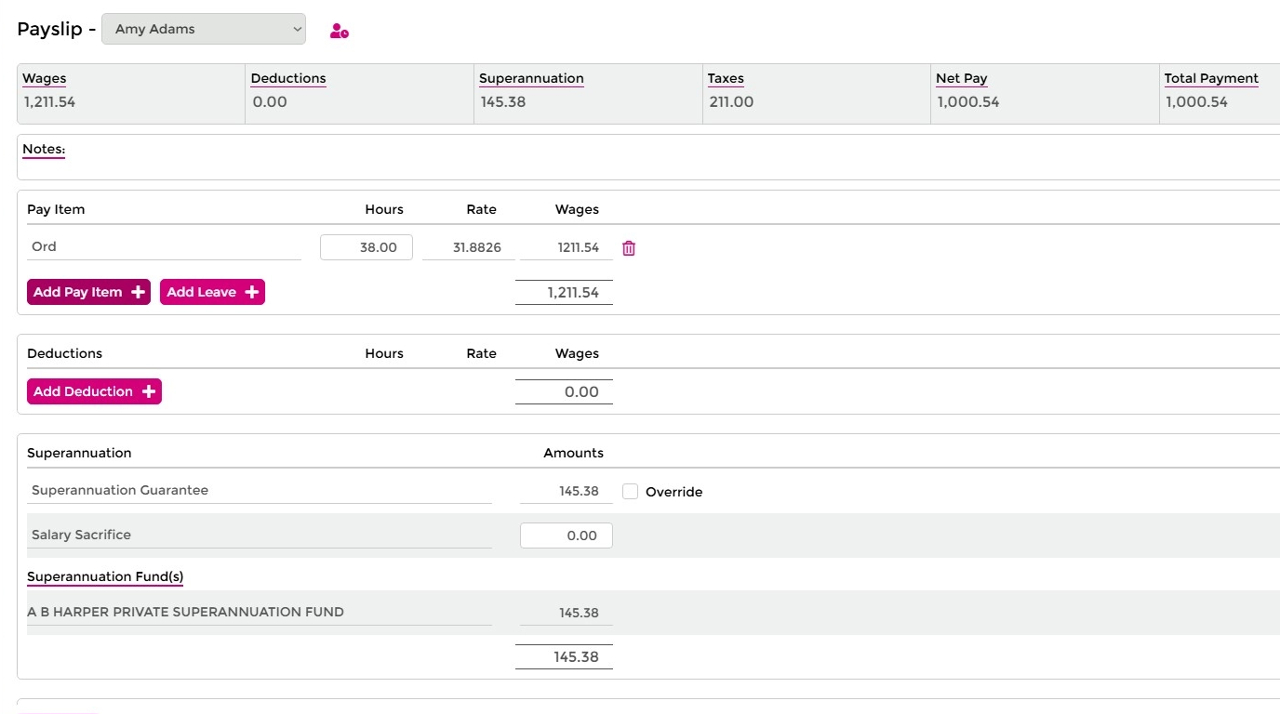
Notes on a payslip
Use Add Note at the bottom left of the payslip to add a message visible only to that employee, separate from the pay-run-wide note.
Add a pay item or leave
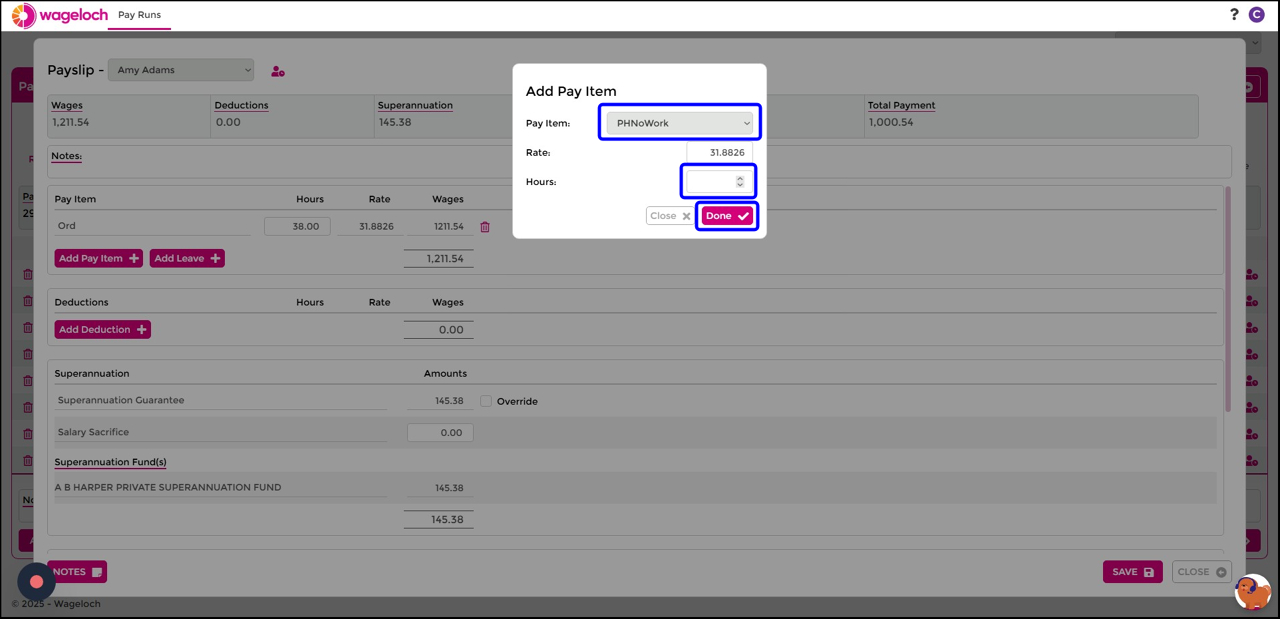
If hours are missing, or you need to backpay an employee:
- Select Add Pay Item or Add Leave.
- Select the pay item from the dropdown. The rate is usually calculated from the award setup.
- Enter the amount of hours or dollars required.
- Select Done to save. Automatic calculations, such as tax, update accordingly.
- Select Save to finish, then Close to return to the pay run.
Edit an existing pay item
To adjust hours on a pay item that already exists, change the value in the Hours field, then select Save and Close.
Add an employee to the pay run
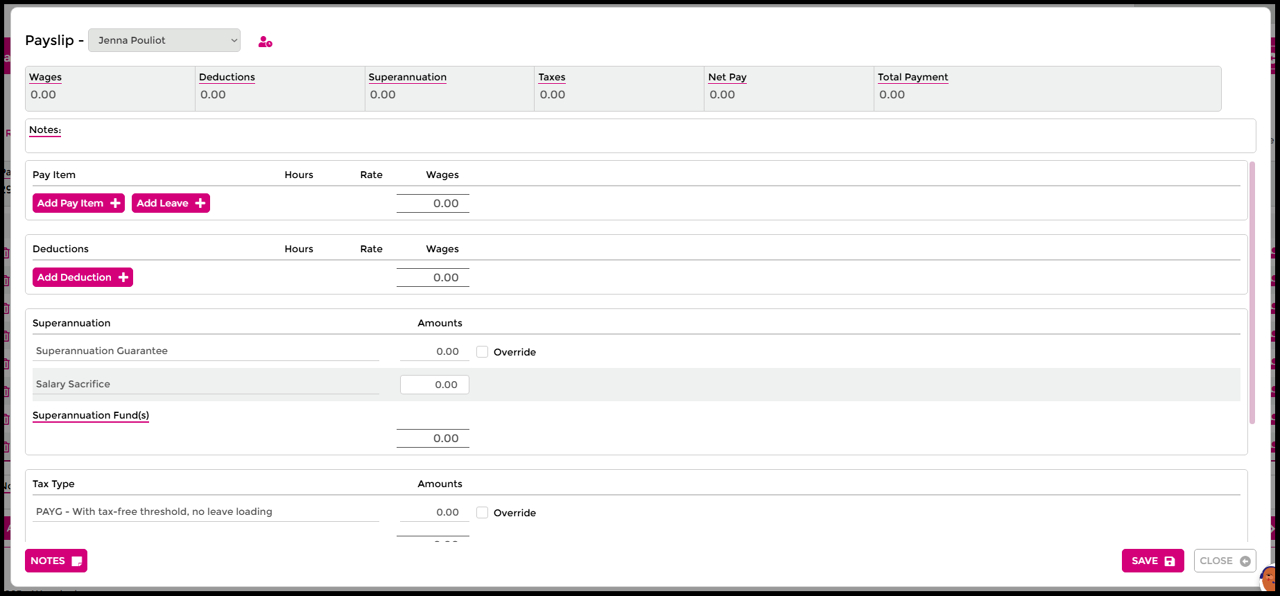
To add an employee who wasn't included in the submitted timesheet:
- On the pay run screen, select Add at the bottom left.
- Select the employee to add.
- Select Done. Their payslip opens immediately.
- Add any pay items, leave, allowances, or hours required.
- Select Save, then Close to return to the pay run.
Add a note to the pay run
To add a note visible to every employee on their payslip:
- On the pay run screen, select Notes at the bottom left.
- Enter the message.
- Select OK to save.
Generate the payrun report
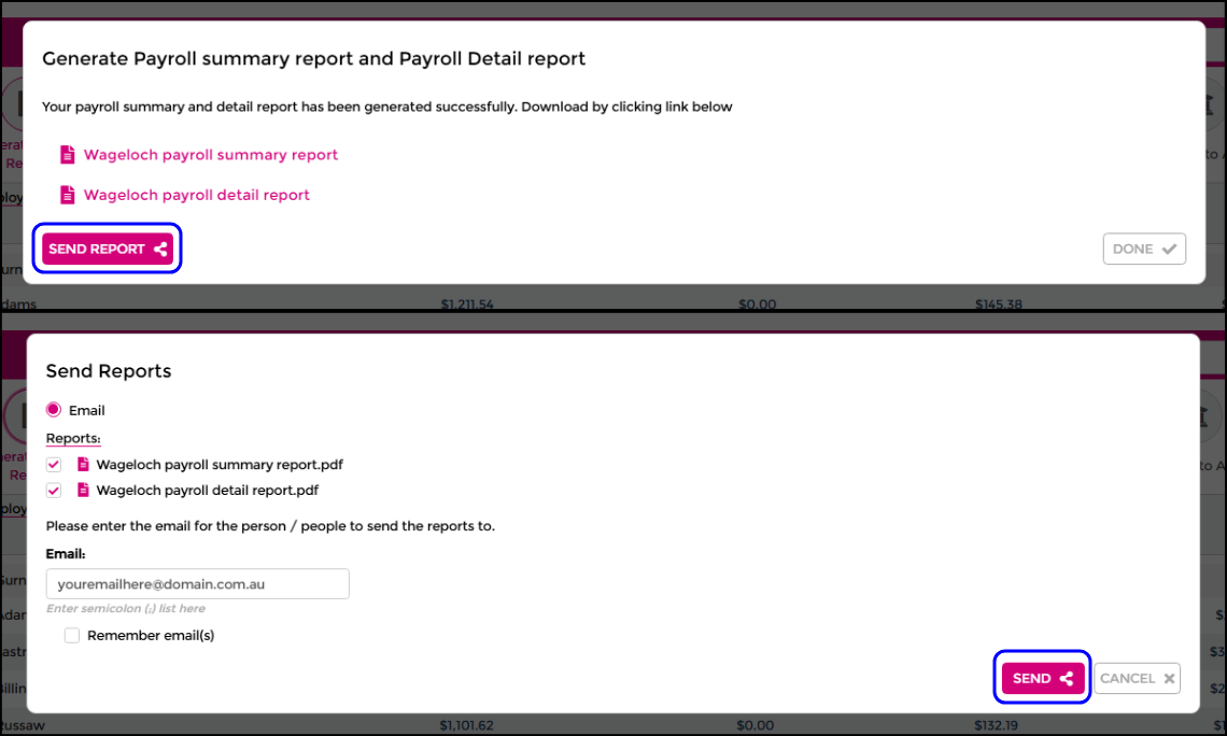
- When ready to proceed, select Next or Generate Payrun Report.
- Confirm the prompt asking whether all payslips are accurate and correct — select Yes to proceed, or No to return and make changes.
Timesheet export issues
If the timesheet export result in your pay run looks wrong, site staff can unsubmit the timesheet, make the adjustments, then submit it again. This overwrites any information already in the pay run.
- Select Done after downloading the Payroll Summary and Payroll Detail reports, or select Send Report to email them to an address you enter.
Pay employees (bank file)
To generate the ABA file to send to your banking institution:
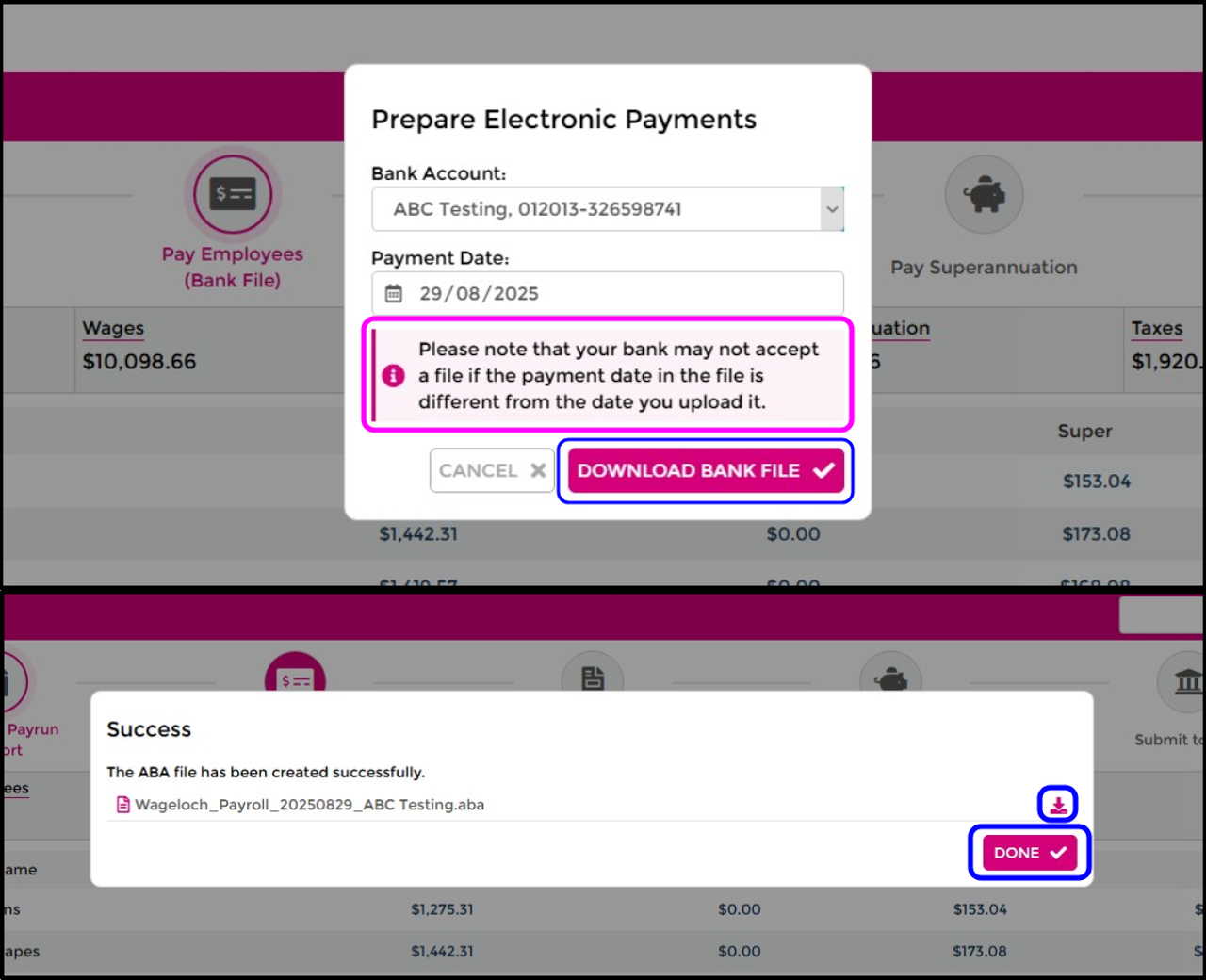
- Select Next, or select Pay Employees (Bank File).
- Confirm the nominated bank account and the desired payment date.
- Select Download Bank File, then select the file to download it.
- Select Done to finish.
Payment date must match
Your bank may not accept the file if the payment date in the file differs from the date you upload it.
Email or download payslips
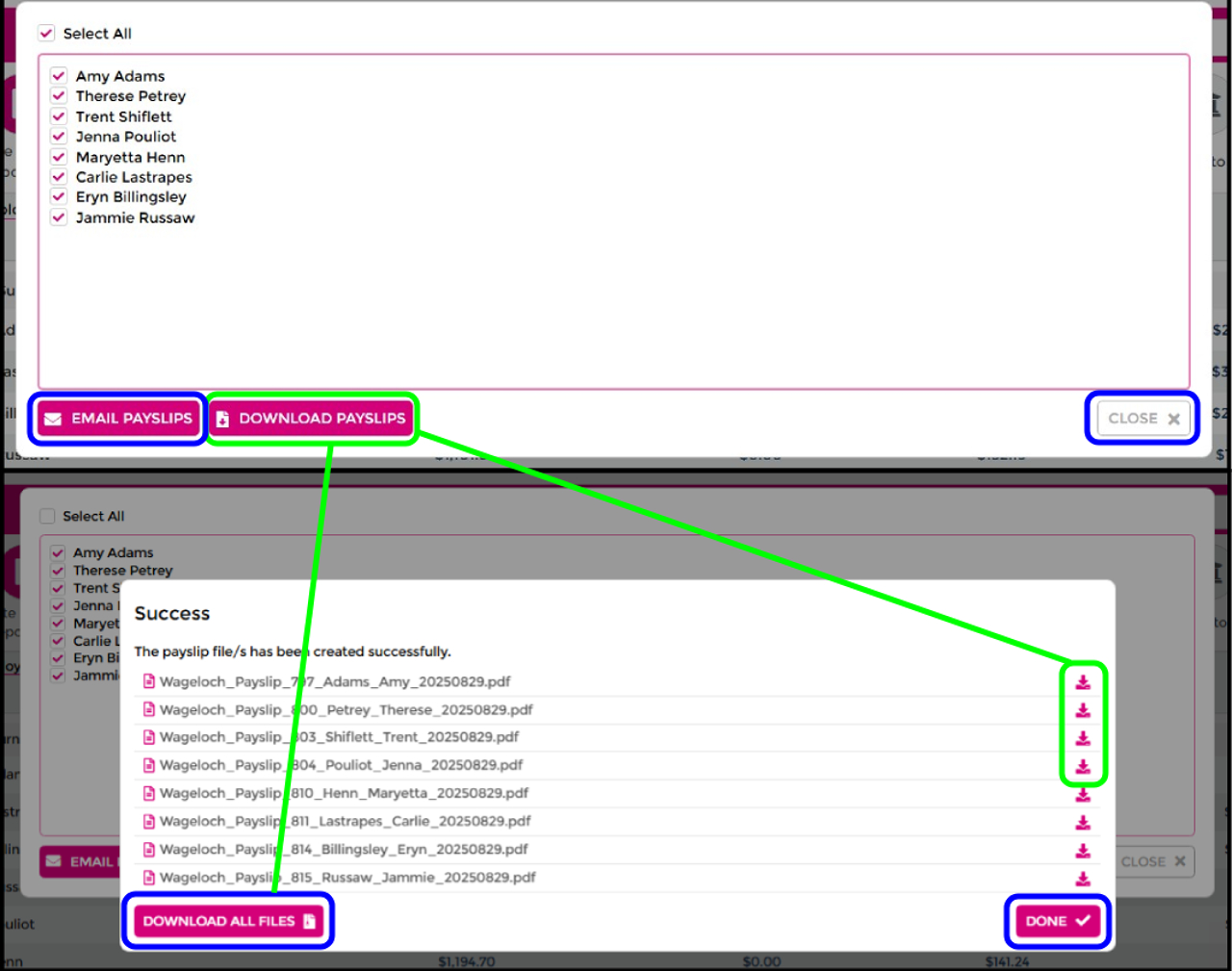
- Select Next, or select Email Pay Slips.
- Select the employees to email payslips to, then select Email Payslips.
- Once sent, confirm the success prompt, then select Close.
- To keep payslips for your records, select Download Payslips, then either download individual files or select Download All Files.
- Select Done when finished.
Pay superannuation
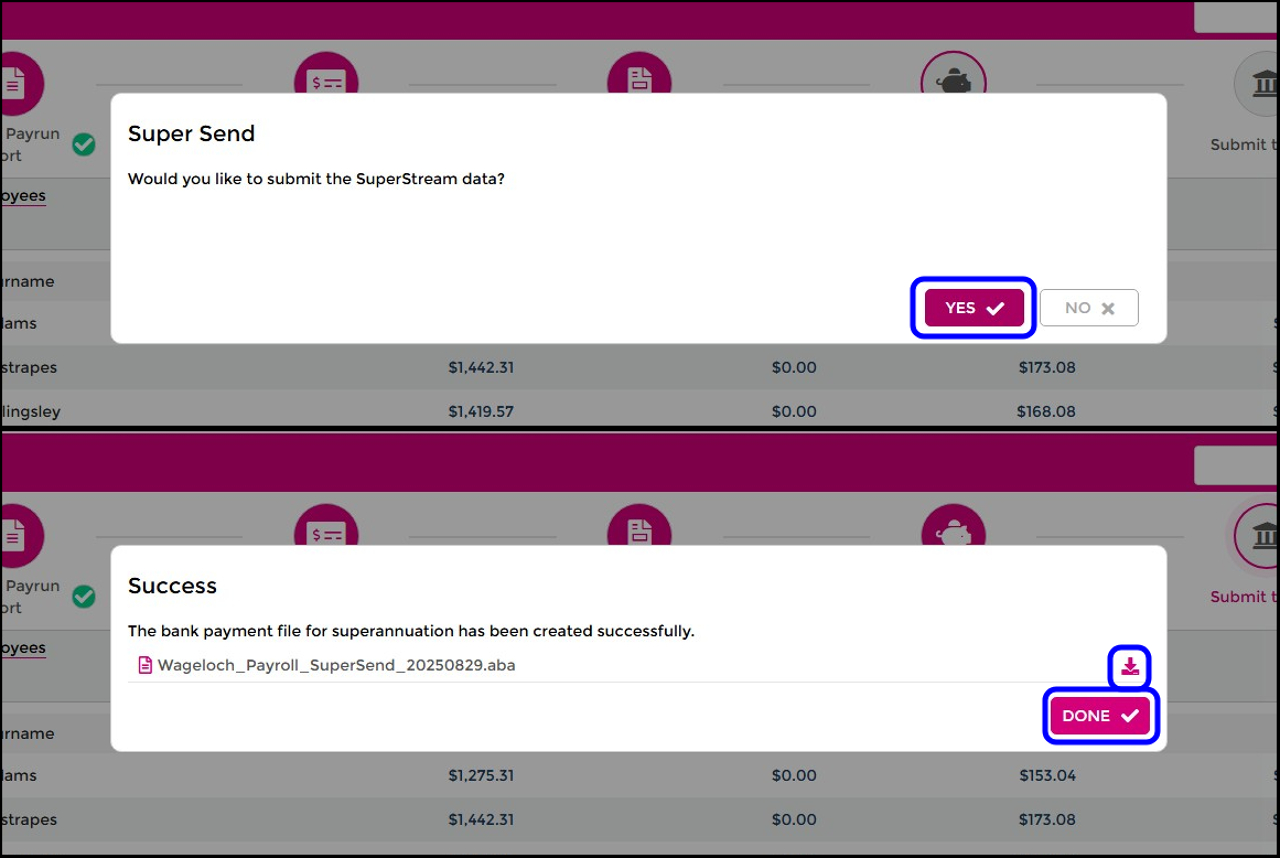
To generate the superannuation ABA file for this single pay run:
- Select Next, or select Pay Superannuation.
- Select Yes to generate the ABA file when prompted to submit SuperStream data, or No to generate it later.
- Select the file to download your SuperStream ABA file, then select Done.
Paying super for more than one pay run
See Pay superannuation for multiple pay runs below.
Submit to the ATO
To finish the pay run and report earnings and tax to the ATO:
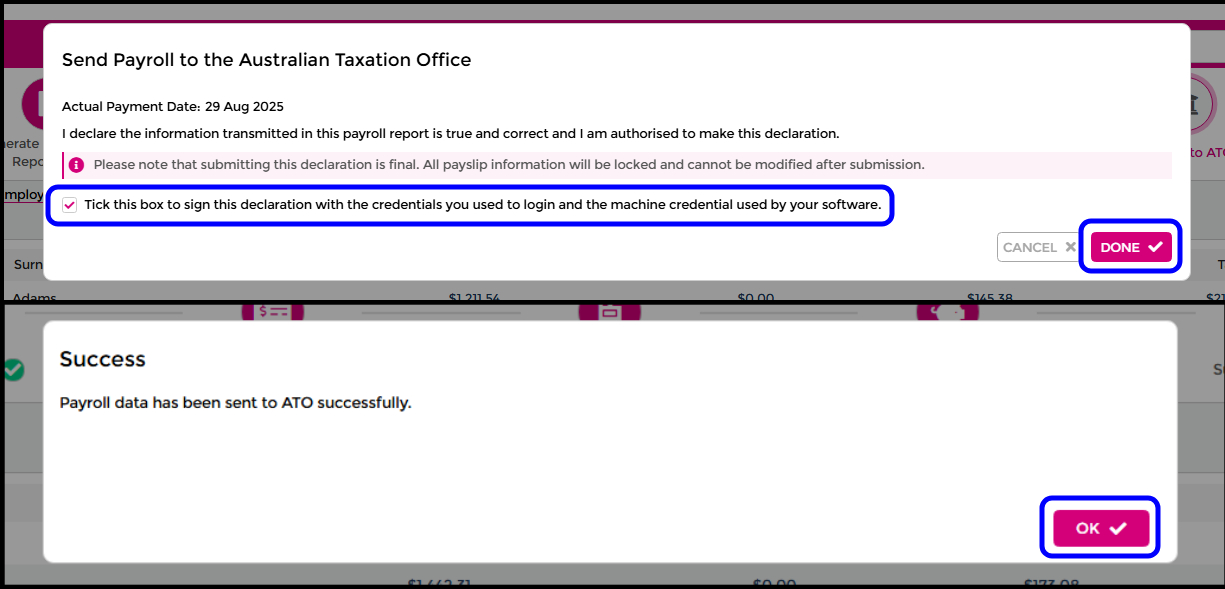
- Select Finish, or select Submit to ATO.
- Confirm the declaration prompt, stating that the payroll report is true, correct, and that you're authorised to make the declaration.
- Tick the box to add your digital signature.
- Select Done to finish the pay run and submit data to the ATO.
- Select OK to finish.
Submission is final
Submitting the declaration is final. All payslip information is locked and cannot be modified after submission.
After finishing the entire pay run, each successful stage shows a green tick to confirm it's complete.
View pay run history
To see historical pay runs, or check whether one is still in progress:
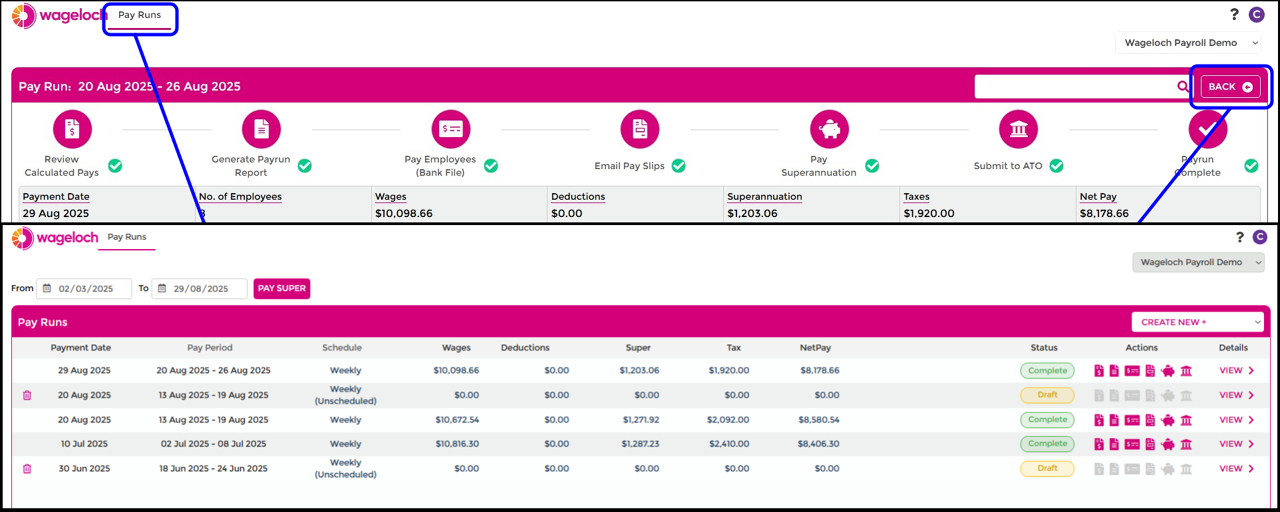
- Select Back, or select Pay Runs.
- The pay runs list shows any Draft or Completed pay runs, along with the payment date, pay period, and schedule.
- The list also shows total gross wages, deductions, superannuation, tax, and net pay for each pay run, and the icons for any completed actions.
- Select View on any pay run to see the data that was processed, or is in progress.
Pay superannuation for multiple pay runs
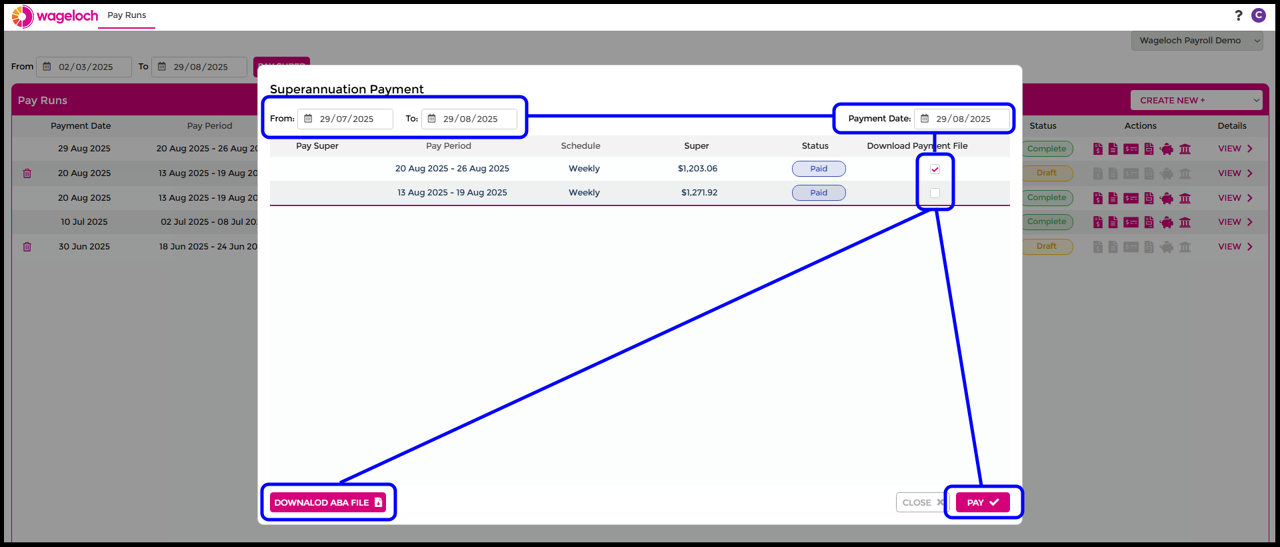
- On the Pay Runs home screen, select Pay Super.
- Choose the From and To date range you want to process for.
- Select the Payment Date you want to pay the superannuation.
- Select the Pay Periods you need to pay super for.
- Select Download ABA File, or select Pay to confirm you'd like to pay SuperStream.
- Download your ABA file to process.
Troubleshooting
My bank rejected the ABA file
Check that the payment date in the file matches the date you upload it to your bank. Regenerate the bank file with the correct date if needed.
The timesheet export looks wrong in the pay run
Site staff can unsubmit the timesheet, make the required adjustments, then submit it again. Resubmitting overwrites any information already in the pay run.
Can I add a note that only one employee sees?
Yes. Use Add Note on that employee's payslip. The Notes button on the pay run screen instead adds a note visible to every employee on the pay run.
Can I still add an employee after the pay run has started?
Yes. Select Add on the pay run screen, select the employee, and complete their payslip before continuing.