
Documents tab
3 min read
Documents tab
The Documents tab in Wageloch HR holds reusable documents that do not necessarily fall under contracts or policies. You issue them to individual employees or add them to an onboarding workflow. Employees review, complete, and sign them electronically.
Before you start
- Documents work the same way as contracts and policies, but in their own tab. For contract and policy templates, see Contracts and policies.
- To add a document to onboarding, edit an existing onboarding template or create a new one. See Onboarding workflows.
Open the Documents tab
Go to HR > Documents. The tab lists the documents available in your HR setup.
You can use a document in two ways:
- Issue it directly to one employee.
- Add it to an onboarding workflow so Wageloch issues it automatically during onboarding.

Create and manage documents
You manage documents in the same way as contracts and policies. You can:
- Upload a document with Upload Document.
- Edit a document.
- Copy a document with Copy Document.
- Add placeholders, text fields, and signatures.
- Send a document to an employee or add it to an onboarding workflow.
The toolbar also includes Custom Placeholder.
Add a document to an onboarding workflow
- Go to HR > Onboarding.
- Edit an existing template, or create a new one.
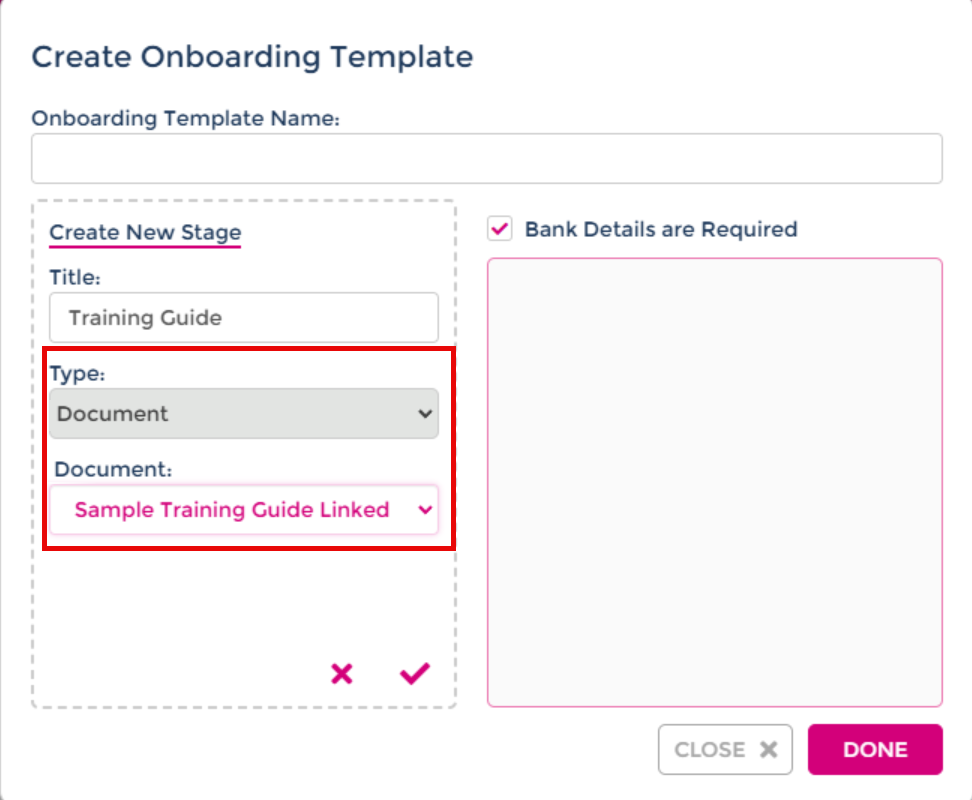
- In the onboarding template window, select Document in the Type dropdown.
- Select the document you want to add from the list. The list shows the documents created in the Documents tab.
- Select Done.
INFO
Document Upload in onboarding has been renamed Employee Upload.
Archive a document
You can archive documents, contracts, and policies in the HR module. Archiving removes an item from the current view.
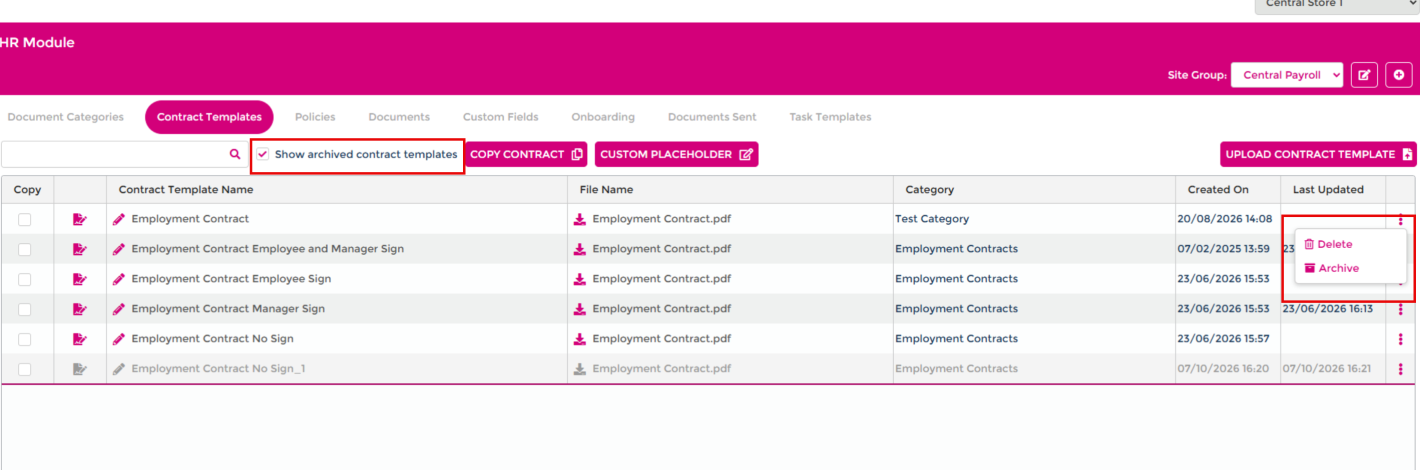
The screenshots in both this section and the next are from the Contract Templates tab.
-
Go to HR > Documents.
-
Select the three-dot menu next to the document. The menu shows Archive and Delete.
-
Select Archive.
Documents in use
You can't archive or delete a document while an active onboarding workflow uses it. Wageloch shows a message that names the workflows using the document. Go to each listed workflow, remove the document, then archive it.
View and restore archived documents
To restore an archived document:
-
Go to HR > Documents.
-
Tick Show archived documents. Archived documents appear greyed out at the bottom of the list.
-
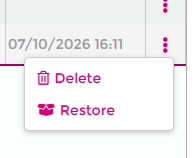
Select the three-dot menu next to the archived document. The menu shows Delete and Restore.
-
Select Restore.