
RFID Scanner
2 min read
RFID Scanner
Use this guide to configure RFID tag clocking in Wageloch Time Kiosk on Windows PC.
Set up Time Kiosk for RFID
- Confirm the RFID reader is connected to a working USB port.
- After completing Time Kiosk installation, open Wageloch Time Kiosk from the desktop.
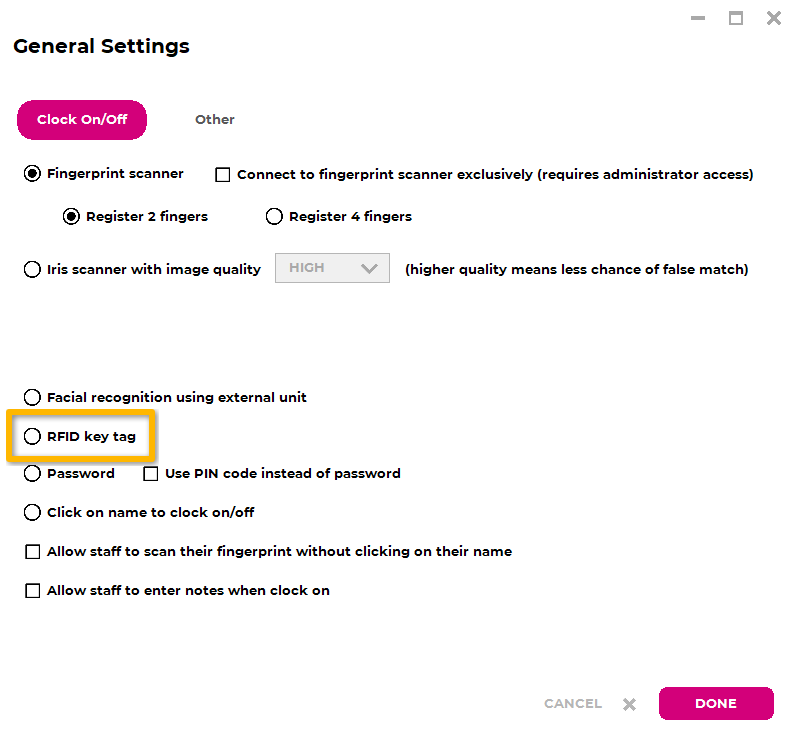
- In the clock method options, select RFID key tag.
- Select Done to save.
Register RFID tags to staff
- Give each employee their assigned RFID tag.
- In Time Kiosk, select the employee name you want to register.
- Swipe the ID tag over the reader.
- Confirm registration from the audible beep and on-screen confirmation.
When registration is complete, the employee should no longer show a question mark beside their name.
Clock in and clock out
To clock in or out with RFID:
- Keep Wageloch Time Kiosk open on screen.
- Swipe the staff member ID tag over the reader at shift start/end and breaks.
- Confirm the beep and on-screen message (for example, Good Morning, Good Afternoon, or Goodbye).
Delete or reassign RFID tags
Use this process when a tag is lost, reassigned, or assigned incorrectly.
- Open Wageloch Time Kiosk.
- Select the Settings cog.
- Select ID Tag Register.
- Sign in with Wageloch admin credentials.
- Find the staff member in the list.
- Remove the ID number from their row.
- Select Done to save.
The staff member can now be re-registered with the same tag or a new tag.